Note
Access to this page requires authorization. You can try signing in or changing directories.
Access to this page requires authorization. You can try changing directories.
The compare and commit experience in Microsoft Fabric shows the differences between your workspace and the connected Git branch. Before you commit, undo, update, or resolve a conflict, you can inspect changed files in a side-by-side or inline comparison. When reviewing workspace changes, you can commit them directly from the same experience.
Note
When you commit a Fabric item, all changed files in that item are included in the commit. For supported Fabric items, it is possible to perform a file-level commit, allowing you to commit specific files within the item and leave the remaining files uncommitted. File-level commit is currently in preview and is also available through the Commit To Git API.
This article explains how to review workspace changes, incoming Git updates, and conflicts; commit workspace changes; and understand supported scenarios and limitations.
What you can do
- Review workspace changes before you commit.
- Commit a Fabric items, or subset of files for supported items (Preview).
- Review incoming Git changes before you update the workspace.
- Compare conflicted items before you resolve them.
Where you can review changes
You can open the compare experience from multiple locations. The following table summarizes the entry points.
| Location | What you can review |
|---|---|
| Changes tab | Workspace changes since the last Git sync. The workspace side of the comparison is highlighted in green. |
| Updates tab | Changes in the connected Git branch since the last Git sync. The Git side of the comparison is highlighted in green. |
| Conflict dialog | Conflicted items in three comparison modes: Last sync vs. remote, Workspace vs. remote, and Last sync vs. workspace. |
| Individual item | The selected item's differences in an expanded view. Other items remain collapsed but are still available in the dialog. |
Review and commit workspace changes
Use the Changes tab to inspect changes made in the workspace and choose what to commit to Git.
At the top of your workspace, select Source control, and then select the Changes tab.
Select Review and commit changes at the top of the pane to open all workspace changes. To start with a specific item, point to the item and select Review and commit changes next to it.
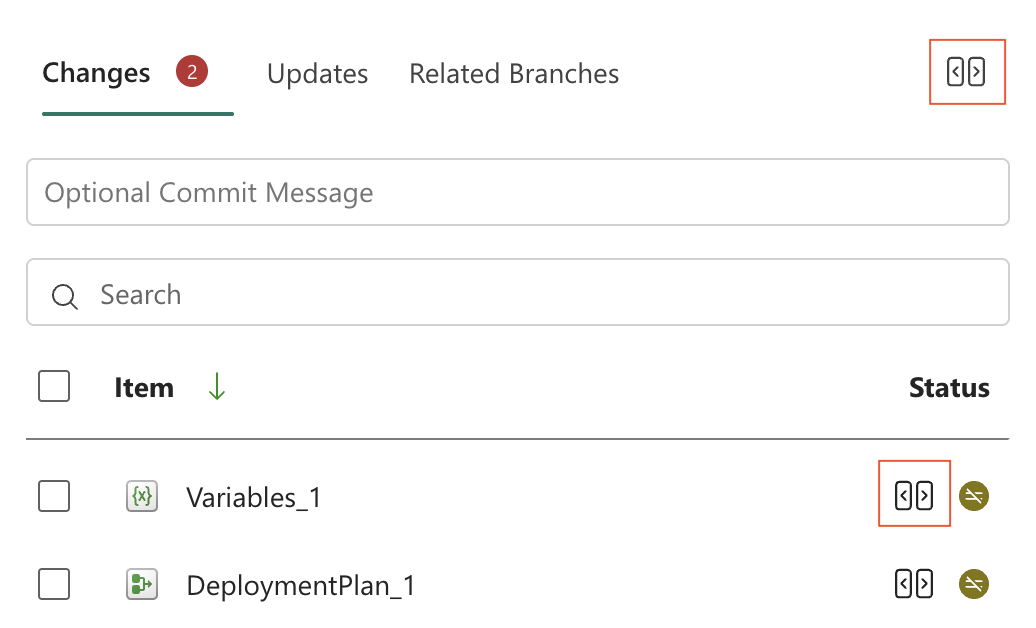
In the compare dialog, expand the item and review its changed files. An icon identifies each file as new, modified, or deleted. You can inspect the changes in side-by-side or inline mode. Use the toggle in the compare dialog to switch between a folder-based view and flat list view of workspace items.
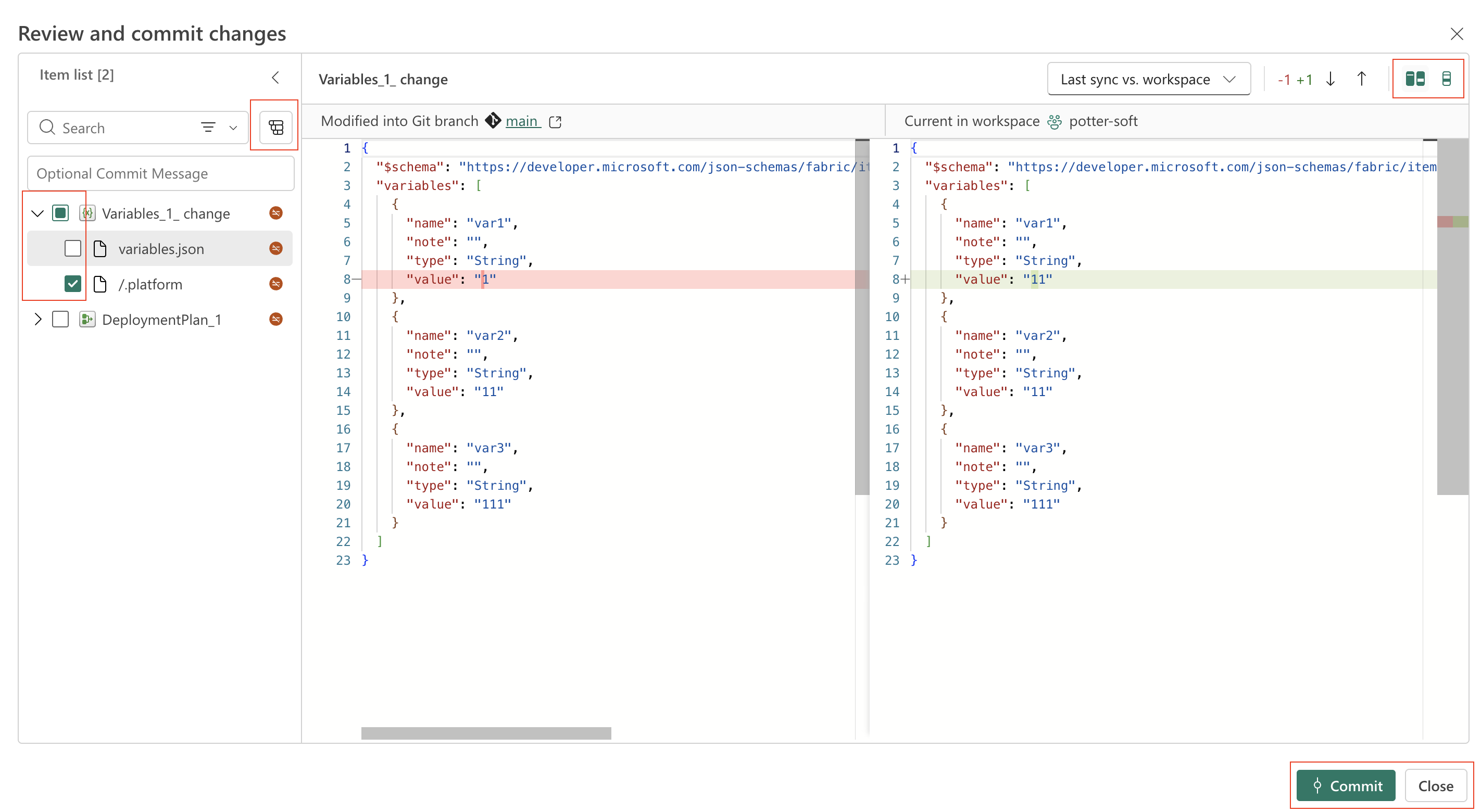
Select the item-level checkbox to include all of the item's files, or select individual file checkboxes to include only those files in the commit. Required system files are selected automatically and can't be excluded from the commit.
Note
File-level commit is in preview and is available only for supported items in the Modified state.
Enter a commit message, and then select Commit. If you selected only some files in an item, Fabric displays a warning that a partial commit might leave the item definition incomplete or invalid. For example, committing a Warehouse view without its dependent table can prevent the item from being imported. To restore a valid definition, manually fix the files in Git or commit the remaining required files.
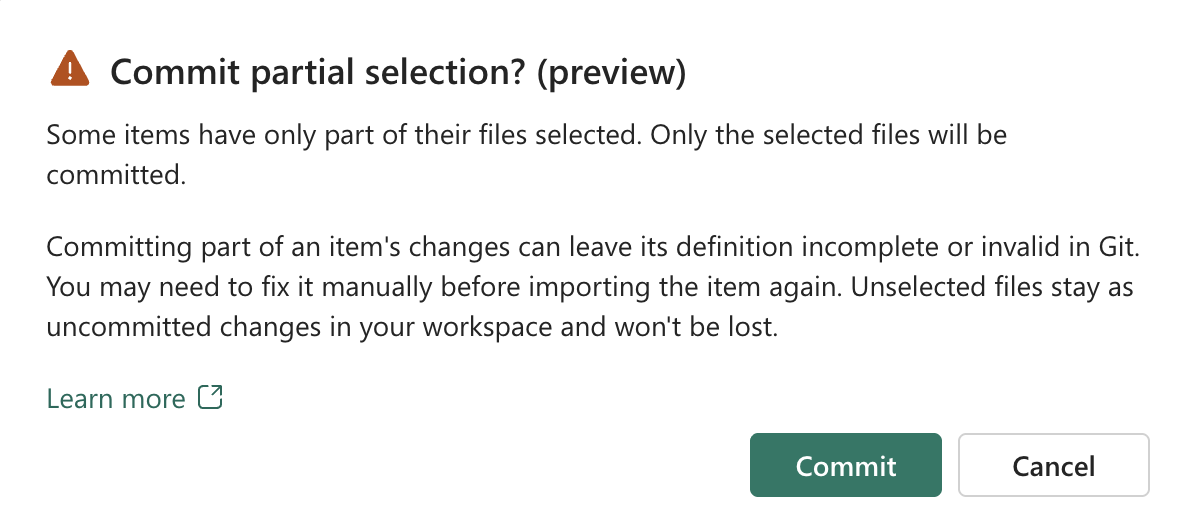
Unselected files remain uncommitted, so you can continue working on them and include them in a later commit. This lets you commit completed work without waiting for the entire item to be ready.
Keep file selections for a later commit
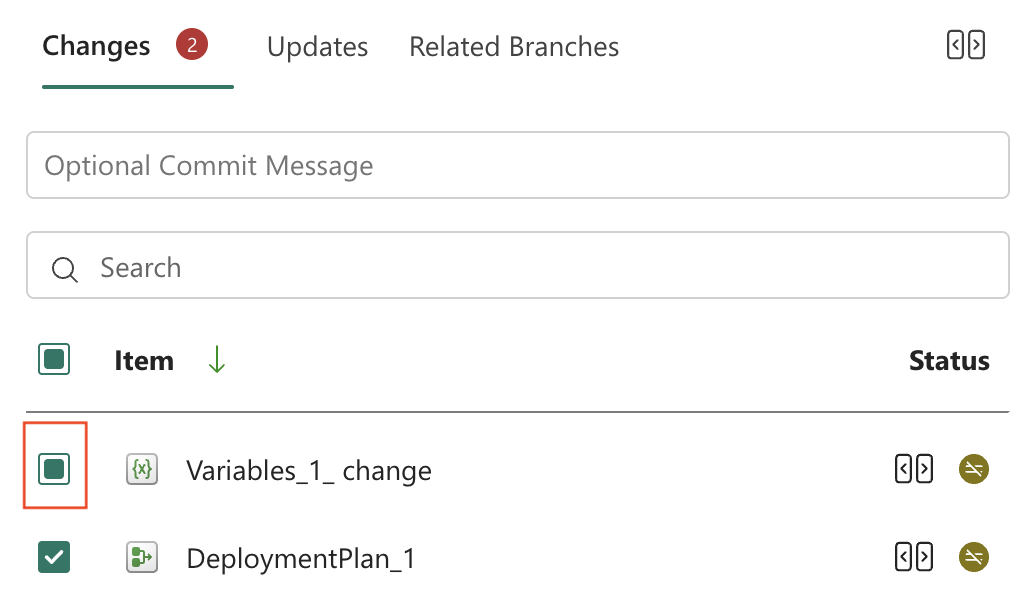
You can close the compare dialog without losing your file selections. Fabric retains the selected files in the Source control pane. A partially selected item displays a partially selected checkbox, and its tooltip lists the selected files. You can reopen the compare dialog or commit directly from the pane without selecting the files again.
Review incoming updates
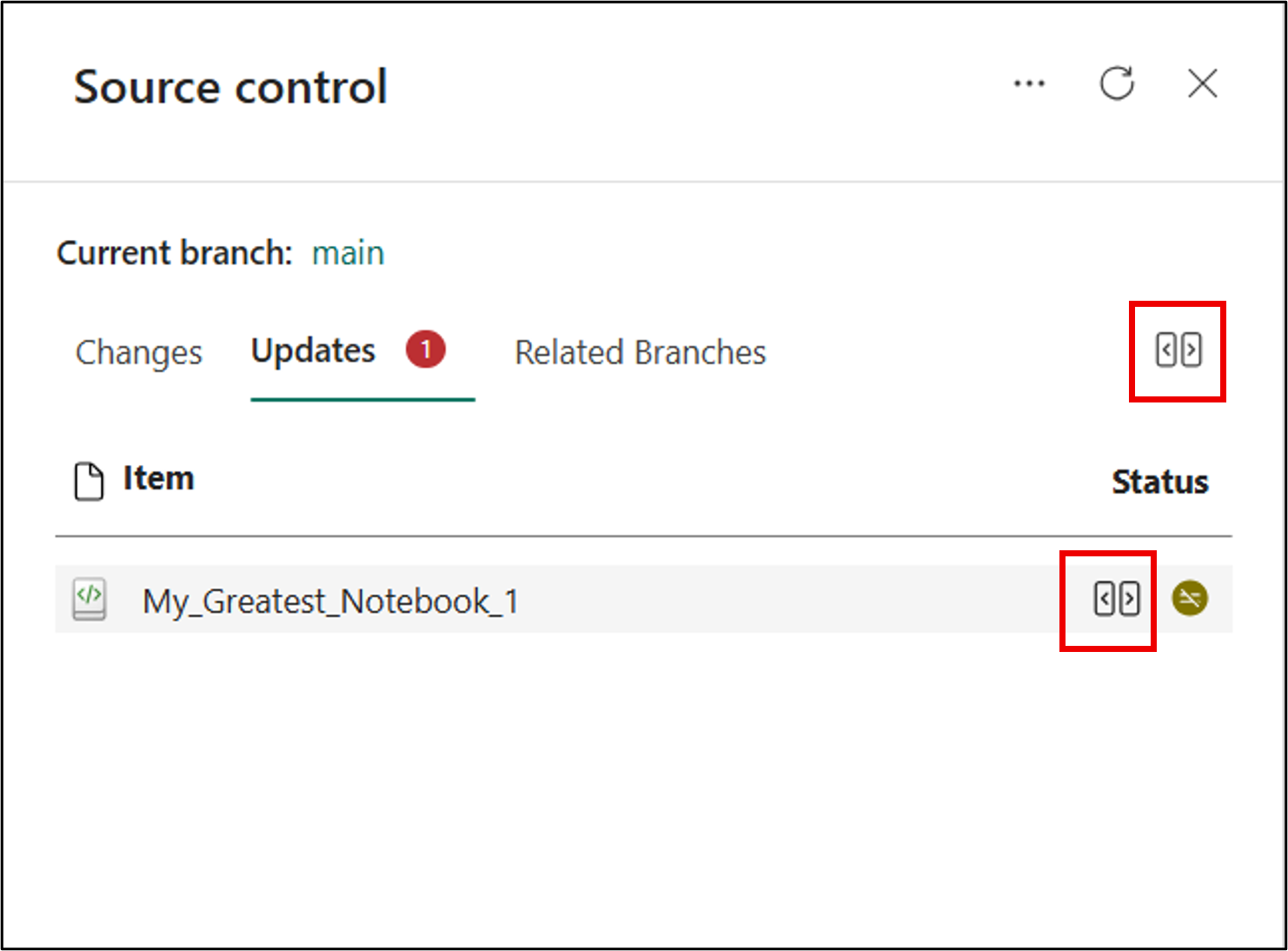
Use the Updates tab to inspect changes in the connected Git branch before updating the workspace.
- At the top of your workspace, select Source control, and then select the Updates tab.
- Select Review changes at the top of the pane to open all incoming changes. To start with a specific item, point to the item and select Review changes next to it.
- In the compare dialog, review the incoming changes.
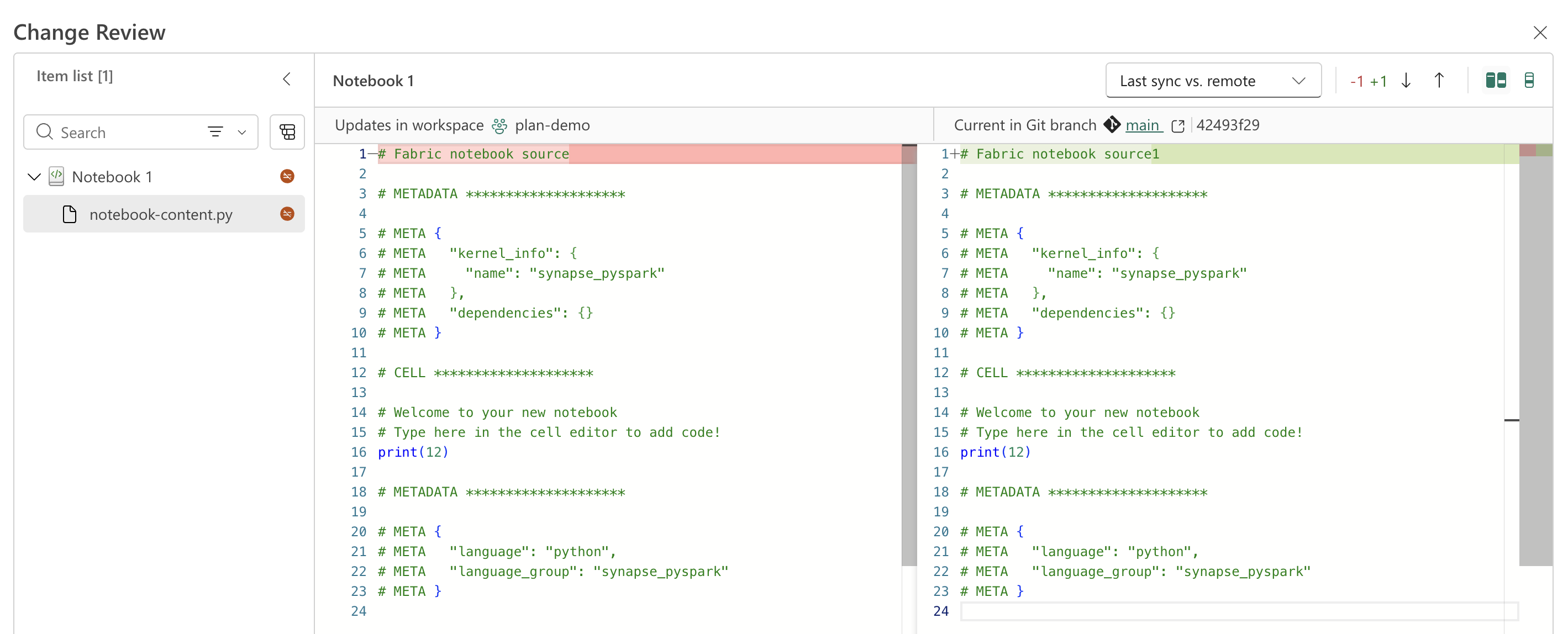
- Return to the Updates tab to continue the update operation.
Review conflicts
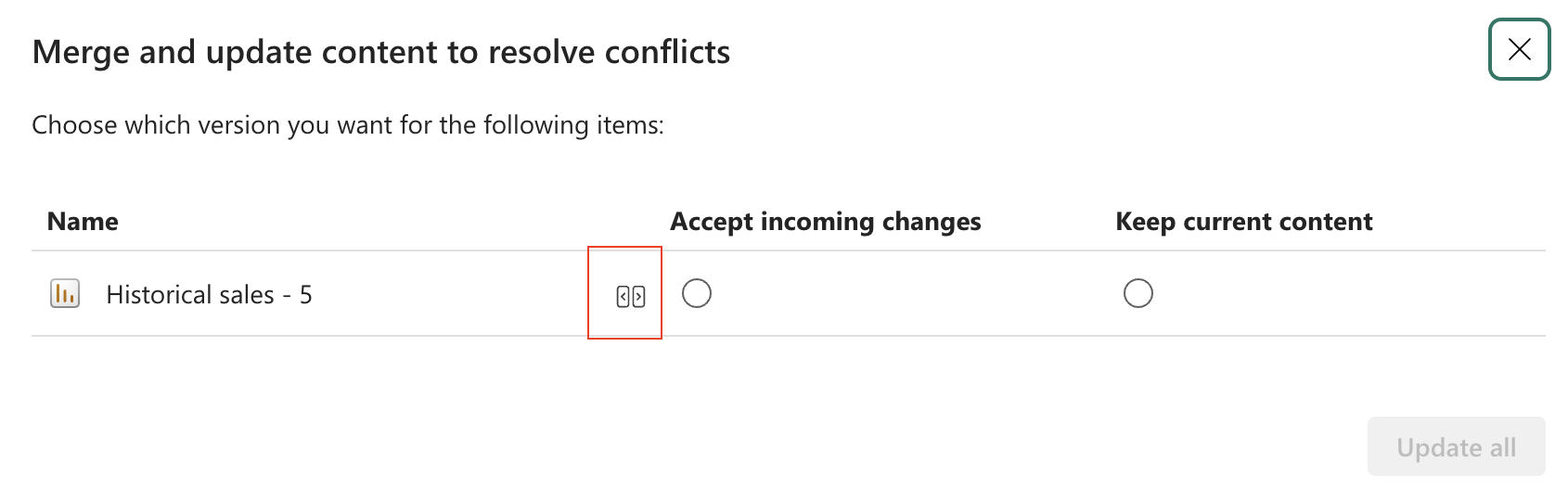
Use the compare dialog to inspect differences before deciding how to resolve a conflict. You can open the compare dialog for a conflicted item in either of these ways:
Select the conflicted item from the Changes or Updates tab.
Open the compare view from the resolve-conflict dialog.
Choose a comparison mode
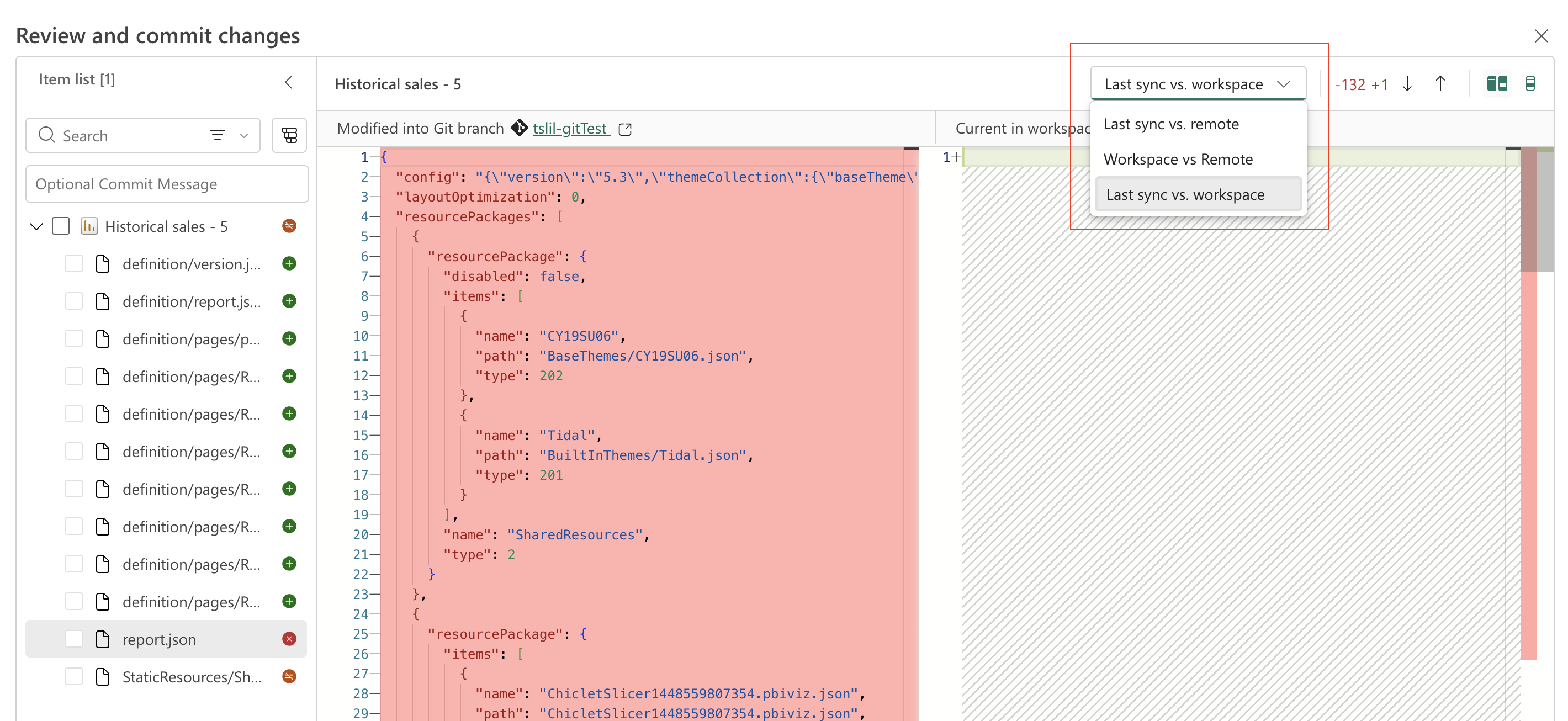
For a conflicted item, use the menu in the upper-right corner of the compare dialog to choose one of these comparison modes:
Last sync vs. remote: Compares the last workspace sync to Git version with the current connected Git branch version.
Workspace vs. remote: Compares the current workspace version with the current connected Git branch version.
Last sync vs. workspace: Compares the last workspace sync to Git version with current workspace version changes.
Items that support file-level commit
File level commit (Preview) is available only for the following items:
- Data Warehouse items:
- Database items:
- Data Engineering items:
- Data Factory items:
- CI/CD items:
System files and platform changes
System files, metadata, and platform version changes participate in Git synchronization. When Fabric detects a difference in any of these files, it marks the item as Modified and displays it on the Changes or Updates tab.
System-file changes are represented by / in the list of changes or updates.
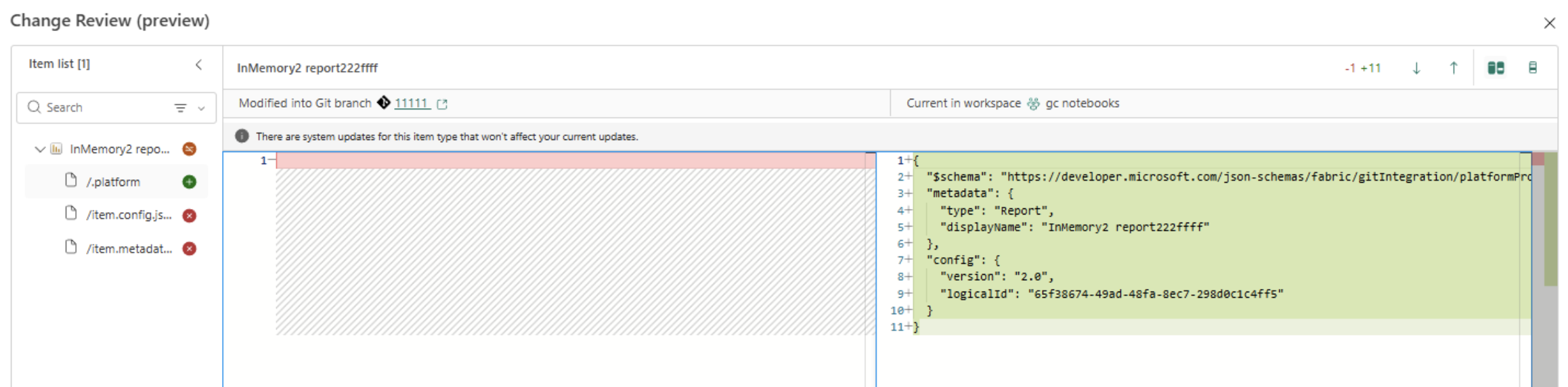
In most cases, you can review system-file changes like other changes. For example, a platform version update might add and delete system files without changing the content you edited.
During a file-level commit, required system files are selected automatically and can't be excluded from the commit.
For more information, see Automatically generated system files.
Considerations and limitations
- The compare dialog doesn't display the contents of binary files or files larger than 1 MB.
- Git status can detect an encoding-only change, such as a file manually uploaded to Git with a different encoding, even when the compare dialog doesn't display a difference.
- File-level commit is in preview and is available only for supported items in the Modified state.
- Commit to another branch from the compare code experience isn't supported, including when the source control pane contains a partial selection.