Note
Access to this page requires authorization. You can try signing in or changing directories.
Access to this page requires authorization. You can try changing directories.
Applies to: ✅ Fabric Data Engineering and Data Science
Resource profiles in Fabric Data Engineering help you get optimized Spark compute configurations without manual tuning. You describe your workload by selecting a primary use case, data volume, and a few other high-level inputs. Fabric then generates a recommended configuration — including node sizes, autoscale settings, and runtime version — based on proven best practices and internal performance data.
Why use resource profiles
Resource profiles provide:
- Optimized from the start: Your first Spark session runs on compute tuned for your workload — no iterative benchmarking required.
- Consistency: All Spark jobs in the workspace share the same performance-tuned configuration.
- Better price-performance: Right-sized resources reduce waste and improve throughput.
- Lower operational overhead: Fewer tuning cycles and fewer support escalations.
Prerequisites
To configure resource profiles, you must have the Admin role for the workspace.
Configure a resource profile
To configure a resource profile for your workspace:
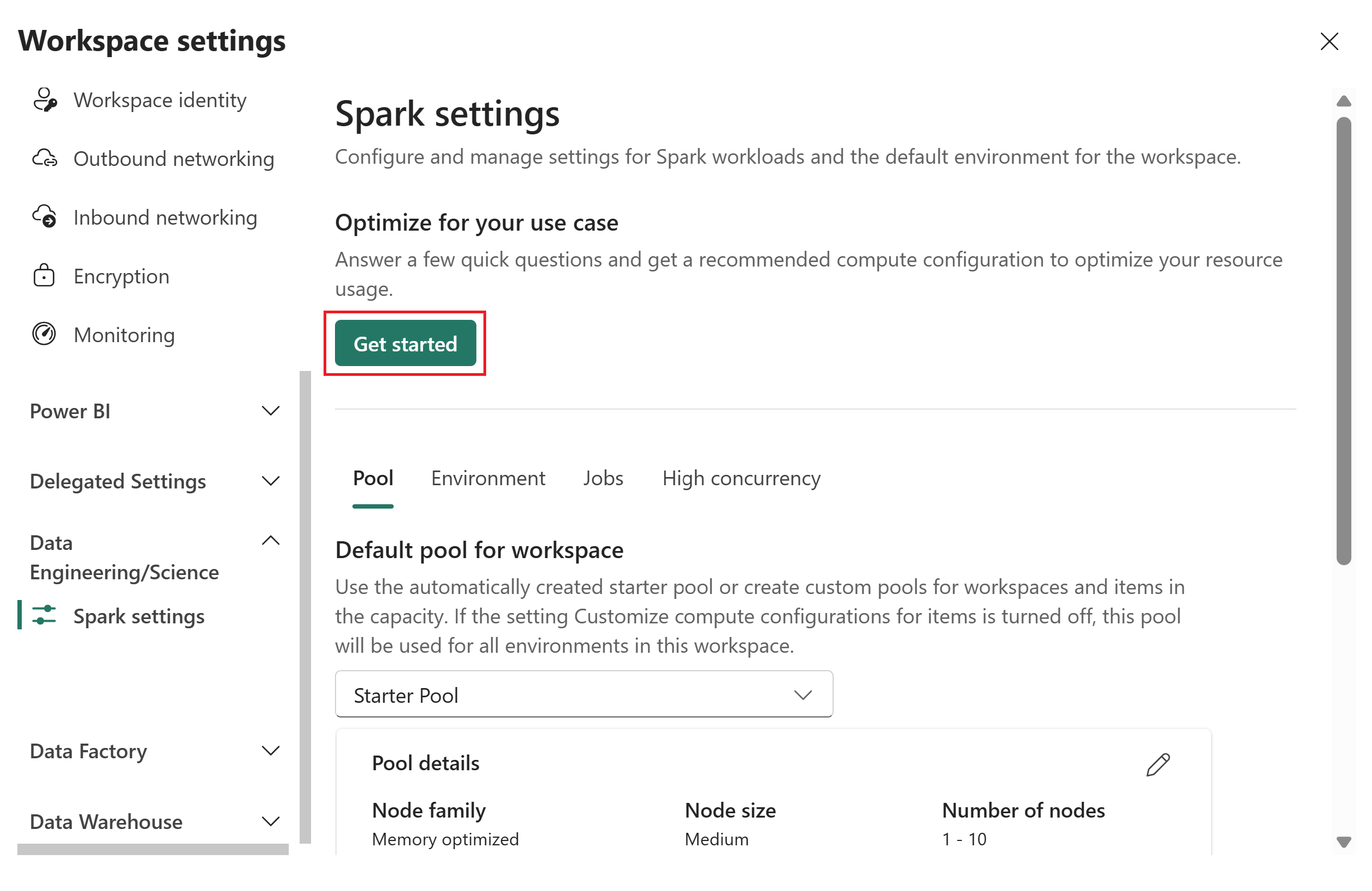
Go to your workspace, and select Workspace settings.
Expand Data Engineering/Science in the left pane and then select Spark settings.
To get a recommended compute configuration to optimize your resource usage, under Optimize for your use case, select Get started.
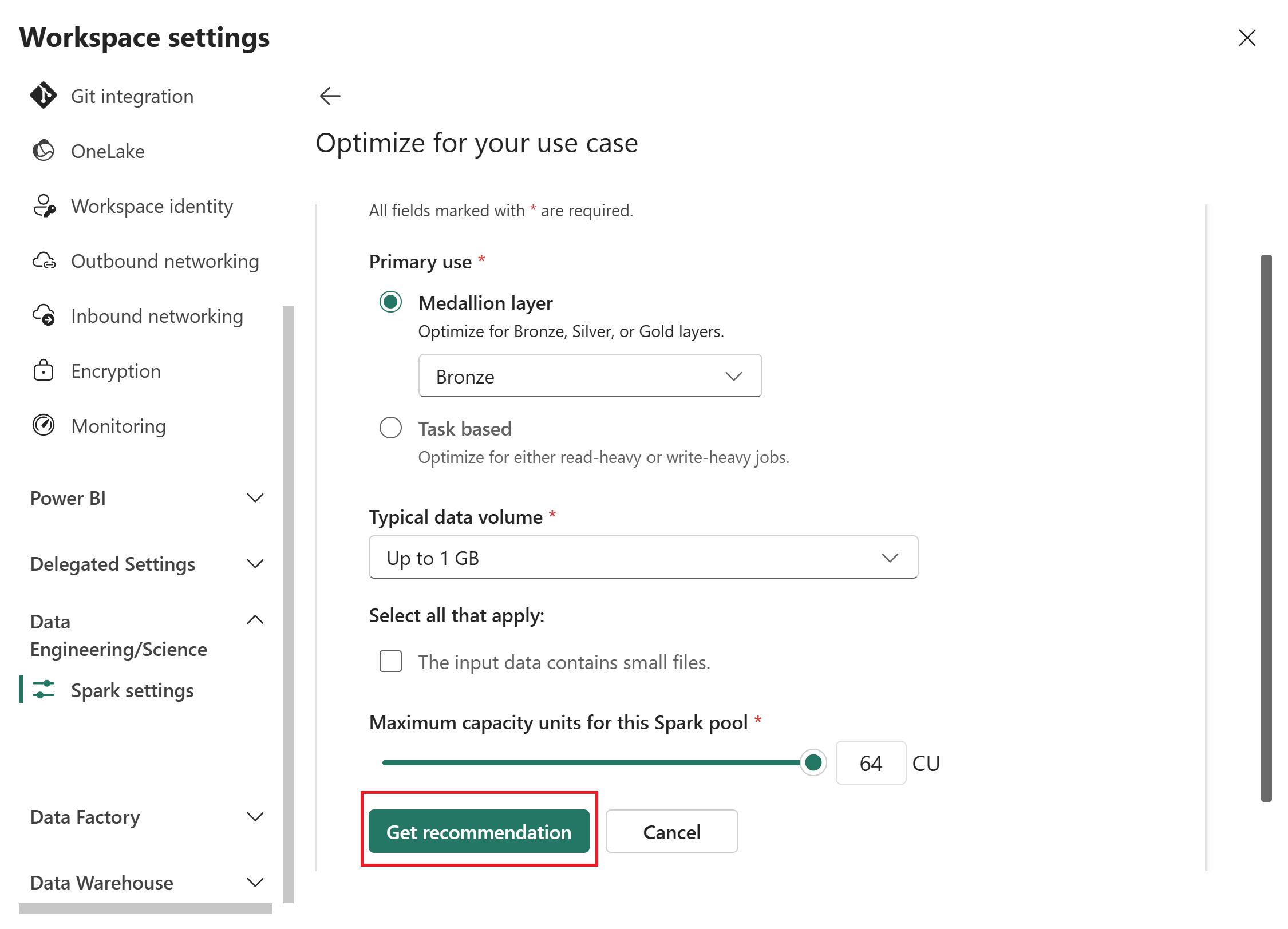
In the Optimize for your use case page, provide the following inputs:
- Primary use case: Select either Medallion layer or Task based, then choose a specific option from the dropdown. Medallion layer options are Bronze, Silver, or Gold. Task-based options are Read optimized or Write optimized. For guidance on choosing a use case, see Primary use case reference.
- Typical data volume: Select a volume from the dropdown: Up to 1 GB, 10 GB, 100 GB, 1 TB, or Over 1 TB.
- Maximum capacity units (CU): Use the slider to set the maximum CU limit for the Spark pool.
Select Get recommendation.
Fabric generates an optimized configuration based on your inputs.
Review the recommendation. The recommendation includes values for two categories:
- Spark pool: Pool type, node family, node size, autoscale, and dynamic executor allocation.
- Environment: Runtime version, Spark driver cores and memory, Spark executor cores, memory, and instances.
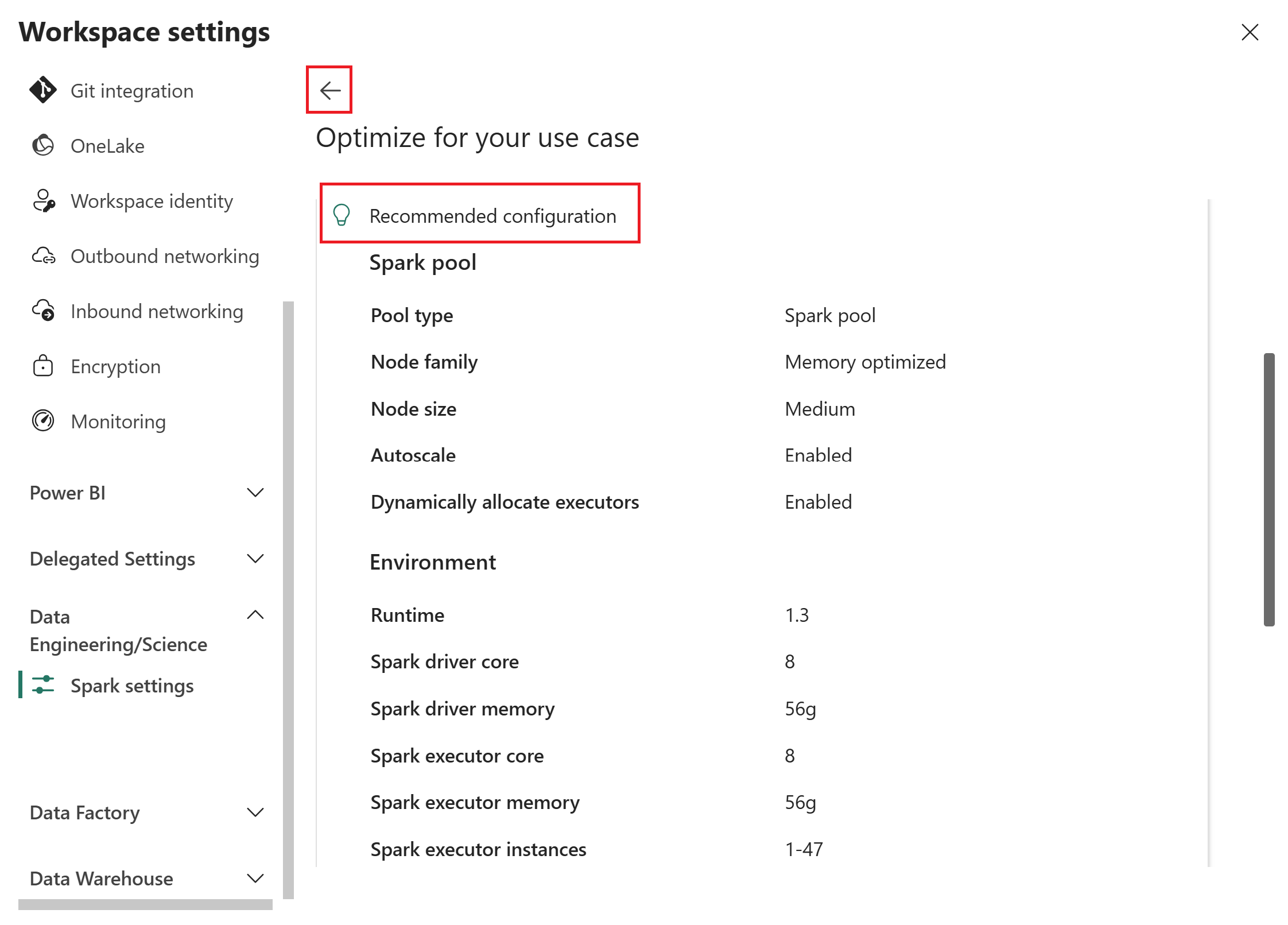
If you want to adjust your inputs, select the back arrow to return to the previous page, update your selections, and then select Get recommendation again.
Enter a Spark pool name and Environment for the configuration, then select Apply to save it to the workspace.
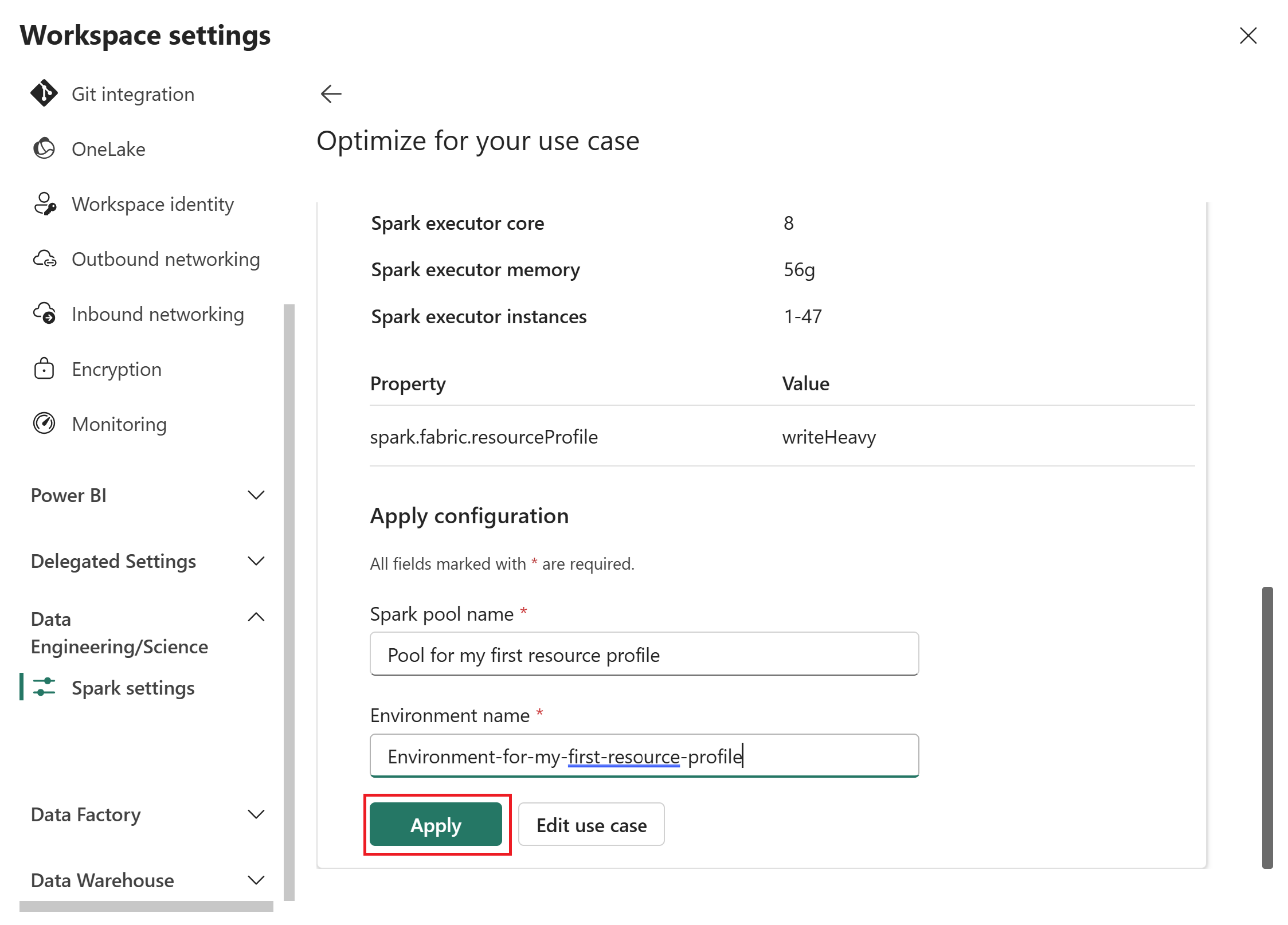
After you apply a resource profile, Fabric creates a custom Spark pool with the recommended settings.
Note
If your workspace doesn't already have a custom pool, the new pool is automatically set as the default pool for the workspace. If your workspace already has a default pool, you need to manually switch to the new pool in your Spark workspace settings. Active sessions are not affected until they are restarted.
Primary use case reference
Use the following guidance to select the right Primary use case input when you configure a resource profile:
Medallion layer
Choose Medallion layer if your data pipeline follows the medallion architecture pattern, where data moves through Bronze (raw), Silver (cleaned), and Gold (curated) stages. Each option tunes compute for the read/write characteristics typical of that stage.
| Use case | When to use |
|---|---|
| Bronze | Raw data ingestion, high write throughput, diverse formats |
| Silver | Cleansing and enrichment, balanced read/write with moderate joins |
| Gold | Aggregation and reporting, read-optimized for analytics and Power BI |
Task based
Choose Task based if your workload doesn't follow the medallion pattern or if it's dominated by a single access pattern. For example, use this option for standalone ETL jobs, interactive analysis notebooks, or streaming pipelines.
| Use case | When to use |
|---|---|
| Read optimized | Frequent reads and queries, interactive notebooks |
| Write optimized | High-volume ingestion, ETL pipelines, streaming |
Auto-update resource profiles
Resource profiles support an auto-update capability that keeps your Spark compute configuration aligned with the latest optimizations from Fabric. When auto-update is enabled, Fabric applies workload-specific Spark properties based on your resource profile type, without requiring manual tuning.
Auto-update configurations
Fabric provides three auto-update profiles, each tuned for a specific workload pattern:
Read-heavy for Spark workloads
Set via spark.fabric.resourceProfile.readHeavyForSparkAutoUpdate:
{
    "spark.databricks.delta.optimizeWrite.enabled": "true",
    "spark.databricks.delta.optimizeWrite.partitioned.enabled": "true",
    "spark.databricks.delta.optimizeWrite.binSize": "128"
}
Use this profile when your workload is dominated by Spark reads with moderate write optimization needs.
Read-heavy for Power BI workloads
Set via spark.fabric.resourceProfile.readHeavyForPBIAutoUpdate:
{
    "spark.sql.parquet.vorder.default": "true",
    "spark.databricks.delta.optimizeWrite.enabled": "true",
    "spark.databricks.delta.optimizeWrite.binSize": "1g"
}
Use this profile when your data is primarily consumed by Power BI. V-Order is enabled for optimal DirectLake performance, and a larger bin size produces fewer, larger files suited to analytical reads.
Write-heavy workloads
Set via spark.fabric.resourceProfile.writeHeavyAutoUpdate:
{
    "spark.sql.parquet.vorder.default": "false",
    "spark.databricks.delta.optimizeWrite.binSize": "128",
    "spark.databricks.delta.optimizeWrite.partitioned.enabled": "true"
}
Use this profile when your workload is write-intensive (for example, high-volume ingestion or ETL). V-Order is disabled to reduce write overhead, and optimized write with partitioning is enabled for efficient file layout.
How auto-update works
When a resource profile with auto-update is applied:
- Fabric selects the appropriate auto-update configuration based on your primary use case and workload type.
- The Spark properties are applied automatically to new sessions in the workspace.
- Active sessions aren't affected until they restart.
Note
Auto-update configurations optimize Delta Lake write behavior and file layout within the boundaries of your original profile inputs. They don't change your pool size, node configuration, or autoscale settings.
Configuration reference
| Setting | Applied properties | When to use |
|---|---|---|
spark.fabric.resourceProfile.readHeavyForSparkAutoUpdate |
Optimize write enabled, partitioned write, 128 MB bin size | Read-heavy Spark analytics |
spark.fabric.resourceProfile.readHeavyForPBIAutoUpdate |
V-Order enabled, optimize write, 1 GB bin size | Read-heavy Power BI/DirectLake |
spark.fabric.resourceProfile.writeHeavyAutoUpdate |
V-Order disabled, optimize write, 128 MB bin size, partitioned | Write-heavy ingestion and ETL |