Note
Access to this page requires authorization. You can try signing in or changing directories.
Access to this page requires authorization. You can try changing directories.
The Jira Cloud Microsoft 365 Copilot connector enables your organization to index Jira Cloud issues and make them searchable in Microsoft 365 Copilot and Microsoft Search experiences. This article provides troubleshooting guidance for the Jira Cloud Microsoft 365 Copilot connector. To verify Jira Cloud configuration information, see Set up the Jira Cloud service for connector ingestion.
Common error messages
The following table lists common errors that can occur during connector configuration or crawling, along with possible reasons.
| Step | Error message | Possible reason |
|---|---|---|
| Connection settings | The request is malformed or incorrect. | Incorrect Jira site URL. |
| Connection settings | Unable to reach the Jira cloud service for your Jira site. | Incorrect Jira site URL. |
| Connection settings | The client doesn't have permission to perform the action. | Invalid API token provided for Basic authentication. |
| Connection settings | "Something went wrong" error in OAuth pop-up window. | The scopes granted to the OAuth app don't match. The mismatched scopes are listed in the pop-up window. |
| Configuration (data preview) | Failed fetching sample data | An Atlassian app access rule might prevent the connector's OAuth app from accessing Jira issues. |
| Crawl time (post-configuration) | Can't authenticate with the data source. Verify the credentials associated with this data source are correct. | The connector account doesn't have one or more permissions required to crawl Jira. |
| Crawl time (post-configuration) | You don't have permission to access this data source. You can contact the owner of this data source to request permission. | If using OAuth, the app scopes might have changed, or the app might have expired or been deleted. If using Basic authentication, the API token might have expired or been deleted. |
| Crawl time (post-configuration) | Error code: 1003 - You don't have permission to access this data source. Detailed error code: 7612 | The crawl account doesn't have Browse projects permission for the listed project (shown in the Item ID column). |
Failed fetching sample data
If you see Failed fetching sample data when previewing data during connector configuration with OAuth authentication, check whether Atlassian app access rules restrict the connector's access to Jira issues. These rules can block the OAuth app even when the account used to authenticate can open the same issues in Jira. App access restrictions are one possible cause of this error, not the only cause.
Check Atlassian app access rules
Ask your Atlassian organization admin to complete the following steps:
Open Atlassian Administration and select the organization that owns your Jira site, such as
contoso.atlassian.net.Go to Security > Data protection > Data security policy > Marketplace and custom app access. These settings are in the organization admin portal, not Jira's Global permissions page.
Review the active control settings and overrides for the affected Jira projects, which might be labeled as spaces in Atlassian Administration. Check whether they block the OAuth app used by your connection: Microsoft 365 Copilot connector - Jira for the Microsoft-managed OAuth option, or your own app for Customized Atlassian Jira OAuth 2.0.
On the Default controls tab, Allowed doesn't mean that every project is accessible to apps. Check Overrides for Blocked entries, as shown in the following example.
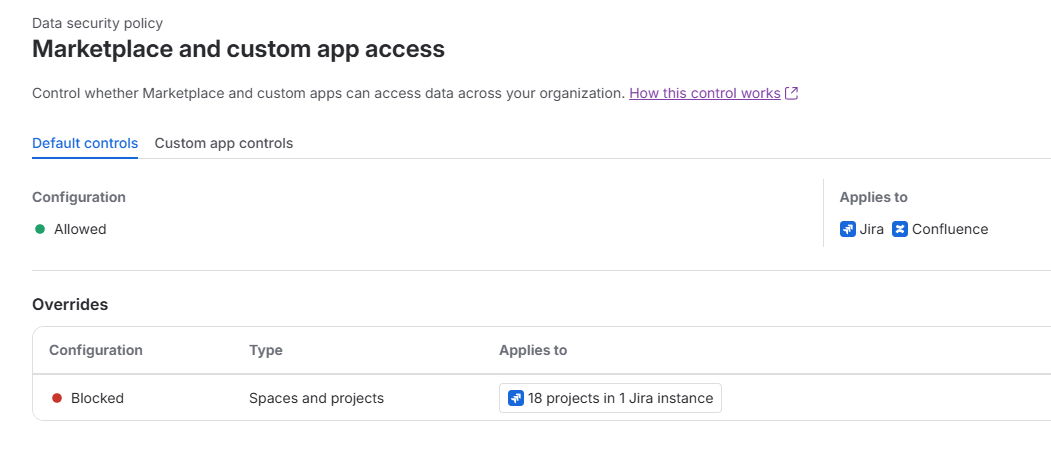
If a rule blocks the app and your organization approves access, select Create draft, or Edit if a draft already exists. Open the Custom app controls tab.
If the app doesn't already have a custom app control, select Add app control, select the app used by your connection, and then select Add. Otherwise, review its existing control.
The following example shows Microsoft 365 Copilot connector - Jira listed as Allowed on the Custom app controls tab.
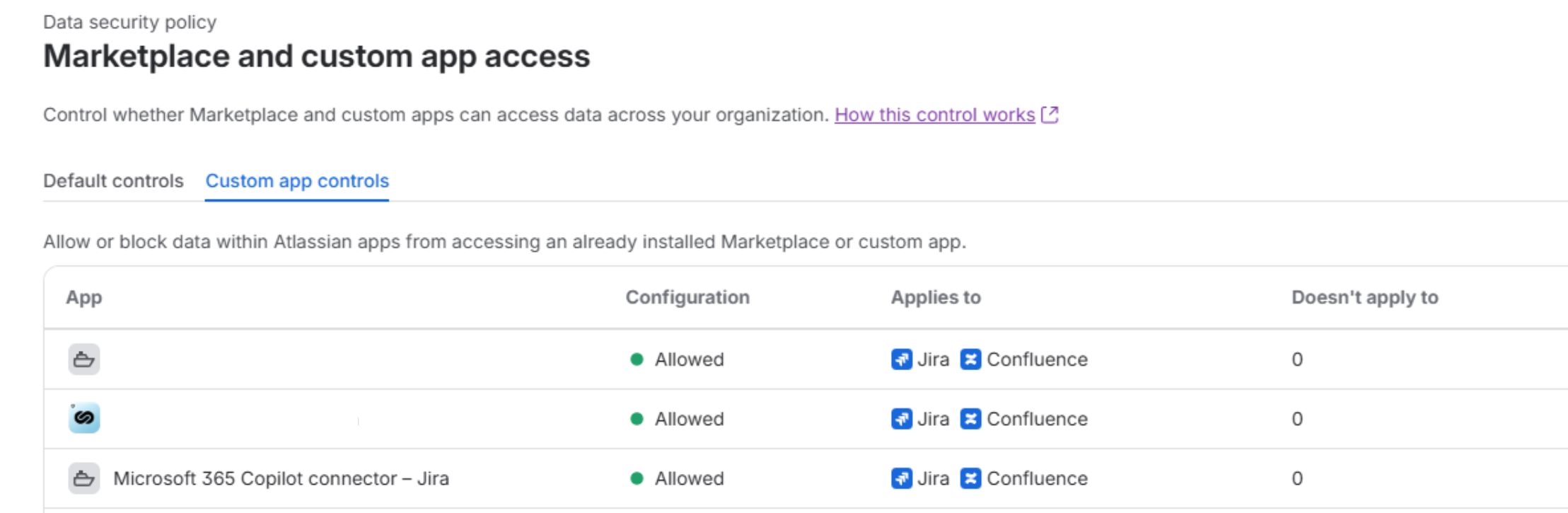
Review the draft and confirm the app's access scope; new app controls allow all Atlassian apps and spaces by default. Adjust access if needed, then select Activate to replace the live configuration. Saving a draft alone doesn't apply the changes.
Note
Allowing individual apps through custom app controls requires Atlassian Guard Standard or Premium. Available controls depend on your subscription. For current instructions and plan requirements, see Block Marketplace and custom app access.
Retry the data preview
Return to the Jira Cloud connector configuration in the Microsoft 365 admin center. Confirm that the configured OAuth app is the one the admin allowed, authenticate again if prompted, and retry the data preview. Verify that sample issue data loads successfully.
If the error persists, or no app access rule blocks the connector, verify the connector account's Browse projects permission, issue-level access, required OAuth scopes, and project and JQL filters. See General issue resolution steps and Set up the Jira Cloud service for connector ingestion.
Before contacting support, collect the details in Information to collect to open a support ticket. Also include the authentication method, OAuth app name, and screenshots of the error and relevant active app access settings. Don't include passwords, API tokens, client secrets, or access tokens.
Project or issue not crawled
If a Jira project or issue doesn't appear in the connector content set, use the following steps to troubleshoot:
Confirm the project is in scope.
- Open the Jira connector in the Microsoft 365 admin center.
- Go to Edit > Content and expand Choose projects and filter data.
- Verify that the connection crawls the entire site or specific projects.
- Capture a screenshot of the configuration.
Verify that the connector account can access the project and issue in Jira.
- Sign in using the connector authentication account.
- Open the project and capture a screenshot.
- Open the issue directly and confirm that it loads successfully.
- If you can't open an issue, you don't have permission to the Jira project.
Use the permission helper to confirm project permissions.
- Go to Project settings > Permissions.
- Open Permission helper.
- Select the connector account and an issue.
- Select Browse Projects and submit.
- Capture screenshots of the result.
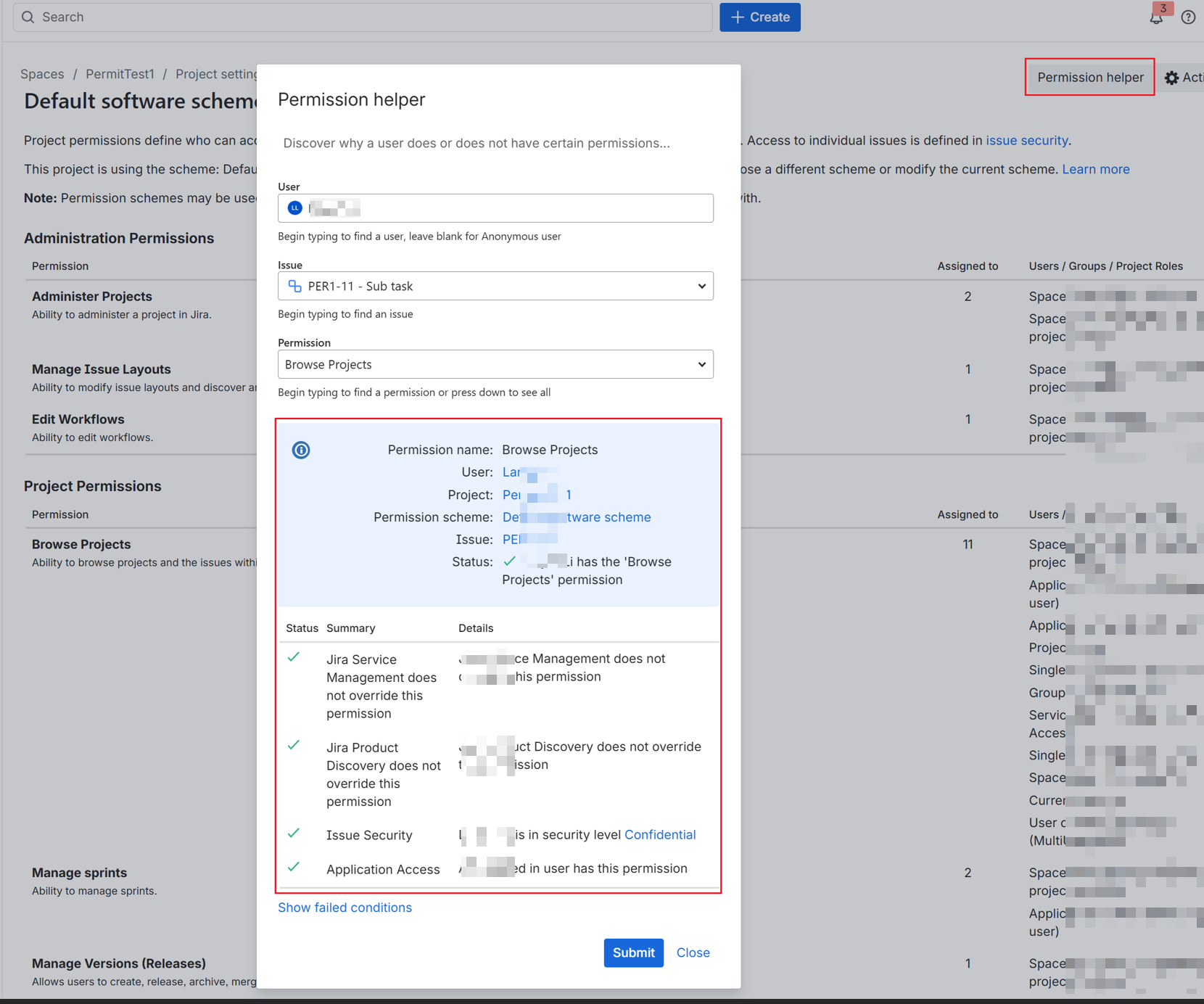
If only one issue is missing, check issue-level restrictions.
- Open the issue and verify if a different security level is applied.
- Capture screenshots of the issue details and security configuration if applicable.
Confirm that the issue is pending ingestion.
- Record the issue creation time.
- Compare it with the expected crawl timing.
Issue indexed but not searchable due to permissions
If an issue was crawled and indexed, but isn't returned due to access issues, use the following steps to troubleshoot:
Confirm that the issue is present in the index.
- Open Index Browser and search using the exact issue Id.
- Capture screenshots showing the item and access result.
Verify access using Jira Permission helper.
- Go to Project settings > Permissions.
- Open Permission helper.
- Select the affected user and issue.
- Select Browse Projects and submit.
- Capture screenshots showing the result and granting group or role.
Review the project permission scheme.
- Capture entries related to issue visibility.
- Record group names and project roles.
If access is role-based, collect role details.
- Open:
https://<your-jira-site>.atlassian.net/rest/api/3/project/<projectKey>/role - Record the role URL and roleId.
- Open:
Compare Jira access with Index Browser.
- Document if access is granted or denied in both.
- Identify mismatches between expected and actual access.
Issue-level security not working
If issue-level security isn't enforced as expected, use the following steps to troubleshoot:
Confirm that an issue security level is assigned.
- Open the issue and capture the assigned security level.
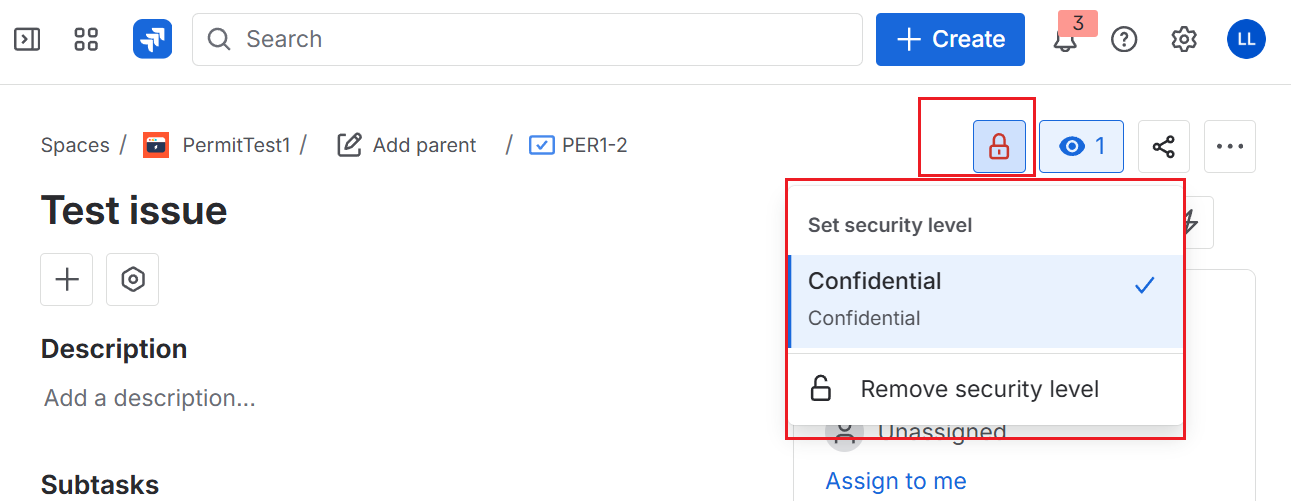
- Open the issue and capture the assigned security level.
Capture the issue security scheme.
- Open the issue configuration and navigate to security settings.
- Capture the scheme name, levels, and associated rules.
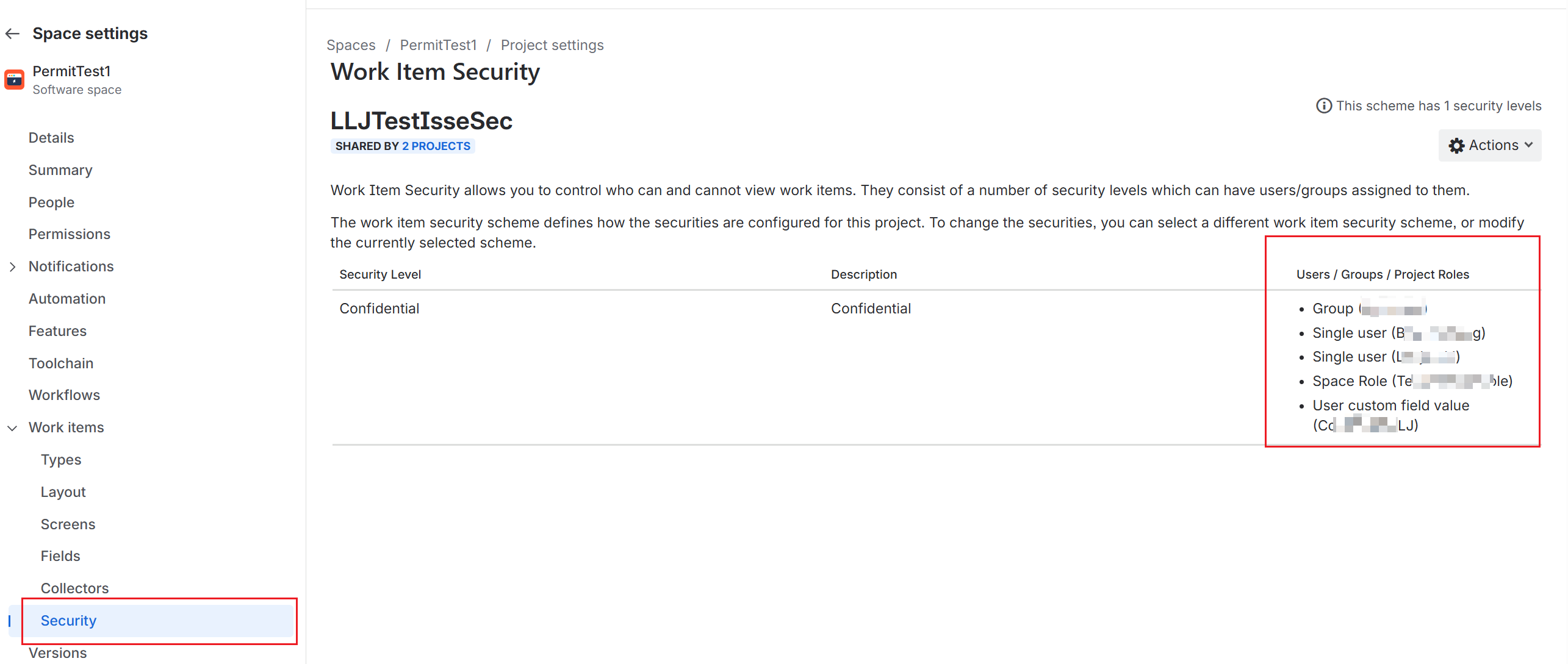
Compare Jira security with Index Browser behavior.
- Capture screenshots showing access results for the affected user.
Note
Configurations that rely on Group custom field values aren't currently supported.
Oversharing
If a user can access content they shouldn't, use the following steps to troubleshoot.
If Index Browser shows access denied:
- Confirm if access was recently removed in Jira.
- Update the issue content, such as editing the summary or description.
- Wait for the next crawl and propagation.
- Test again using the same user.
- Test another issue the user hasn't accessed before.
If Index Browser shows access granted:
- Confirm that the user can't open the issue in Jira.
- Capture the Jira permission configuration that should deny access.
- Capture Index Browser showing
access granted.
Error code 1010 - external group quota
Error code 1010 External groups per Microsoft 365 tenant has reached the 100,000 quota indicates that the tenant has reached the maximum allowed number of external groups, which typically occurs when a large volume of external groups is created during ACL ingestion. To resolve this issue, request a quota increase for external groups in the Microsoft 365 tenant.
General issue resolution steps
Use the following steps to help resolve issues:
- Verify that the Jira Cloud instance URL is correct and resolves to your Jira dashboard.
- Confirm that the service account has the required permissions:
- Browse projects (required)
- Issue-level security and user/group browsing permissions for security trimming (optional)
- For OAuth issues:
- Check that all required scopes are granted.
- Verify that the callback URL is correct:
https://gcs.office.com/v1.0/admin/oauth/callback
- For Basic authentication:
- Regenerate the API token if it expired or was deleted.
- Confirm that the username and token match the Jira account used for crawling.
Information to collect to open a support ticket
Regardless of the scenario, collect the following information before you contact Microsoft support:
- Jira site URL (for example,
https://contoso.atlassian.net) - Connection name and connection ID from the Microsoft 365 admin center
- Affected user account ID
- Affected issue ID
- Affected project ID
- Time of the latest reproduction in UTC
- Screenshots of the relevant Jira settings and the Copilot or Index Browser result
Jira identifiers
Project ID
If the project ID isn't visible in the Jira UI, open the following URL while signed in:
https://<your-jira-site>.atlassian.net/rest/api/3/project/<projectKey>
Record the returned Id, key, and name.
Issue ID
If you only know the issue key, open:
https://<your-jira-site>.atlassian.net/rest/api/3/issue/<issueKey>?fields=id,key,project
Record the top-level issue Id, the issue key, and the project Id.
Project role ID
If the incident involves role-based permissions, open:
https://<your-jira-site>.atlassian.net/rest/api/3/project/<projectKey>/role
This request returns role names mapped to URLs. The numeric value at the end of each role URL is the roleId.
Permission scheme ID
If the incident involves project permissions, open:
https://<your-jira-site>.atlassian.net/rest/api/2/project/<projectKey>/permissionscheme?expand=user
Record the permission scheme Id and the BROWSE_PROJECTS entries.
Issue security scheme ID
If the incident involves issue-level security, open:
https://<your-jira-site>.atlassian.net/rest/api/2/project/<projectKey>/issuesecuritylevelscheme
Record the scheme Id and all configured issue security levels.
Screenshot checklist
Depending on the incident, attach screenshots of the following items:
- The Jira issue page that shows the issue key
- The Jira project settings page
- Project permissions or Permission helper output
- Issue security configuration
- The affected user's membership in groups or project roles
- Index Browser result that shows access granted or access denied
- The Copilot result, including the time and query text