Note
Access to this page requires authorization. You can try signing in or changing directories.
Access to this page requires authorization. You can try changing directories.
Applies to: ✓ All custom models | ✓ All prebuilt models
Library settings in a SharePoint document library provide information about the document processing model and allow you to configure specific settings for the library.
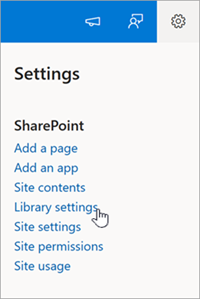
To access library settings from a SharePoint document library, select Settings
 > Library settings.
Automatic classification and extraction
When you apply a model to a library, the service automatically adds the content type and updates the default view with the labels you extracted showing as columns. Then, every time you add or edit a document in the library, the service processes the document again, classifying the document and extracting text from it.
By default, the service processes a file every time the file is uploaded or edited. If you want to process new files only and not every time a file is modified, you can change the setting.
To process new files only
Follow these steps if you want the service to process new files only.
On the Library settings panel, under Automatic classification and extraction, select New files only.
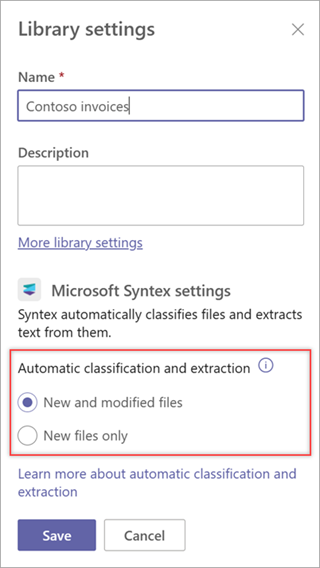
Select Save. Now only new files will be processed.
Even with this setting selected, you can still select updated files and manually process them using the Classify and extract option in the document library.