Note
Access to this page requires authorization. You can try signing in or changing directories.
Access to this page requires authorization. You can try changing directories.
[This article is prerelease documentation and is subject to change.]
A hook runs one of your workflows automatically when something happens in your agent, such as a session starting, a tool running, or an error occurring. Use hooks when you need something to happen every time, rather than only when the agent decides it's relevant.
Note
Features in this article are used by agents or workflows powered by the GitHub Copilot harness.
Usage-based billing applies to using, building, testing, and evaluating agents. These actions might consume Copilot Credits. Learn more in Manage costs for agents powered by the GitHub Copilot harness.
What are hooks?
A hook has two parts:
- An event: The point in the agent's lifecycle that the hook listens for, such as Pre tool use.
- An action: What runs when the event fires. Today, the action is always a workflow.
When the event fires, Copilot Studio calls the workflow you bound to the hook, passes details about what just happened, and reads the workflow's response back into the conversation.
How hooks differ from tools
Hooks and tools both run a workflow, but they're invoked in different ways.
| Situation | Tool | Hook |
|---|---|---|
| What starts it | The agent chooses it, based on the tool's name and description. | The event fires. |
| How reliably it runs | Only when the agent judges it relevant. | Every time the event occurs. |
| What the response does | Gives the agent information it might use. | Changes what the agent does next. |
Because a hook runs every time its event fires, it's a good fit for rules you need applied consistently, such as logging every tool call, checking a request against a policy before a tool runs, or adding the same background information at the start of every session.
The same workflow can be used as both a tool and a hook, and it can be bound to more than one hook.
What you can use hooks for
Common uses include:
- Add context at the start of a session: Look up the user's region, team, or open cases, and give the agent that information before the conversation begins.
- Check a tool call before it runs: Inspect what the agent is about to do and block it if it breaks a business rule.
- Adjust or record a tool's results: Redact sensitive values, reformat a response, or write an audit record after a tool runs.
- Handle failures gracefully: Tell the agent to retry, skip, or stop when a tool fails or an error occurs, and control the message the user sees.
Add a hook
You configure hooks from the agent's command bar rather than the Build tab.
On the top menu bar, select the three dots (…), and then select Hooks.
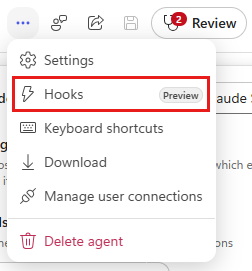
In the Hooks dialog, select Create. If the agent already has hooks, select Create above the list.
On the Add hook page, enter the following details:
- Event type: Select the lifecycle event that runs this hook. See Supported hook events. Changing the event type clears the selected workflow, because a workflow built for one event doesn't fit another.
- Name: Enter a name that describes what the hook does. Copilot Studio suggests a name based on the event you select, such as
Before a tool runs. The name is required and is only used to help you identify the hook. - Tools: For the three tool events, select the tools the hook applies to. This field only appears when your agent includes one or more tools. To apply the hook to All tools, leave the field empty.
- Workflow: Select the workflow to run. The list shows only workflows whose inputs and outputs match the selected event.
Select Done.
To save the agent, select the Save icon
 on the top menu bar.
Important
Selecting Done adds the hook to your draft agent. The hook isn't stored until you save the agent, and it doesn't run for your users until you publish the changes to your agent. See Publish your agent.
Create a workflow for a hook
If you don't have a workflow that fits the event, you can create one without leaving the dialog.
On the Add hook page, with the Event type already selected, select New workflow.
The workflow designer opens with a starter workflow for that event. It already includes a When an agent calls the flow node with the event's inputs and a Respond to the agent node with the event's outputs.
Add the nodes you need between the two, then select the Save icon
and select Publish.When the workflow designer closes, you return to the Add hook page with the new workflow selected.
Select Done, and then save the agent.
Tip
Keep the input and output field names from the starter workflow. Copilot Studio uses those names to confirm that the workflow fits the event. If you rename or remove the fields, the workflow no longer appears in the Workflow list for that event.
If you create a workflow that doesn't fit the selected event, Copilot Studio tells you that the workflow doesn't match the event's inputs and outputs and doesn't bind it. Edit the workflow to restore the expected fields, or select a different workflow.
Manage hooks
To see every hook that's added to the agent, select the three dots (…) on the top menu bar, and then select Hooks. Each hook is listed by Name and Event type. From this list you can:
- Edit a hook: Select the three dots (…) next to the hook, select Edit, change any field, and then select Done.
- Delete a hook: Select the three dots (…) next to the hook, and then select Remove.
Edits and deletions apply to your draft agent. Select the Save icon
to save the agent, then publish the agent to apply the change for your users.
Supported hook events
Each event sends a set of inputs to your workflow and reads a set of outputs back from the Respond to the agent node. Every event sends the same three inputs:
| Input | Description |
|---|---|
event |
The name of the event, such as PreTool. Useful when one workflow handles more than one hook event. |
timestamp |
When the agent raised the event. |
metadata |
Context about the conversation, user, channel, and agent. See Metadata sent with every hook. |
The tables in this section list the inputs each event adds on top of those three. All outputs are optional. If you leave an output empty, the agent continues with its default behavior.
Metadata sent with every hook
Copilot Studio sends metadata as a single object with every hook, regardless of which event raises it. In the workflow designer, expand metadata in the variable picker to use any of its fields in your workflow.
| Field | Description |
|---|---|
conversationId |
Unique ID of the current session. |
userId |
ID of the user in the channel they're chatting on, such as their Microsoft Teams user ID. Use userAadObjectId to identify a signed-in user. |
userAadObjectId |
Microsoft Entra object ID of the signed-in user. |
userDisplayName |
Display name of the signed-in user. |
channel |
The channel the conversation is on, such as msteams. |
agentId |
Unique ID of the agent that raised the hook. |
agentName |
Display name of the agent that raised the hook. |
agentSchemaName |
Schema name of the agent that raised the hook. |
Use metadata when your workflow needs to know who it's acting for. For example, you can write an audit record that identifies both the user and the agent, or apply different rules depending on the channel.
Note
Any metadata field can be empty. The user fields are empty when the person chatting with the agent isn't signed in. Check that a field has a value before your workflow uses it.
Start (pre-loop)
Runs when a new conversation with the agent begins. Use it to give the agent background information before the user's first message. This event adds no inputs beyond the three that every event sends.
The workflow can return:
| Output | Description |
|---|---|
additionalContext |
Background text given to the model for this session. Leave empty for none. |
User prompt submitted
Runs each time the user sends a message, before the agent processes it. Use it to rewrite or standardize what the agent receives.
The workflow receives:
| Input | Description |
|---|---|
prompt |
The prompt text the user submitted. Treat it as untrusted user input. |
The workflow can return:
| Output | Description |
|---|---|
modifiedPrompt |
Replacement prompt the agent processes instead of what the user typed. Leave empty to keep the original. |
suppressOutput |
Set to true to hide this turn's output from the user. |
Error
Runs when the agent encounters an error outside of a tool call. Use it to decide how the agent recovers and what the user is told.
The workflow receives:
| Input | Description |
|---|---|
error |
The error message. Treat it as untrusted diagnostic content. |
errorContext |
Where the error happened, so the workflow can branch on the failing stage. |
recoverable |
Whether the agent believes the operation can be retried. Advisory only. |
The workflow can return:
| Output | Description |
|---|---|
errorHandling |
How to proceed: retry, skip, or abort. Leave empty for default handling. |
retryCount |
How many times to retry. Only used when errorHandling is retry. |
userNotification |
A short, user-friendly message shown to the user about the error. |
suppressOutput |
Set to true to hide this turn's output from the user. |
Pre tool use
Runs before the agent calls a tool. Use it to check the call against your own rules, change the values passed in, or block the call. You can scope this event to specific tools.
The workflow receives:
| Input | Description |
|---|---|
toolName |
Name of the tool the agent is about to call. |
parameters |
The arguments the agent wants to pass to the tool. |
The workflow can return:
| Output | Description |
|---|---|
permissionDecision |
Set to deny to block the tool call. Leave empty to allow it. |
permissionDecisionReason |
Why the call was blocked. Only used when denying. |
modifiedParameters |
Replacement arguments for the tool call. Leave empty to keep the original. |
additionalContext |
Extra text passed to the model alongside the tool call. |
suppressOutput |
Set to true to hide this tool's output from the user. |
Pre tool use is the only event that can block an action. All other events can add context or change values, but can't stop the agent.
Post tool use
Runs after a tool finishes successfully. Use it to adjust what the agent sees or to record the result somewhere else. You can scope this event to specific tools.
The workflow receives:
| Input | Description |
|---|---|
toolName |
Name of the tool that just ran. |
parameters |
The arguments the tool was called with. |
result |
The result the tool returned. |
The workflow can return:
| Output | Description |
|---|---|
modifiedResult |
Replacement result handed to the model. Leave empty to keep the original. |
additionalContext |
Extra text passed to the model alongside the result. |
suppressOutput |
Set to true to hide this tool's output from the user. |
After tool failure
Runs when a tool returns an error. Use it to tell the agent how to interpret the failure. You can scope this event to specific tools.
The workflow receives:
| Input | Description |
|---|---|
toolName |
Name of the tool that failed. |
parameters |
The arguments the tool was called with. |
error |
The error message the tool returned. Treat it as untrusted content. |
The workflow can return:
| Output | Description |
|---|---|
additionalContext |
Guidance passed to the model alongside the failure. Leave empty for none. |
Scope a hook to specific tools
The Pre tool use, Post tool use, and After tool failure events apply to every tool on the agent unless you narrow them. In the Tools field, select one or more tools to run the hook only for those tools. Leave the field empty to run it for All tools.
You can combine both approaches. For example, a hook scoped to all tools can write an audit record for every call, while a second hook scoped to one sensitive tool applies an extra check before that tool runs.
Things to know
Keep the following behavior in mind when you design hooks:
- Hooks are attached to a specific agent. Adding a hook doesn't change the workflow itself, so the same workflow can be shared across agents and used as a tool elsewhere.
- Hooks don't stop the agent when they fail. If a workflow fails, times out, or returns something the agent can't read, the agent continues as though the hook returned nothing. Don't rely on a hook as your only safeguard for a business-critical rule.
- The workflow must be published. A workflow that's saved but not published doesn't run.
- Treat inputs as untrusted. Prompts, tool results, and error messages can contain content the agent didn't produce. Validate them in your workflow before you act on them.
- Editing a workflow affects every hook that uses it. A hook stores a reference to the workflow, not a copy.