Note
Access to this page requires authorization. You can try signing in or changing directories.
Access to this page requires authorization. You can try changing directories.
When you create a Copilot Studio agent, anyone who knows the agent ID can immediately access the agent through the Demo website and Custom website channels. These channels are available by default, and no configuration is needed.
For the Microsoft Teams app, you can configure advanced web channel security options.
Note
If you have a Teams-only license, you can't generate secrets to enable secure access. Secure access tokens are created automatically for you and secure access is enabled by default.
Users can find the agent ID directly from within Copilot Studio or by receiving it from someone. But, depending on the agent's capability and sensitivity, that access might not be desirable.
By using Direct Line-based security, you can enable access only to locations that you control by enabling secured access with Direct Line secrets or tokens.
You can also swap and regenerate secrets and refresh tokens, and you can easily disable secured access if you no longer want to use it.
Note
Copilot Studio uses the Bot Framework Direct Line channel to connect your web page or app to the agent.
Enable or disable web channel security
You can enforce the use of secrets and tokens for each individual agent.
When you turn on this option, channels need the client to authenticate their requests either by using a secret or by using a token that is generated by using the secret, obtained at runtime.
Attempts to access the agent that don't provide this security measure don't work.
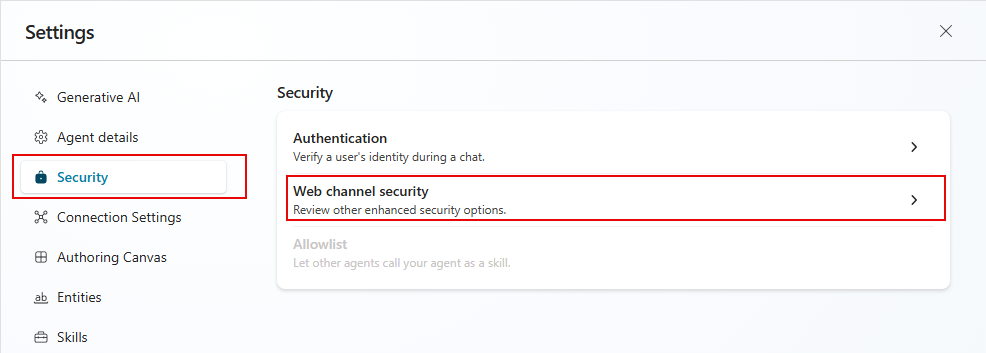
- Go to the Settings page for your agent, select Security, and then select Web channel security.
- Turn on Require secured access.
Warning
When you turn on or turn off Require secured access, it can take up to two hours for the system to propagate the settings and take effect. Until then, the previous setting is in effect. You don't need to publish the agent for this change to take effect.
Plan ahead to avoid exposing your agent unintentionally.
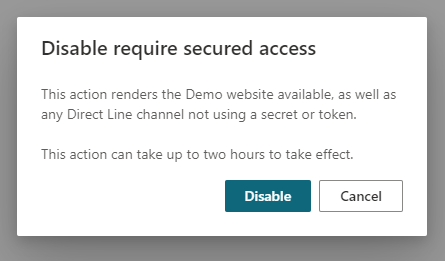
If you need to disable the web channel security option, you can do so by clearing the Require secured access toggle. Disabling secured access can take up to two hours to propagate.
Use secrets or tokens
If you're creating a service-to-service app, specifying the secret in the authorization header requests might be the simplest approach.
If you're writing an app where the client runs in a web browser or mobile app, or otherwise the code might be visible to customers, you must exchange your secret for a token. If you don't use a token, your secret can be compromised. When you're making the request to acquire the token in your service, specify the secret in the authorization header.
Tokens only work for a single conversation and expire unless refreshed.
Choose the security model that works best for your situation.
Warning
Don't expose the secret in any code that runs in the browser, either hard-coded or transferred through a network call.
Acquiring the token by using the secret in your service code is the most secure way to protect your Copilot Studio agent.
Obtain the secrets
You need the secret so you can specify it in your app's authorization header requests or similar.
In the navigation menu, under Settings, select Security. Then select the Web channel security tile.
Select Copy for either Secret 1 or Secret 2 to copy it to the clipboard. Select the visibility icon
 to reveal the secret. A warning prompt appears before you can reveal it.
Swap secrets
If you need to change the secret that your agent uses, you can change it without any downtime or interruption.
Copilot Studio provides you with two secrets, which work simultaneously. You can swap the secret that your agent uses with the other one. After the secrets are swapped and your users are all connected by using the new secret, you can regenerate the secret.
Regenerate a secret
To regenerate a secret, select Regenerate next to the secret.
Warning
The user profile that connects by using the original secret or a token obtained from that secret is disconnected.
Generate a token
You can generate a token that you use when starting a single agent conversation. For more information, see the section Get Direct Line token in Publish an agent to mobile or custom apps.
In your service code, send the following request to exchange the secret for a token. Replace
<SECRET>with the value of the secret you obtained in Step 1.POST https://directline.botframework.com/v3/directline/tokens/generate Authorization: Bearer <SECRET>
The following snippets provide examples of the generated token request and its response.
Sample generate token request
POST https://directline.botframework.com/v3/directline/tokens/generate
Authorization: Bearer RCurR_XV9ZA.cwA.BKA.iaJrC8xpy8qbOF5xnR2vtCX7CZj0LdjAPGfiCpg4Fv0
Sample generate token response
HTTP/1.1 200 OK
[other headers]
{
  "conversationId": "abc123",
  "token": "RCurR_XV9ZA.cwA.BKA.iaJrC8xpy8qbOF5xnR2vtCX7CZj0LdjAPGfiCpg4Fv0y8qbOF5xPGfiCpg4Fv0y8qqbOF5x8qbOF5xn",
  "expires_in": 1800
}
If the request is successful, the response contains a token that's valid for one conversation and an expires_in value that indicates the number of seconds until the token expires.
To keep the token useful, you must refresh the token before it expires.
Refresh a token
You can refresh a token an unlimited number of times, as long as it isn't expired.
You can't refresh an expired token.
To refresh a token, send the following request and replace <TOKEN TO BE REFRESHED> with the token you want to refresh.
POST https://directline.botframework.com/v3/directline/tokens/refresh
Authorization: Bearer <TOKEN TO BE REFRESHED>
The following snippets provide examples of the refresh token request and response.
Sample refresh request
POST https://directline.botframework.com/v3/directline/tokens/refresh
Authorization: Bearer CurR_XV9ZA.cwA.BKA.iaJrC8xpy8qbOF5xnR2vtCX7CZj0LdjAPGfiCpg4Fv0y8qbOF5xPGfiCpg4Fv0y8qqbOF5x8qbOF5xn
Sample refresh response
If the request is successful, the response contains a new token that's valid for the same conversation as the previous token and an expires_in value that indicates the number of seconds until the new token expires.
To keep the new token useful, refresh the token again before it expires.
HTTP/1.1 200 OK
[other headers]
{
  "conversationId": "abc123",
  "token": "RCurR_XV9ZA.cwA.BKA.y8qbOF5xPGfiCpg4Fv0y8qqbOF5x8qbOF5xniaJrC8xpy8qbOF5xnR2vtCX7CZj0LdjAPGfiCpg4Fv0",
  "expires_in": 1800
}
For more information on refreshing a token, see the section Refresh a Direct Line token in Direct Line API - Authentication.