Note
Access to this page requires authorization. You can try signing in or changing directories.
Access to this page requires authorization. You can try changing directories.
Note
This article describes features used in agents or agent flows powered by the standard harness.
You can upload individual documents for use as a knowledge source at the agent level. Your agent uses these documents to generate answers with generative AI.
Note
Use the add unstructured data as a knowledge source option to upload SharePoint and OneDrive files.
When you upload documents by using this method, your agent can access the documents across all levels. However, you can also upload documents in generative answers nodes. This other option gives you more control to specify individual generative answers nodes that shouldn't use uploaded documents.
The Knowledge source with documents in Copilot Studio connector governs local file uploads.
Use the file groups option to upload groups of files. Learn more in Create file groups.
Copilot Studio agents require Dataverse search to use this knowledge source. If you can't add Dataverse files to an agent, ask your administrator to turn on Dataverse search in your environment. Learn more in What is Dataverse search and Configure Dataverse search for your environment.
Learn more about allowing users to upload files while interacting with agents in Allow file input from users.
When an agent user asks a question and the agent doesn't have a defined topic to use, the agent generates an answer from your uploaded documents. The agent uses generative AI to answer the user's question and provides an answer in a conversational style.
Uploaded documents are stored securely in Dataverse. The number of documents you can upload is limited by the available file storage for your Dataverse environment.
To upload individual files as a knowledge source, perform the following steps:
Open the agent.
Select Add knowledge from either the Overview or Knowledge pages, or the Properties of a generative answers node.
Upload the file by either drag and drop or browsing to the file location.
Add a name. By default, the file's name is used.
Add a detailed description, especially if generative AI is enabled, because it helps generative orchestration.
Select Add to agent to finish adding the knowledge source.
Supported document types
- Word (doc, docx)
- Excel (xls, xlsx)
- PowerPoint (ppt, pptx)
- PDF (pdf)
- Text (.txt, .md, .log)
- HTML (html, htm)
- CSV (csv)
- XML (xml)
- OpenDocument (odt, ods, odp)
- EPUB (epub)
- Rich Text Format (rtf)
- Apple iWork (pages, key, numbers)
- JSON (json)
- YAML (yml, yaml)
- LaTeX (tex)
Annotated image support
The system also supports annotated images embedded in PDF files. An annotation, also referred to as alt-text, is a textual description of the image. For best results, provide detailed information about the embedded image in the alt-text.
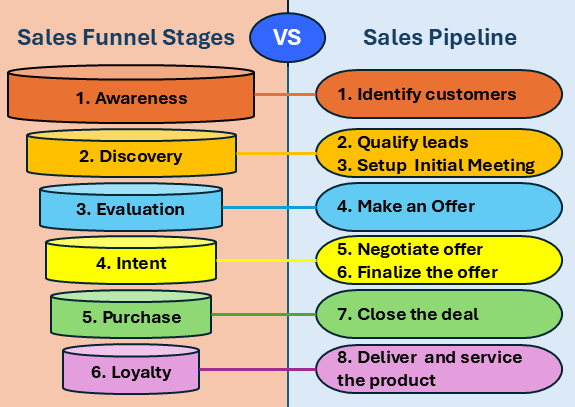
Users can ask questions and receive answers from the information contained in the annotated images. For example, the following image that was embedded in a PDF file provides information about a sales funnel and sales pipeline stages. Users of the agent containing this embedded image as a knowledge source can ask questions such as, "What are the stages in a sales funnel?" The agent can then return an answer based on the information in the annotated image.
Important
You can't upload image, video, executable, or audio files.
The system supports only images embedded in PDF files.
The system supports embedded images in all languages.
The system doesn't support icons.
The system doesn't support files larger than 512 MB.
The system doesn't support files with encryption, such as sensitivity labels or password protection.
An agent can include up to 500 files as knowledge.