Note
Access to this page requires authorization. You can try signing in or changing directories.
Access to this page requires authorization. You can try changing directories.
[This article is prerelease documentation and is subject to change.]
Important
- You need to be part of the Frontier preview program and sign up to accept terms of participation to get early access to Microsoft Scout. Frontier connects you directly with Microsoft's latest AI innovations. Frontier previews are subject to the existing preview terms of your customer agreements. As these features are still in development, their availability and capabilities may change over time.
- This is a preview feature.
- Preview features may have restricted functionality and may not be released for general availability. These features are available before an official release so that customers can get early access and provide feedback.
- For more information, go to our Microsoft Product Terms.
This guide is for Frontier customer Intune administrators who need to enable Microsoft Scout for managed users. The most important setting is the Frontier access capability, which appears in the Windows ADMX policy UI as Allow Microsoft Scout Frontier access and corresponds to the AllowScoutFrontierAccess capability. For background on how Frontier access fits with other admin gates, see Admin access overview for Microsoft Scout.
Note
Some pre-release Intune policy templates and screenshots still show the internal product name Clawpilot.
Prerequisites
Before you begin, make sure you have:
- A Microsoft 365 work or school account associated with your organization. Personal Microsoft accounts are not supported.
- Intune tenant administrator credentials.
- Access to the Microsoft Intune admin center at https://intune.microsoft.com.
- The latest Microsoft Visual C++ Redistributable (Windows only).
- The Microsoft Scout Windows policy template files:
microsoft-scout.admxmicrosoft-scout.adml
- The Microsoft Scout macOS configuration profile file:
microsoft-scout.mobileconfig
You can download these template and profile files from GitHub.
Overview
To enable Microsoft Scout Frontier access for users, configure the following in Intune:
- Import the Microsoft Scout Windows ADMX/ADML templates.
- Create a Windows configuration policy from the imported administrative template.
- Enable Allow Microsoft Scout Frontier access.
- Assign the Windows policy to the target managed devices.
- Create and assign the macOS custom configuration profile.
Part 1: Import the Microsoft Scout ADMX template
This part imports the Microsoft Scout administrative template files so they're available when you create a Windows configuration policy.
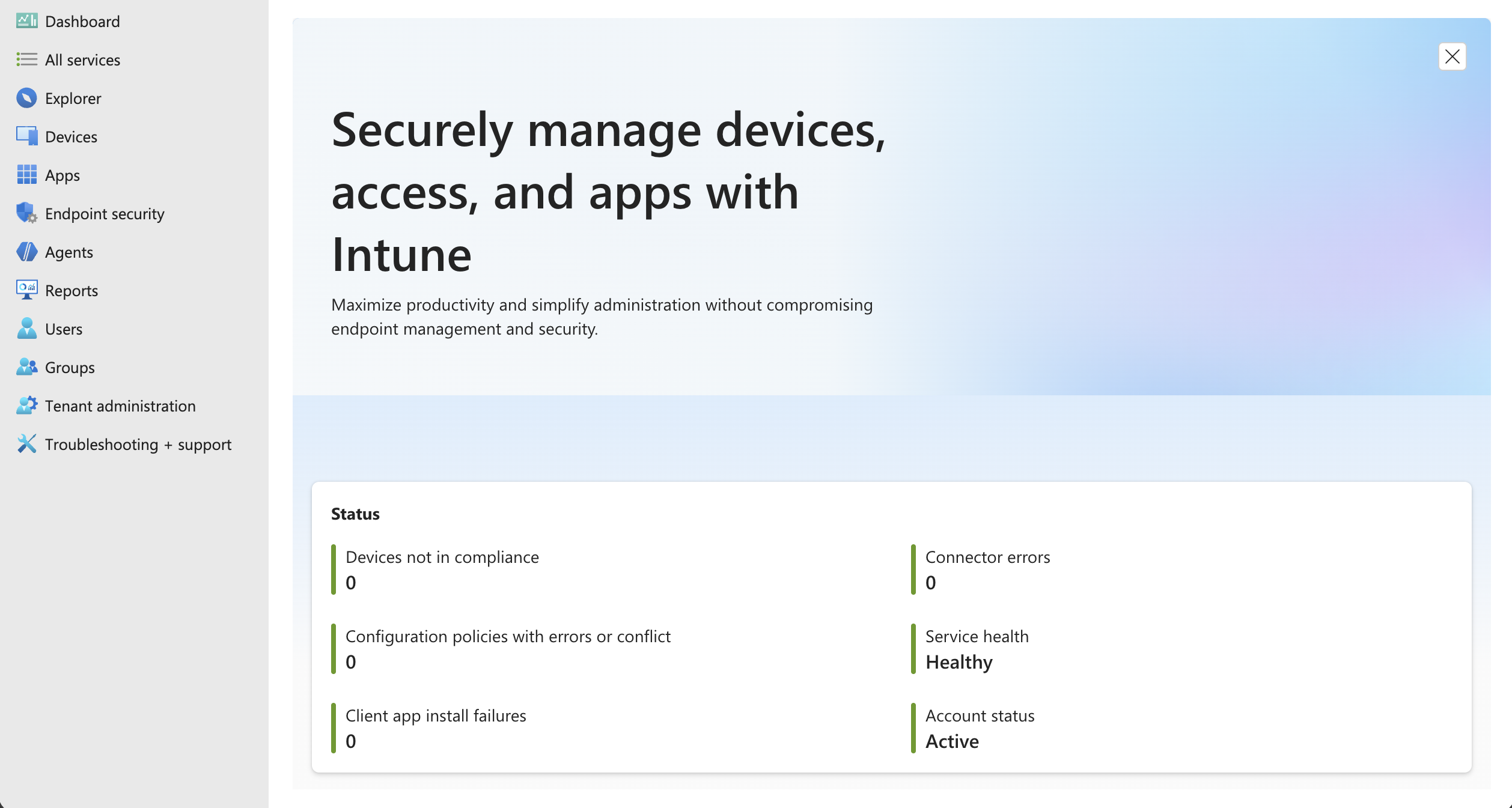
Open the Microsoft Intune admin center
Go to https://intune.microsoft.com and sign in with tenant administrator credentials. Confirm that the Microsoft Intune admin center loads for the correct tenant.
Open Devices configuration and Import ADMX
In the left navigation, select Devices. Under Manage devices, select Configuration, then open the Import ADMX tab.
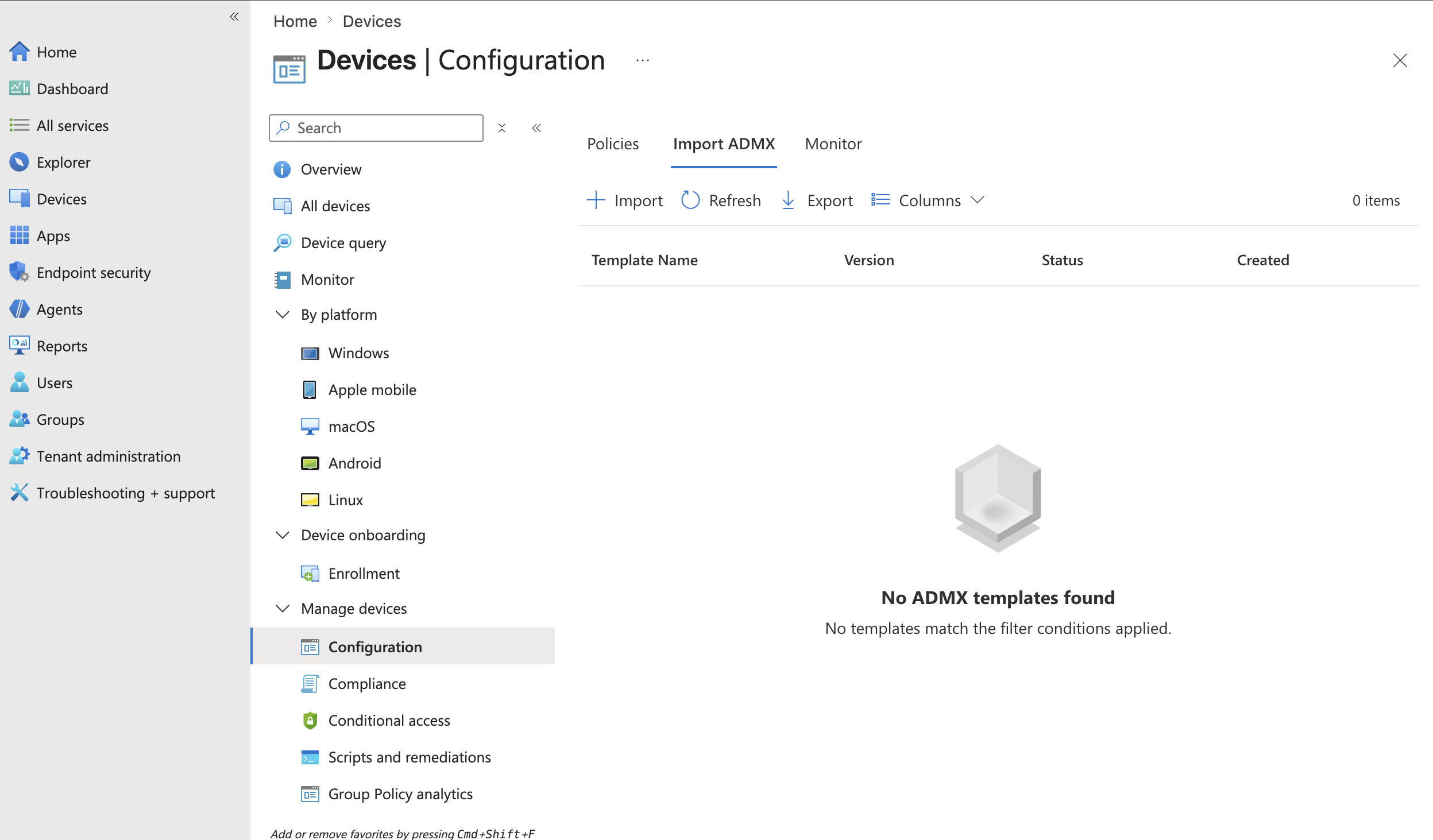
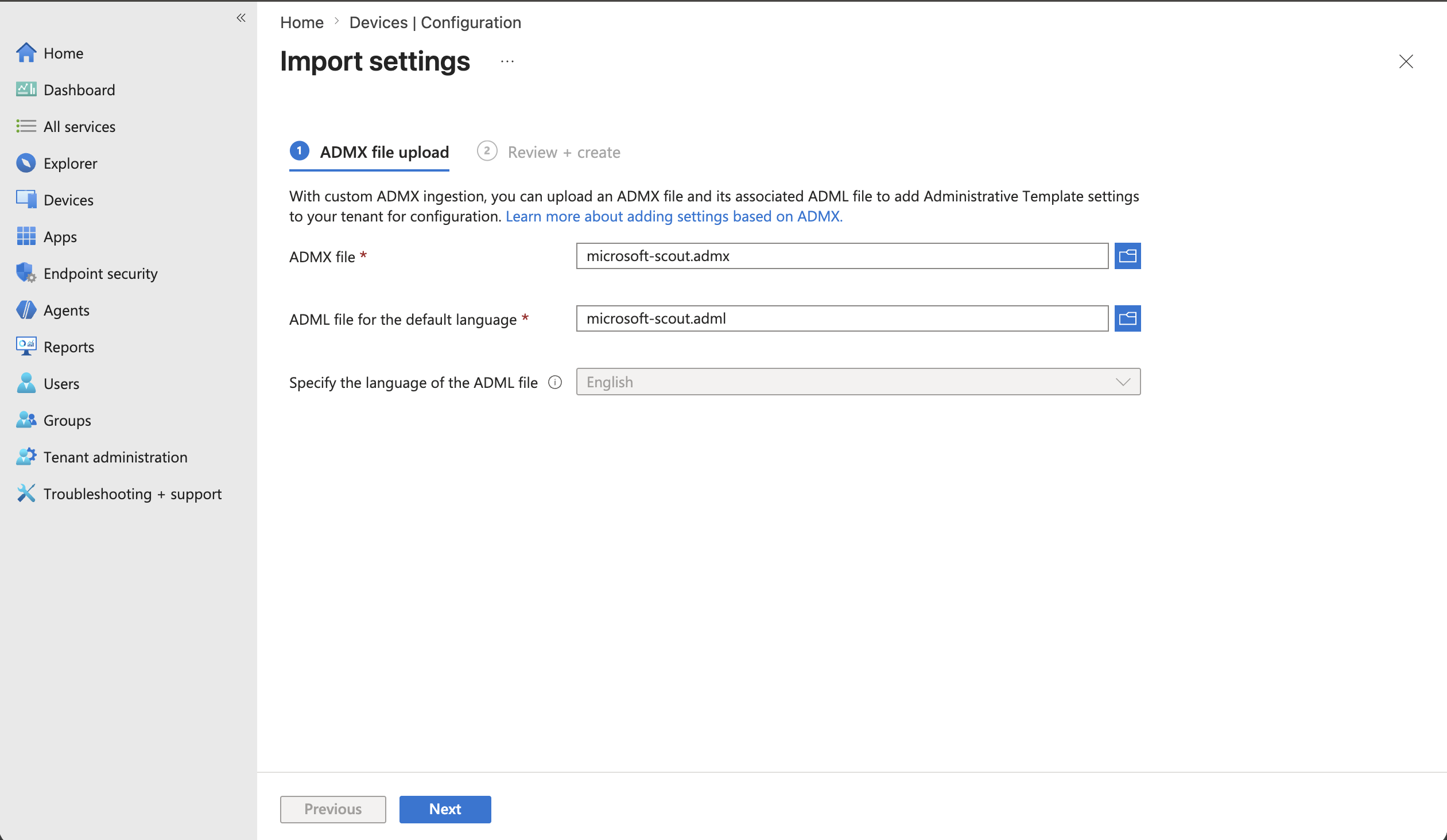
Start the ADMX import
Select Import, then use the file picker icons to upload both Microsoft Scout template files:
- ADMX file:
microsoft-scout.admx - ADML file:
microsoft-scout.adml
After both files are selected, select Next.
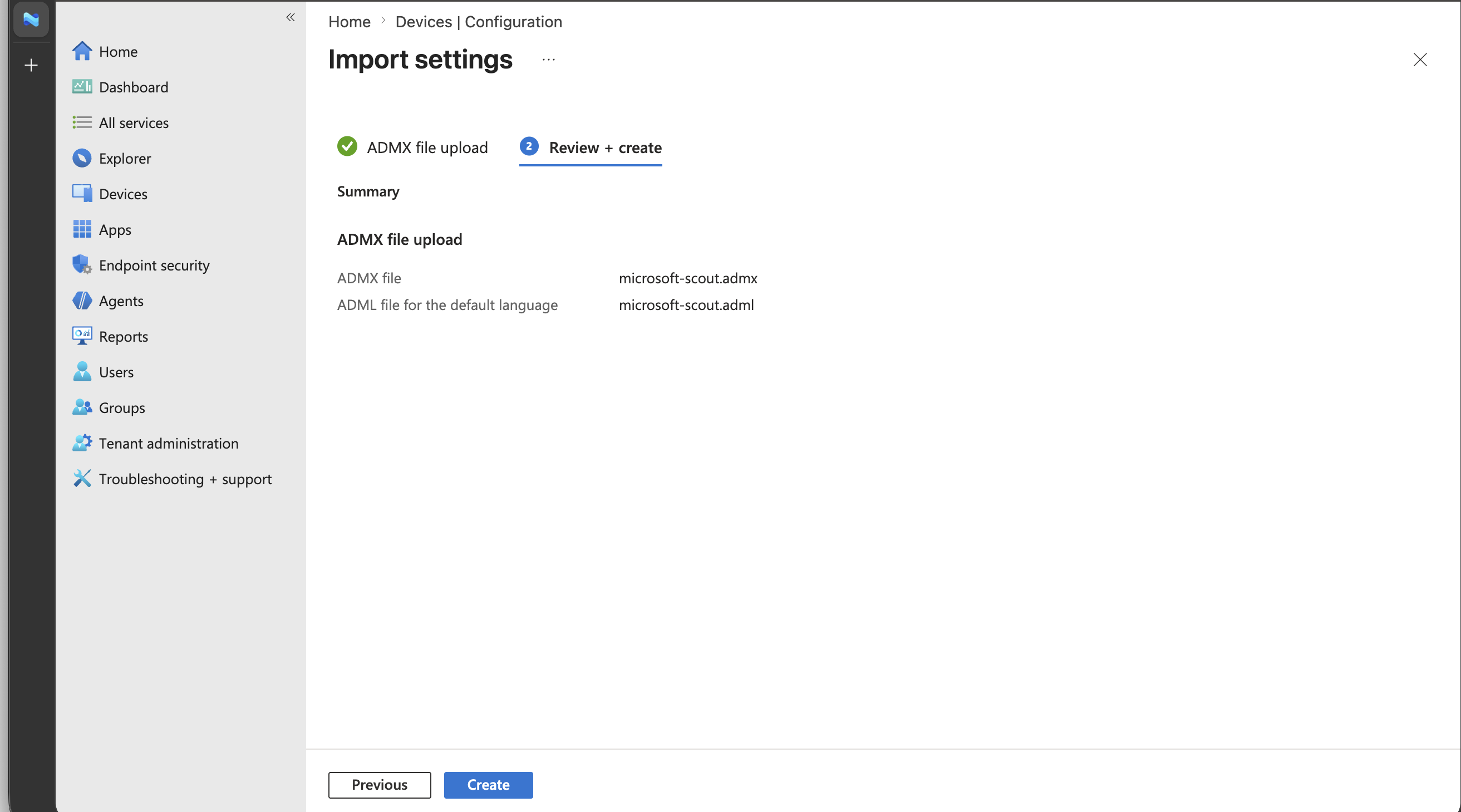
Review and create the imported template
On Review + create, confirm that both template files are listed correctly, then select Create.
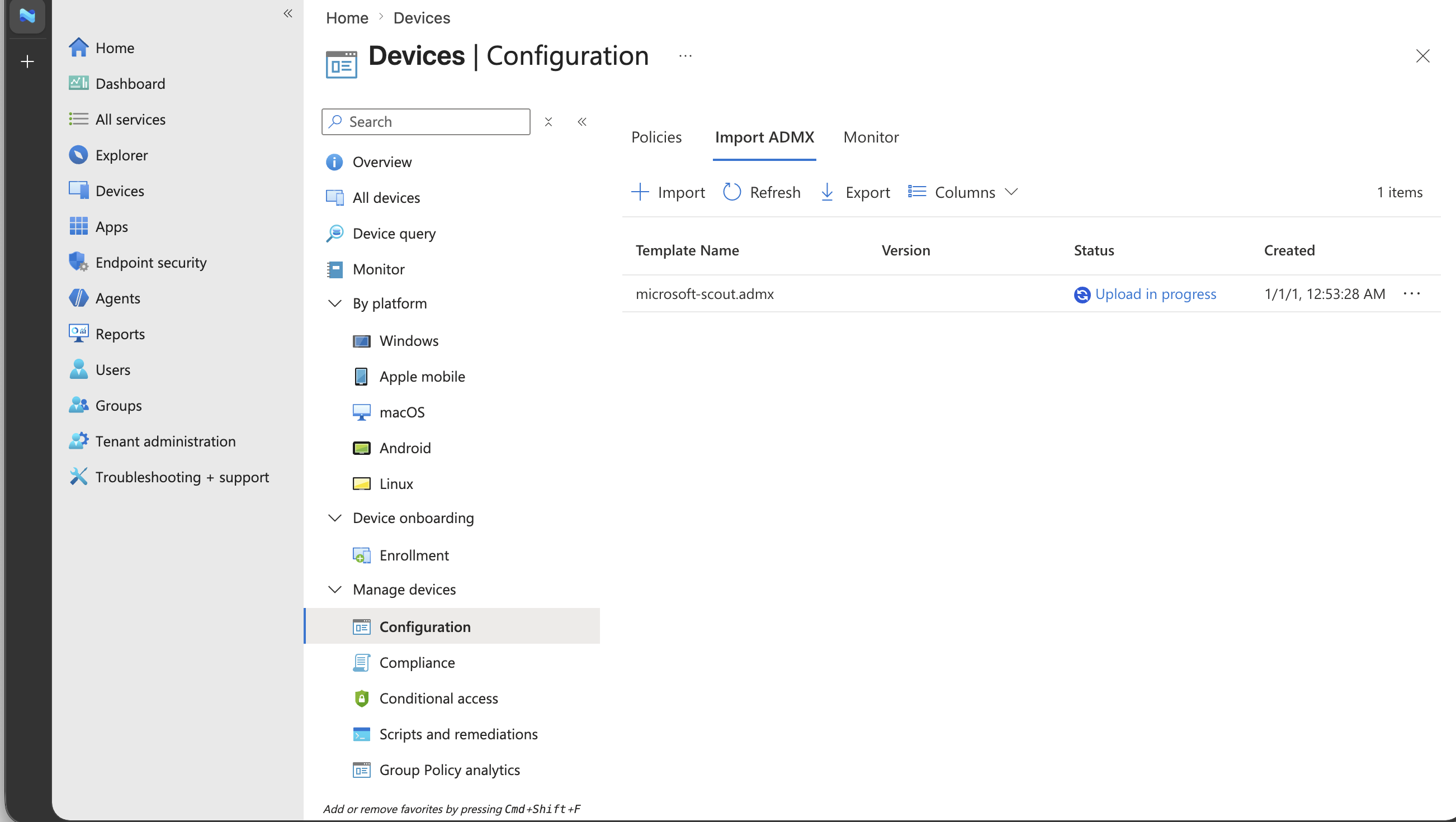
Wait for the upload to finish
Wait while Intune uploads and processes the Microsoft Scout ADMX template. Don't continue until the import status completes.
Confirm the template is available
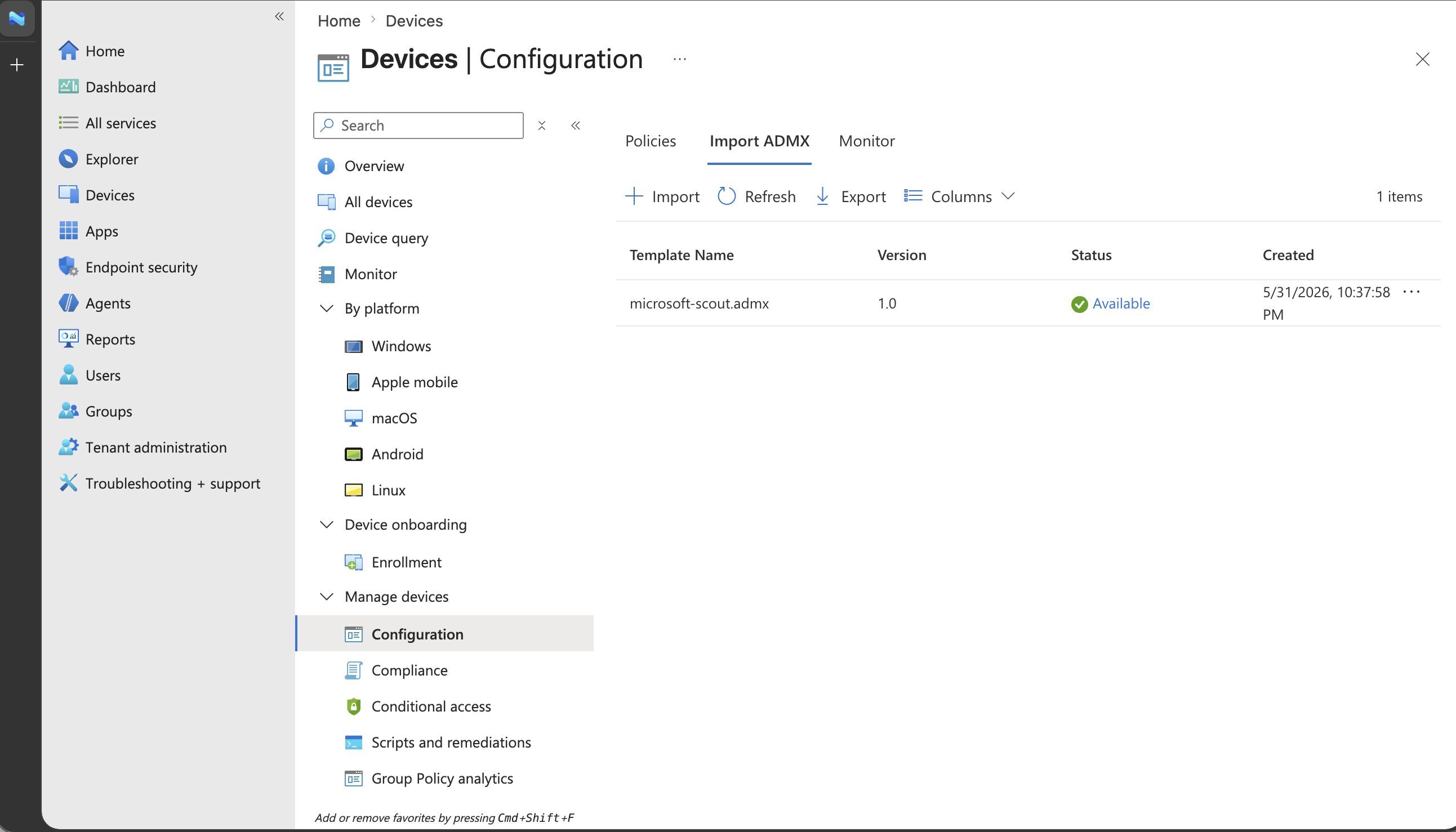
After the upload completes, confirm that the Microsoft Scout template status is Available. You can now use the imported administrative template to create a Windows configuration policy.
Part 2: Create the Windows Microsoft Scout policy
This part creates a Windows configuration policy that enables Frontier access for assigned devices.
Create a new configuration policy
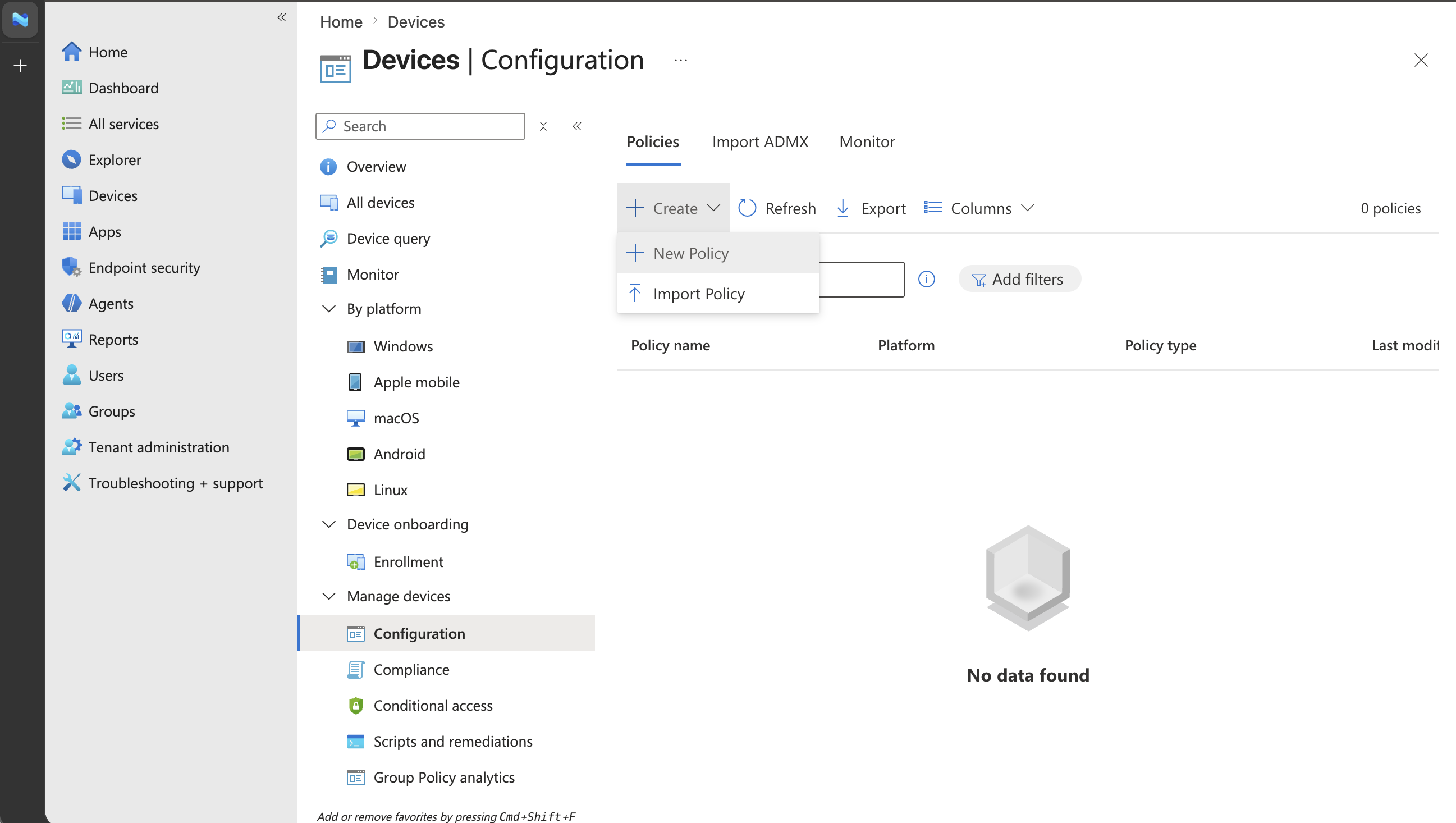
Return to Devices, then Configuration. Open the Policies tab, and select New policy.
Select the Windows template profile type
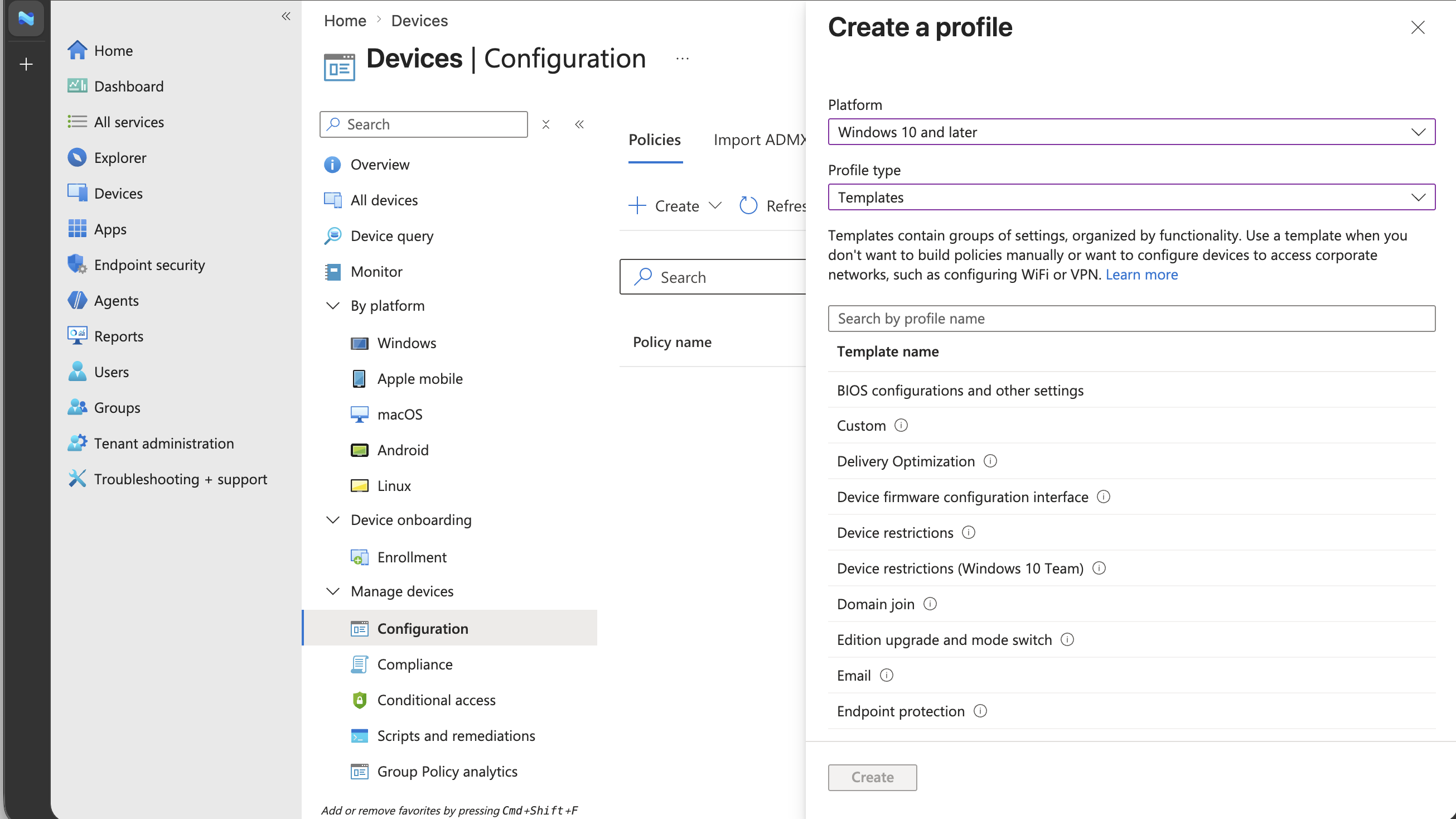
For the new profile, choose:
- Platform: Windows 10 and later
- Profile type: Templates
Choose Imported Administrative Templates
In the template list, select Imported Administrative Templates. This uses the Microsoft Scout ADMX template imported in the previous section.
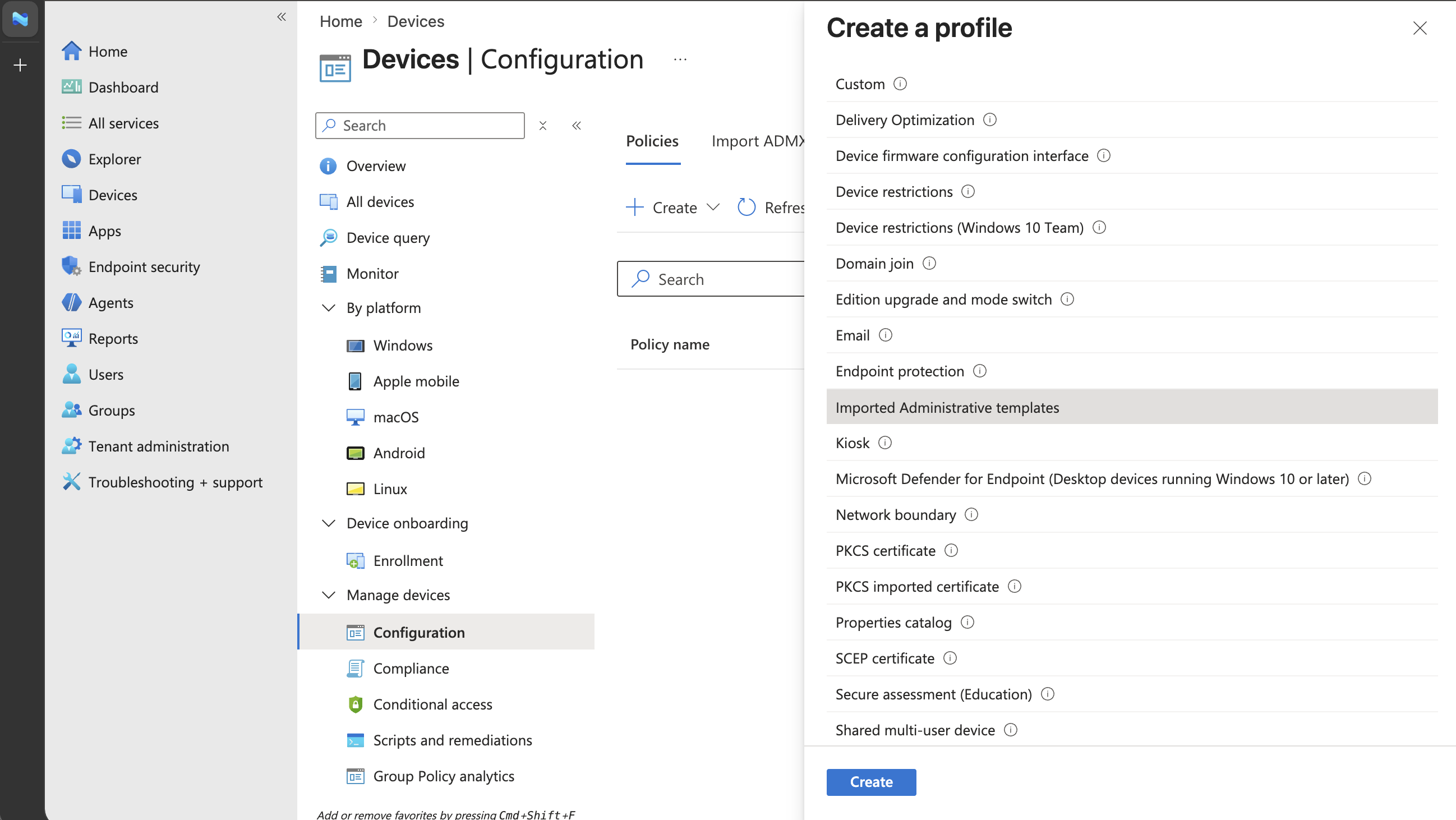
Then select Create.
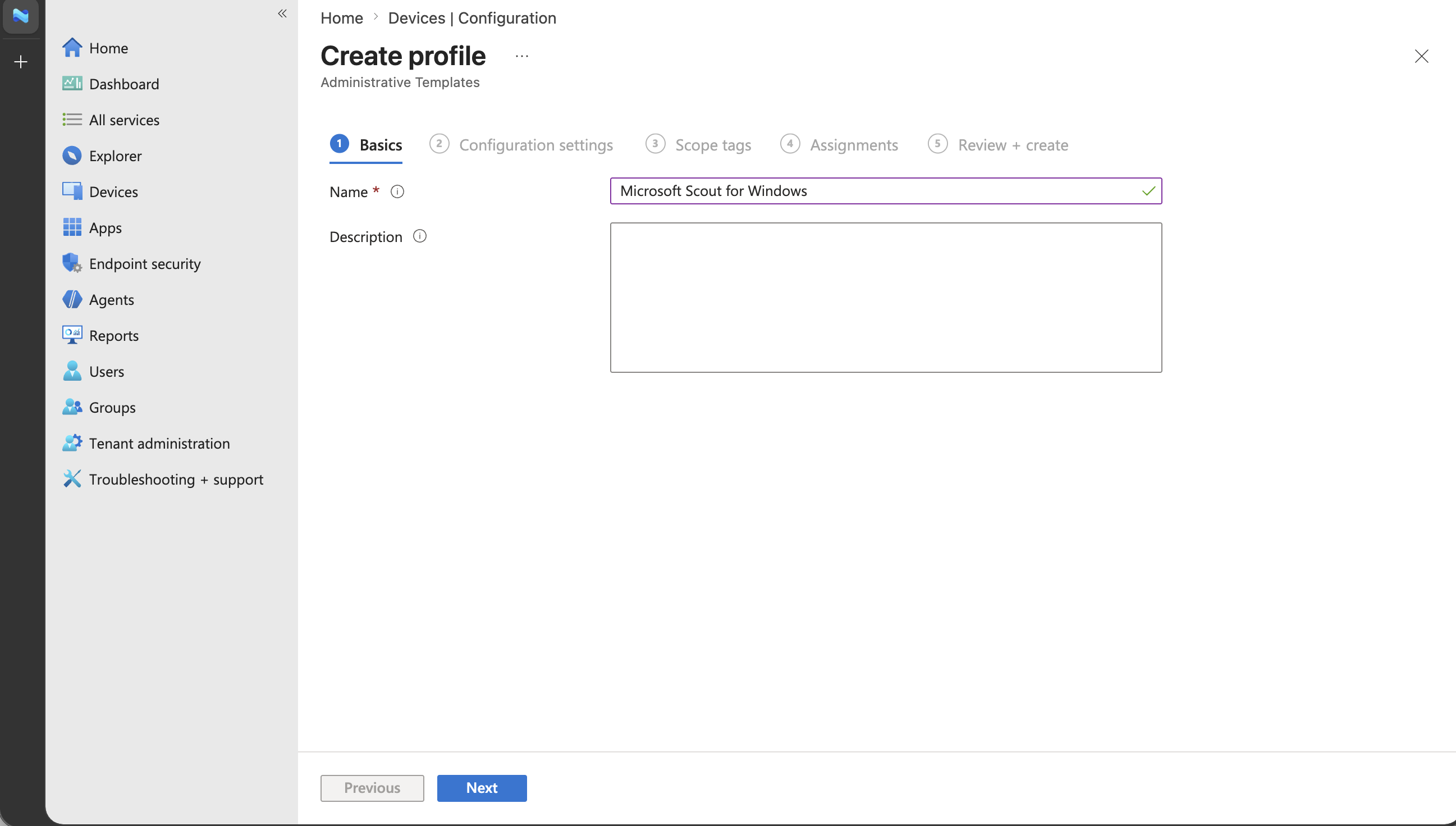
Name the Windows policy
Enter a clear policy name, such as Microsoft Scout - Frontier access. Optionally, add a description that explains the policy enables Microsoft Scout Frontier access for assigned devices. Select Next.
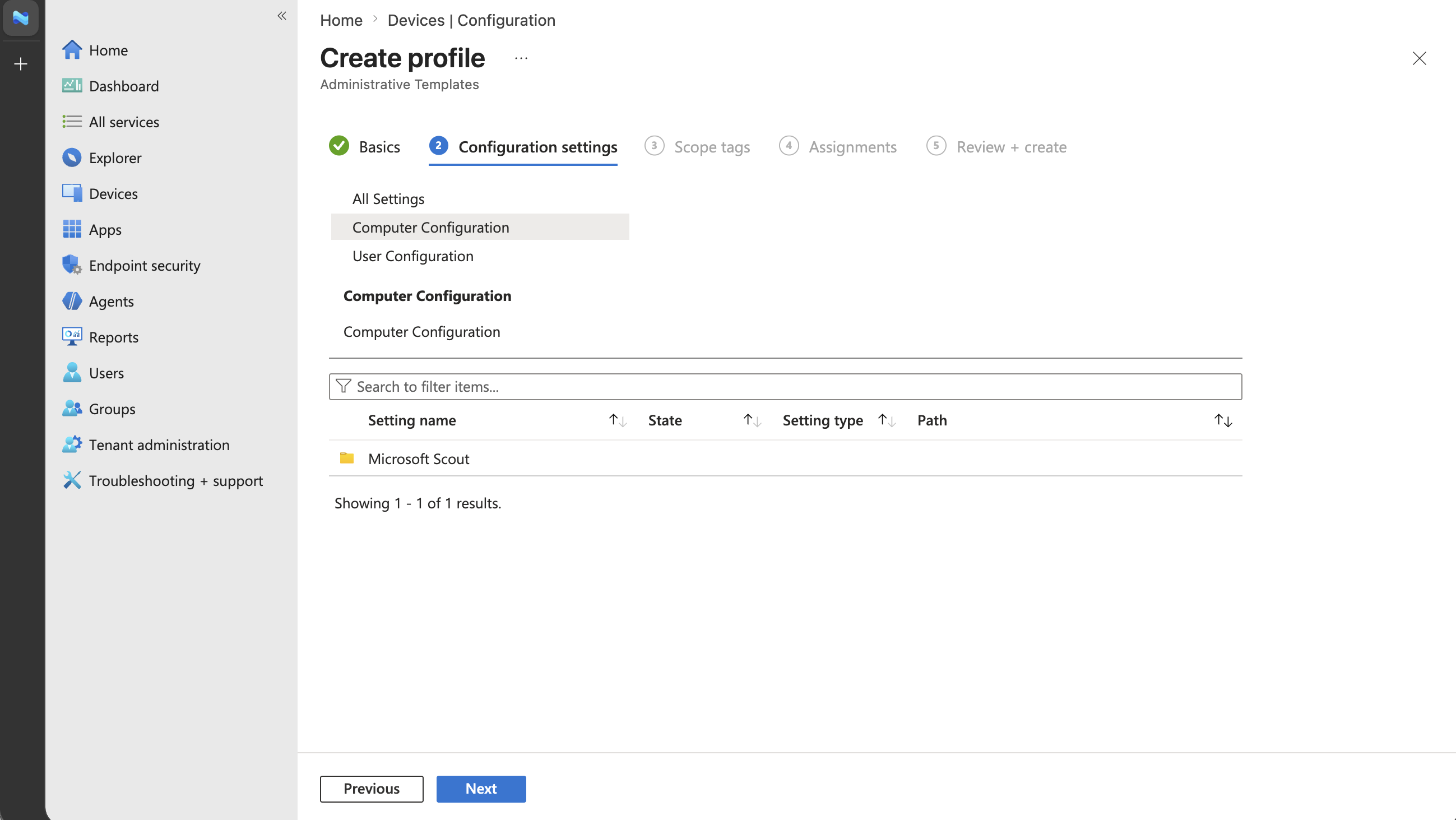
Select Microsoft Scout configuration
In Configuration settings, select the imported Microsoft Scout configuration template.
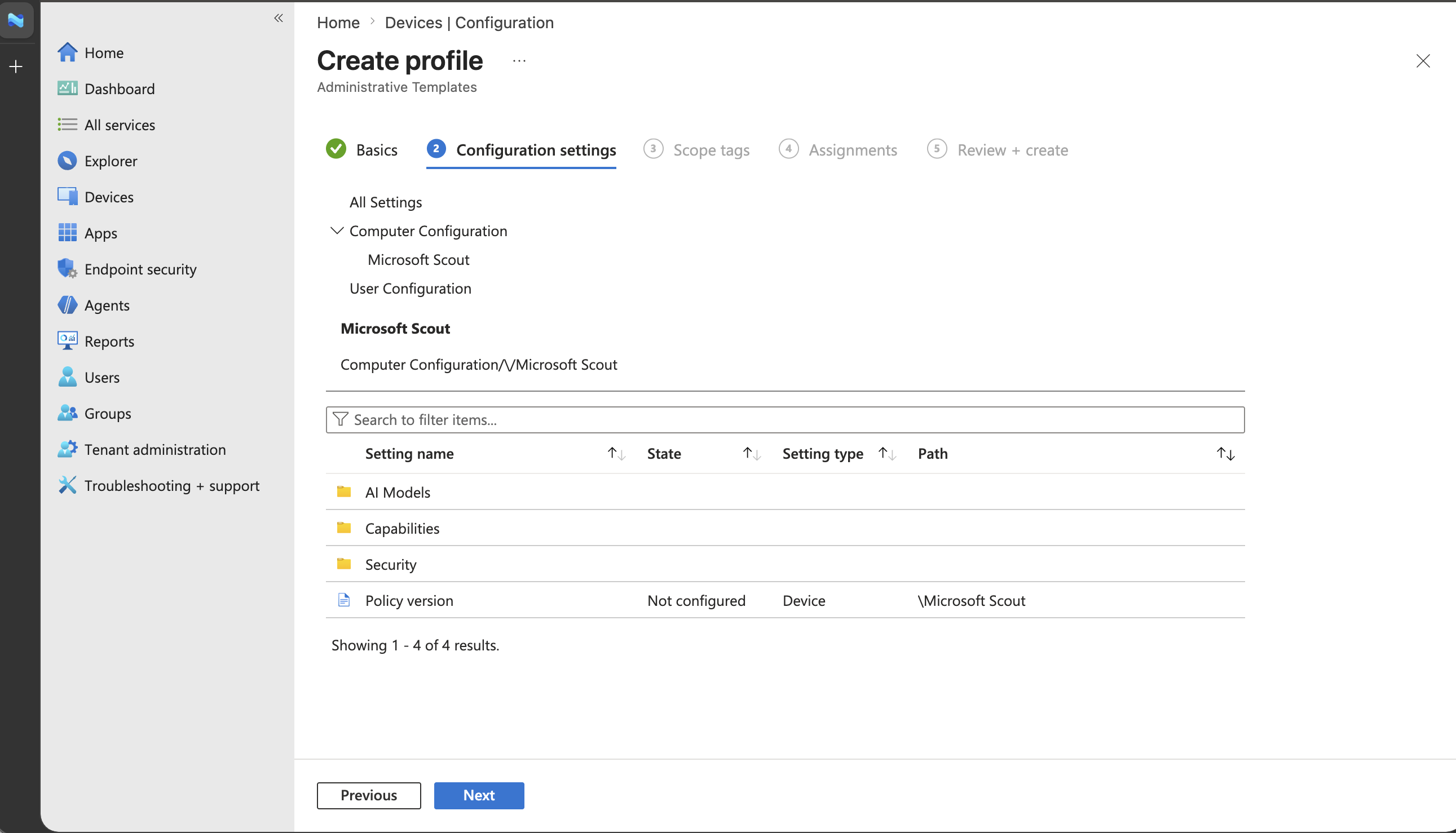
Choose the Microsoft Scout policy version
Select the Microsoft Scout policy version from the imported administrative template options, then continue to the available settings.
Open the Frontier access setting
Under Microsoft Scout, then Capabilities, open the setting named Allow Microsoft Scout Frontier access.
Enable Frontier access
Set Allow Microsoft Scout Frontier access to Enabled, then select OK.
Important
This is the key Windows policy setting for Frontier access. It enables the AllowScoutFrontierAccess capability on devices that receive this policy. When enabled, users in the tenant can sign in and use Microsoft Scout Frontier builds normally. If the setting is disabled or not configured, Frontier users might see a waitlist screen and be blocked from sign-in.
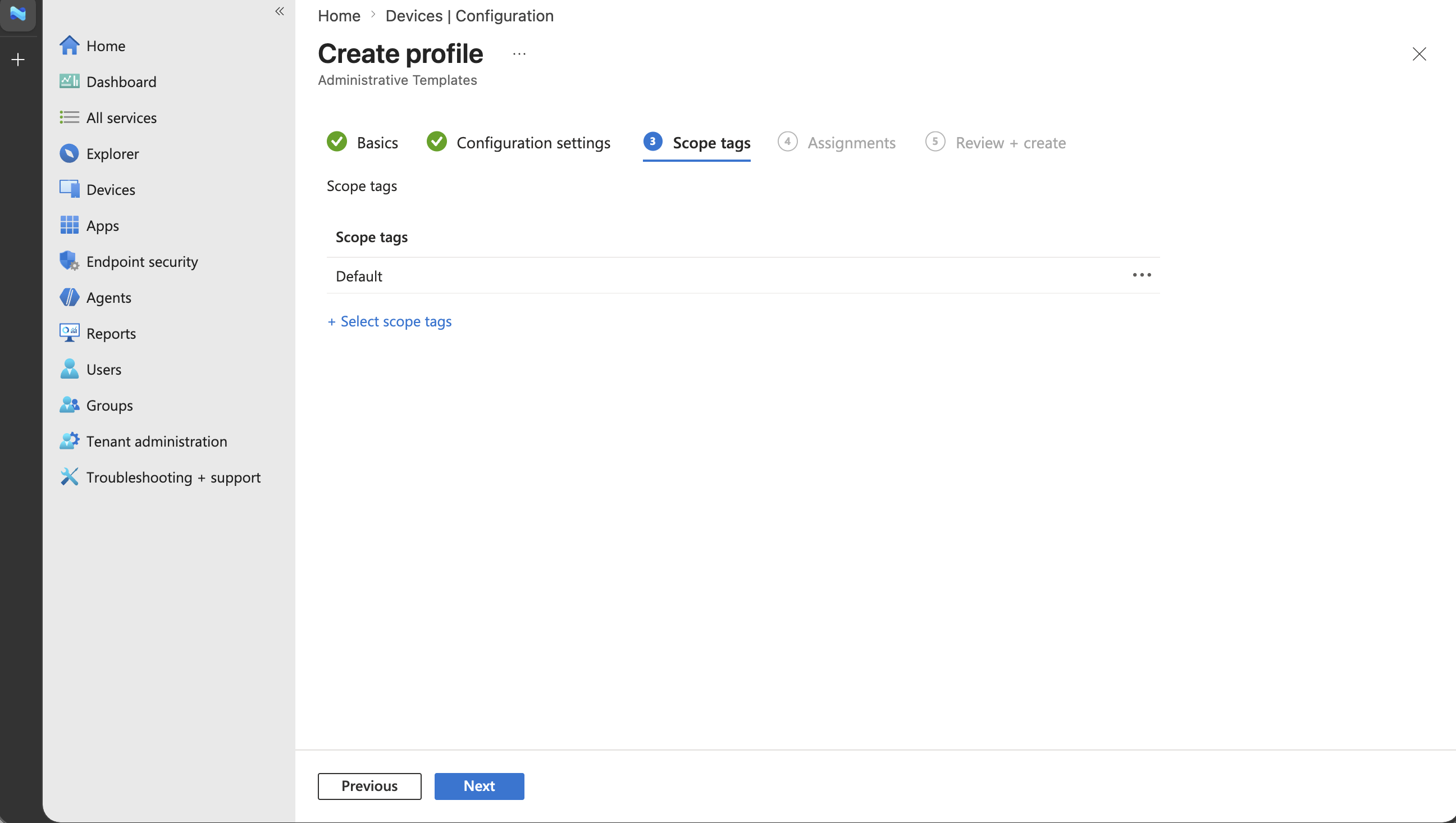
Continue through scope tags
On Scope tags, keep the default scope tags unless your organization requires a specific Intune RBAC scope tag, then select Next.
Configure assignments
On Assignments, choose the groups or devices that should receive the Microsoft Scout Windows policy.
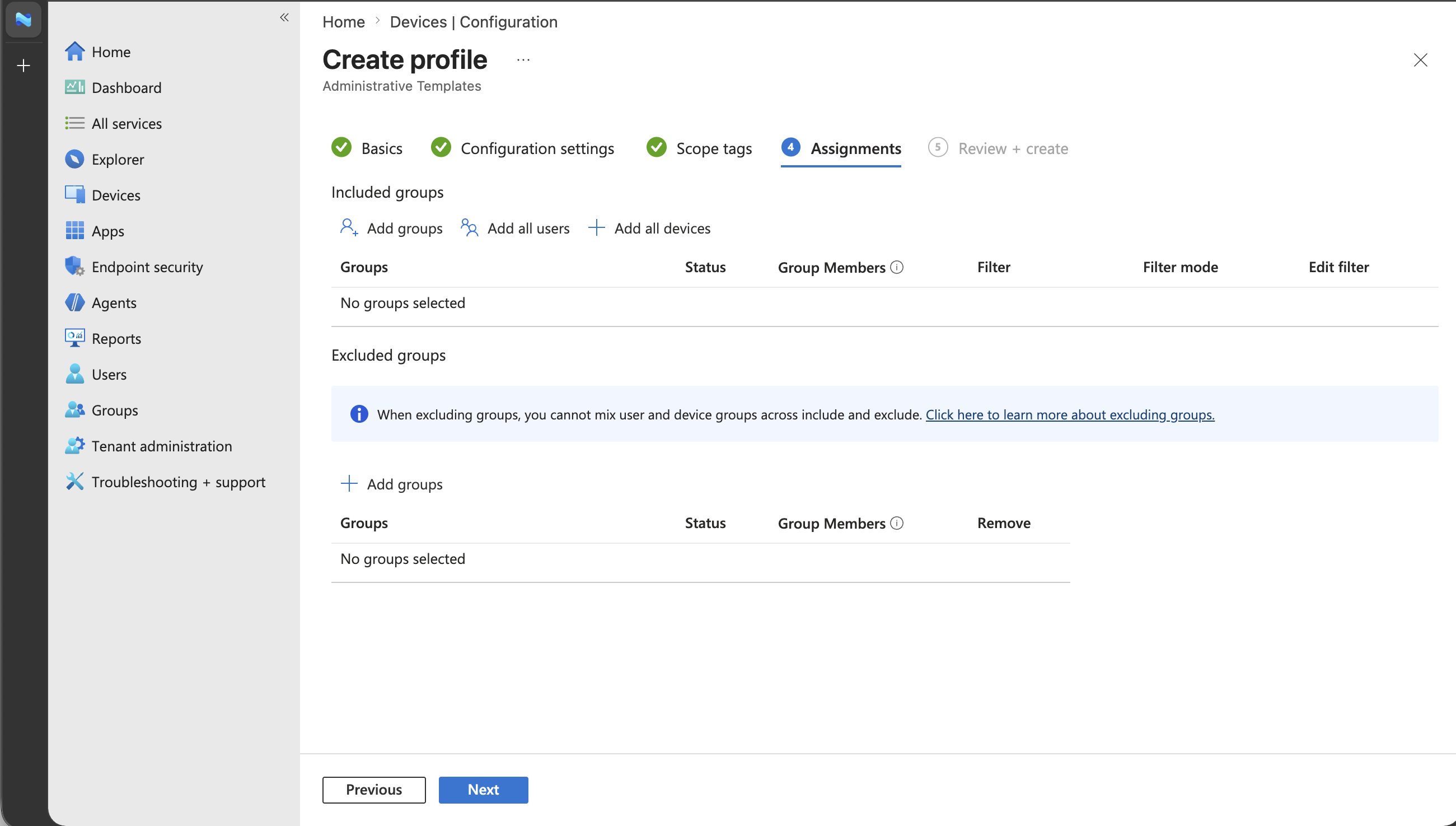
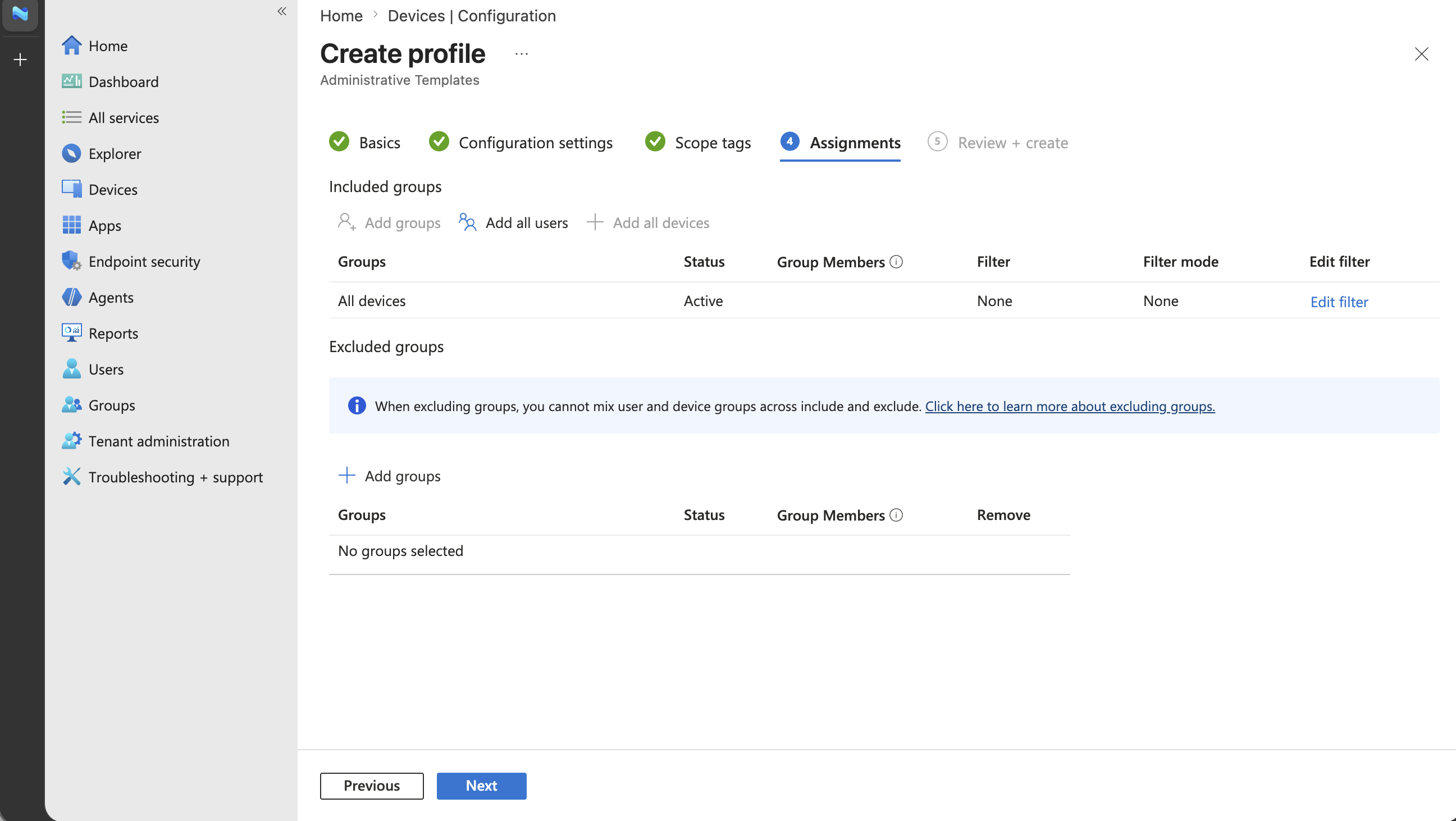
Assign to all devices, if appropriate
For broad Frontier tenant rollout, assign the policy to All devices. If you're piloting Microsoft Scout with a smaller device population, assign only the intended pilot group instead.
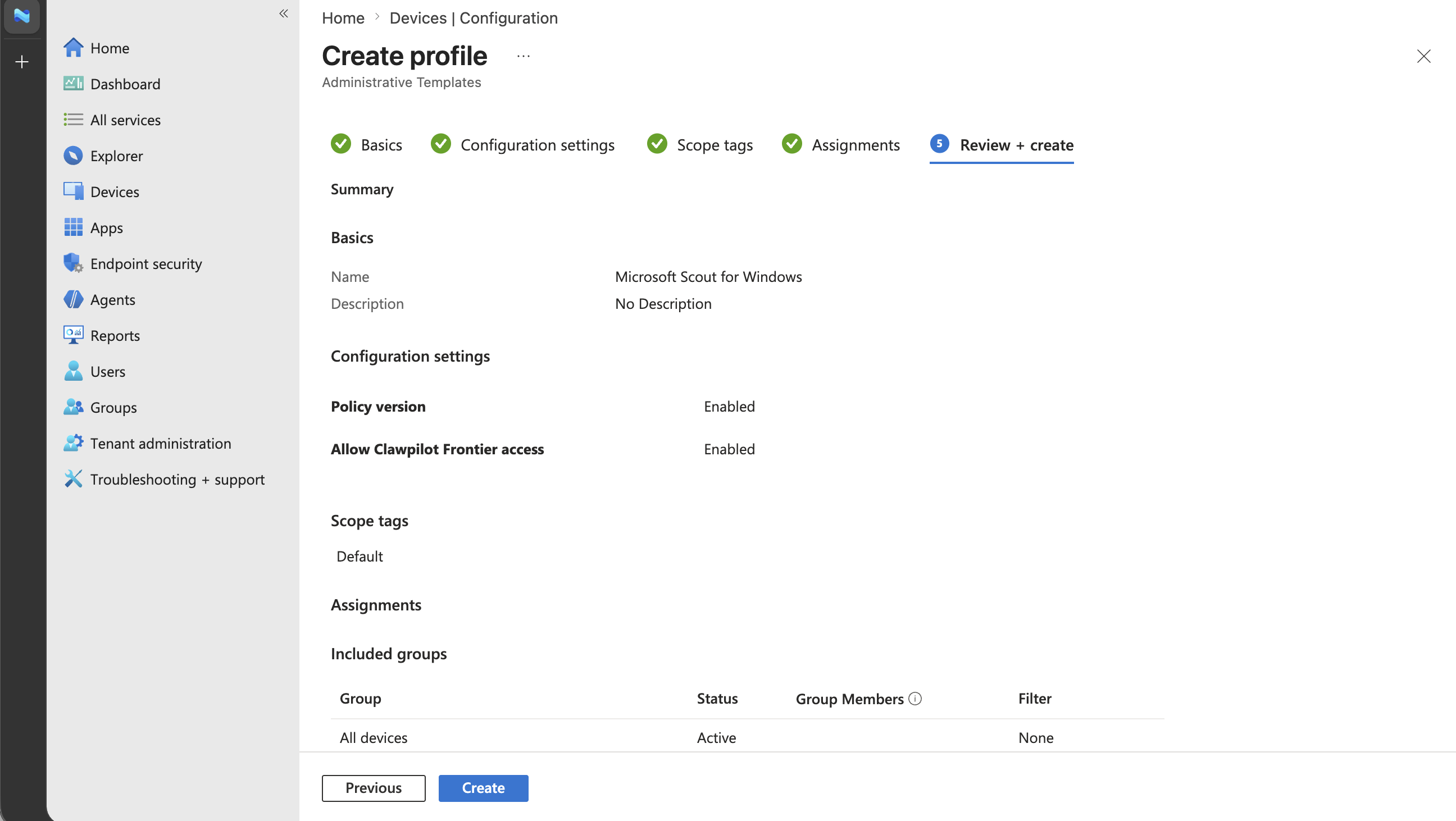
Review and create the Windows policy
Review the Windows configuration policy summary. Confirm that the policy includes the enabled Frontier access setting, then select Create.
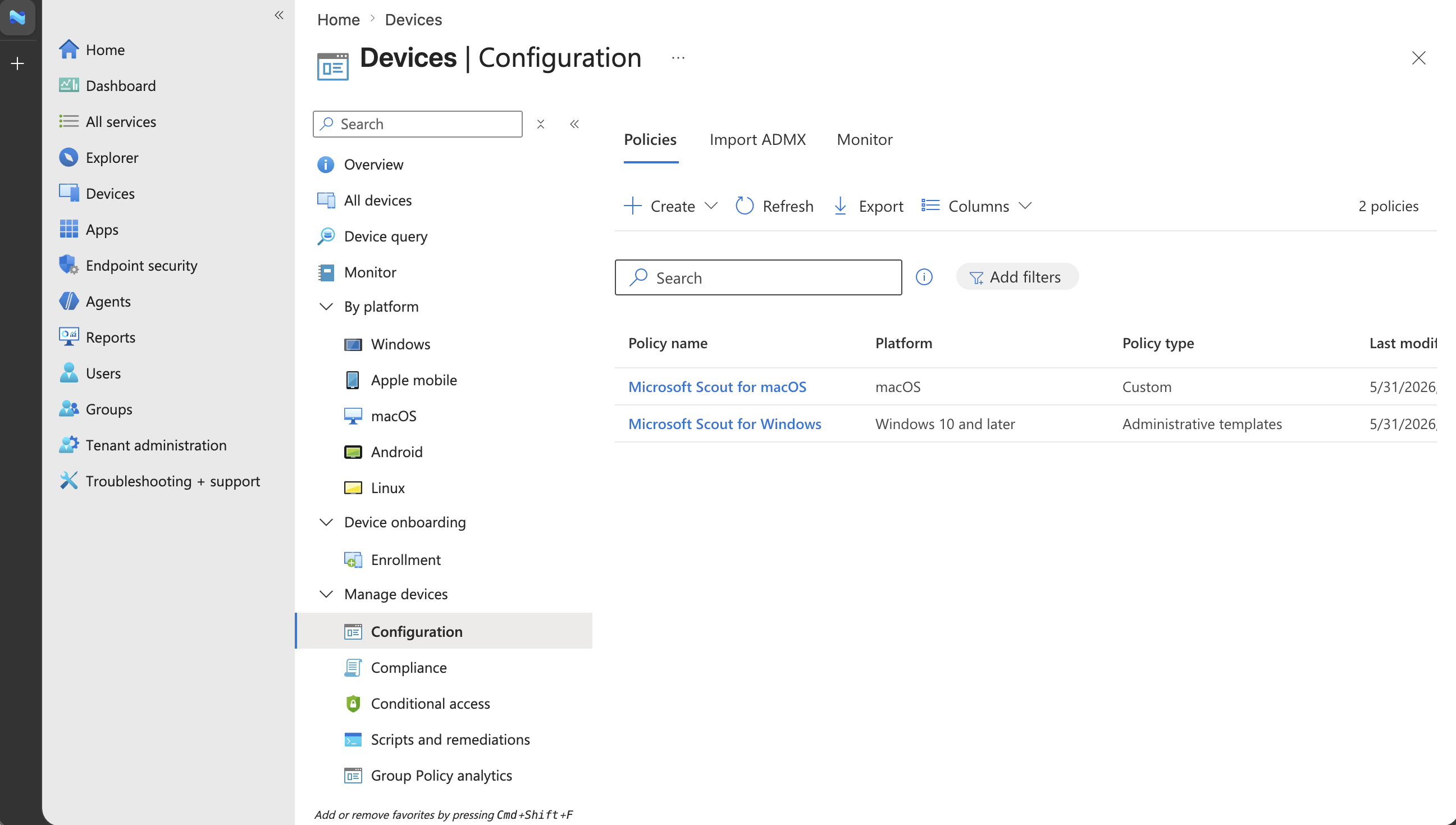
Confirm the Windows policy was created
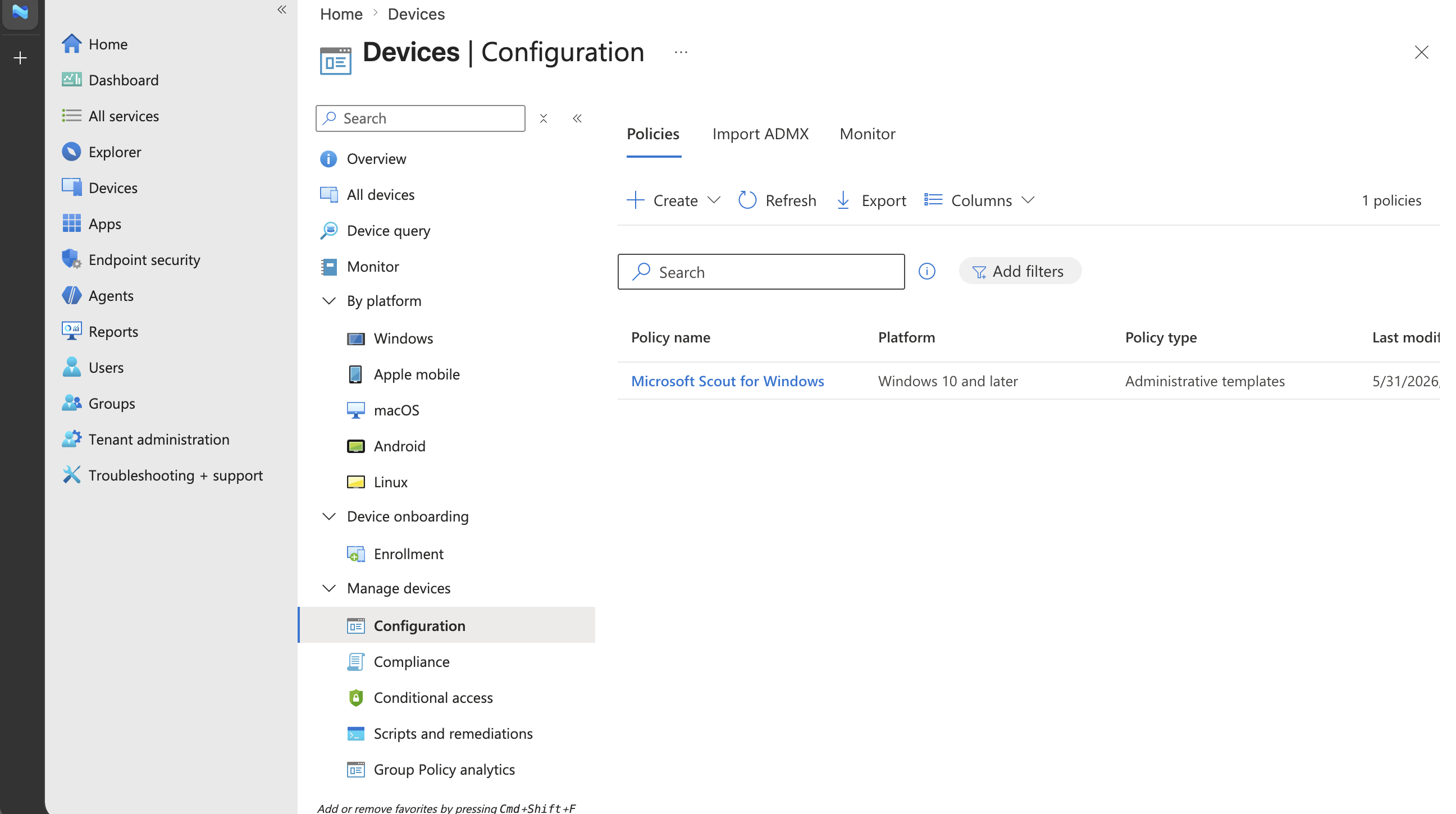
After creation, confirm that the Windows policy appears in the configuration policy list.
Part 3: Create the macOS Microsoft Scout policy
This part creates a macOS custom configuration profile that delivers the same tenant settings to managed Macs.
Create a policy for macOS
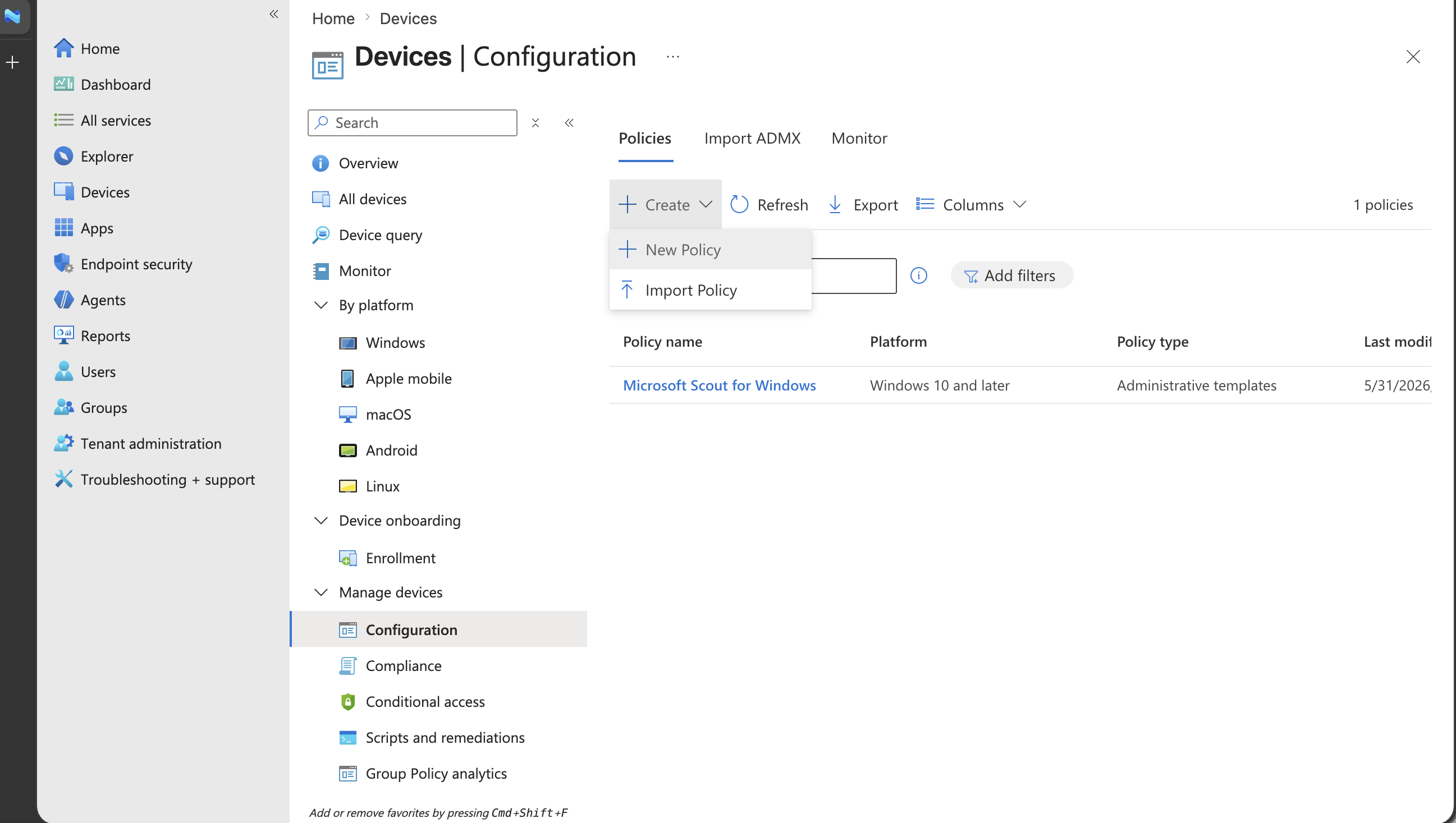
Return to Devices, then Configuration. Select New policy and begin creating a macOS policy.
Select the macOS custom profile type
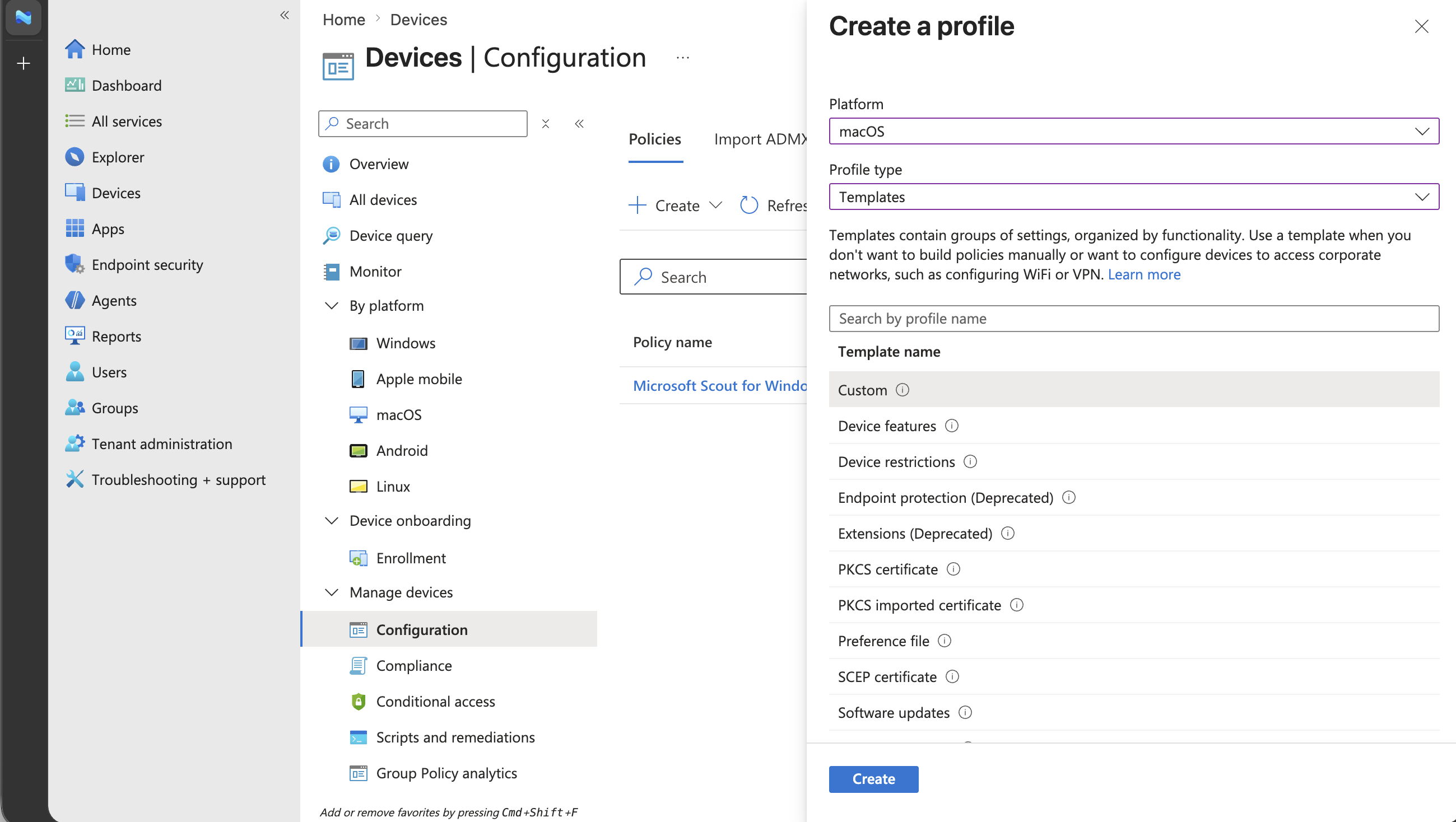
Choose:
- Platform: macOS
- Profile type: Templates
- Template name: Custom
Then select Create.
Name the macOS profile
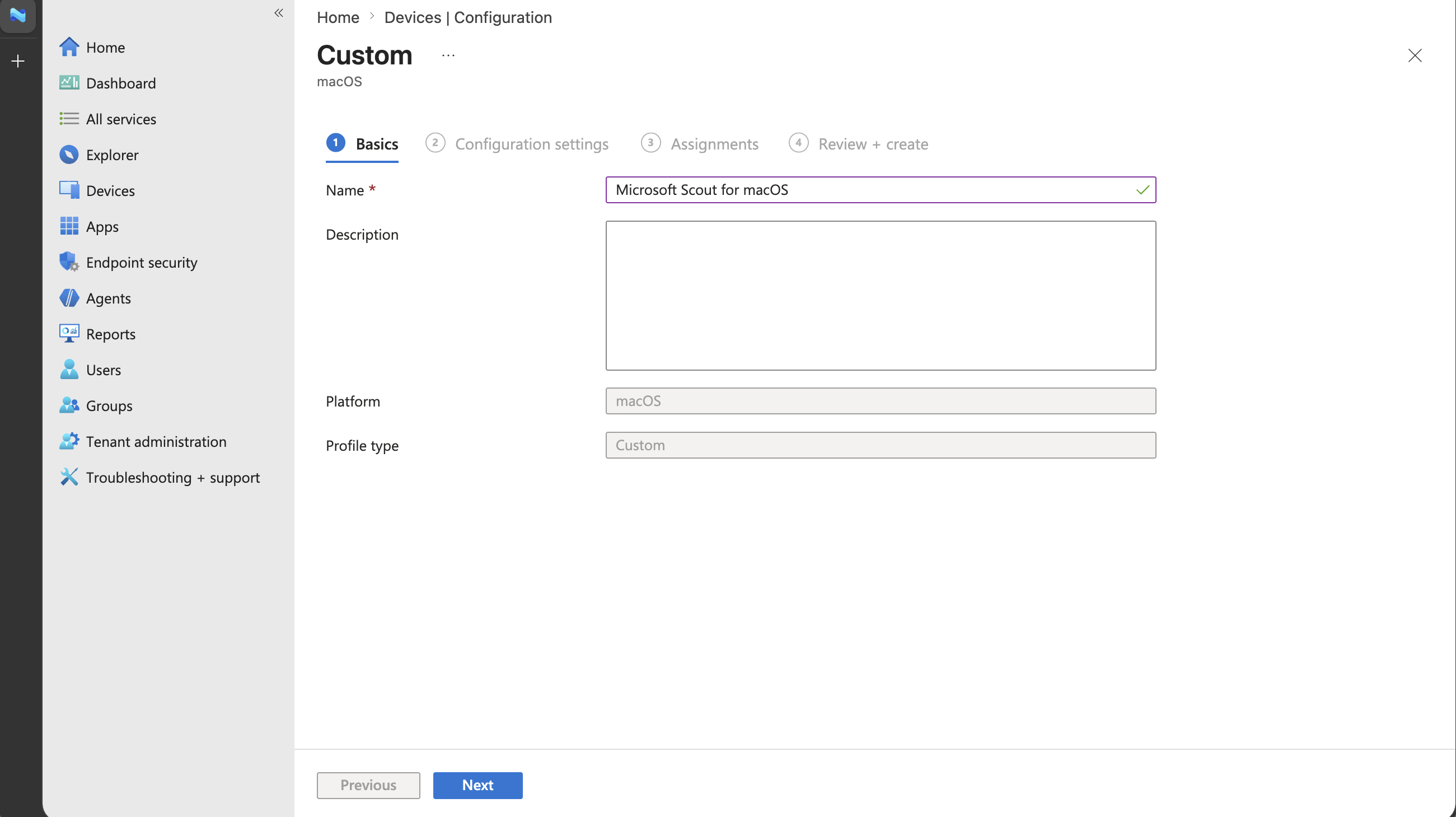
Enter a clear profile name, such as Microsoft Scout - macOS Frontier access. Optionally, add a description that explains the profile configures Microsoft Scout tenant policy for managed Macs. Select Next.
Upload the Microsoft Scout mobileconfig profile
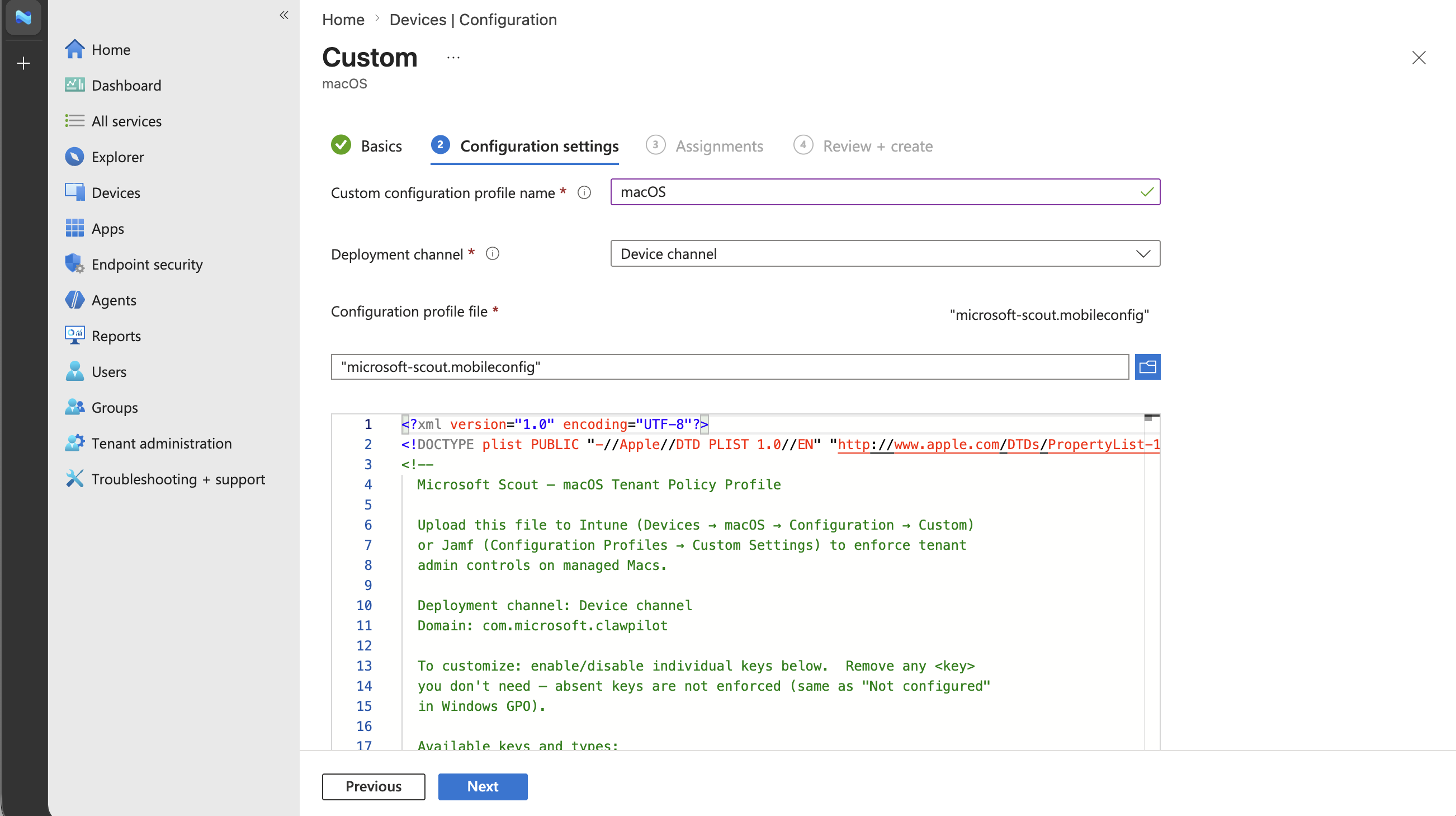
On Configuration settings, upload microsoft-scout.mobileconfig and use these values:
| Setting | Value |
|---|---|
| Custom configuration profile name | macOS |
| Deployment channel | Device channel |
| Configuration profile file | microsoft-scout.mobileconfig |
After the file is uploaded and the profile contents appear, select Next.
Configure macOS assignments
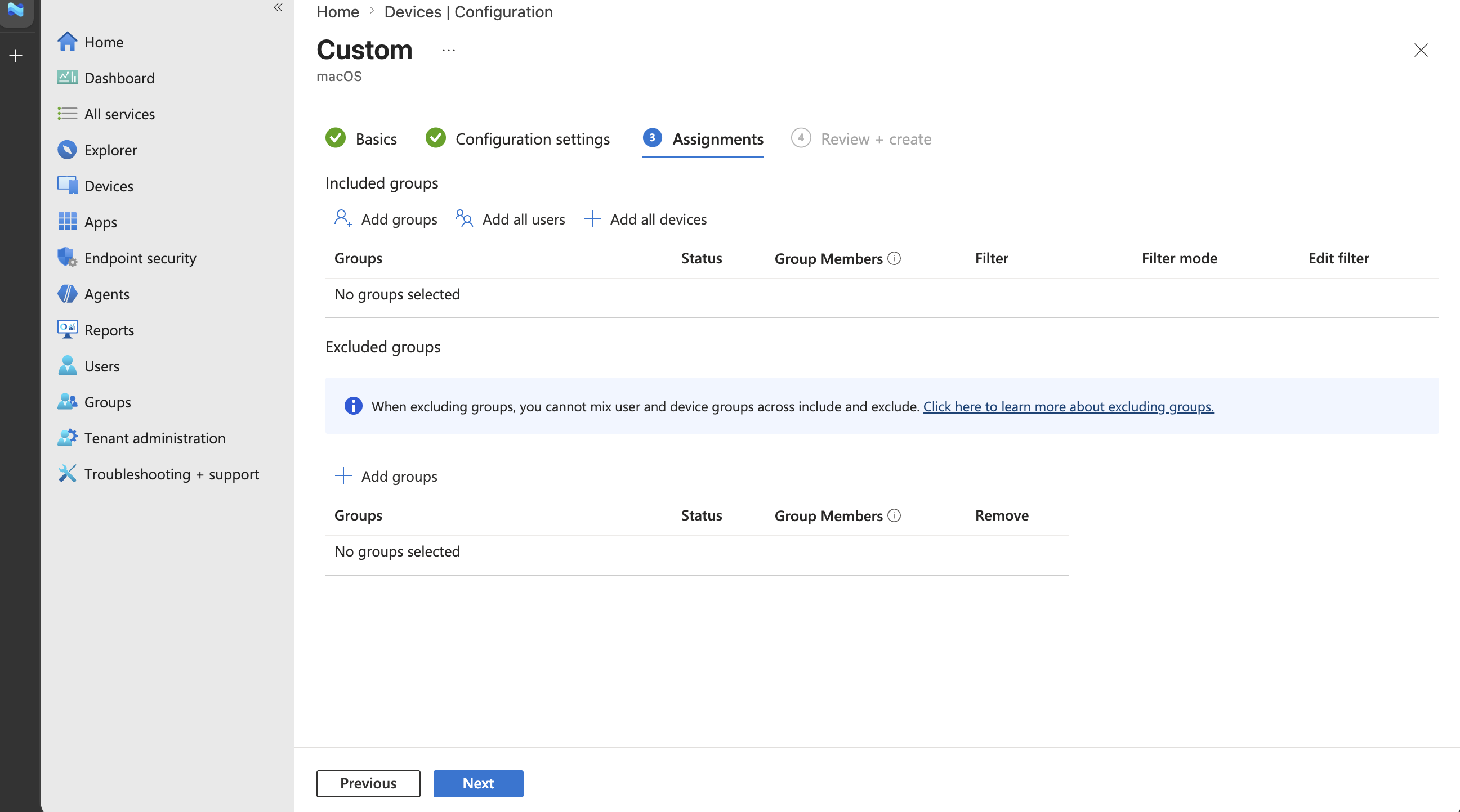
On Assignments, choose the devices or groups that should receive the Microsoft Scout macOS configuration profile.
Assign to all devices, if appropriate
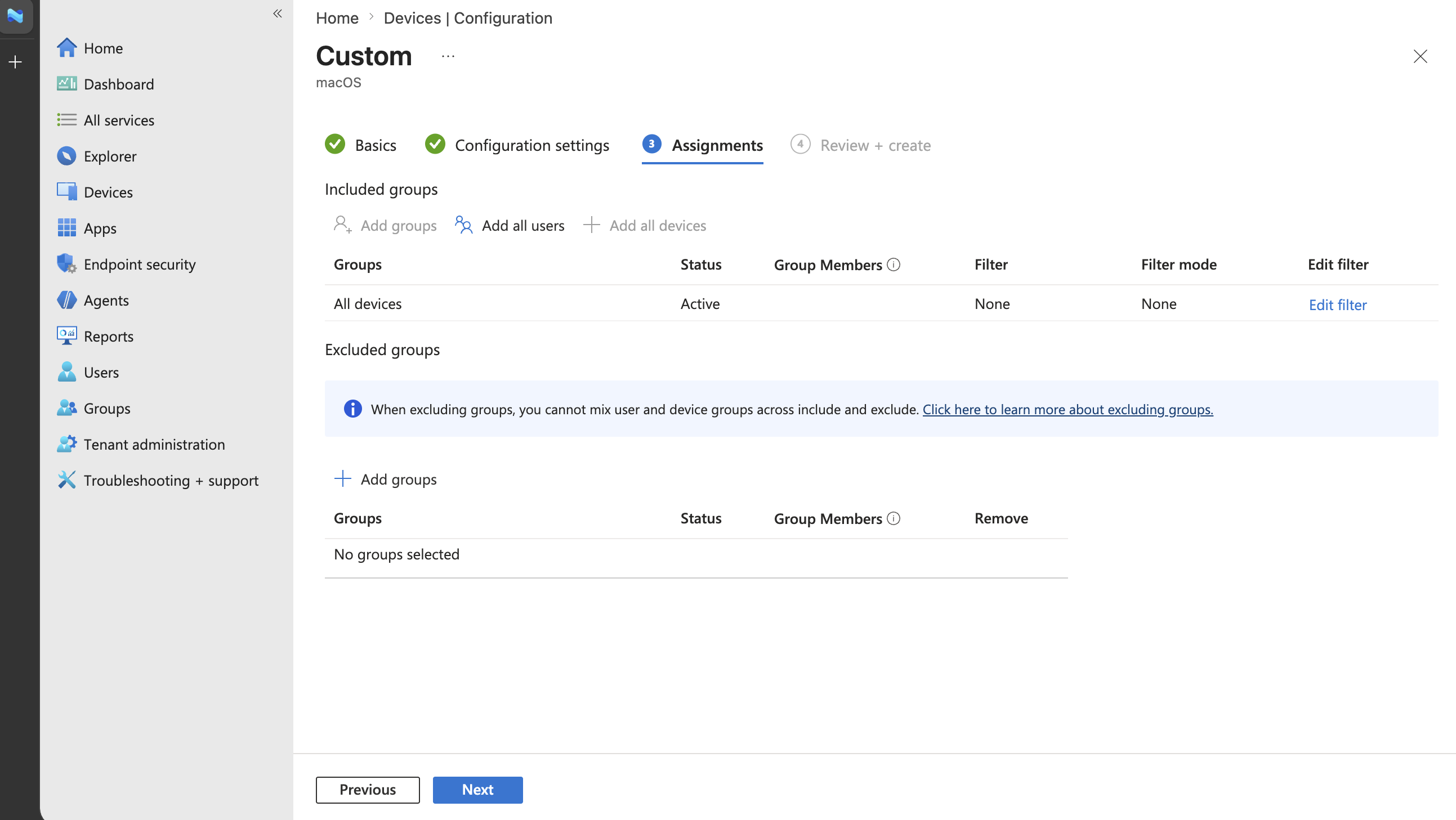
For broad Frontier tenant rollout, assign the macOS profile to All devices. For a pilot rollout, assign only the intended macOS pilot group.
Review and create the macOS policy
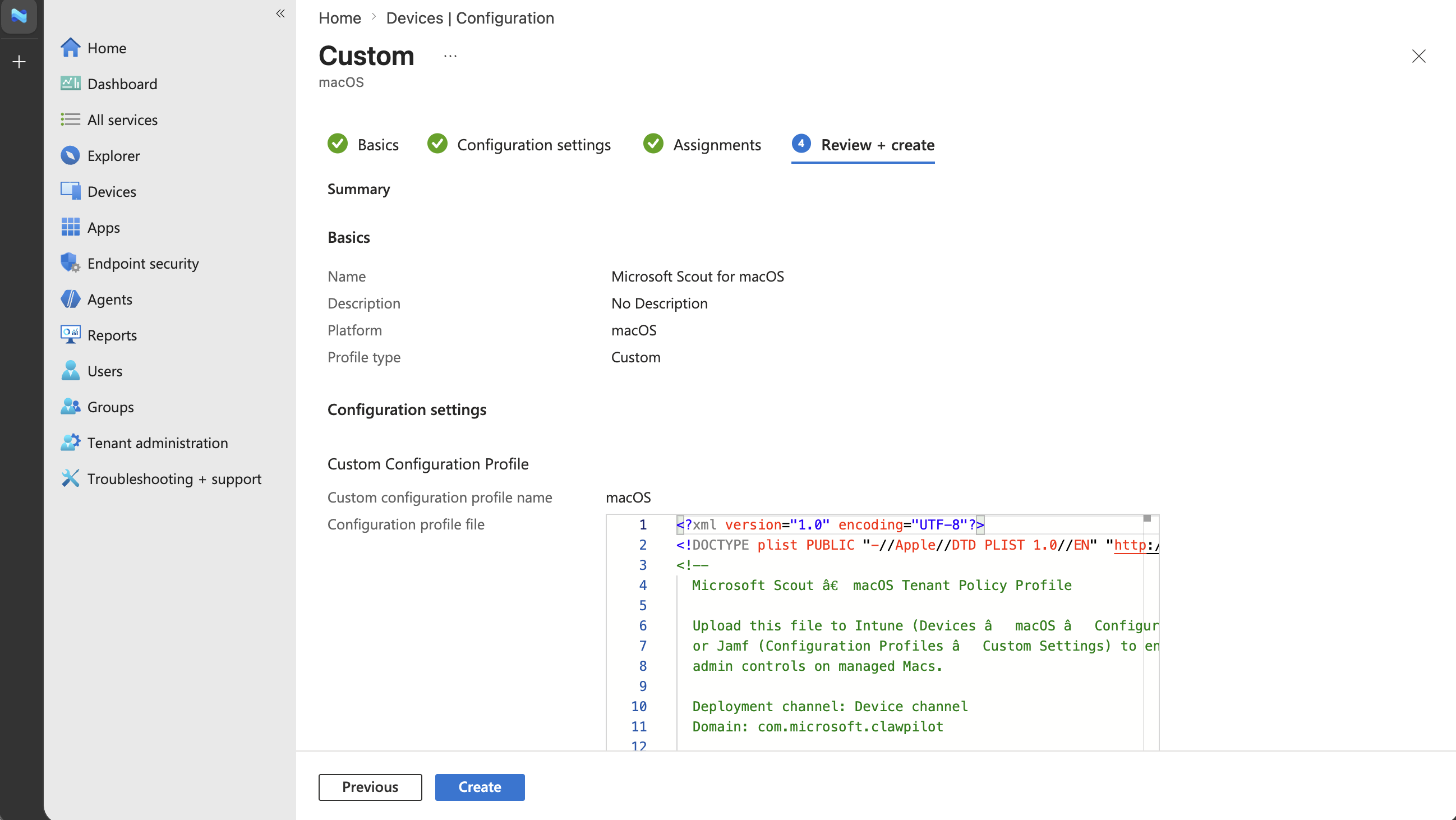
Review the macOS custom profile summary, confirm that the uploaded microsoft-scout.mobileconfig file is listed, then select Create.
Confirm the macOS policy was created
After creation, confirm that the macOS profile appears in the configuration policy list.
Validate the deployment
After the Windows and macOS policies are created and assigned:
- Confirm the Windows policy shows the
AllowScoutFrontierAccesscapability as enabled through the Allow Microsoft Scout Frontier access setting. - Confirm that assigned devices are included in the target groups.
- Allow Intune policy sync to complete on target devices.
- On a managed Frontier device, open Microsoft Scout and verify that the user can sign in without seeing the waitlist screen.
Troubleshoot
| Symptom | What to check |
|---|---|
| The Microsoft Scout Windows settings don't appear. | Confirm that microsoft-scout.admx and microsoft-scout.adml were imported successfully and show Available. |
| Users still see a waitlist screen. | Confirm that Allow Microsoft Scout Frontier access is set to Enabled, the policy is assigned to the device, and the device has synced with Intune. |
| macOS devices don't receive the setting. | Confirm that microsoft-scout.mobileconfig was uploaded to a macOS Custom profile using the Device channel and assigned to the target devices. |
| Policy applies to the wrong audience. | Review the assignment groups for both the Windows and macOS profiles. |