Note
Access to this page requires authorization. You can try signing in or changing directories.
Access to this page requires authorization. You can try changing directories.
Note
Teams Phone Agent is currently only available to customers in the Frontier Public Preview program.
This article is for IT pros and Teams administrators who want to create Appointment tools for use with Teams Phone Agent.
Planning and licensing review
Planning
Licensing
Known issues
None.
What's new for Appointment tools in the past six months
- June 15
- Entered Frontier Public Preview
Steps to create an Appointment tool for Teams Phone Agent
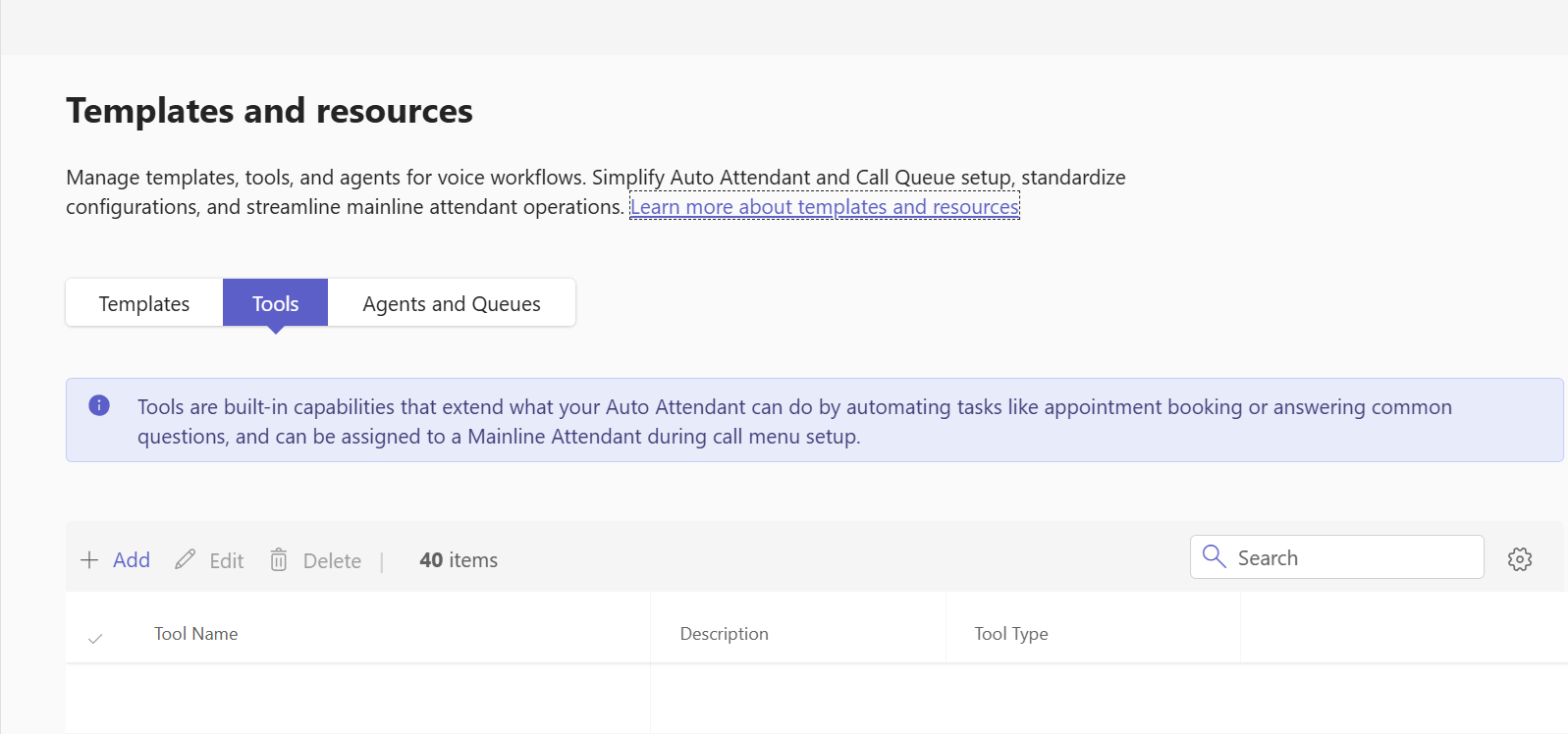
In the Teams admin center, expand Voice, select Templates and resources, select Tools, and then select Add.
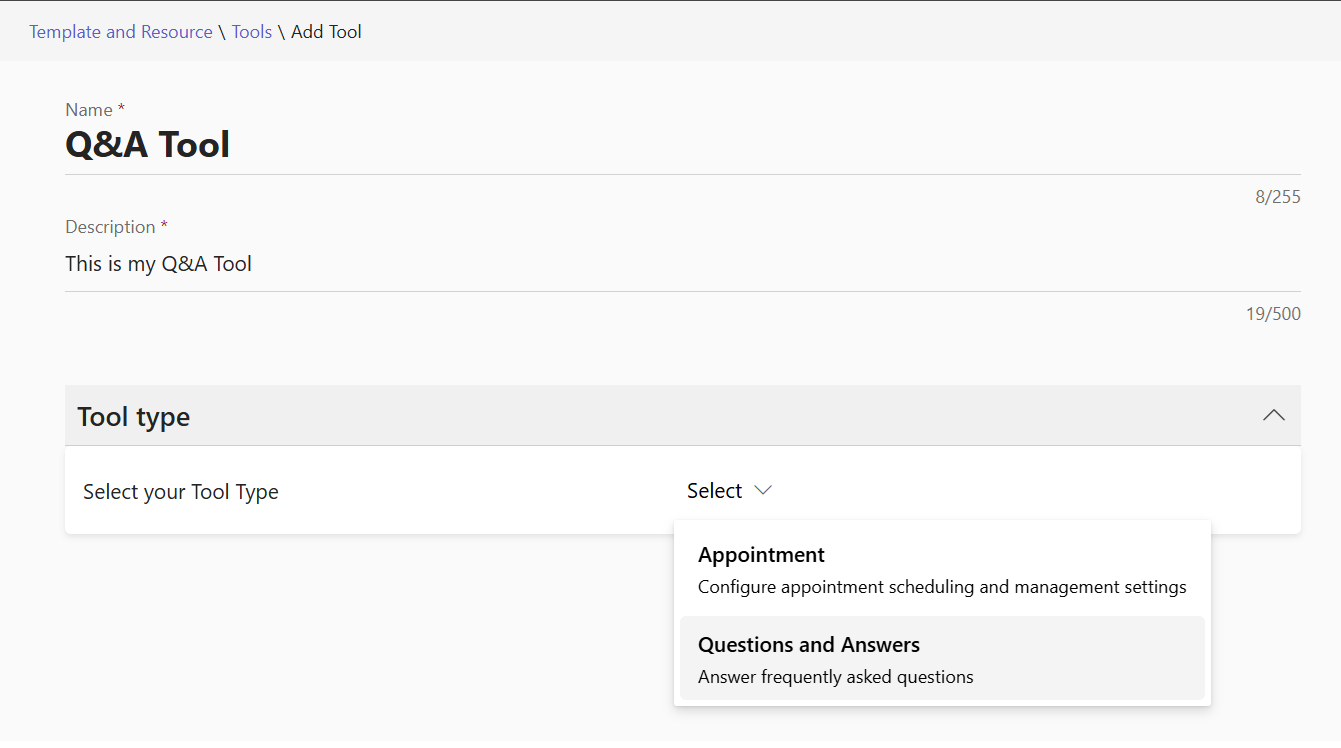
Enter a Name and Description for the tool.
Select Appointment as the tool type.
Select the Caller authentication method. This controls how the caller is verified.
- SMS - a code is sent via SMS.
- Email - a code is sent via email.
- User Details - the caller is requested to provide their details on the call.
Select the API authentication type. This controls how Teams Phone Agent authenticates with the booking system endpoints.
- Basic (Static) - no authentication is used.
- API Key (Static)
- Bearer Token (Static)
- Bearer Token (Dynamic)
Configure the required call flows.
Call flows are the independent steps required to authenticate callers for access to the booking system, retrieve available time slots, and book, retrieve, update, and delete appointments.
Based on the Caller authentication method, the following call flows are required.
System authentication
SMS / Email User details Generate auth token Generate auth token This call flow is only required if the API authentication type is set to Bearer Token (Dynamic).
Caller authentication
SMS / Email User details Initiate caller authentication Authenticate caller Authenticate caller The Initiate caller authentication step requests that the booking system send an email or SMS to the caller. The message should contain a one-time numeric code that the caller provides to Teams Phone Agent.
Book appointment
SMS / Email User details Get available appointment time slots Get available appointment time slots Book appointment Book appointment Manage appointments
SMS / Email User details Get upcoming appointments Get upcoming appointments Update appointment Update appointment Delete appointment Delete appointment Select Save to save your changes.
The Appointment tool is now ready to be added to Teams Phone Agent.
Related Teams Phone Agent setup and configuration articles
PowerShell
For instructions on creating an Appointment tool using PowerShell, see Set up Teams Phone Agent with PowerShell.