Note
Access to this page requires authorization. You can try signing in or changing directories.
Access to this page requires authorization. You can try changing directories.
Use an Excel add-in when you want to automate workbook tasks, connect workbook data to external services, add custom calculations, or guide users with a web-based experience in Excel. Excel add-ins run in Excel on the web, Windows, Mac, and iPad, so you can build one solution for multiple platforms.
With the Office Add-ins platform and Office.js, you can:
- Read and write workbook data, including worksheets, ranges, tables, charts, and named items.
- Extend the ribbon and context menu or add a task pane or content pane with web-based UI.
- Add custom functions that users call from worksheet cells.
- Open dialog boxes for sign-in, confirmation, and other focused tasks.
The platform also supports centralized deployment, standard web technologies such as HTML, CSS, and JavaScript, and publishing through the Microsoft Marketplace.
Note
Excel add-ins are different from COM and VSTO add-ins, which run only in Office on Windows. Excel add-ins don't require you to install code on a user's device or in Excel.
Start with the most common Excel add-in tasks
If you're new to Excel add-ins, start with the Excel quickstart. Then use these articles to go deeper into the Excel object model and common workbook scenarios:
- Learn the Excel JavaScript object model.
- Work with worksheets.
- Work with tables.
- Work with charts.
- Create custom functions.
What you can build with an Excel add-in
In addition to working with workbook content, Excel add-ins can add commands, show task panes, define custom functions, open dialog boxes, and embed rich web content in a worksheet.
Tip
Some of the terms in this article have specific meanings in the context of Office Add-ins. For definitions of these terms, see the Office Add-ins glossary.
Add-in commands
Add-in commands extend the Excel UI and start actions in your add-in. You can add a button to the ribbon or an item to a context menu. When users select a command, they can run JavaScript code or open a page from the add-in in a task pane.
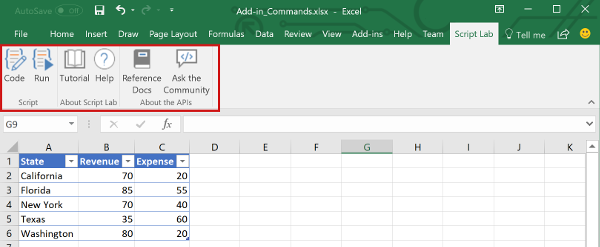
For information about supported platforms and design guidance, see Add-in commands for Excel, Word, and PowerPoint.
Task panes
The task pane interface appears on the right side of the Excel window. It gives users controls that run code, update the workbook, or show data from another source.
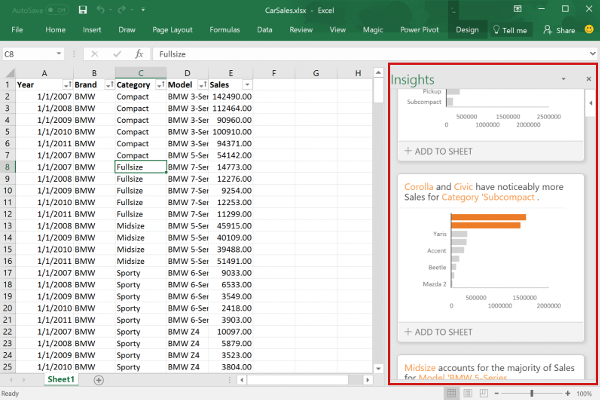
For more information, see Task panes in Office Add-ins. For a working sample, see Excel Add-in JS WoodGrove Expense Trends.
Custom functions
Custom functions let you define new worksheet functions in JavaScript as part of an add-in. Users can call them the same way they call built-in functions such as SUM().

For more information, see Create custom functions in Excel.
Dialog boxes
Dialog boxes float above the active Excel window. Use them for sign-in flows that can't open directly in a task pane, to confirm an action, or to host content that needs more focused space. To open a dialog box in your add-in, use the Dialog API.
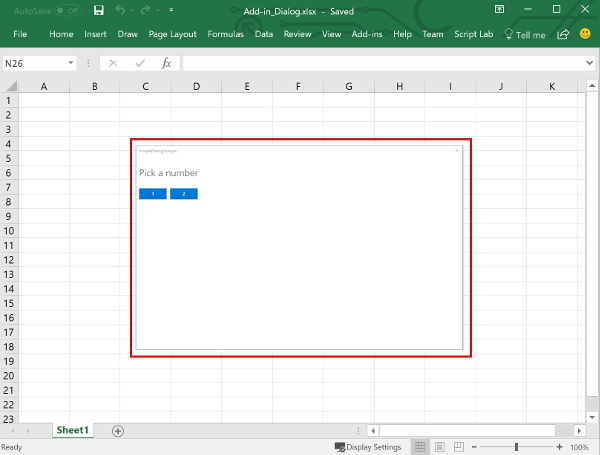
To learn more, see Use the Dialog API in your Office Add-ins.
Content add-ins
A content add-in is embedded directly in a worksheet. Use one when you want users to interact with a chart, data visualization, media experience, or other web content in the document itself.
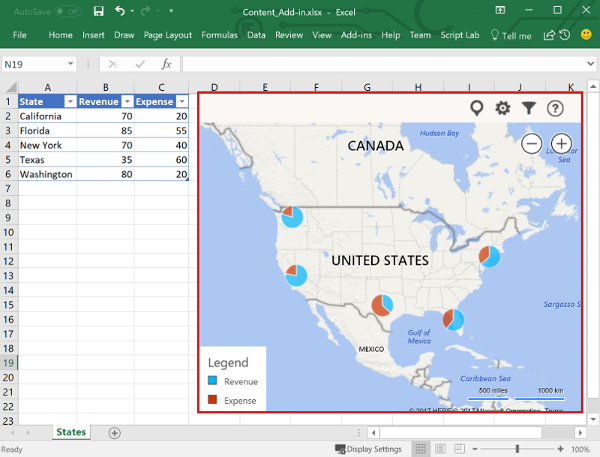
To learn more, see Content Office Add-ins. For a working sample, see Excel content add-in: Humongous Insurance.
What an Excel add-in includes
An Excel add-in has two basic parts: a web application and a manifest.
The web application uses the Office JavaScript API to work with objects in Excel and connect to online resources. For example, the web app can:
- Create, read, update, and delete workbook data.
- Authenticate users with an online service by using OAuth 2.0.
- Send requests to Microsoft Graph or another web API.
You can host the web app on any web server and build it with client-side frameworks such as Angular, React, or jQuery, or with server-side technologies such as ASP.NET, Node.js, or PHP.
The manifest is a configuration file that defines how the add-in integrates with Office. It specifies settings and capabilities such as:
- The URL of the add-in's web application.
- The add-in's display name, description, ID, version, and default locale.
- How the add-in integrates with Excel, including custom UI such as ribbon buttons and context menu items.
- The permissions that the add-in requires, such as reading or writing document data.
To make an Excel add-in available to users, publish its manifest to Microsoft Marketplace or to an add-ins catalog. For details about Marketplace publishing, see Make your solutions available in Microsoft Marketplace and within Office.
JavaScript APIs for workbook content
An Excel add-in interacts with objects in Excel by using the Office JavaScript API, which includes two JavaScript object models:
Excel JavaScript API: Introduced with Office 2016, the Excel JavaScript API provides strongly-typed Excel objects that you can use to access worksheets, ranges, tables, charts, and more.
Common API: Introduced with Office 2013, the Common API enables you to access features such as UI, dialogs, and client settings that are common across multiple types of Office applications. The limited functionality for Excel interaction in the Common API has been replaced by the Excel JavaScript API.
See also
Collaborate with us on GitHub
The source for this content can be found on GitHub, where you can also create and review issues and pull requests. For more information, see our contributor guide.
Office Add-ins