Note
Access to this page requires authorization. You can try signing in or changing directories.
Access to this page requires authorization. You can try changing directories.
One way to publish your Office Add-in is by deploying its web app to Azure. This article shows the end-to-end flow for add-ins that use the add-in only manifest and that were created with the Yeoman Generator for Office Add-ins.
Note
- For information about publishing an Office Add-in that you created using Visual Studio, see Publish your add-in using Visual Studio.
- The process described in this article doesn't apply to add-ins that use the unified manifest for Microsoft 365. Add-ins created using Microsoft 365 Agents Toolkit use the unified manifest. For information about publishing an add-in that you created using Agents Toolkit, see Deploy Teams app to the cloud and Deploy your first Teams app. The latter article is about Teams tab apps, but it is applicable to Office Add-ins created with Agents Toolkit.
Publish for other users
An Office Add-in includes a manifest file and a web app. The manifest defines key details, such as the Office apps that support your add-in and the web app URL.
During development, you run the add-in on localhost. To publish it for other users, deploy the web app and update the manifest to use the deployed URL.
You can complete this process directly in Visual Studio Code by using the Azure Storage extension.
Prerequisites
- An Office Add-in project created with the Yeoman generator for Office Add-ins that uses the add-in only manifest.
- Visual Studio Code.
- An Azure account and permission to create Azure Storage accounts.
Using Visual Studio Code to publish
Note
These steps only work for projects created with the Yeoman generator for Office Add-ins, and that use the add-in only manifest. They don't apply if you created the add-in using Agents Toolkit or created it with the Yeoman generator and it uses the unified manifest for Microsoft 365.
Open your project from its root folder in Visual Studio Code (VS Code).
Select View > Extensions (Ctrl+Shift+X) to open the Extensions view.
Search for the Azure Storage extension and install it.
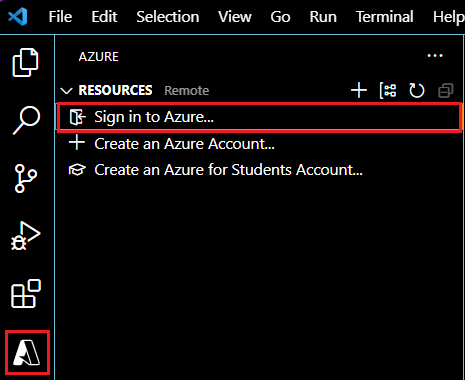
Once installed, an Azure icon is added to the Activity Bar. Select it to access the extension. If the Activity Bar is hidden, open it by selecting View > Appearance > Activity Bar.
Select Sign in to Azure to sign in to your Azure account. If you don't already have an Azure account, create one by selecting Create an Azure Account. Follow the provided steps to set up your account.
Once you're signed in, your Azure Storage accounts appear in the extension. If you don't already have one, create one by using the Create Storage Account command. Use a globally unique account name with only
a-zand0-9. By default, this creates a storage account and a resource group with the same name in West US. You can change these settings in Azure portal.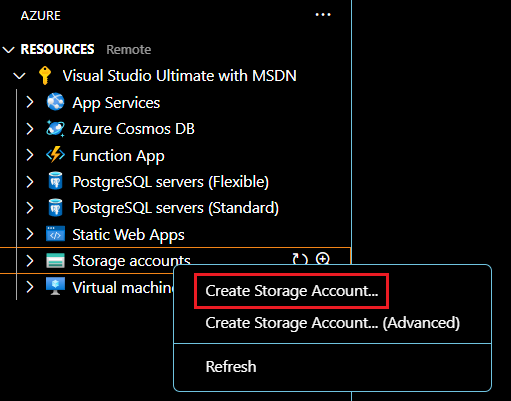
Right-click (or select and hold) your storage account and select Configure Static Website. You'll be asked to enter the index document name and the 404 document name. Change the index document name from the default
index.htmltotaskpane.html. You may also change the 404 document name but aren't required to.Right-click (or select and hold) your storage account again and this time select Browse Static Website. From the browser window that opens, copy the website URL.
Open your project's manifest file and change all references to your localhost URL (such as
https://localhost:3000) to the URL you've copied. This endpoint is the static website URL for your newly created storage account. Save the changes to your manifest file.Open a command line prompt or terminal window and go to the root directory of your add-in project. Run the following command to prepare all files for production deployment.
npm run buildWhen the build completes, the dist folder in the root directory of your add-in project will contain the files that you'll deploy in subsequent steps.
In VS Code, go to the Explorer and right-click (or select and hold) the dist folder, and select Deploy to Static Website via Azure Storage. When prompted, select the storage account you created previously.
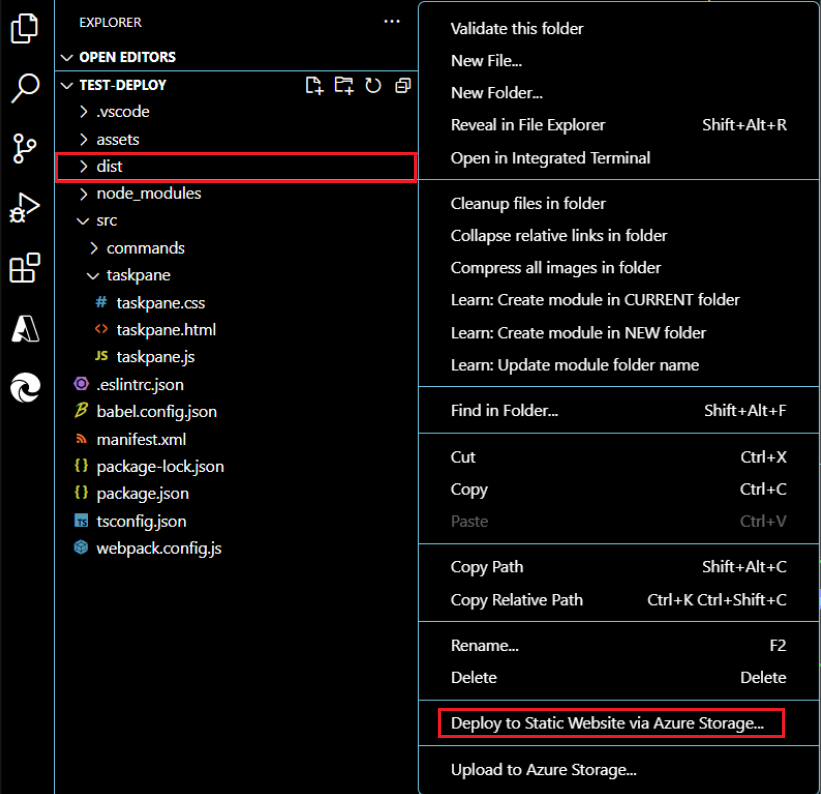
When deployment is complete, right-click (or select and hold) the storage account that you created previously and select Browse Static Website. This opens the static website and displays the task pane.
Finally, sideload the manifest file. The add-in then loads from the static website you deployed.
Deploy custom functions for Excel
If your add-in has custom functions, there are a few more steps to enable them on the Azure Storage account. First, enable CORS so that Office can access the functions.json file.
Right-click (or select and hold) the Azure storage account and select Open in Portal.
In the Settings group, select Resource sharing (CORS). You can also use the search box to find this.
Create a new CORS rule for the Blob service with the following settings.
Property Value Allowed origins * Allowed methods GET Allowed headers * Exposed headers Access-Control-Allow-Origin Max age 200 Select Save.
Caution
This CORS configuration assumes all files on your server are publicly available to all domains.
Next, add a MIME type for JSON files.
Create a new file in the
srcfolder named web.config.Insert the following XML and save the file.
<?xml version="1.0"?>
<configuration>
  <system.webServer>
    <staticContent>
      <mimeMap fileExtension=".json" mimeType="application/json" />
    </staticContent>
  </system.webServer>
</configuration>
Open the webpack.config.js file.
Add the following code in the list of
pluginsto copy the web.config into the bundle when the build runs.new CopyWebpackPlugin({ patterns: [ { from: "src/web.config", to: "src/web.config", }, ], }),Open a command line prompt and go to the root directory of your add-in project. Then run the following command to prepare all files for deployment.
npm run buildWhen the build completes, the dist folder in the root directory of your add-in project will contain the files that you'll deploy.
To deploy, in the VS Code Explorer, right-click (or select and hold) the dist folder and select Deploy to Static Website via Azure Storage. When prompted, select the storage account you created previously. If you already deployed the dist folder, you'll be prompted if you want to overwrite the files in the Azure storage with the latest changes.
Deploy updates
You'll deploy updates to your web application in the same manner as described previously. Changes to the manifest require redistributing your manifest to users. The process to do so depends on your publishing method. For more information on updating your add-in, see Maintain your Office Add-in.
See also
Collaborate with us on GitHub
The source for this content can be found on GitHub, where you can also create and review issues and pull requests. For more information, see our contributor guide.
Office Add-ins