Note
Access to this page requires authorization. You can try signing in or changing directories.
Access to this page requires authorization. You can try changing directories.
Note
The Common Data Service (Legacy) connector has been superseded by the Power Query Dataverse connector. In most cases, we recommend that you use the Dataverse connector instead of the Common Data Service (Legacy) connector. However, there could be limited cases where it's necessary to choose the Common Data Service (Legacy) connector. These cases are described in When to use the Common Data Service (Legacy) connector.
Summary
| Property | Value |
|---|---|
| Connector |  Common Data Service (Legacy) |
| Products | Power BI (semantic models) Power Query Online |
| Release state | General availability |
| Category | Power Platform |
| Authentication kinds | Microsoft Entra ID |
| Data source kind | Cds |
| Function Reference Documentation | Cds.ContentsCds.Entities |
Note
Some capabilities might be present in one product but not others due to deployment schedules and host-specific capabilities.
Prerequisites
You must have a Common Data Service (Legacy) environment with maker permissions to access the portal, and read permissions to access data within tables.
Supported capabilities
- Server URL
- Advanced
- Reorder columns
- Add display column
Parameters
Entry point: Cds.Entities
Required parameter count: 1
Connect to your Common Data Service instance (Dynamics 365 and PowerApps).
| Parameter | Display name | Required | Type | Group | Description | Sample values | Nullable | Additional metadata |
|---|---|---|---|---|---|---|---|---|
| url | Server Url | Yes | text | Url to the server instance. | "https://tenant.crm.dynamics.com/" | false | {"Documentation.Category": "", "Documentation.Examples": [], "Documentation.LongDescription": "The type that represents a text URI.", "Documentation.Name": "Uri.Type", "Documentation.Description": "The type that represents a text URI."} | |
| options | Advanced settings | No | nullable record | Advanced settings | Optional settings that can change the behavior of the query. | true |
Fields in options
Additional fields may be accepted by this open record.
| Field | Display name | Required | Type | Group | Description | Nullable | Optional |
|---|---|---|---|---|---|---|---|
| options.ReorderColumns | Reorder columns | No | nullable logical | Advanced settings | Arrange table columns in alphabetical order. Default: true | true | true |
| options.UseFormattedValue | Add display column | No | nullable logical | Advanced settings | Adds a *_display column for picklist fields. Default: true | true | true |
Connect from Power Query Desktop
To connect to Common Data Service (Legacy) from Power Query Desktop:
Select Common Data Service (Legacy) in the get data experience. The get data experience in Power Query Desktop varies between apps. For more information about the Power Query Desktop get data experience for your app, go to Where to get data.
Enter the Common Data Service (Legacy) environment URL of the data you want to load. Use the format https://<yourenvironmentid>.crm.dynamics.com/. More information: Finding your Dataverse environment URL

When the table is loaded in the Navigator dialog box, by default the columns in the table are reordered in alphabetical order by the column names. If you don't want the columns reordered, in the advanced settings enter false in Reorder columns.
Also when the table is loaded, by default if the table contains any picklist fields, a new column with the name of the picklist field with _display appended at the end of the name is added to the table. If you don't want the picklist field display column added, in the advanced settings enter false in Add display column.
When you've finished filling in the information, select OK.
If this attempt is the first time you're connecting to this site, select Sign in and input your credentials. Then select Connect.

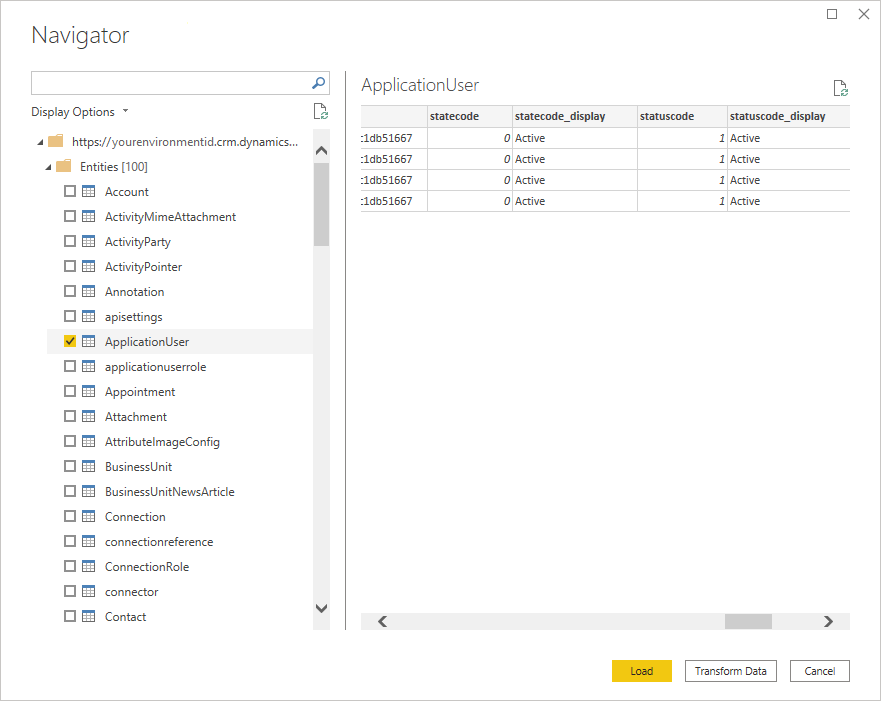
In Navigator, select the data you require, then either load or transform the data.
Connect from Power Query Online
To connect to Common Data Service (Legacy) from Power Query Online:
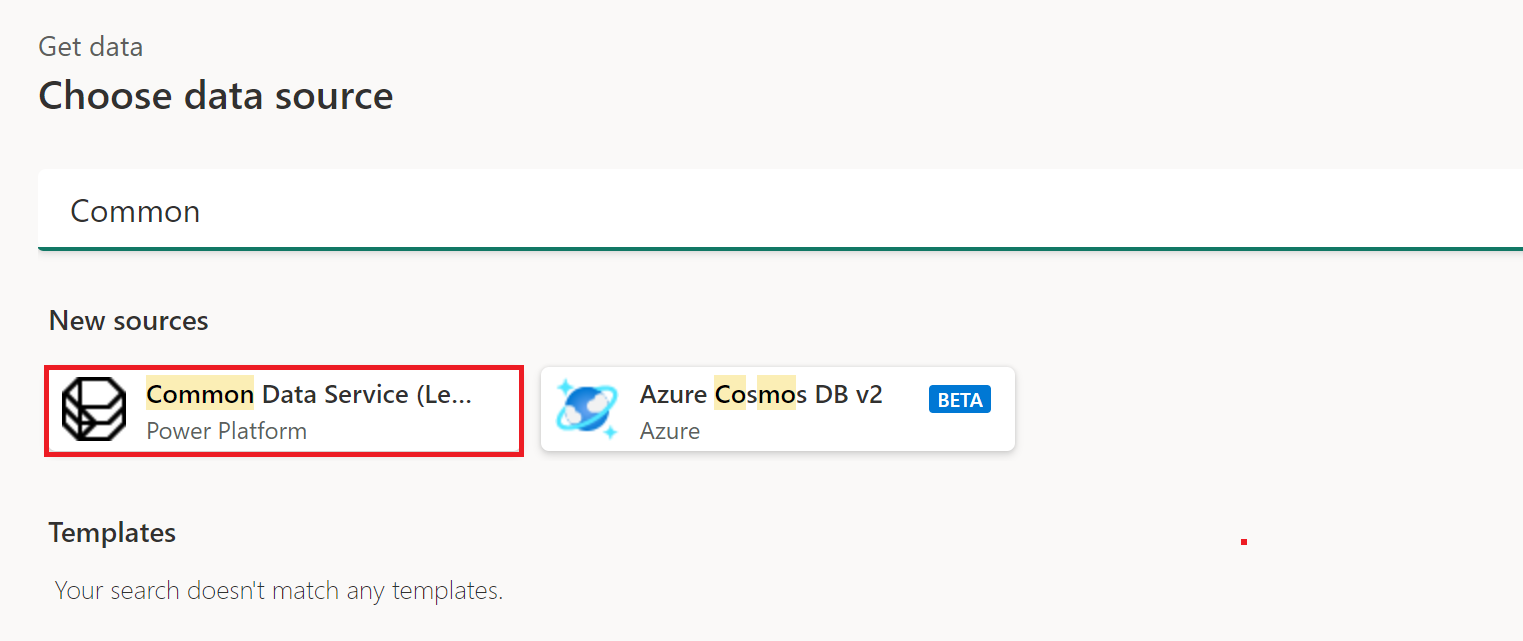
Select the Common Data Service (Legacy) option in the get data experience. Different apps have different ways of getting to the Power Query Online get data experience. For more information about how to get to the Power Query Online get data experience from your app, go to Where to get data.
Enter the server URL address of the data you want to load.
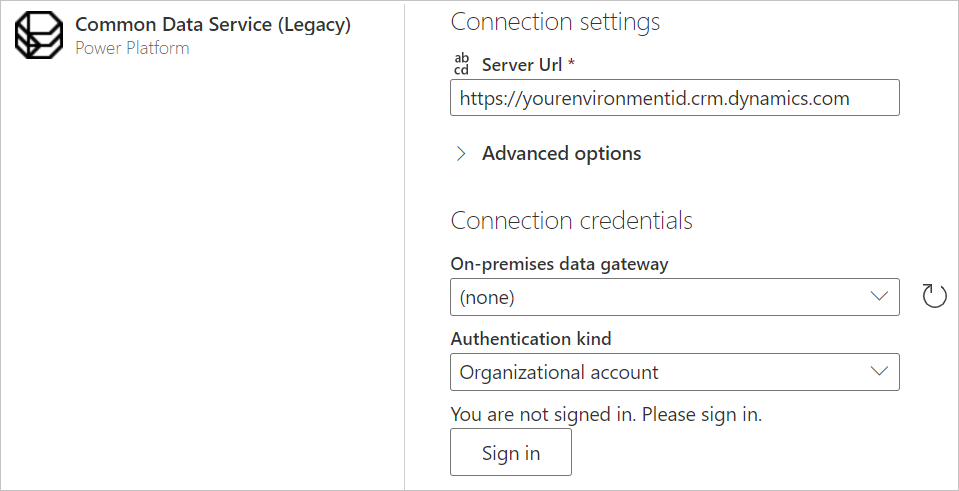
If necessary, enter an on-premises data gateway if you're going to be using on-premises data. For example, if you're going to combine data from Dataverse and an on-premises SQL Server database.
Sign in to your organizational account.
When you've successfully signed in, select Next.
In the navigation page, select the data you require, and then select Transform Data.
Additional information
Find your environment URL
Open Power Apps. In the upper right of the Power Apps page, select the environment you want to connect to. Select the  settings icon, and then select Advanced settings.
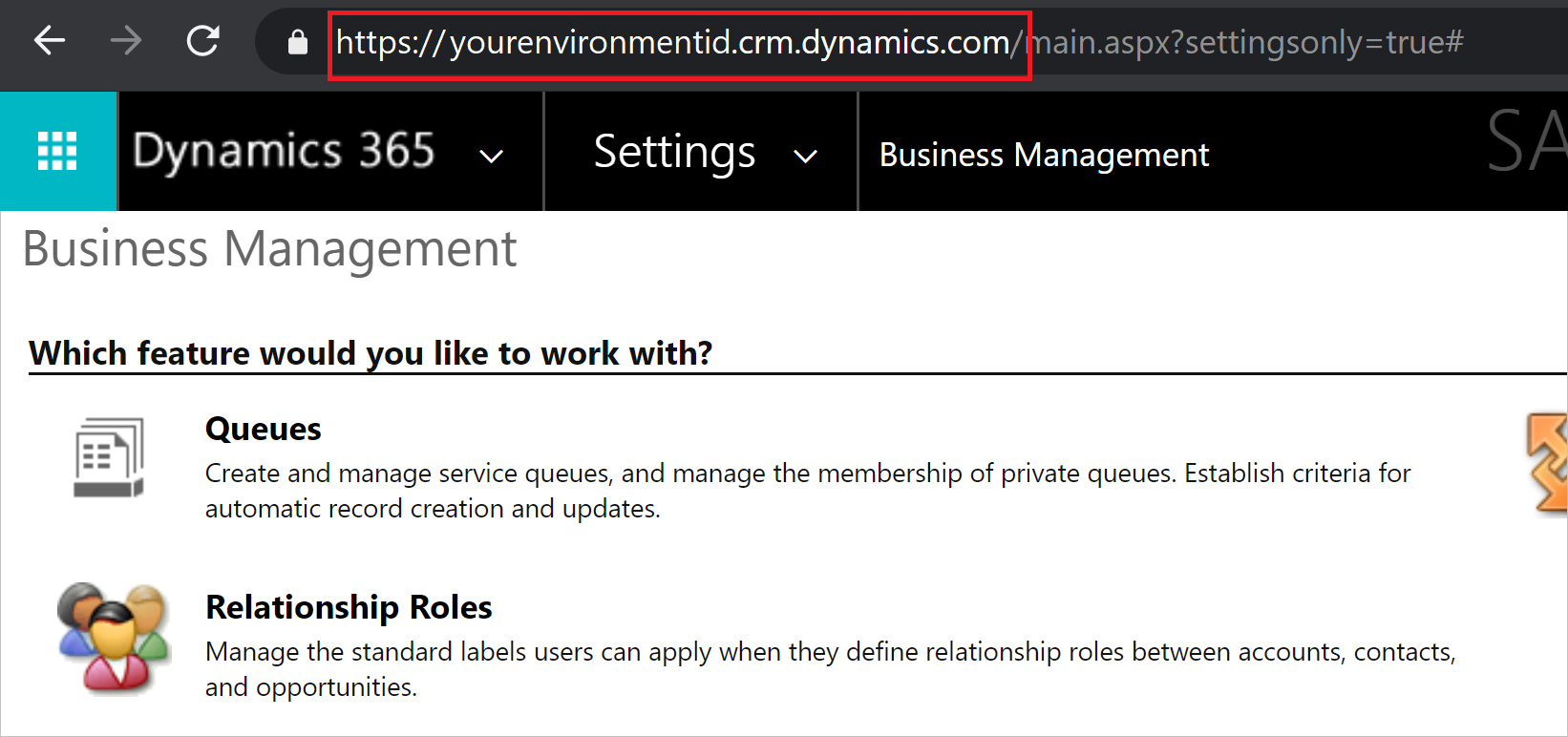
In the new browser tab that opens, copy the root of the URL. This root URL is the unique URL for your environment. The URL will be in the format of https://<yourenvironmentid>.crm.dynamics.com/. Keep this URL somewhere handy so you can use it later, for example, when you create Power BI reports.
When to use the Common Data Service (Legacy) connector
Dataverse is the direct replacement for the Common Data Service connector. However, there could be times when it's necessary to choose the Common Data Service (Legacy) connector instead of the Dataverse connector:
There are certain Tabular Data Stream (TDS) data types that are supported in OData when using Common Data Service (Legacy) that aren't supported in Dataverse. The supported and unsupported data types are listed in How Dataverse SQL differs from Transact-SQL.
More information: Accessing large semantic models
Limitations and considerations
Dataverse OData API performance and throttling limits
For information about OData API performance and throttling limits for Dataverse connections, go to Requests limits and allocations. These limitations apply to both the Common Data Source (Legacy) connector (which uses the OData API as an implementation detail) and the OData Feed connector when accessing the same endpoint.
Table retrieval rate
As a guideline, most default tables are retrieved at a rate of approximately 500 rows per second using the Common Data Service (Legacy) connector. Take this rate into account when deciding whether you want to connect to Dataverse or export to data lake. If you require faster retrieval rates, consider using the Export to data lake feature or the Dataverse connector. More information: Alternative Dataverse connections
Alternative Dataverse connections
There are several alternative ways of extracting and migrating data from Dataverse:
Use the Azure Synapse Link feature in Power Apps to extract data from Dataverse into Azure Data Lake Storage Gen2, which can then be used to run analytics. For more information about the Azure Synapse Link feature, go to What is Azure Synapse Link for Dataverse?.
Use the OData connector to move data in and out of Dataverse. For more information on how to migrate data between Dataverse environments using the dataflows OData connector, go to Migrate data between Dataverse environments using the dataflows OData connector.
Use the Dataverse connector to access read-only data in Dataverse. For more information about this feature, go to View table data in Power BI Desktop.
Note
Both the Dataverse connector and the OData APIs are meant to serve analytical scenarios where data volumes are relatively small. The recommended approach for bulk data extraction is “Azure Synapse Link”.
Querying display columns must include the field in the query
When using this connector, if you're including <field>display columns, you must include <field> in the query as well, or the <field>_display column might be null. For example:
Table.SelectColumns(#"Navigation 1", {"statuscode", "statuscode_display"})
If statuscode isn't included, statuscode_display might be null and error out.
Accessing large semantic models
Power BI semantic models contained in Dataverse can be very large. If you're using the Power Query Dataverse connector, any specific query that accesses the model must return less than 80 MB of data. So you might need to query the data multiple times to access all of the data in the model. Using multiple queries can take a considerable amount of time to return all the data.
If you're using the Common Data Service (Legacy) connector, you can use a single query to access all of the data in the semantic model. This connector works differently and returns the result in “pages” of 5 K records. Although the Common Data Service (Legacy) connector is more efficient in returning large amounts of data, it can still take a significant amount of time to return the result.
Instead of using these connectors to access large semantic models, we recommend that you use Azure Synapse Link to access large models. Using Azure Synapse Link is even more efficient that either the Power Query Dataverse or Common Data Service (Legacy) connectors, and it's specifically designed around data integration scenarios.