Note
Access to this page requires authorization. You can try signing in or changing directories.
Access to this page requires authorization. You can try changing directories.
Summary
| Property | Value |
|---|---|
| Connector |  Dynatrace Grail DQL |
| Products | Power BI (semantic models) Power Query Online |
| Release state | General availability |
| Category | Other |
| Authentication kinds | OAuth |
| Data source kind | DynatraceGrail |
| Function Reference Documentation | DynatraceGrail.Contents |
| Support link | Contact the connector owner. |
Note
This connector is owned and provided by Dynatrace.
Prerequisites
It's assumed that a Dynatrace environment is already configured for connection from Power BI Desktop.
On Microsoft Azure, that can be done through the Marketplace and searching for Azure Native Dynatrace Service.
Follow the instructions to set up a Dynatrace SaaS environment. Make sure the environment is set to the new version and not the previous classic version, as the latest version contains the Dynatrace Grail data lakehouse and is set up for the authentication requirements for the connector.
Supported capabilities
- Import mode only
- Option to enter a DQL query when connecting—limited to a maximum of 1 million rows
- Advanced options
- Read data limit
- Record limit
- Result size limit
- Sampling
Parameters
Entry point: DynatraceGrail.Contents
Required parameter count: 1
DQL Connector can be used to fetch data from Grail using DQL custom query or by selecting tables.
| Parameter | Display name | Required | Type | Group | Description | Sample values | Nullable | Additional metadata |
|---|---|---|---|---|---|---|---|---|
| url | Dynatrace environment | Yes | text | Enter your Dynatrace environment, for example: https://123environment.apps.dynatrace.com. | "https://123environment.apps.dynatrace.com" | false | {"Documentation.Category": "", "Documentation.Examples": [], "Documentation.LongDescription": "The type that represents a text URI.", "Documentation.Name": "Uri.Type", "Documentation.Description": "The type that represents a text URI."} | |
| QueryInput | Custom DQL Query | No | nullable text | Enter your custom DQL query. | "fetch bizevents | limit 10" | true | {"Formatting.IsMultiLine": true} | |
| options | Advanced options | No | nullable record | Advanced options | Query limits. Maximum limits when fetching data. | true |
Fields in options
| Field | Display name | Required | Type | Group | Description | Allowed values | Sample values | Nullable | Optional | Declared allowed values |
|---|---|---|---|---|---|---|---|---|---|---|
| options.ScanGBParameter | Read data limit (GB) | No | number | Advanced options | Limit in gigabytes for the amount of data that will be scanned during read. Note: Increasing this limit can increase associated costs. | "500" | false | true | ||
| options.MaxResultParameter | Record limit | No | number | Advanced options | The maximum number of result records that this query will return. Note: Increasing the maximum can result in longer run times. | "1000000" | false | true | ||
| options.MaxBytesParameter | Result size limit (MB) | No | number | Advanced options | The maximum number of result bytes that this query will return. Note: Increasing the maximum can affect performance. | "10" | false | true | ||
| options.SamplingParameter | Sampling | No | number | Advanced options | Results in the selection of a subset of Log or Span records. | 10; 100; 1000; 10000 | false | true | [10, 100, 1000, 10000] |
Connect from Power Query Desktop
To connect to a Dynatrace SaaS instance from Power Query Desktop, take the following steps:
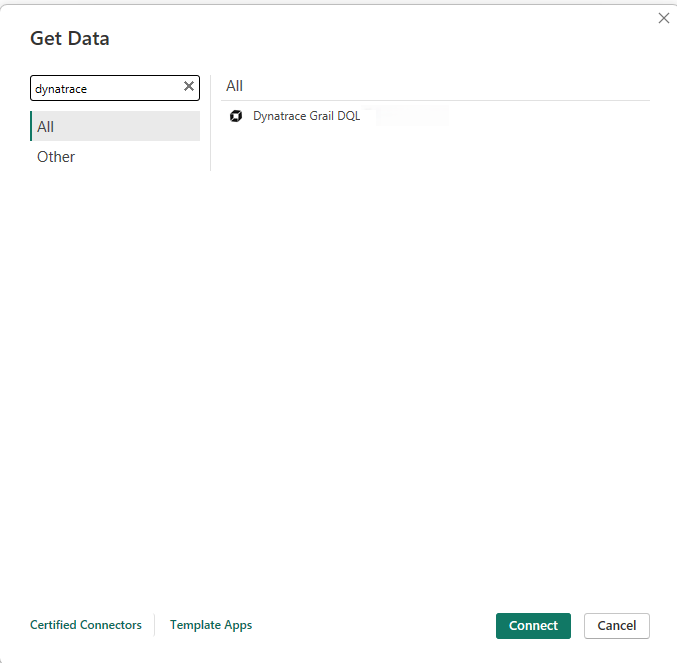
Select Dynatrace Grail DQL in the get data experience. For more information, go to Where to get data.
Enter your Dynatrace environment. This environment needs to be the latest Dynatrace version with Grail enabled. The DQL query is optional at this point, but should be used for more complex queries outside of the default built in queries.
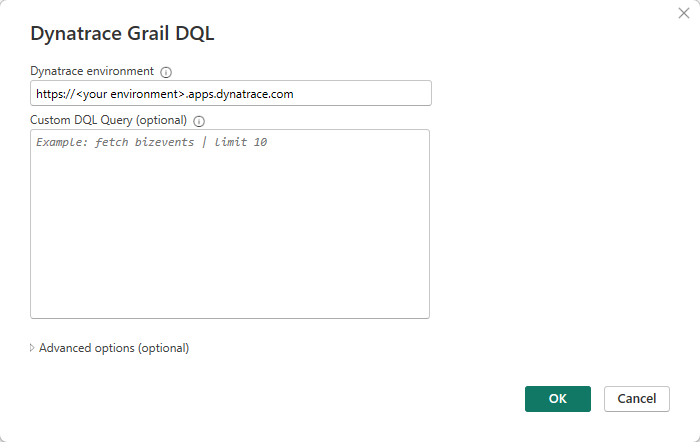
If you want to use any advanced options, select the option and enter the data to use with that option. More information: Connect using advanced options
Sign into your environment to authenticate your permissions.
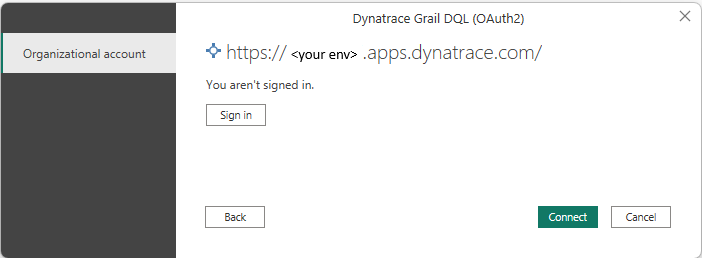
A browser window pops up that requires you to enter your credentials.
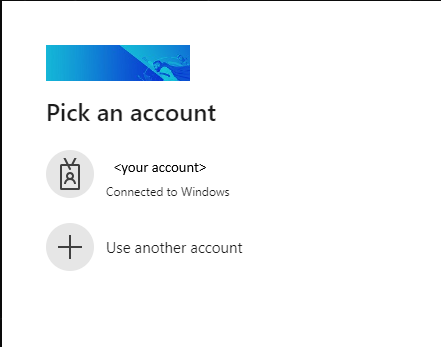
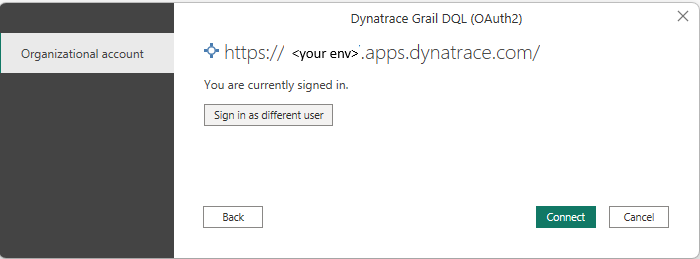
Once you successfully authenticate, the message shows that you're currently signed in. Select Connect.
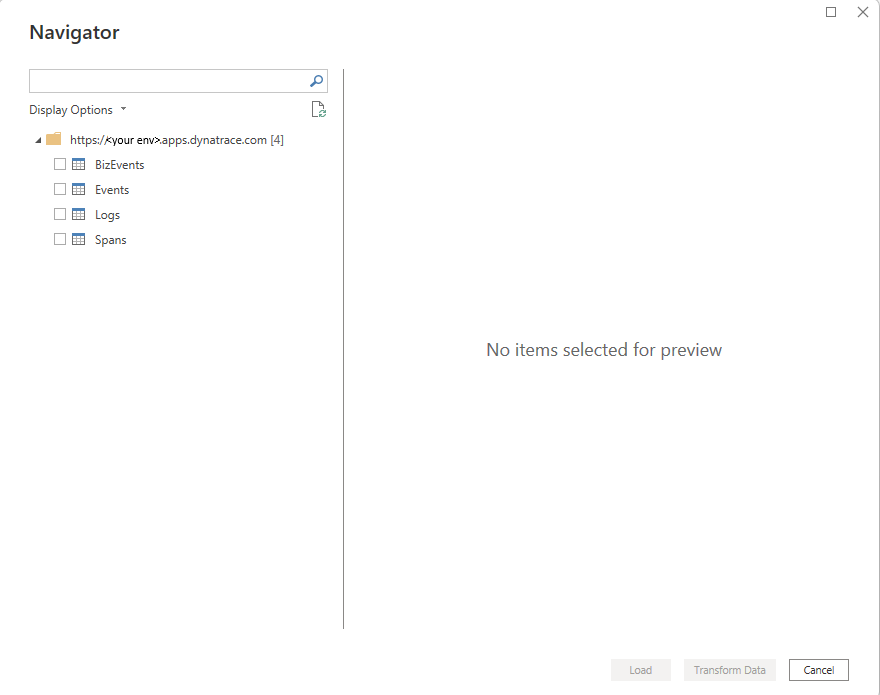
The Navigator screen shows the record types available to select from Dynatrace Grail.
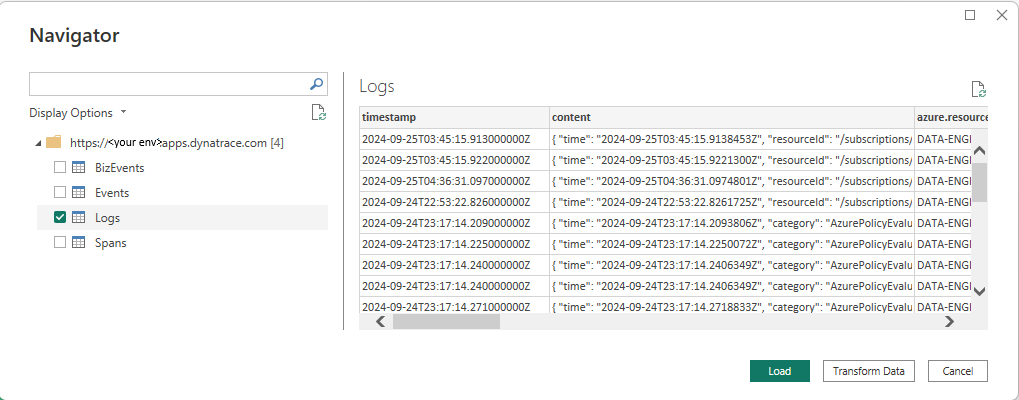
Selecting one of the logs in this example runs a fetch logs DQL query with a default 1000 row limit. You require permissions on the Dynatrace environment in order to run this query successfully.
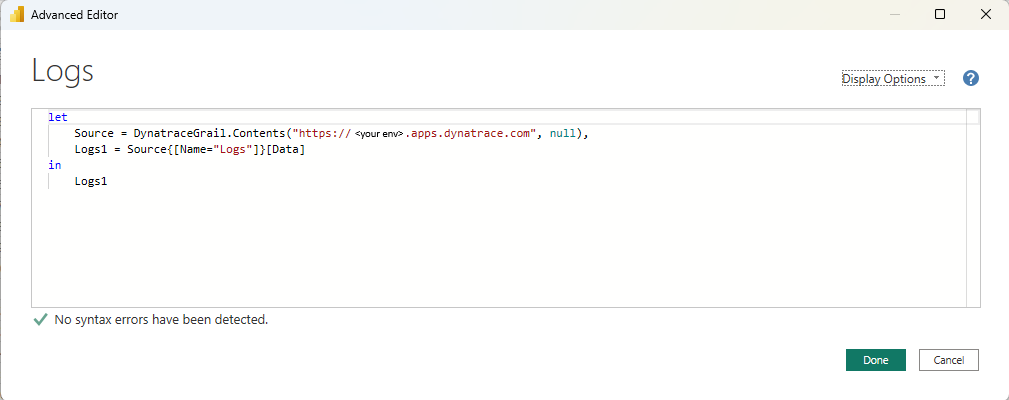
The advanced editor shows the M code the connector is using.
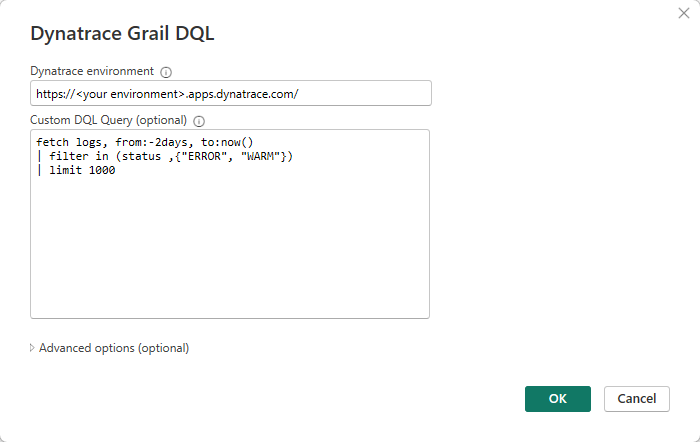
An optional step when connecting is to type in a DQL query directly. The following example fetches logs (default last 2 hours) with a limit of 1,000 rows.
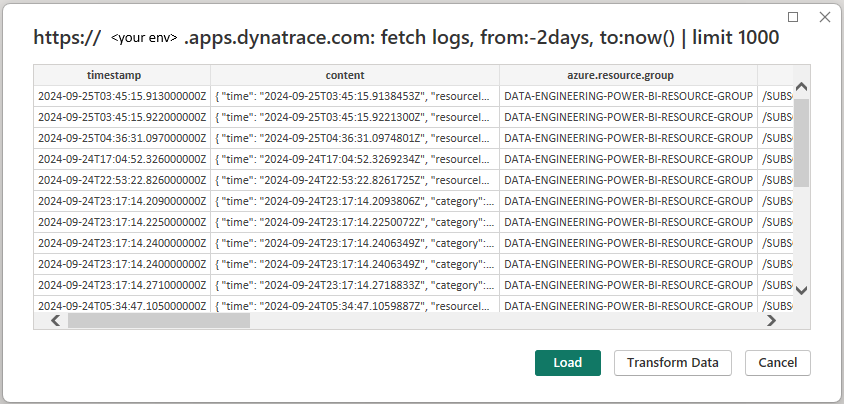
The resulting import into Power BI looks similar to this example.
Connect from Power Query Online
To connect to Dynatrace Grail DQL from Power Query Online:
Select the Dynatrace Grail DQL option in the get data experience. Different apps have different ways of getting to the Power Query Online get data experience. For more information, go to Where to get data.

Enter your Dynatrace environment. This environment needs to be the latest Dynatrace version with Grail enabled. The DQL query is optional at this point, but should be used for more complex queries outside of the default built in queries.
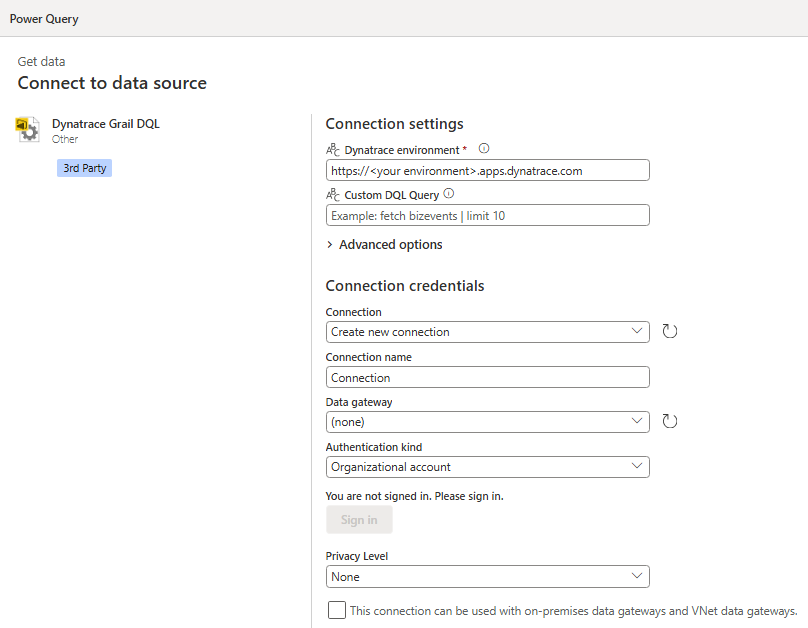
If you want to use any advanced options, select the option and enter the data to use with that option. More information: Connect using advanced options
Sign into your environment to authenticate your permissions. Sign in with an organizational account.
After you've successfully signed in, select Next.
The Navigator screen shows the record types available to select from Dynatrace Grail.
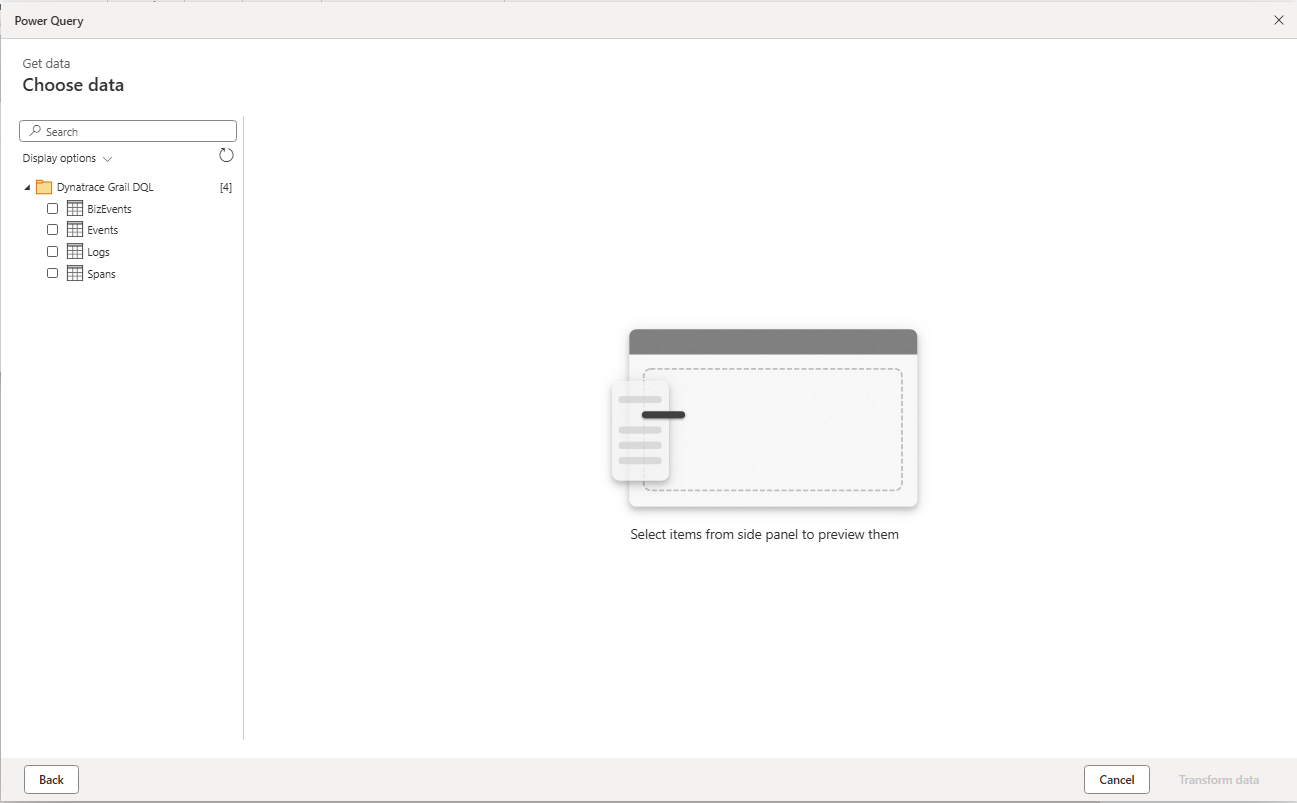
Selecting one of the logs in this example runs a fetch logs DQL query with a default 1000 row limit. You require permissions on the Dynatrace environment in order to run this query successfully.
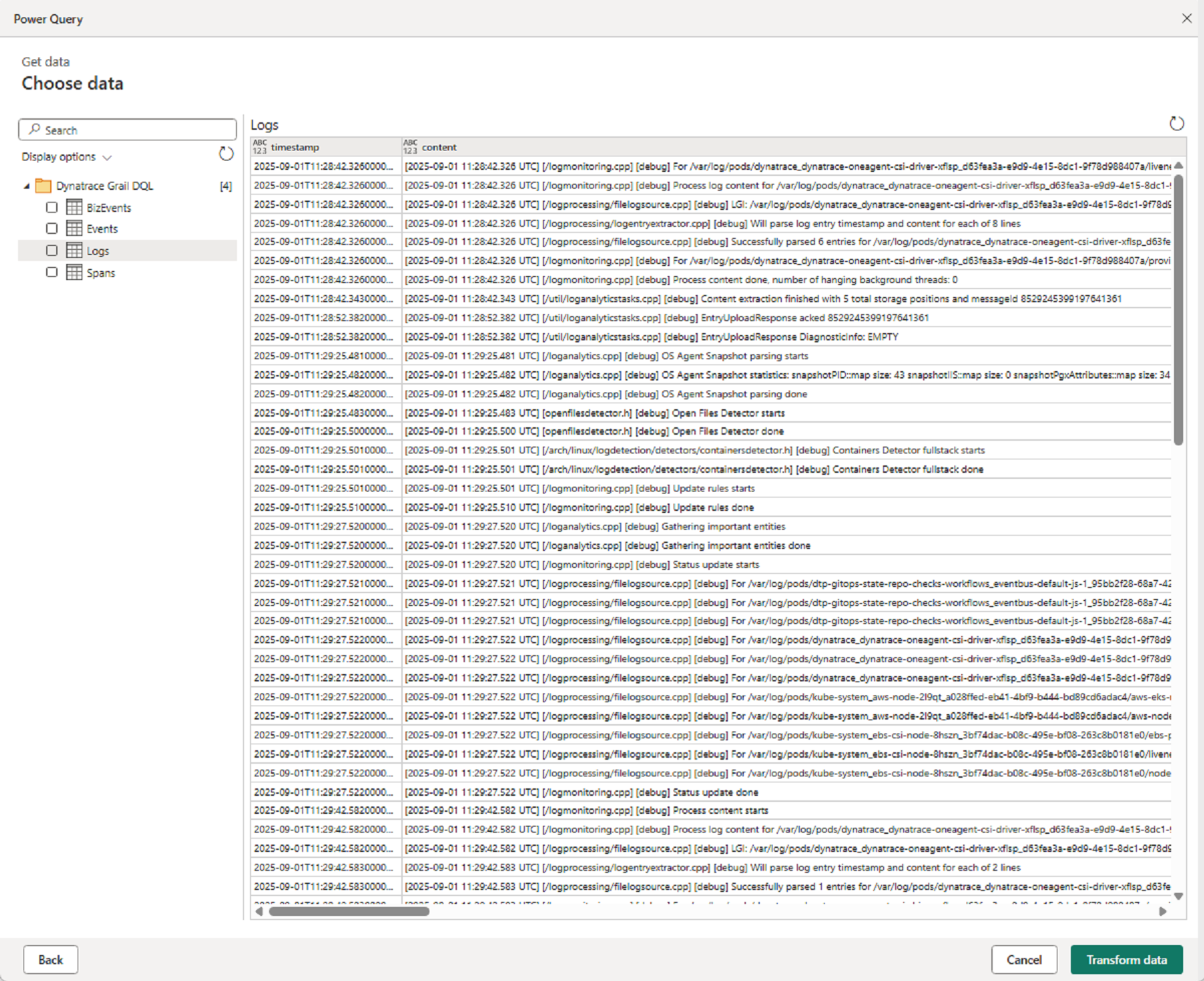
An optional step when connecting is to type in a DQL query directly. The following example fetches logs (default last 2 hours) with a limit of 50 rows.

The resulting import into Power BI looks similar to this example.


Connect using advanced options
Both Power Query Desktop and Power Query Online provide a set of advanced options that you can add to your query if needed.
The following table lists all of the advanced options you can set in Power Query Desktop and Power Query Online.
| Advanced option | Description |
|---|---|
| Read data limit | Limit in gigabytes for the amount of data that will be scanned during read. Note: Increasing this limit can increase associated costs. |
| Record limit | The maximum number of result records that this query will return. Note: Increasing the maximum can result in longer run times. |
| Result size limit | The maximum number of result bytes that this query will return. Note: Increasing the maximum can affect performance. |
| Sampling | Results in the selection of a subset of Log or Span records. |
Troubleshooting
The latest version ("New" not "Classic") of Dynatrace SaaS is required.
The correct permissions outlined in Dynatrace documentation are required to be able to:
- Connect to the environment
- Run DQL queries against the Dynatrace platform