Note
Access to this page requires authorization. You can try signing in or changing directories.
Access to this page requires authorization. You can try changing directories.
Note
This connector is owned and provided by Exact Online.
Summary
| Property | Value |
|---|---|
| Connector |  Exact Online Premium |
| Products | Power BI (semantic models) Power Query Online |
| Release state | Preview |
| Category | Database |
| Authentication kinds | Login |
| Data source kind | ExactOnlinePremium |
| Function Reference Documentation | ExactOnlinePremium.Contents |
| Support link | Support |
Prerequisites
An Exact Online Premium subscription is required.
You need to have the ODBC Connector version 18 installed. Go to the download page to download the latest driver.
In Exact Online, your IP address needs to be allowed access.
- Open the Master data screen
- Locate the Microsoft Office 365 section and add the IP address to the Power BI access list
Note
The Microsoft Office 365 menu also contains downloadable report templates for Power BI, which can be used with this connector.
In order to refresh data, an on-premises data gateway must be available. You can follow this link to learn how to install it; we recommend installing it on a managed machine that is always on.
- Note that the ODBC driver is also required to be installed on this same machine.
Supported capabilities
- Import
- Direct Query (Power BI semantic models)
Parameters
Entry point: ExactOnlinePremium.Contents
Required parameter count: 0
Get data directly from Exact Online Premium
This function has no parameters.
Connect from Power Query Desktop
To connect to Exact Online Premium:
Select Get Data from the Home ribbon in Power BI Desktop. Select Database from the categories on the left, select Exact Online Premium, and then select Connect.

If this is the first time you're getting data through the Exact Online Premium connector, a preview connector notice will be displayed. Select Don't warn me again with this connector if you don't want this message to be displayed again, and then select Continue.
To sign in to your Exact Online Premium account, select Sign in.

In the window that appears, provide your user name and password to sign in to your Exact Online Premium account and select Next.
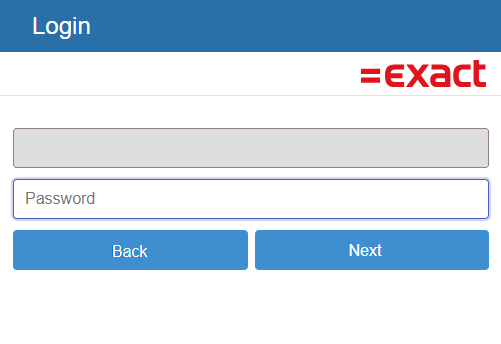
Once you've successfully signed in, select Connect.

In Navigator, select the information you want, then either select Load to load the data or Transform Data to continue transforming the data in the Power Query editor.

Finally, select the data usage mode (import or direct query)
Limitations and considerations
You should be aware of the following limitation associated with accessing Exact Online Premium data.
ODBC: ERROR [42000] [Microsoft][ODBC Driver 18 for SQL Server][SQL Server]Cannot open server '*(servername)*' requested by the login. Client with IP address '*(ip address)*' is not allowed to access the server.
This error likely happens because the IP address isn't on the allowed list for Power BI. Follow the steps under the prerequisites section to resolve.
Related content
You can find additional information and templates for this connector on our documentation page.