Note
Access to this page requires authorization. You can try signing in or changing directories.
Access to this page requires authorization. You can try changing directories.
Note
This connector is owned and provided by Kyvos.
Summary
| Property | Value |
|---|---|
| Connector |  Kyvos ODBC |
| Products | Power BI (semantic models) Power Query Online |
| Release state | General availability |
| Category | Database |
| Authentication kinds | OAuth 2.0 Username and Password |
| Data source kind | KyvosODBC |
| Function Reference Documentation | KyvosODBC.Databases |
| Support link | Support |
Note
Some capabilities might be present in one product but not others due to deployment schedules and host-specific capabilities.
Prerequisites
This connector is designed for use with Microsoft Power BI and works most effectively when the Kyvos ODBC Driver is installed on the machine running the Power BI application.
Supported capabilities
- DirectQuery (Power BI semantic models)
- Import
Parameters
Entry point: KyvosODBC.Databases
Required parameter count: 3
Returns a table listing the datasets on Kyvos Server. This will be the same list as shown in Power BI Navigator
| Parameter | Display name | Required | Type | Description | Allowed values | Sample values | Nullable | Declared allowed values |
|---|---|---|---|---|---|---|---|---|
| server | Kyvos Server | Yes | text | "servername:8081" | false | |||
| httpPath | HTTP Path | Yes | text | HTTP Path to connect to Kyvos Server | "kyvos/sql" | false | ||
| encryption | Use SSL | Yes | text | "Enabled"; "Disabled" | false | ["Enabled", "Disabled"] |
Connect from Power Query Desktop
To connect to Kyvos from Power BI Desktop, perform the following steps.
Open Power BI Desktop, navigate to Get Data, select the Kyvos ODBC connector, and the select Connect.
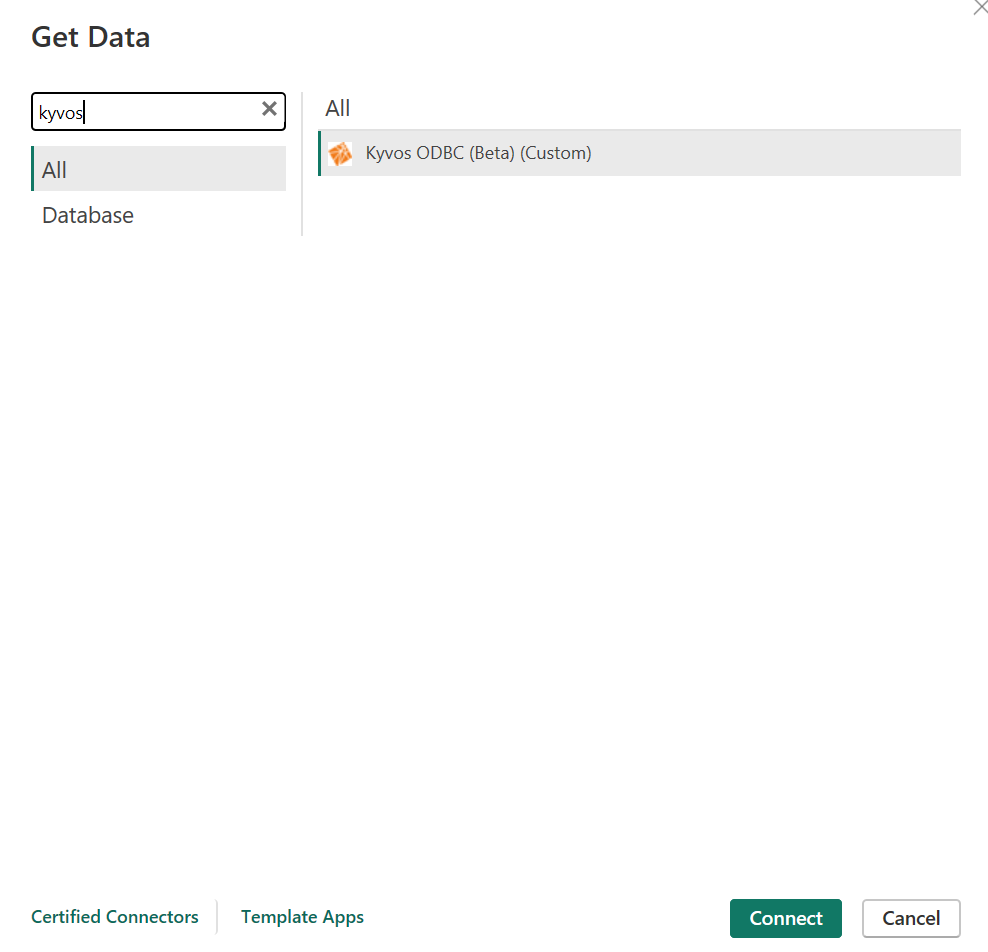
In the Kyvos ODBC Connector dialog box, provide the following details:
Kyvos Server: Enter the server details
HTTP Path: kyvos/sql
Use SSL: Enabled or Disabled
Data Connectivity mode: DirectQuery
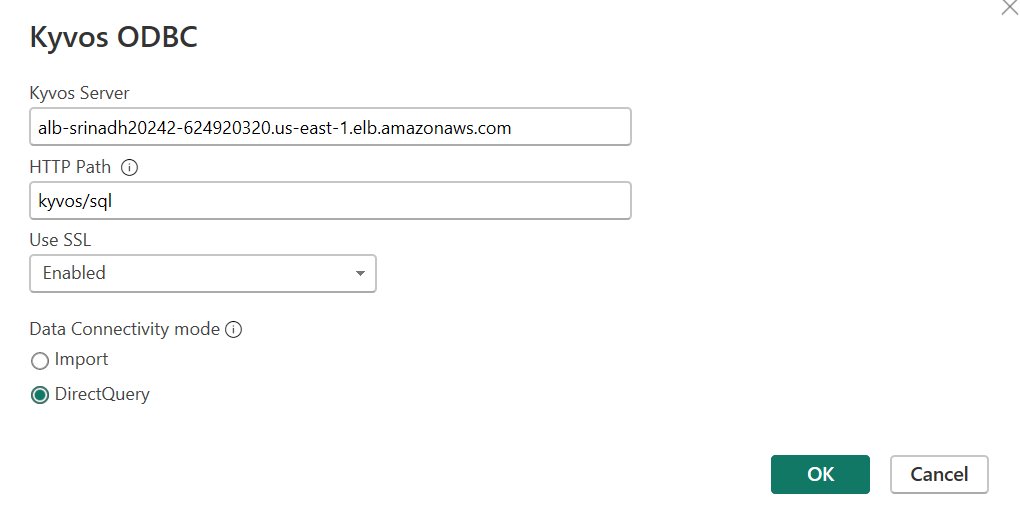
Select OK.
Select any of the following authentication methods:
Username and password: Provide Kyvos Web Portal credentials and then select Connect.
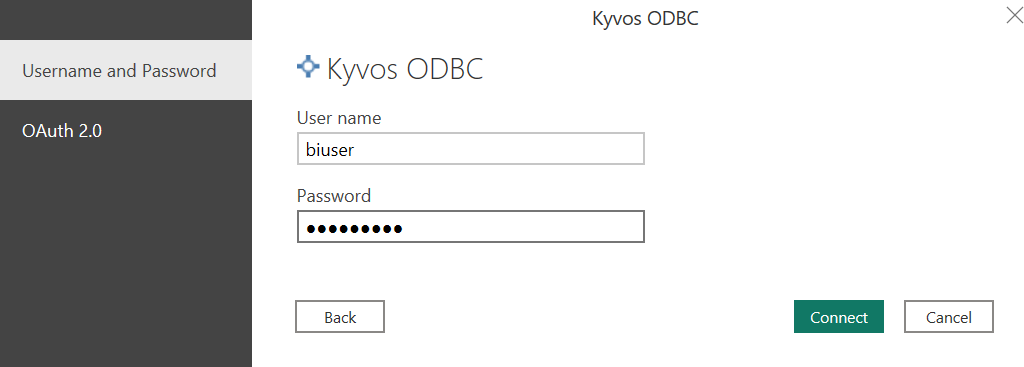
OAuth 2.0: Select Sign In.

- You're redirected to a third-party Identity. To authenticate, provide your Identity Provider (IDP) credentials and the select Sign In.
- Switch to Power BI Desktop, and you're signed in.
- Select Connect.
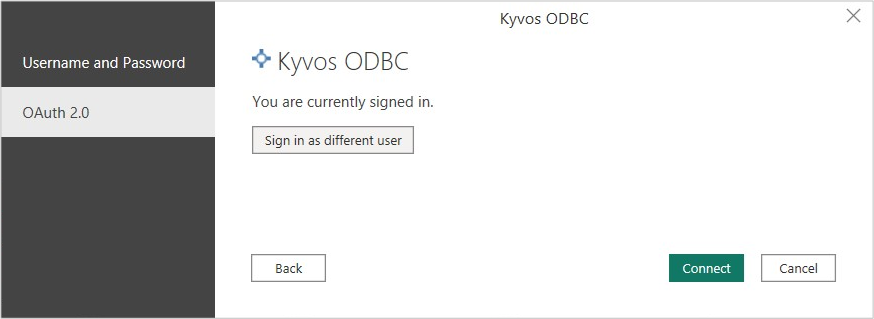
On the Power BI Navigator window, select your database, choose the Kyvos semantic model, and the select Load. These settings connect Power BI to the selected Kyvos semantic model for visualization.

Additional information
Connect from the Power BI service
To connect to Kyvos from Power BI service, perform the following steps.
Open Power BI service.
Go to Settings > Manage connection and gateway.
Choose the Connection tab and then select New.
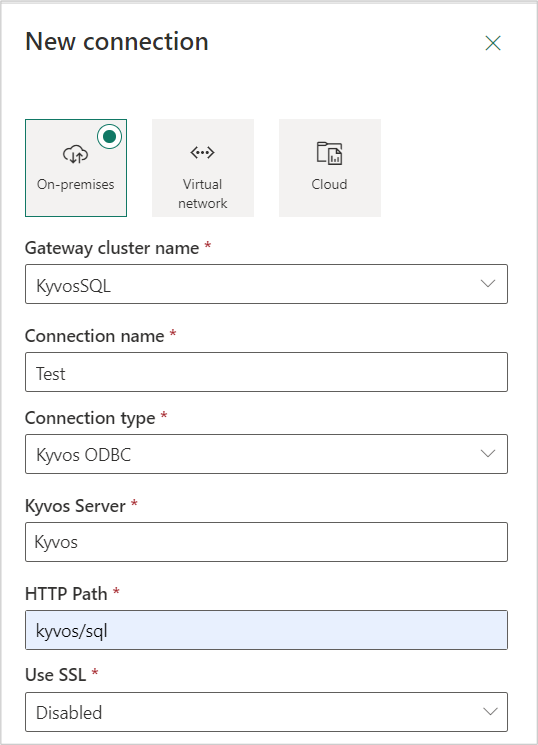
On the New Connection page, provide the required details.
Enter the Gateway cluster name.
Enter the Connection name.
Select Kyvos ODBC from the Connection Type list.
Enter the Kyvos Server name. Enter the server details.
Enter the HTTP Path as kyvos/sql.
Enter the Enabled or Disabled option from the Use SSL list.
Choose an authentication method:
Username and Password: Enter your Kyvos credentials.
OAuth 2.0: Select Edit credentials and authenticate through IDP.
Choose the required Privacy level.
Select Create.
Go to published semantic model > Settings > Gateway and cloud connections, select the required Gateway, and then Maps to appropriate connection.
Select Apply.
Now open the published Power BI workbook.