Note
Access to this page requires authorization. You can try signing in or changing directories.
Access to this page requires authorization. You can try changing directories.
Summary
| Property | Value |
|---|---|
| Connector |  LinkedIn Sales Navigator |
| Products | Power BI (semantic models) |
| Release state | Preview |
| Category | Online Services |
| Authentication kinds | OAuth |
| Data source kind | |
| Function Reference Documentation | LinkedIn.SalesContractsLinkedIn.SalesContractsWithReportAccessLinkedIn.SalesNavigatorLinkedIn.SalesNavigatorAnalyticsLinkedIn.SalesNavigatorAnalyticsImpl |
| Support link | Support |
Prerequisites
A LinkedIn Sales Navigator account. If you don't already have an account, sign up for a free trial.
Supported capabilities
- Import
Parameters
Entry point: LinkedIn.SalesNavigator
Required parameter count: 1
LinkedIn Sales Navigator
| Parameter | Display name | Required | Type | Description | Allowed values | Sample values | Nullable | Declared allowed values |
|---|---|---|---|---|---|---|---|---|
| selectContracts | Return data for these contracts | Yes | text | Get data for either all contracts you have report access to, or just selected contracts. Choose the contracts in the Query Editor as you load data. | "All Contracts"; "Selected Contracts" | false | ["All Contracts", "Selected Contracts"] | |
| startAt | Start Date | No | nullable date | First date for which data should be retrieved. If left blank, then defaults to load 90 days of data, up to and including the End Date. | "2018-10-30" | true | ||
| endAt | End Date | No | nullable date | Last date for which data should be retrieved. If left blank, then defaults to today. | "2018-10-30" | true |
Connect from Power Query Desktop
To connect to LinkedIn Sales Navigator data:
Select Get Data from the Home ribbon in Power BI Desktop. Select Online Services from the categories on the left, then scroll until you see LinkedIn Sales Navigator (Beta).

Select Connect to continue.
You'll be advised that you're connecting to a third-party connecter that's still under development.

When you select Continue, you're prompted to specify which data you want.

In the LinkedIn Sales Navigator window that appears, select which data you want to return, either All contacts or Selected contacts from the first drop-down selector. You can then specify the start and end dates to constrain the data it receives to a particular time window.
Once you've provided the information, Power BI Desktop connects to the data associated with your LinkedIn Sales Navigator contract. Use the same email address you use to sign in to LinkedIn Sales Navigator through the website.

When you connect successfully, you're prompted to select the required data from your LinkedIn Sales Navigator contract from the Navigator.
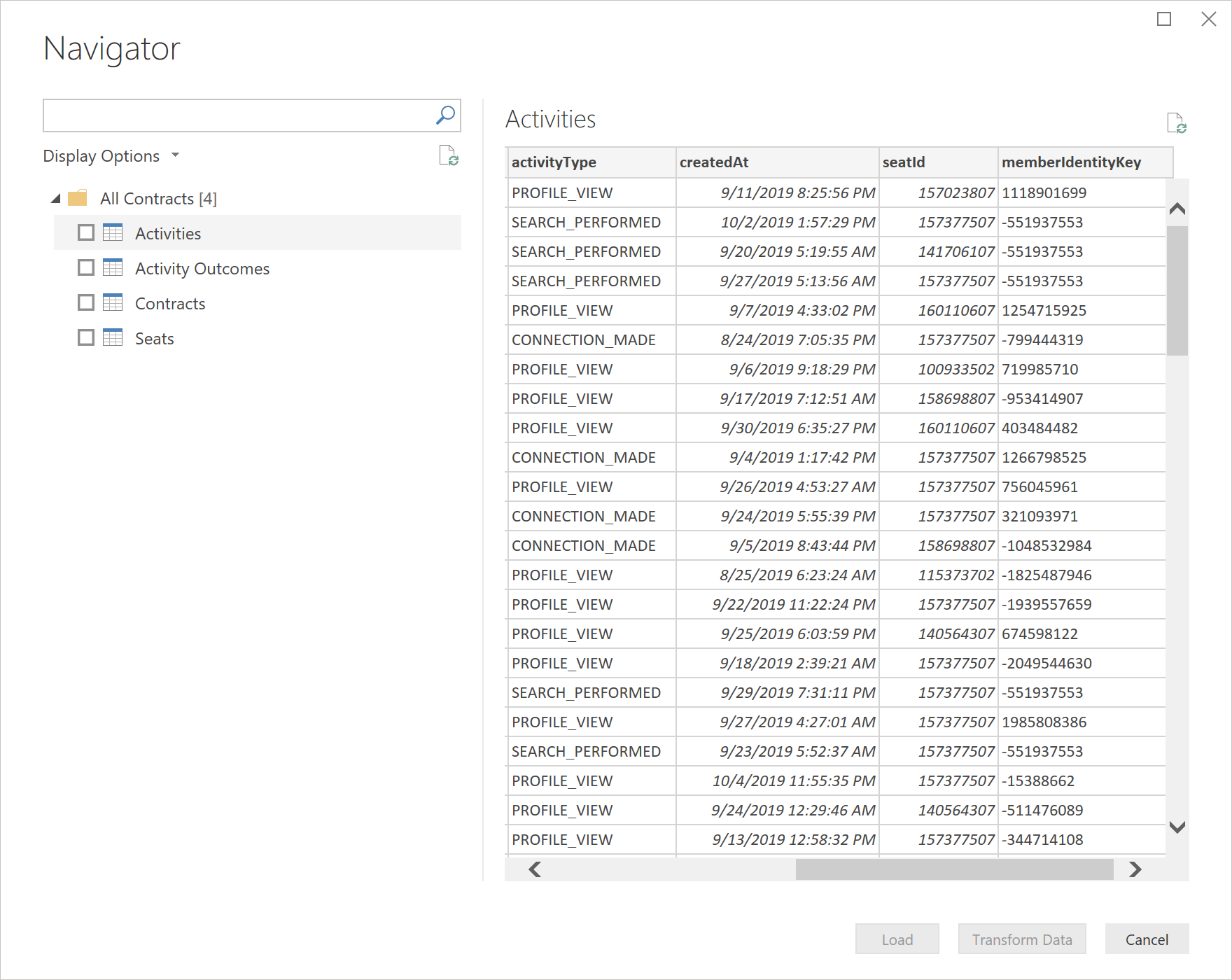
Once you've selected the data you require, either select Transform Data to continue transforming the data in the Power Query editor, or select Load to load the data into Power BI Desktop. Once in Power BI Desktop, you can create whatever reports you like with your LinkedIn Sales Navigator data.
Additional information
Getting help
If you run into problems when connecting to your data, contact LinkedIn Sales Navigator support.