Note
Access to this page requires authorization. You can try signing in or changing directories.
Access to this page requires authorization. You can try changing directories.
Note
This connector is owned and provided by the Statistical Information System Collaboration Community (SIS-CC).
Summary
| Property | Value |
|---|---|
| Connector |  SIS-CC SDMX |
| Products | Power BI (semantic models) Power Query Online |
| Release state | Preview |
| Category | Other |
| Authentication kinds | Anonymous |
| Data source kind | SDMX |
| Function Reference Documentation | SDMX.Contents |
Prerequisites
Before you get started, make sure you've properly configured the URL from the service provider’s API. The exact process here will depend on the service provider.
Supported capabilities
Import of SDMX-CSV 2.1 format. Other formats aren't supported.
Parameters
Entry point: SDMX.Contents
Required parameter count: 2
Get data from an SDMX RESTful web service that supports the CSV format.
| Parameter | Display name | Required | Type | Description | Allowed values | Sample values | Nullable | Additional metadata | Declared allowed values |
|---|---|---|---|---|---|---|---|---|---|
| url | Data query URL | Yes | text | The type that represents a text URI. | "https://<SDMX RESTful data query>" | false | {"Documentation.Category": "", "Documentation.Examples": [], "Documentation.LongDescription": "The type that represents a text URI.", "Documentation.Name": "Uri.Type"} | ||
| Option | Display format | Yes | text | "Show codes and labels"; "Show codes only"; "Show labels only" | false | {"DataSource.Path": false} | ["Show codes and labels", "Show codes only", "Show labels only"] | ||
| Language | Label language preference. Use IETF BCP 47 tags. | No | nullable text | "fr-CH, fr, en" | true | {"DataSource.Path": false} |
Connect from Power Query Desktop
To connect to SDMX Web Service data:
Select Get Data from the Home ribbon in Power BI Desktop. Select All from the categories on the left, and then select SIS-CC SDMX. Then select Connect.

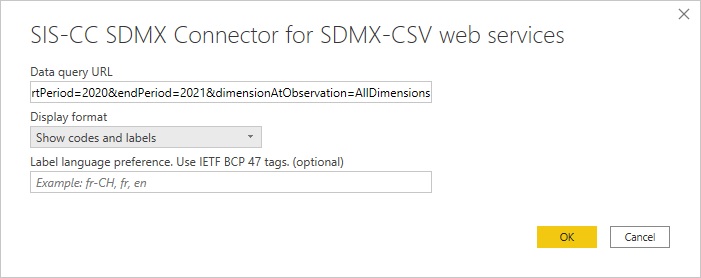
Fill in the parameters:
- In the Data query URL, enter an SDMX REST data query URL (the web service must support the SDMX-CSV format).
- In Display format, select one of the options:
- Show codes and labels; example: FREQ: Frequency
- Show codes; example: FREQ
- Show labels; example: Frequency
- Optionally, enter a language preference in Label language preference using an IETF BCP 47 tag
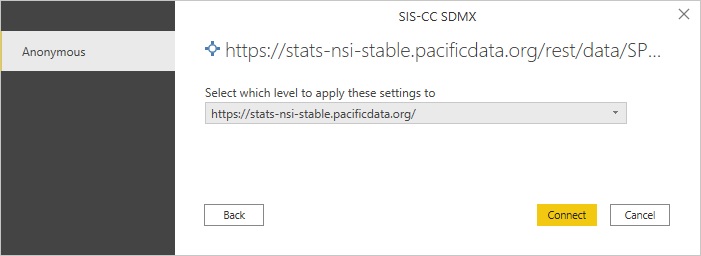
If this is the first time you’re connecting to the REST web service in the previous step Data query URL, this authentication step is displayed. As the connection is Anonymous, select Connect
Select Load to import the data into Power BI, or Transform Data to edit the query in Power Query Editor where you can refine the query before loading into Power BI.
Limitations and considerations
This version of the connector doesn't support importing data formats SDMX-ML or SDMX-JSON.
Related content
If you want to submit a feature request or contribute to the open-source project, then go to the Gitlab project site.