Microsoft Teams Sample Connector Todo
This sample provides a comprehensive guide to building an Office 365 Connector that sends task notifications to a Microsoft Teams channel. The app simulates a task management system where users can create, view, and update tasks, showcasing how to send notifications through connectors to enhance productivity in Teams.
Included Features
- Connectors
Interaction with bot
Prerequisites
The minimum prerequisites to run this sample are:
The latest update of Visual Studio. You can download the community version here for free.
An Office 365 account with access to Microsoft Teams, with uploading enabled.
.NET Core SDK version 6.0.
determine dotnet version
dotnet --versiondev tunnel or Ngrok (For local environment testing) latest version (any other tunneling software can also be used)
Teams Microsoft Teams is installed and you have an account
Note: some features in the sample require that you using Public Developer Preview mode in Microsoft Teams.
Setup
Note these instructions are for running the sample on your local machine.
Run ngrok - point to port 3978
ngrok http 3978 --host-header="localhost:3978"Alternatively, you can also use the
dev tunnels. Please follow Create and host a dev tunnel and host the tunnel with anonymous user access command as shown below:devtunnel host -p 3978 --allow-anonymousClone the repository
git clone https://github.com/OfficeDev/Microsoft-Teams-Samples.gitIf you are using Visual Studio
- Launch Visual Studio
- File -> Open Folder
- Navigate to
samples/connector-todo-notification/csharpfolder - Select
TeamsToDoAppConnector.slnsolution file
Note The main connector code is found here:
- ConnectorController.cs -
Setup&Saveactions - TaskController.cs -
Create&Updateactions
- Configure your own connector :
Note:The below gif file shows a simple implementation of a connector registration implementation. It also sends a connector card to the registered connector via a process triggered "externally".
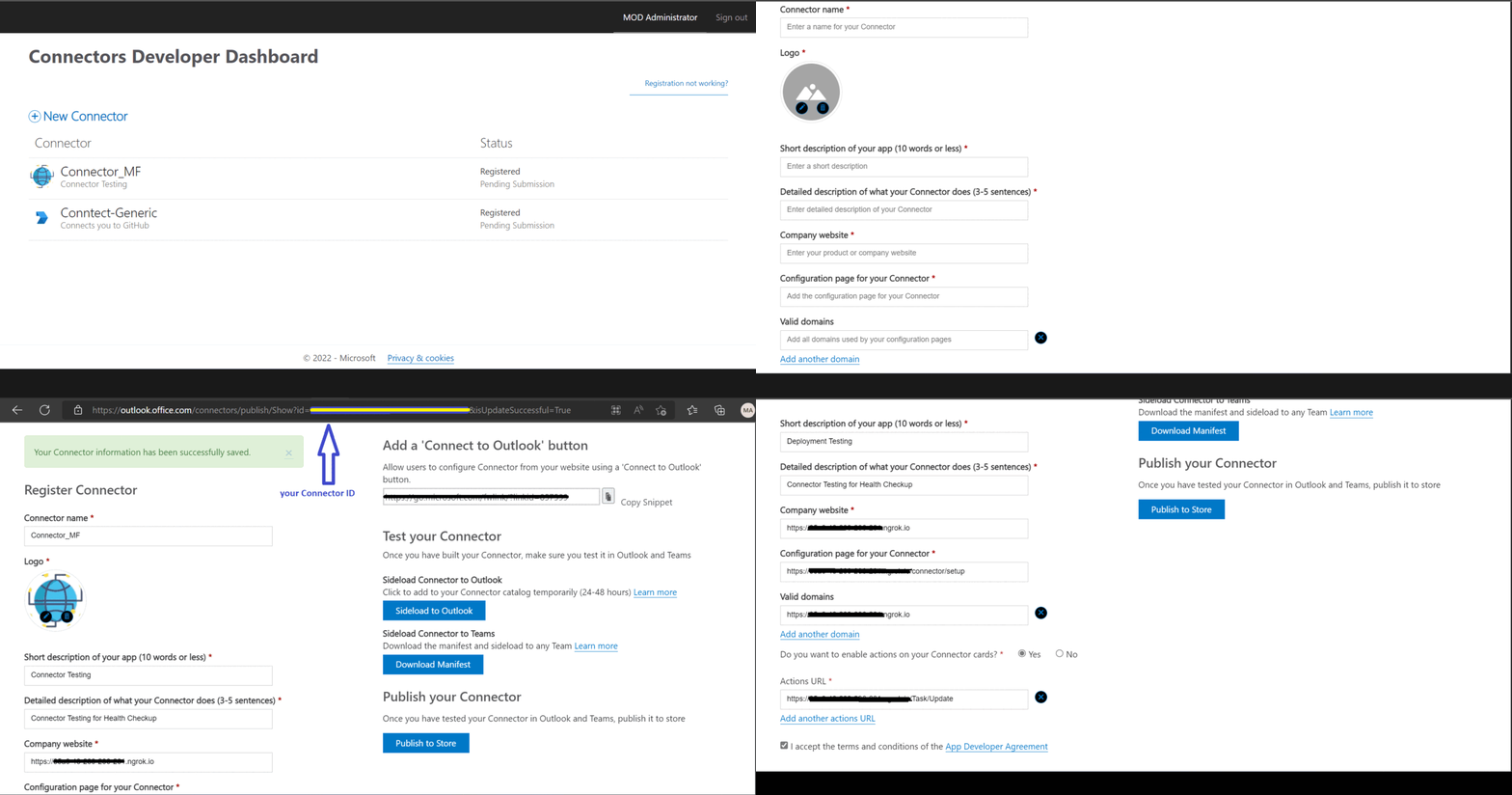
Register a new connector in the Connector Developer Portal
Fill in all the basic details such as name, logo, descriptions etc. for the new connector.
For the configuration page, you'll use our sample code's setup endpoint:
https://[BASE_URI]/connector/setupFor Valid domains, make enter your domain's http or https URL, e.g. XXXXXXXX.ngrok-free.app.
Enable the action on connector card by selecting the Yes radio button and enter the update endpoint:
https://[BASE_URI]/Task/UpdateClick on Save. After the save completes, you will see your connector id.
In the Web.config file, set the
configuration.appSettings.Base_Urivariable to the ngrok https forwarding url from the above.In Visual Studio, click the play button.
Now you can upload your app package and test your new connector.
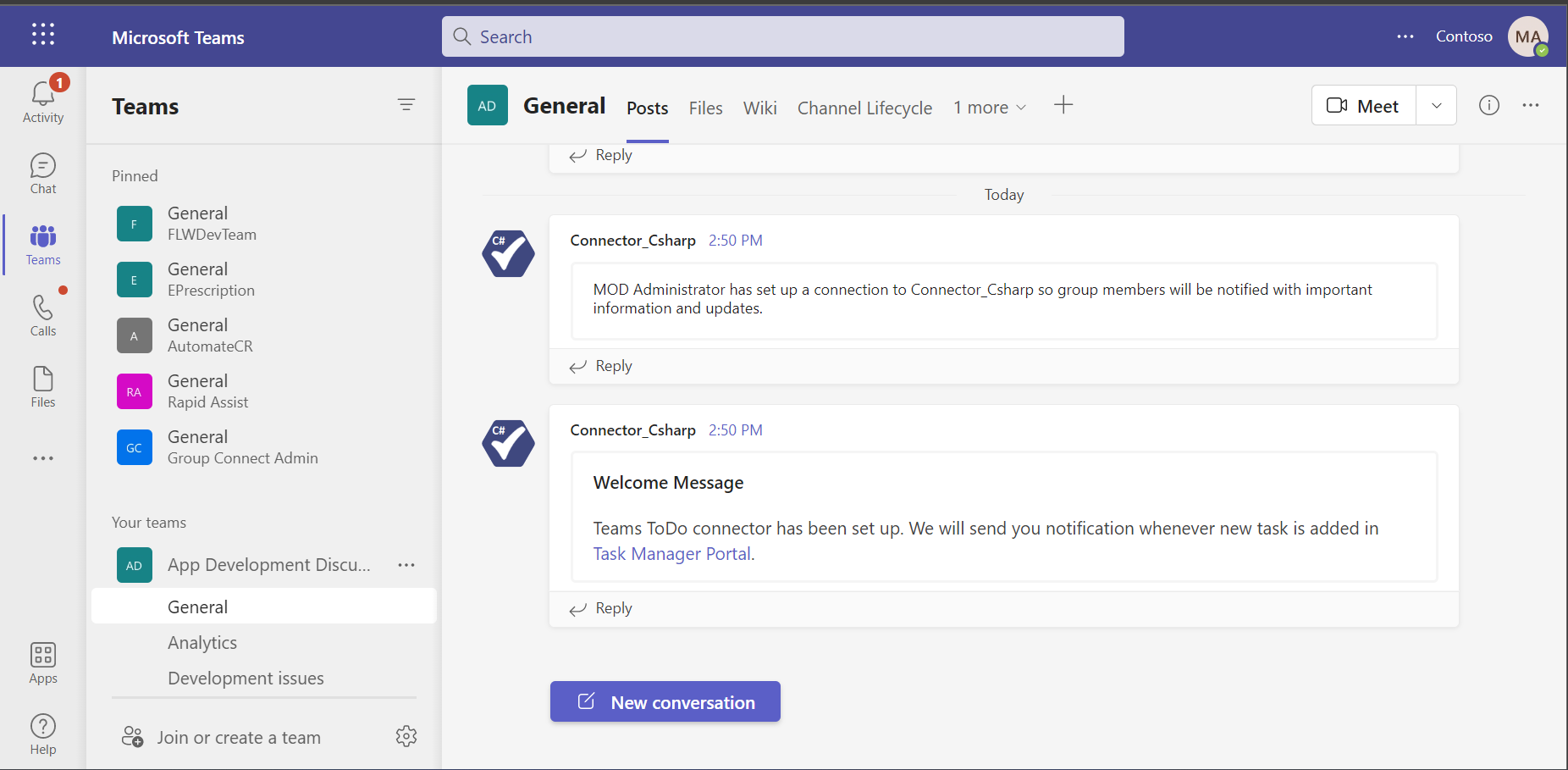
Once the connector is configured, you will get a notification in Team channel with link to the
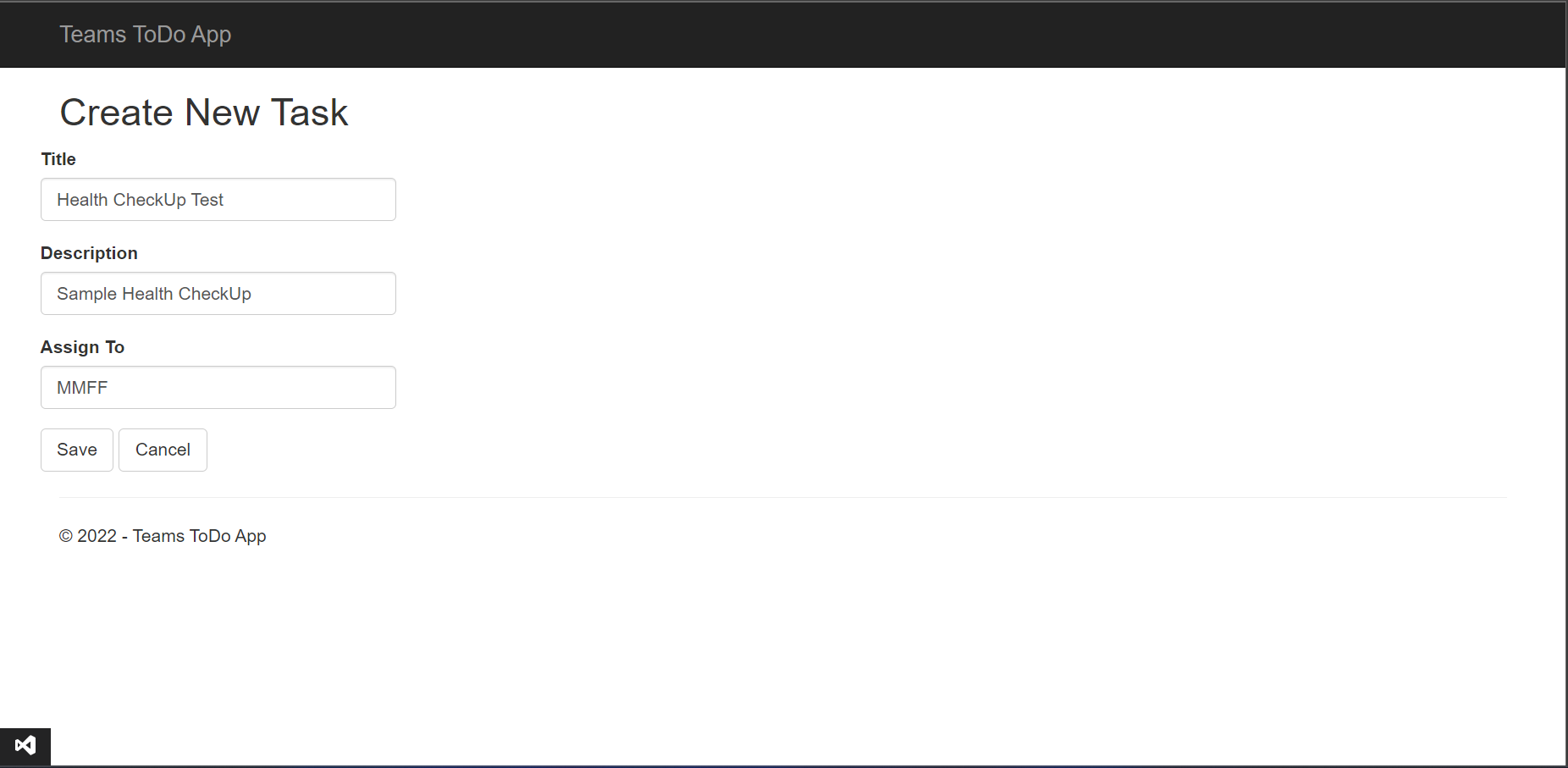
Task Manager application.Go to Task Manager portal and click on Create New and enter the task details and Save.
You will see the MessageCard in the registered Teams channel.
You can try the actionable buttons available on the message card.
This step is specific to Teams.
Edit the
manifest.jsoncontained in theapp manifestfolder to replace yourConnectorIdfield in~/app manifest/manifest.jsonfile with your ConnectorId inconnectorssection.Edit the
manifest.jsonforvalidDomains. if you are using ngrok it would behttps://1234.ngrok-free.appthen your domain-name will be1234.ngrok-free.appand if you are using dev tunnels then your domain will be12345.devtunnels.ms.Example :
  "connectors": [
  {
    "connectorId": "<<CONNECTOR_ID>>",
    "configurationUrl": "https://<<VALID-DOMAIN>>/Connector/Setup"
  }
]
Zip up the contents of the
AppManifestfolder to create amanifest.zip(Make sure that zip file does not contains any subfolder otherwise you will get error while uploading your .zip package)Upload the
manifest.zipto Teams (In Teams Apps/Manage your apps click "Upload an app". Browse to and Open the .zip file. At the next dialog, click the Add button.)Add the app to personal/team/groupChat scope (Supported scopes)
Running the sample
Setup your App in Teams
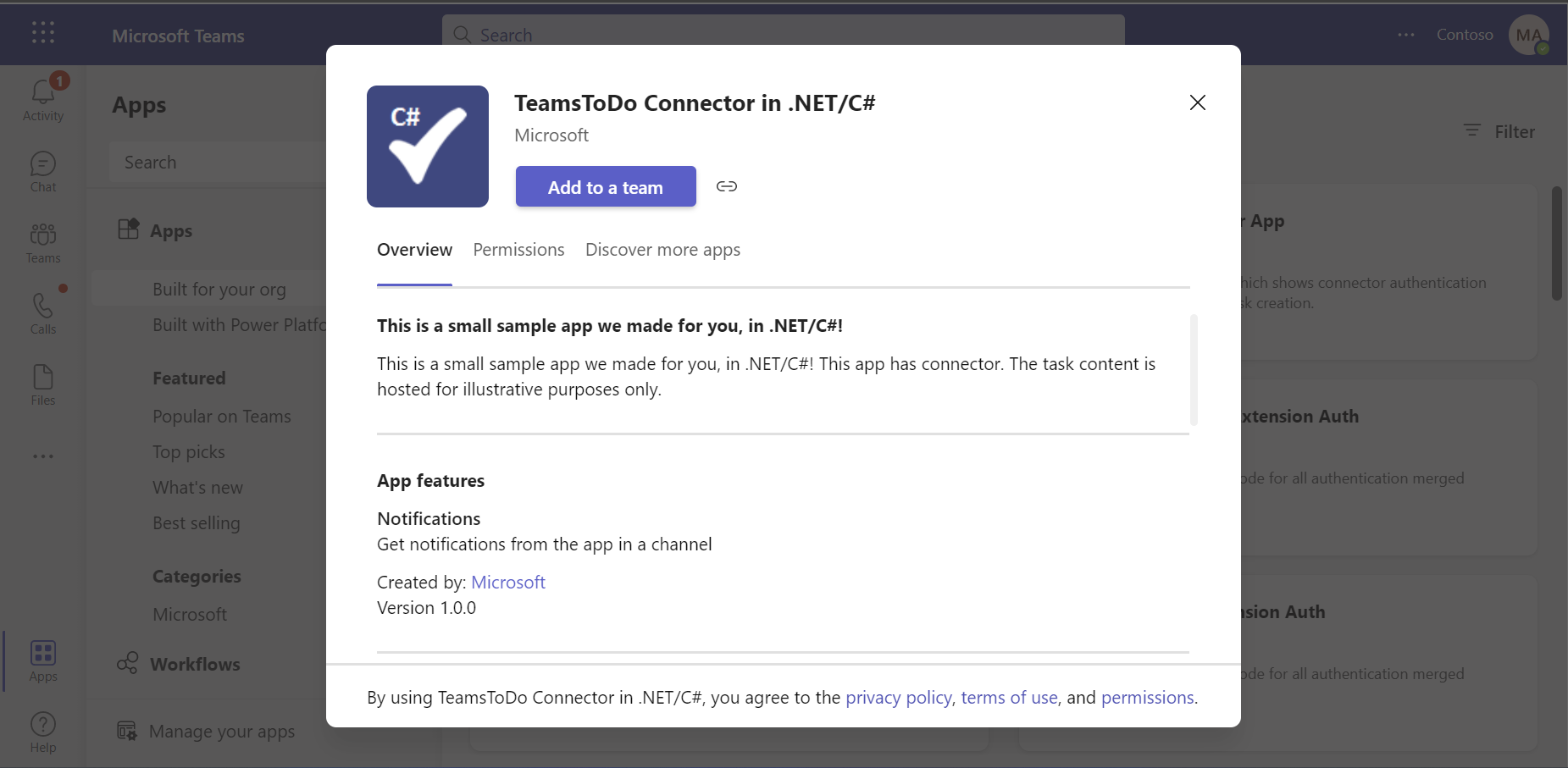
Setup Connector
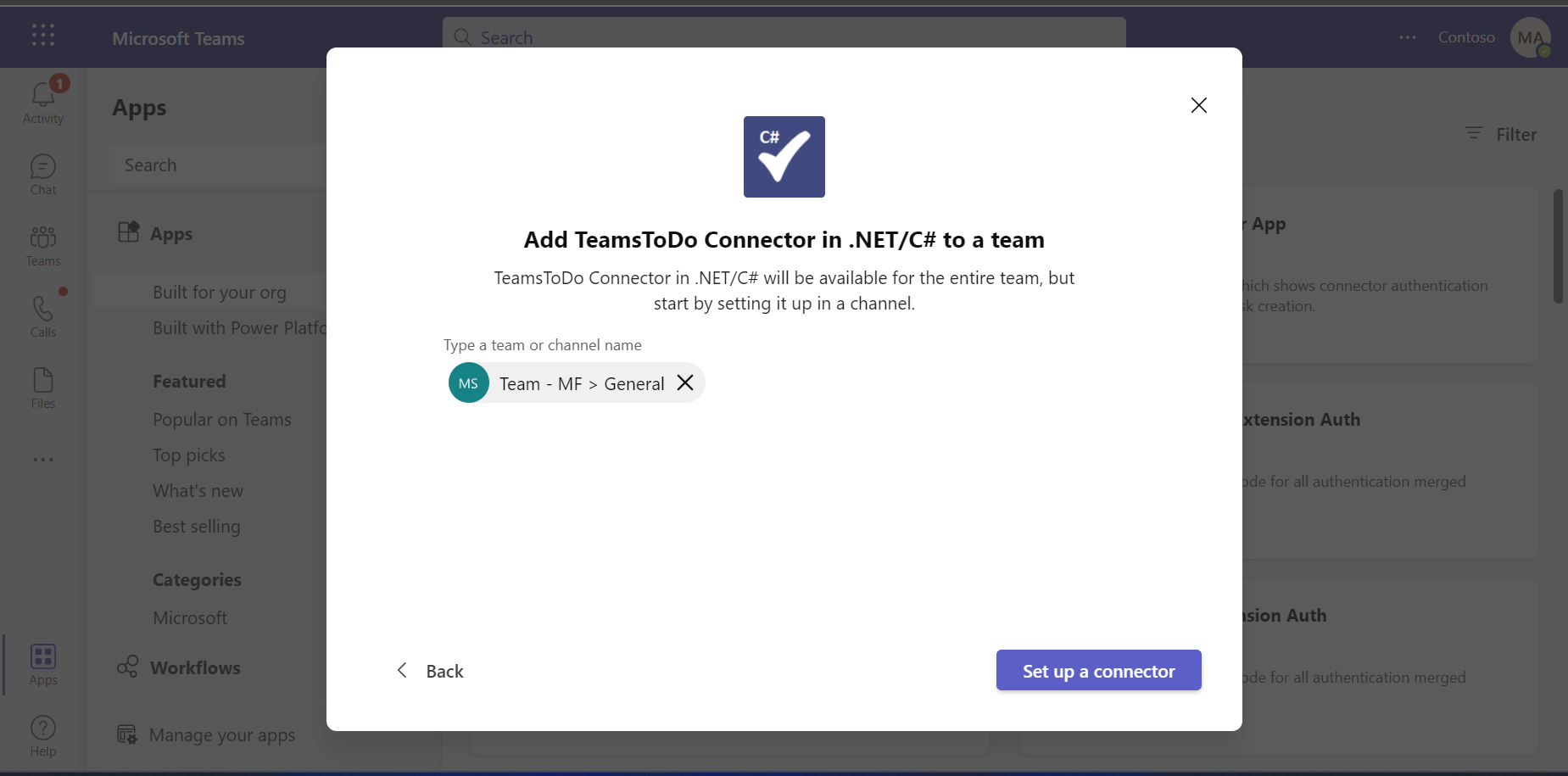
Select Update/Create
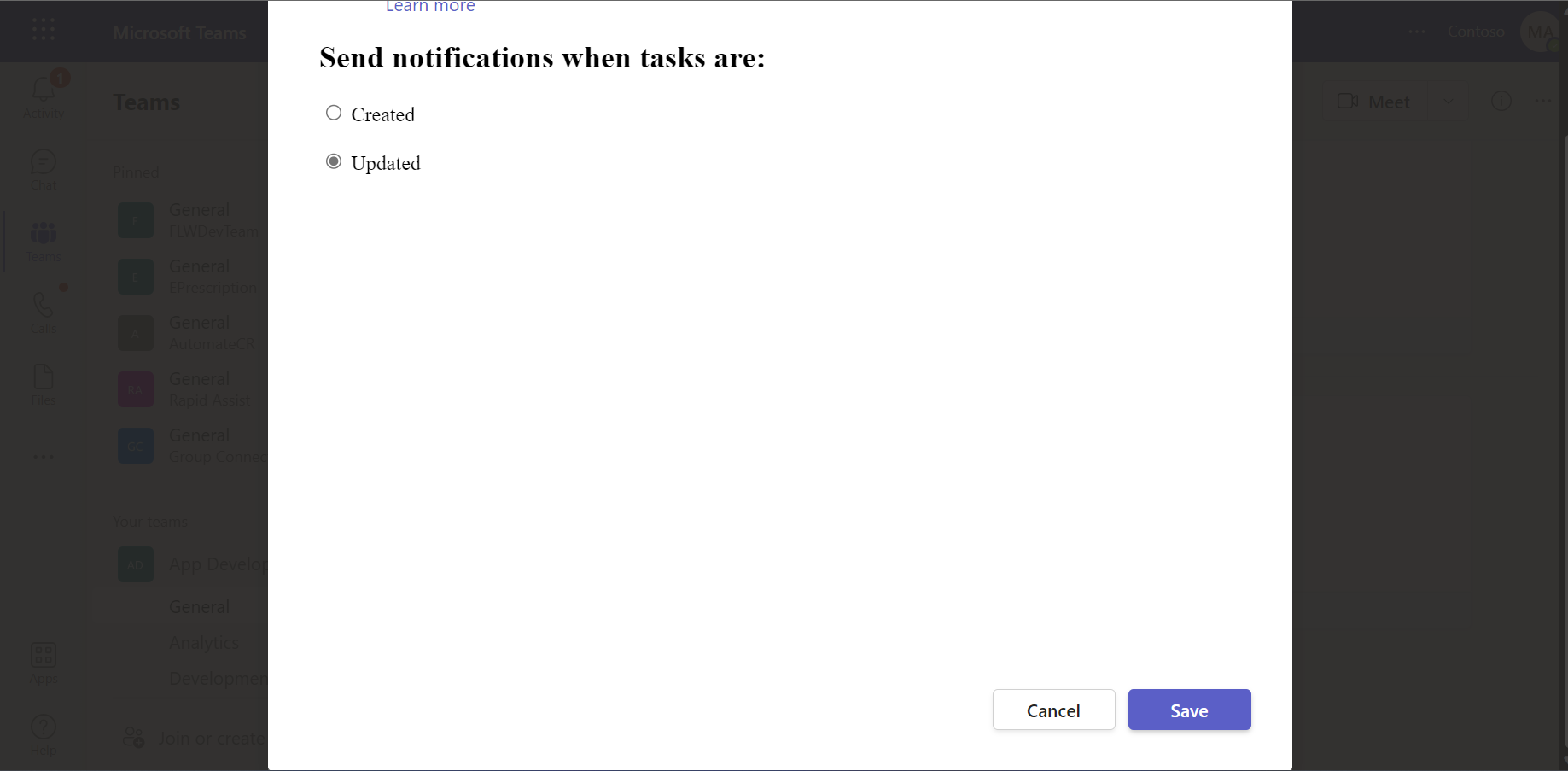
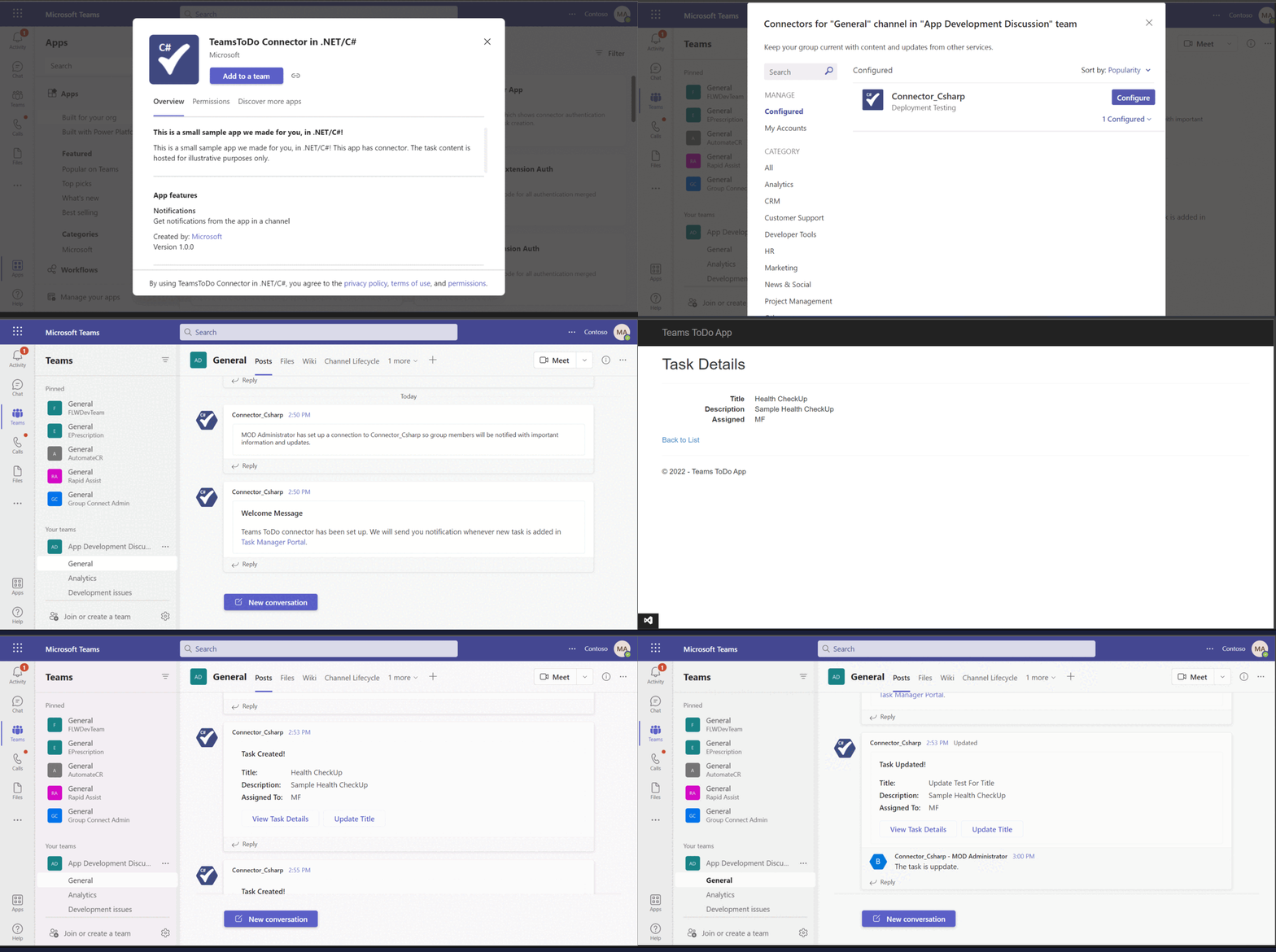
Configured
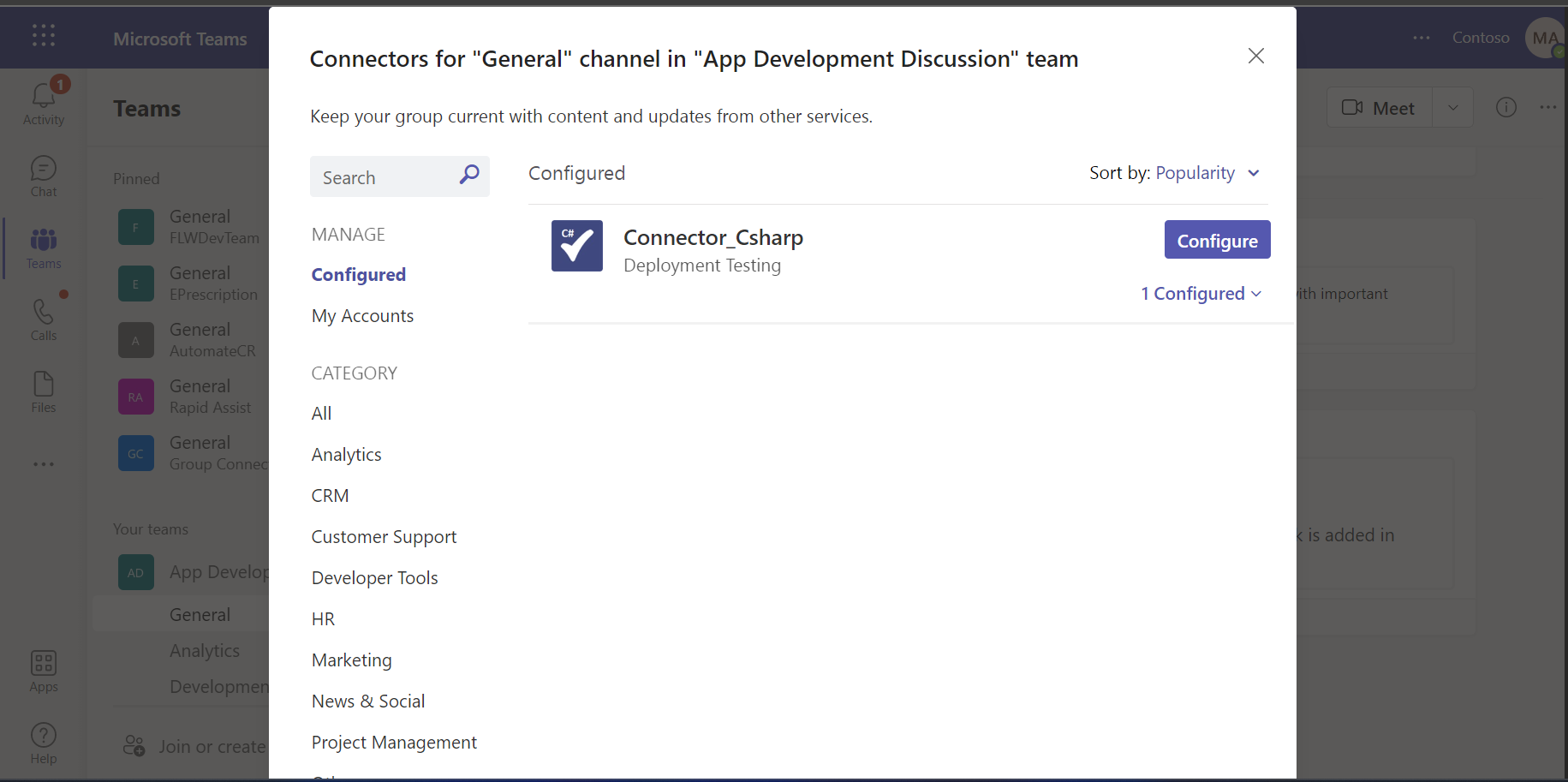
Connector added successfully in Team's channel
Task manager portal => Create new task
Task manager portal => Task Details
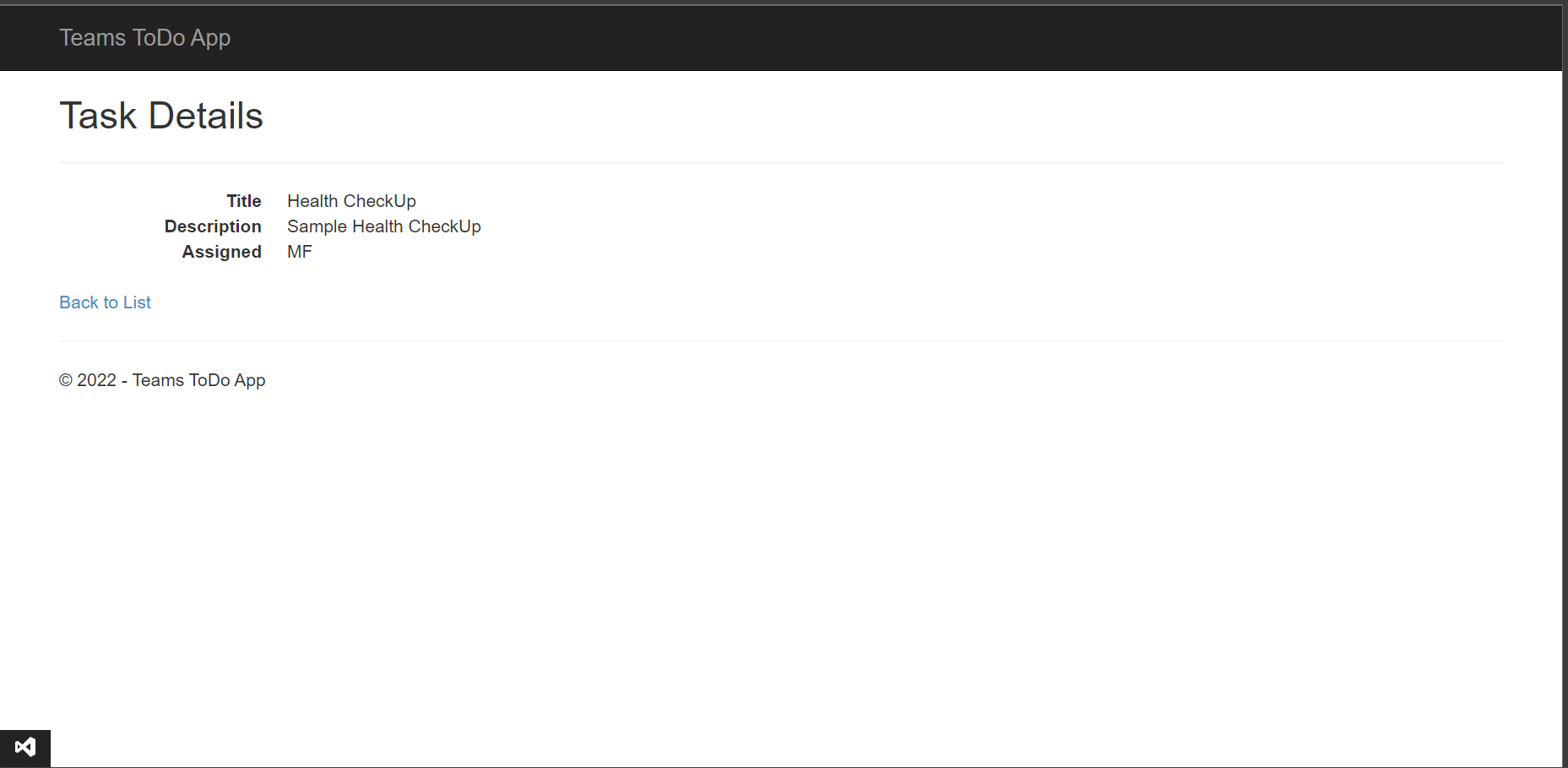
Task manager portal => Task List
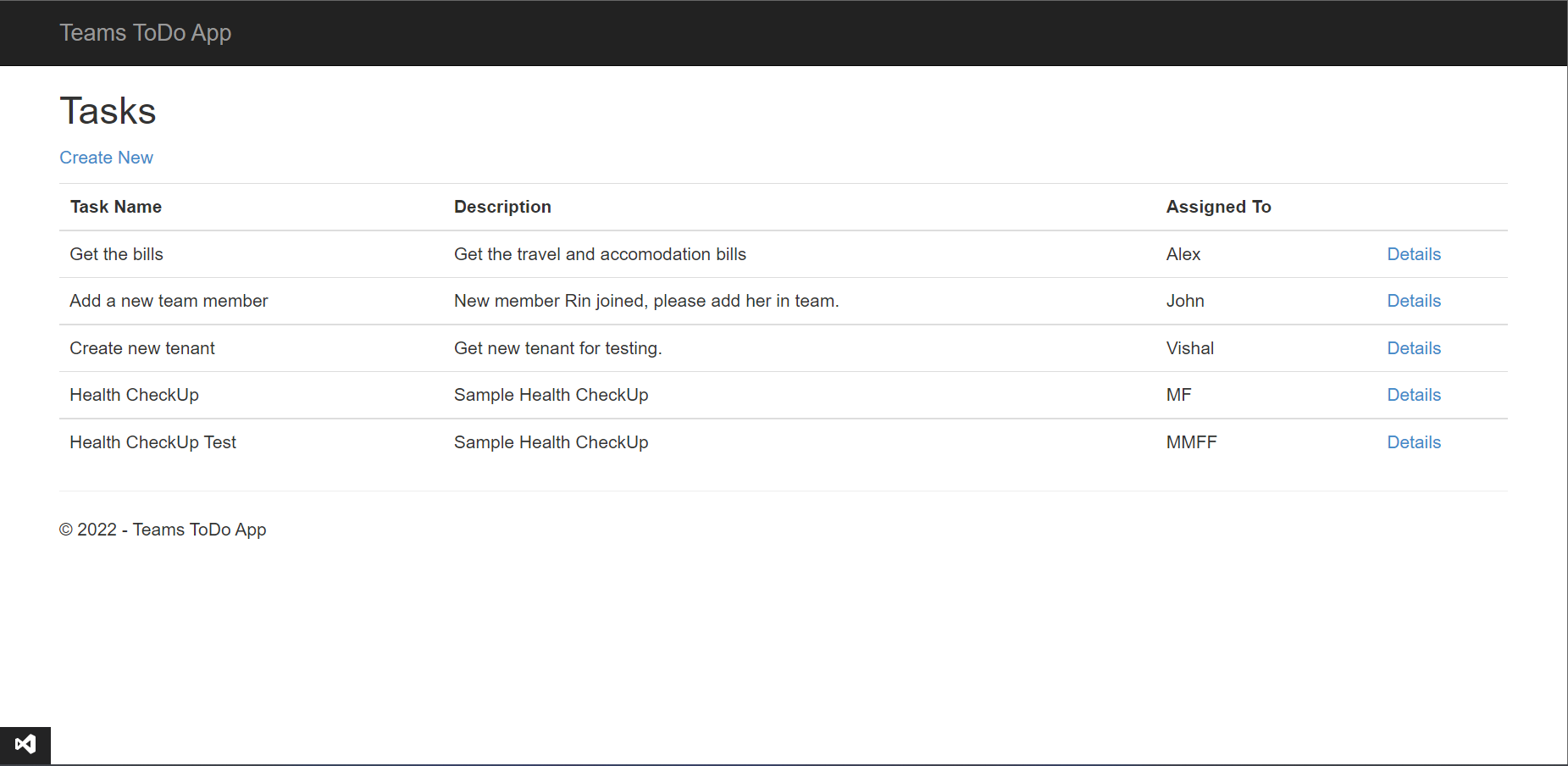
Notification Of Task
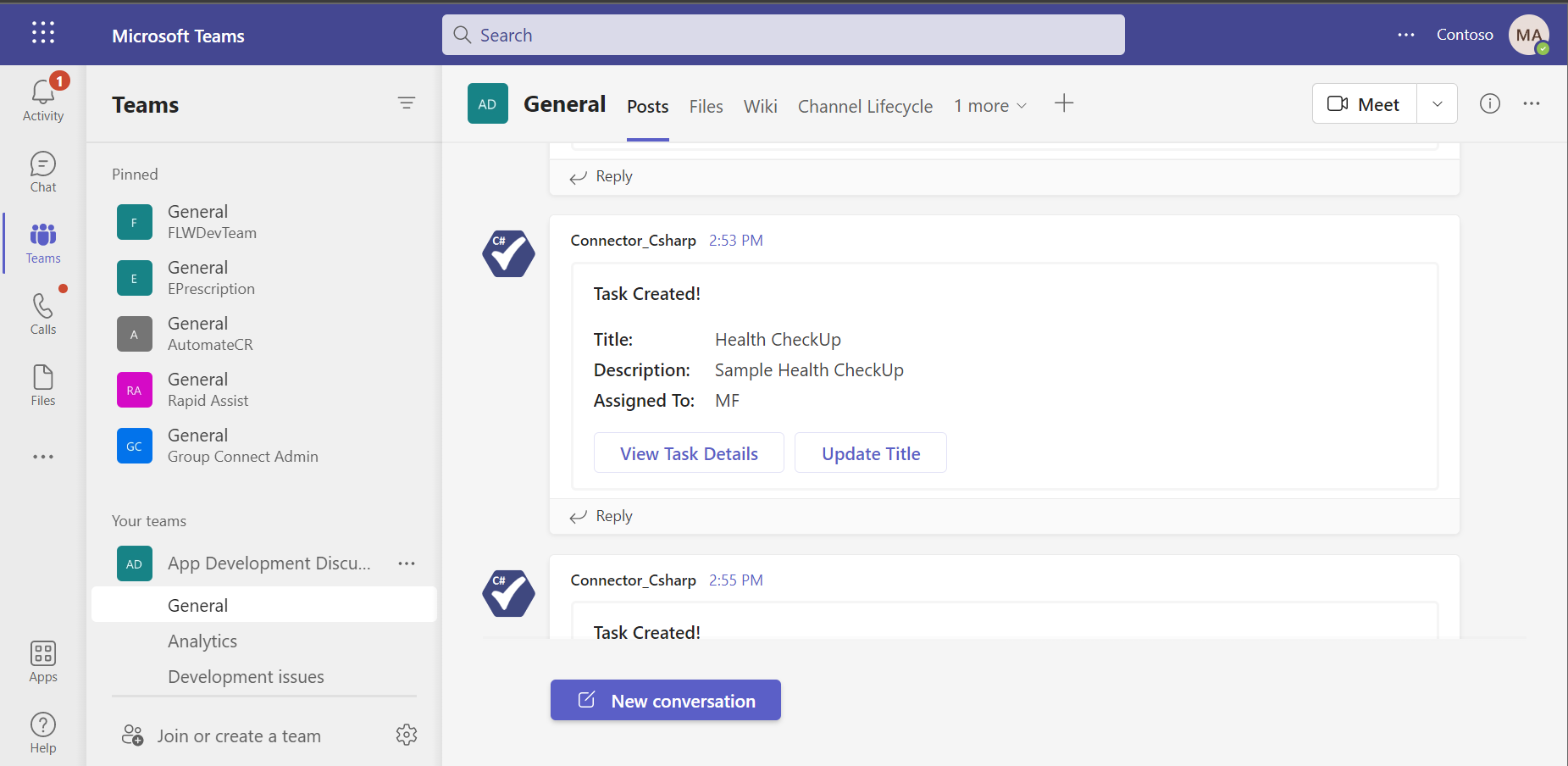
Update From Notification Card
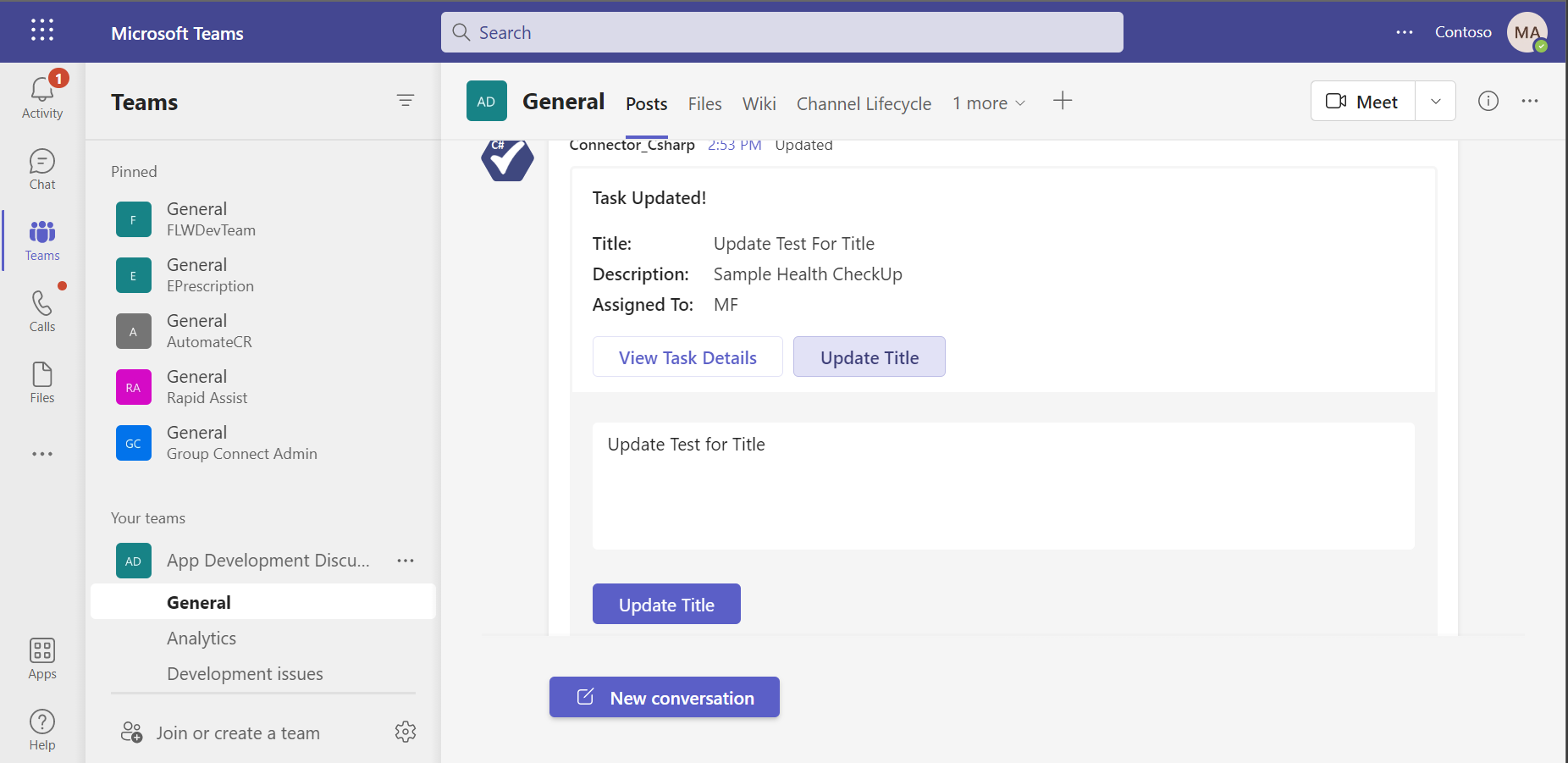
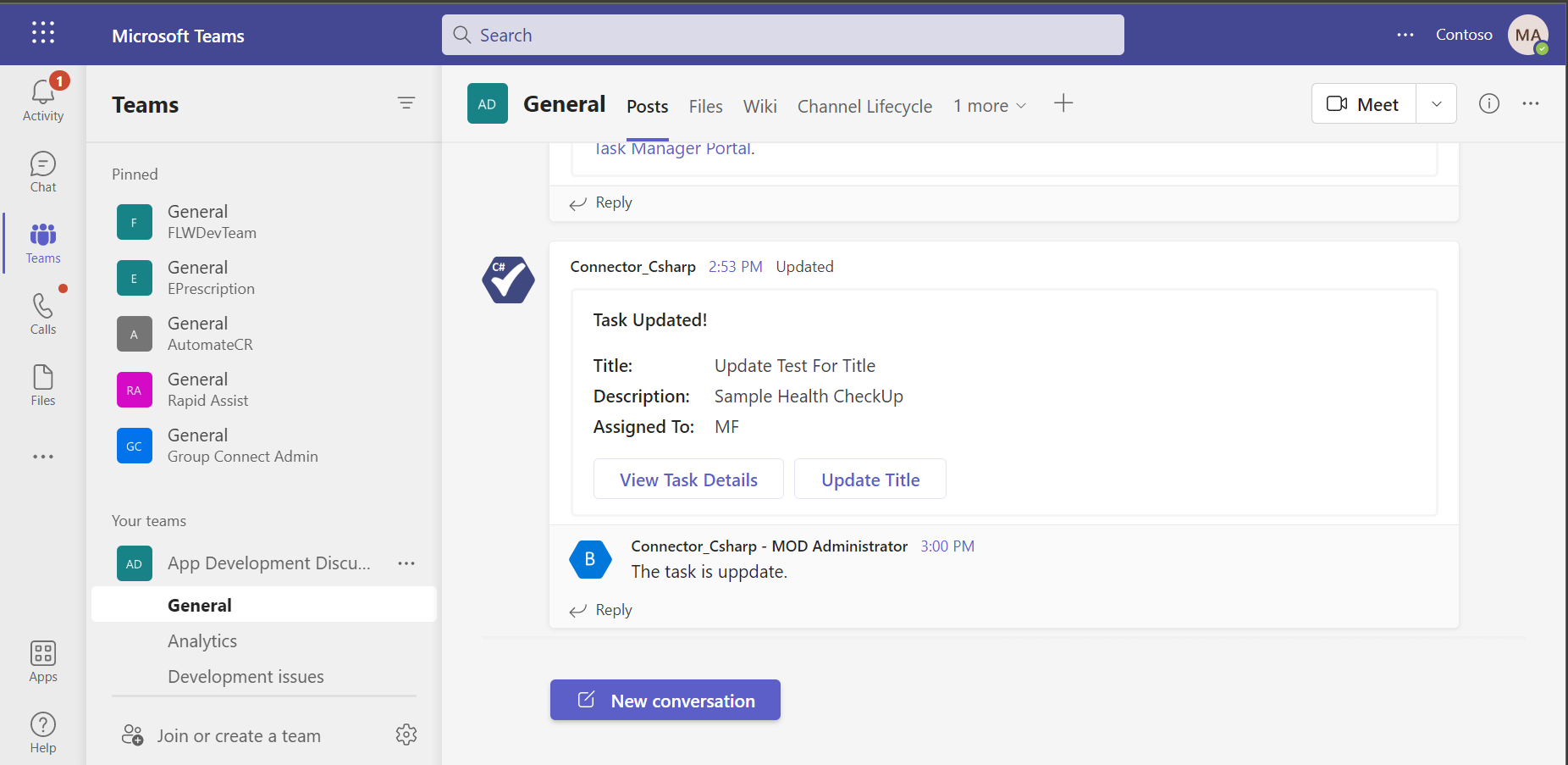
Updated Notification
Further Information
- For more information on developing apps for Microsoft Teams, please review the Microsoft Teams developer documentation.
- Configure the Teams ToDo Notification connector.
- For more information about getting started with Teams, please review the following resources:
- Review Getting Started with Teams
- Review Getting Started with Bot Framework
- Review Testing your bot with Teams