Note
Access to this page requires authorization. You can try signing in or changing directories.
Access to this page requires authorization. You can try changing directories.
The Reactive Services feature in Microsoft Engage Center lets you control which specific reactive support services users and groups can use within a workspace.
Reactive Services determine:
- Which users can use specific services to open support cases
- Which users can use specific services to create Access IDs
This capability is designed for advanced scenarios where a single support agreement contains multiple reactive services and only certain users should be able to use them.
Important
Reactive Services is an optional feature. Most customers do not need this level of control.
Enabling Reactive Services increases administrative complexity and ongoing management overhead. Only enable it when required by your support model. For more information on enabling Reactive Services in Engage Center, see Features - Support (Granular Reactive Services).
When to use Reactive Services
Use Reactive Services only if all of the following are true:
- Your support agreement includes multiple reactive services
- Different users or teams require access to different subsets of those services
- the default workspace-level behavior does not meet your needs
If these conditions don't apply, we recommend leaving Reactive Services disabled.
Prerequisites
Before you can manage Reactive Services, the Granular Reactive Services feature must be enabled for the workspace.
Once enabled, the Reactive Services section becomes available under User Management.
Update user reactive services
Use this flow to assign or update reactive services for individual users.
Sign in to Engage Center.
In the left navigation, select User Management, then select Reactive Services.
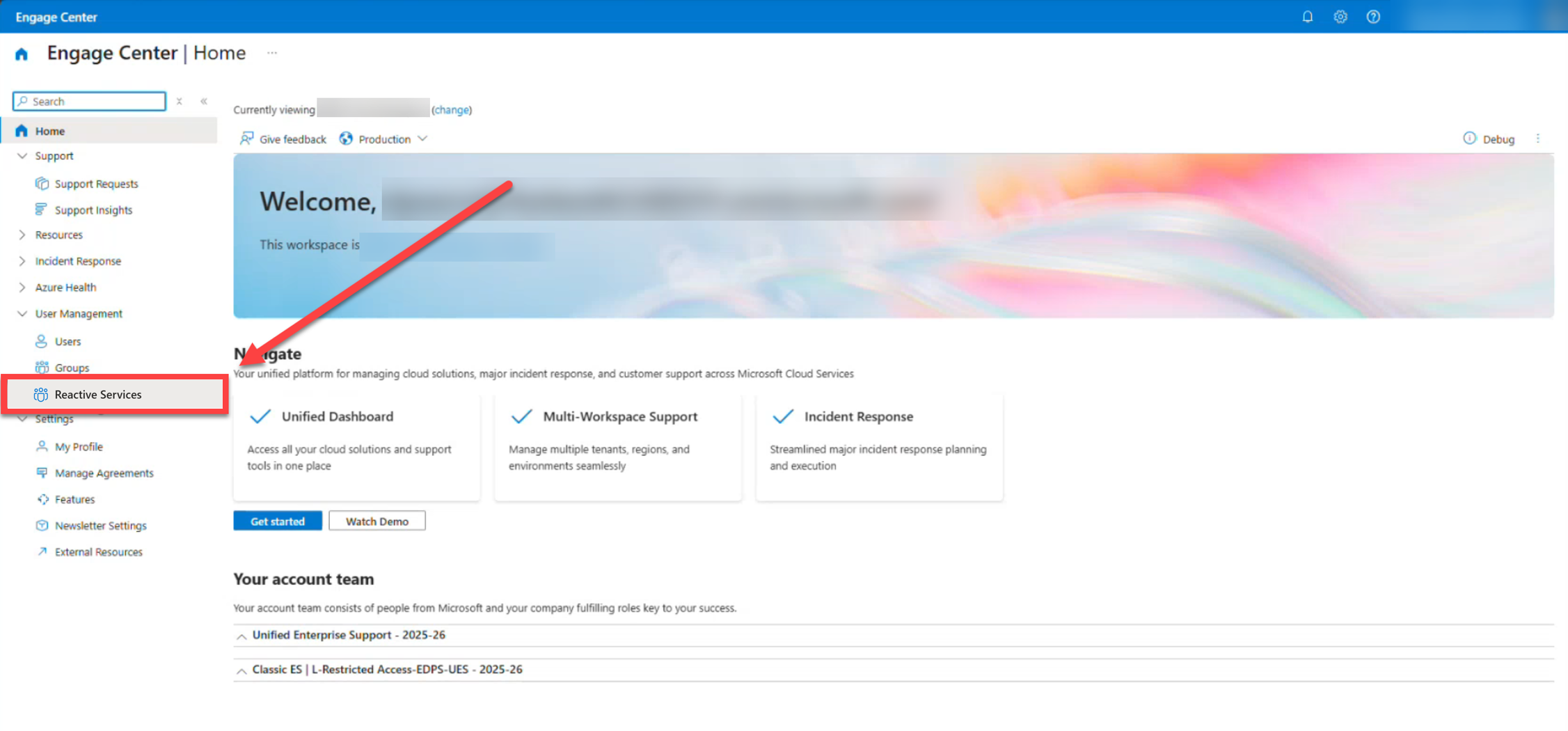
(Optional) Use search or filters to find specific users.
Select one or more users whose services you want to update.
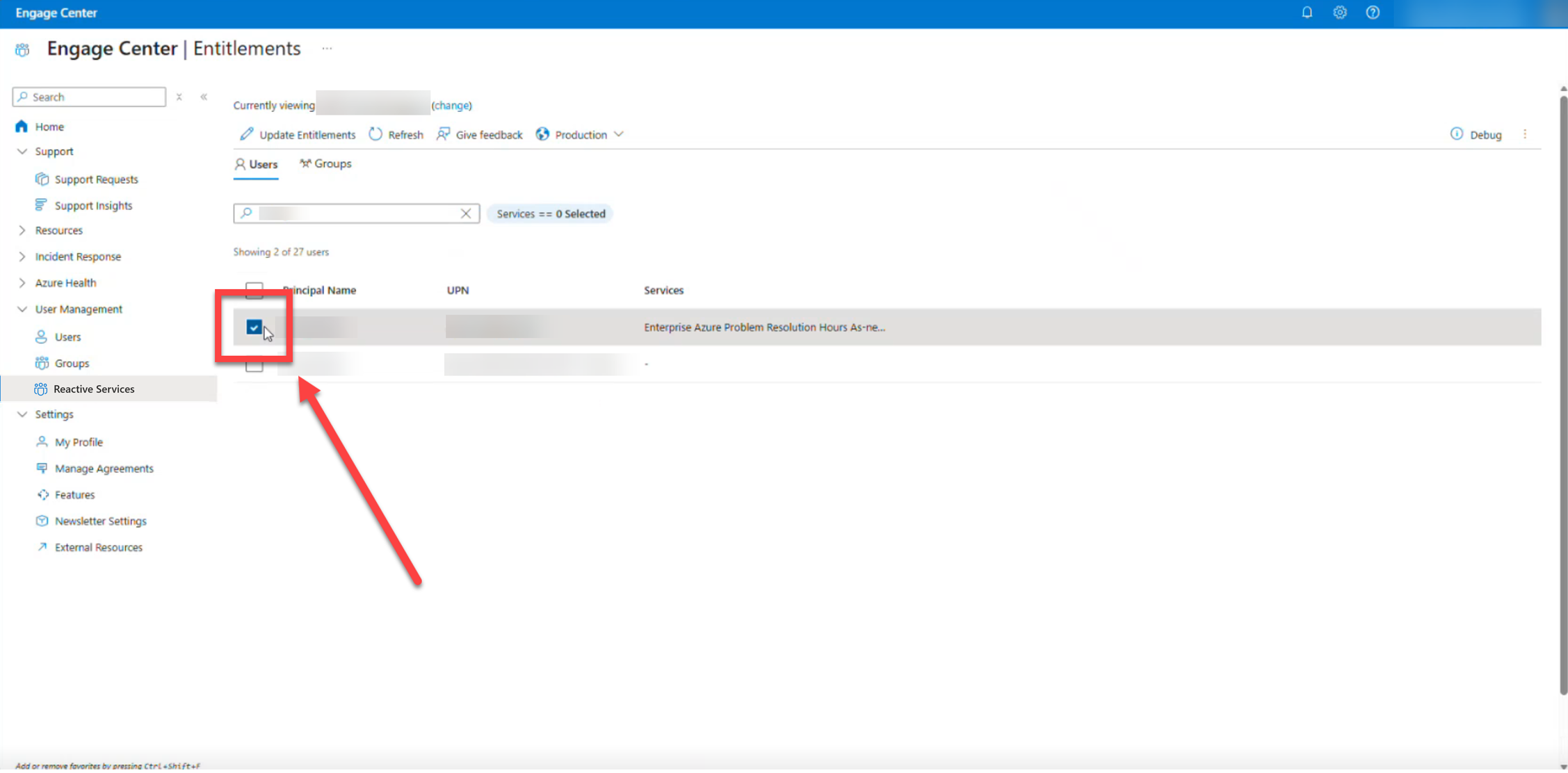
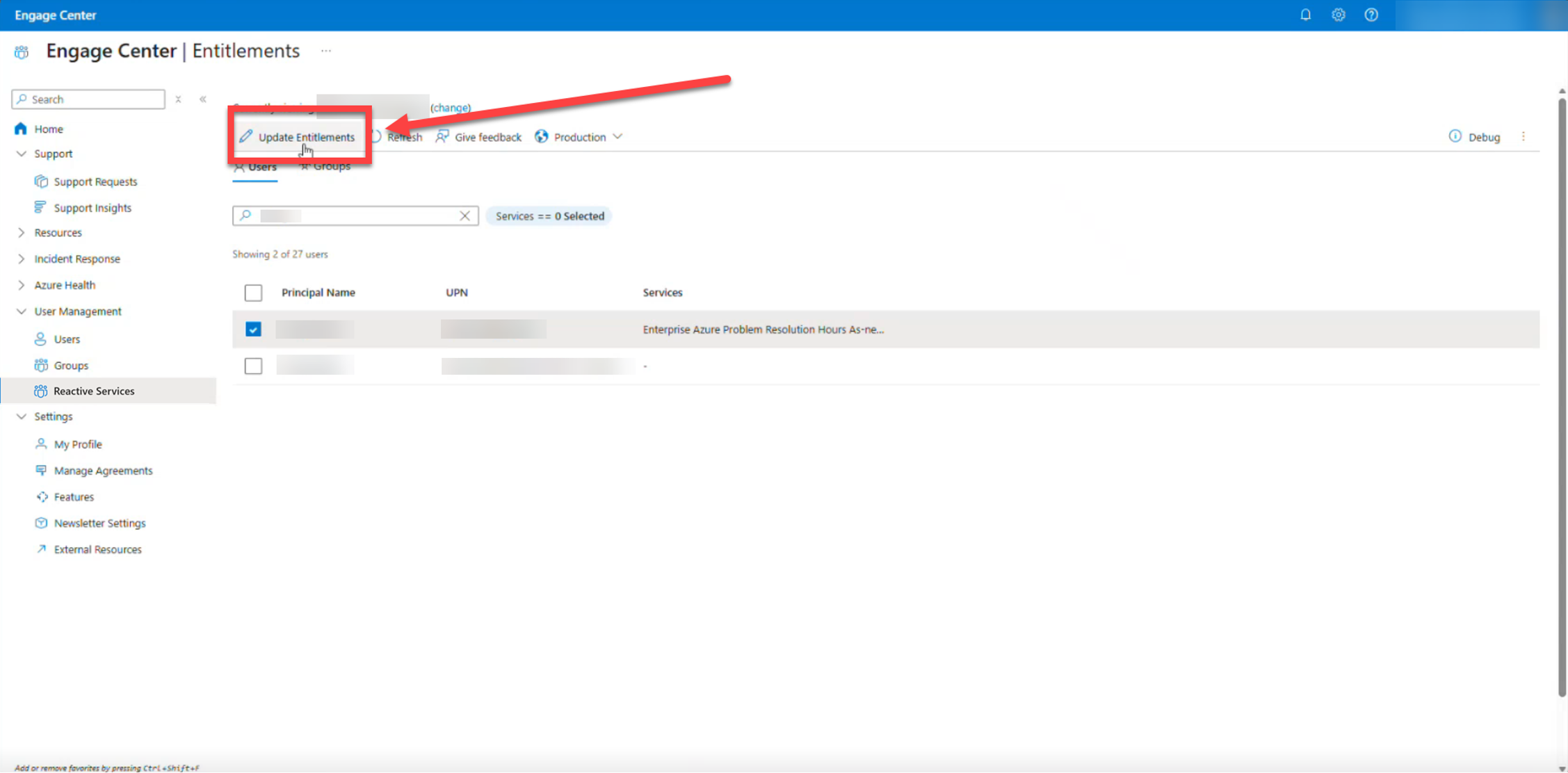
Select Update Reactive Services.
In the Manage Reactive Services pane, select or clear the services you want the user(s) to have.
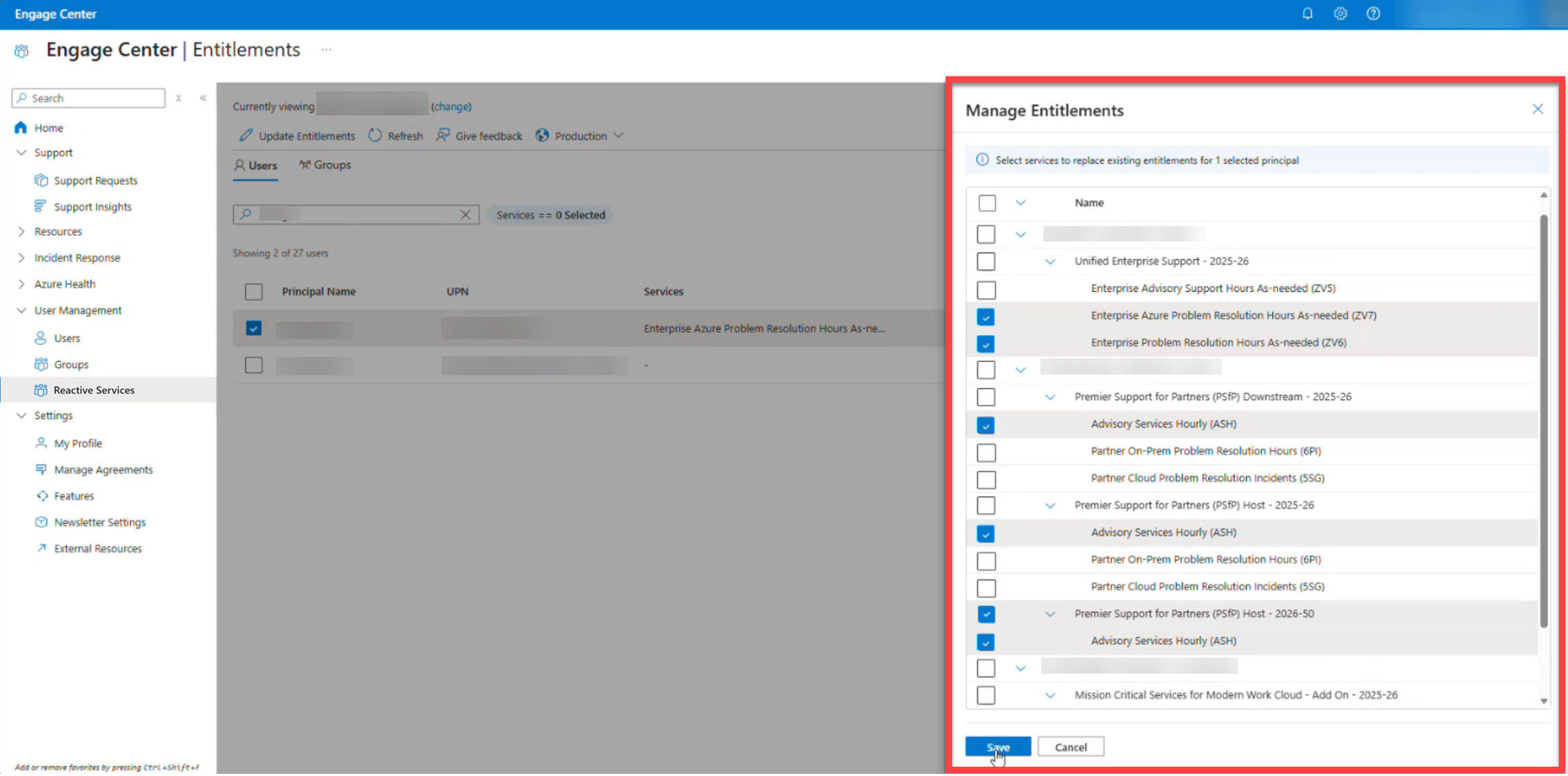
Select Save.
Important
Saving your changes replaces the user’s previous service selection. Services are not merged or incrementally updated.
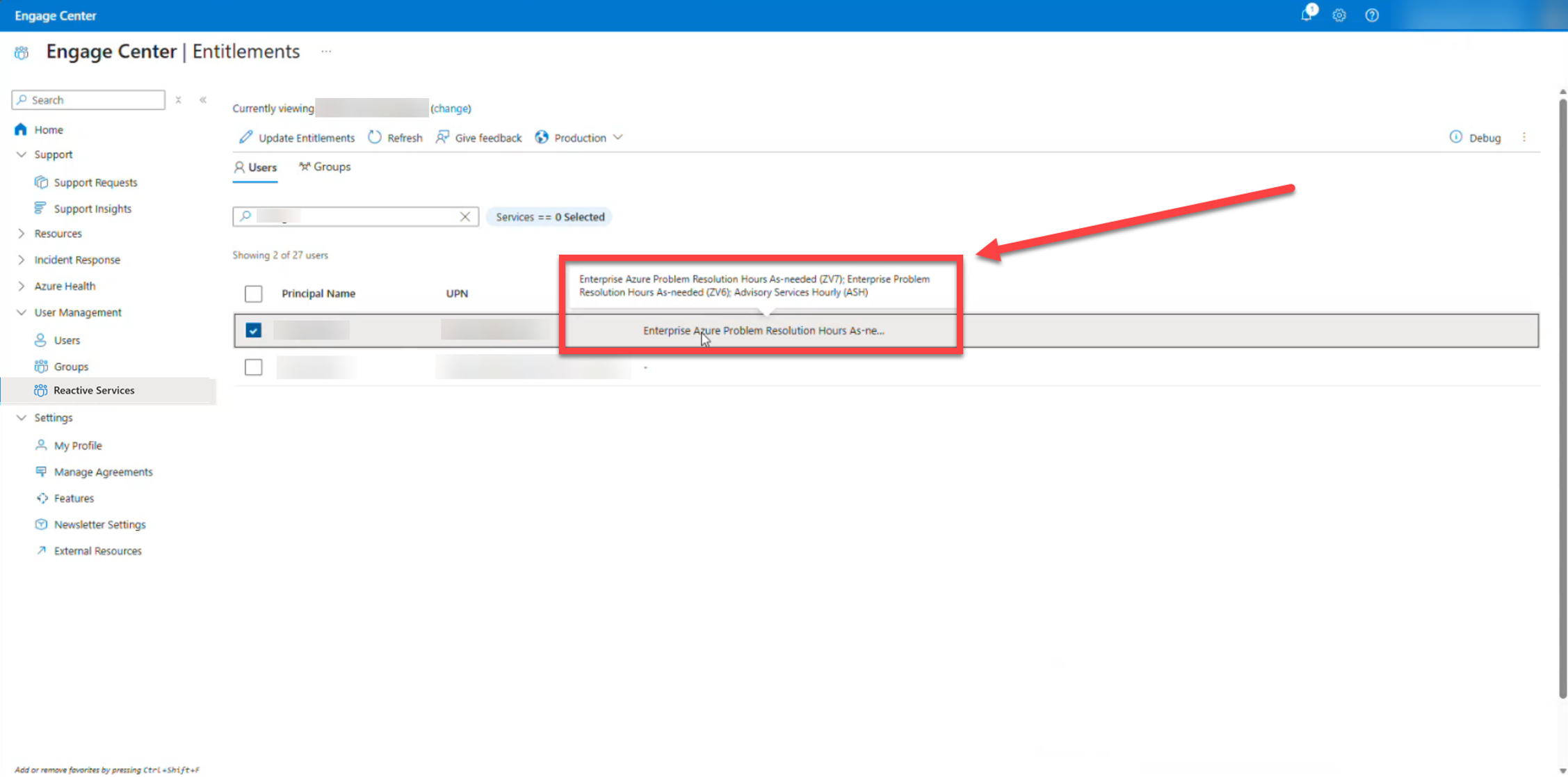
After saving, you can hover over the Services column to view the user’s currently assigned reactive services.
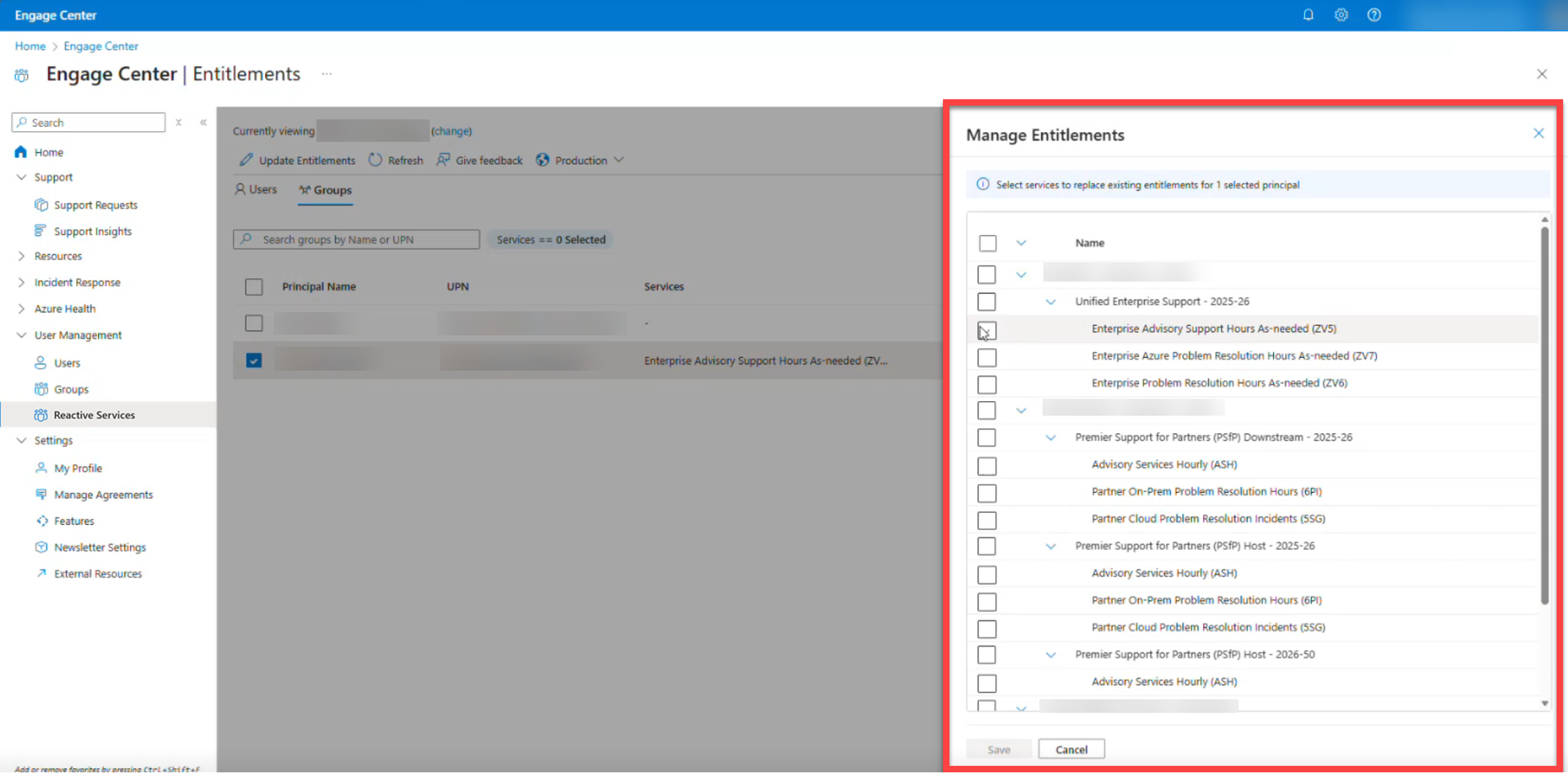
Update reactive services for groups
You can also manage reactive services at the group level.
Sign in to Engage Center.
In the left navigation, select User Management, then select Reactive Services.
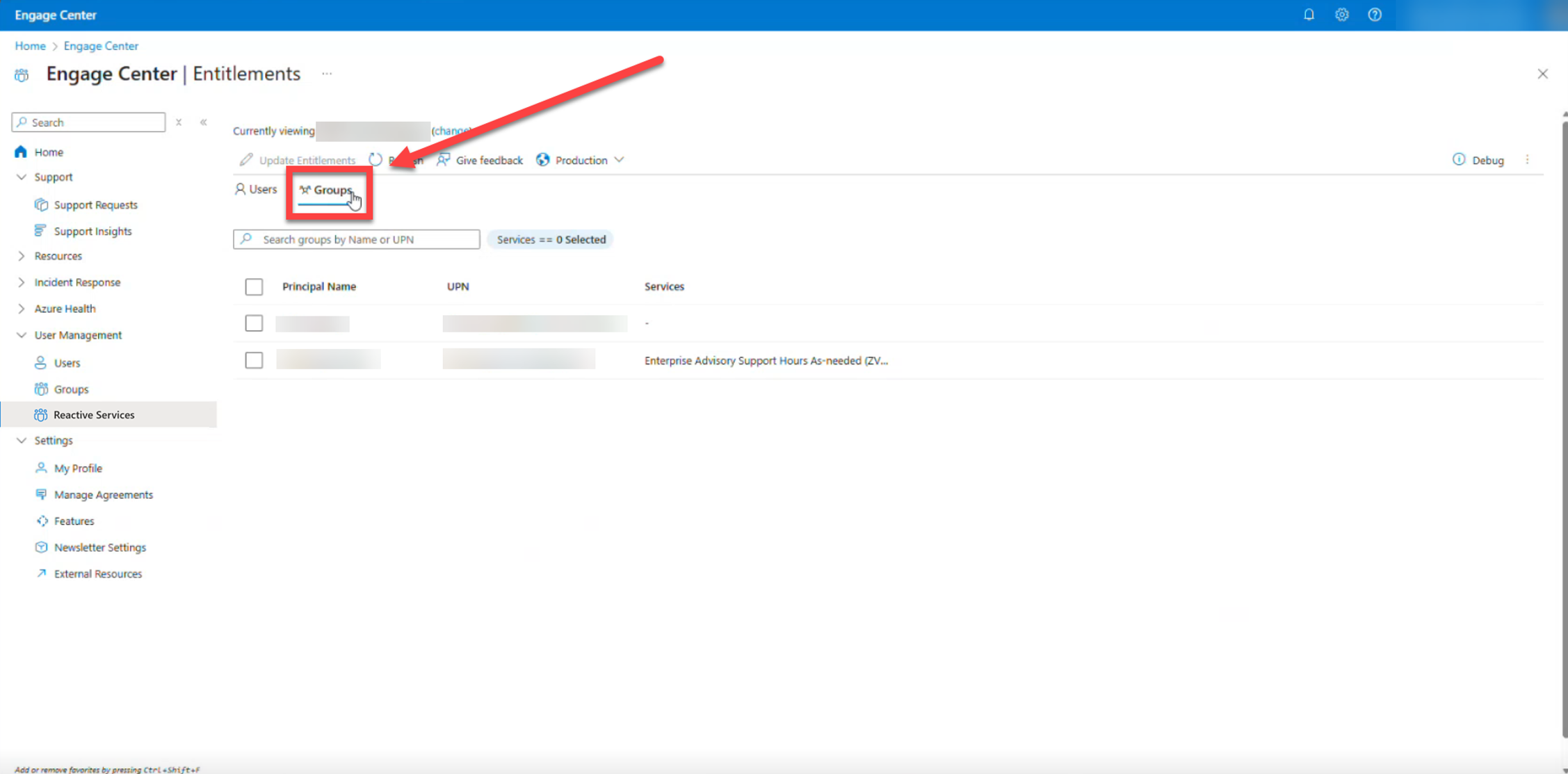
Select the Groups tab above the list of users.
(Optional) Use search or filters to find specific groups.
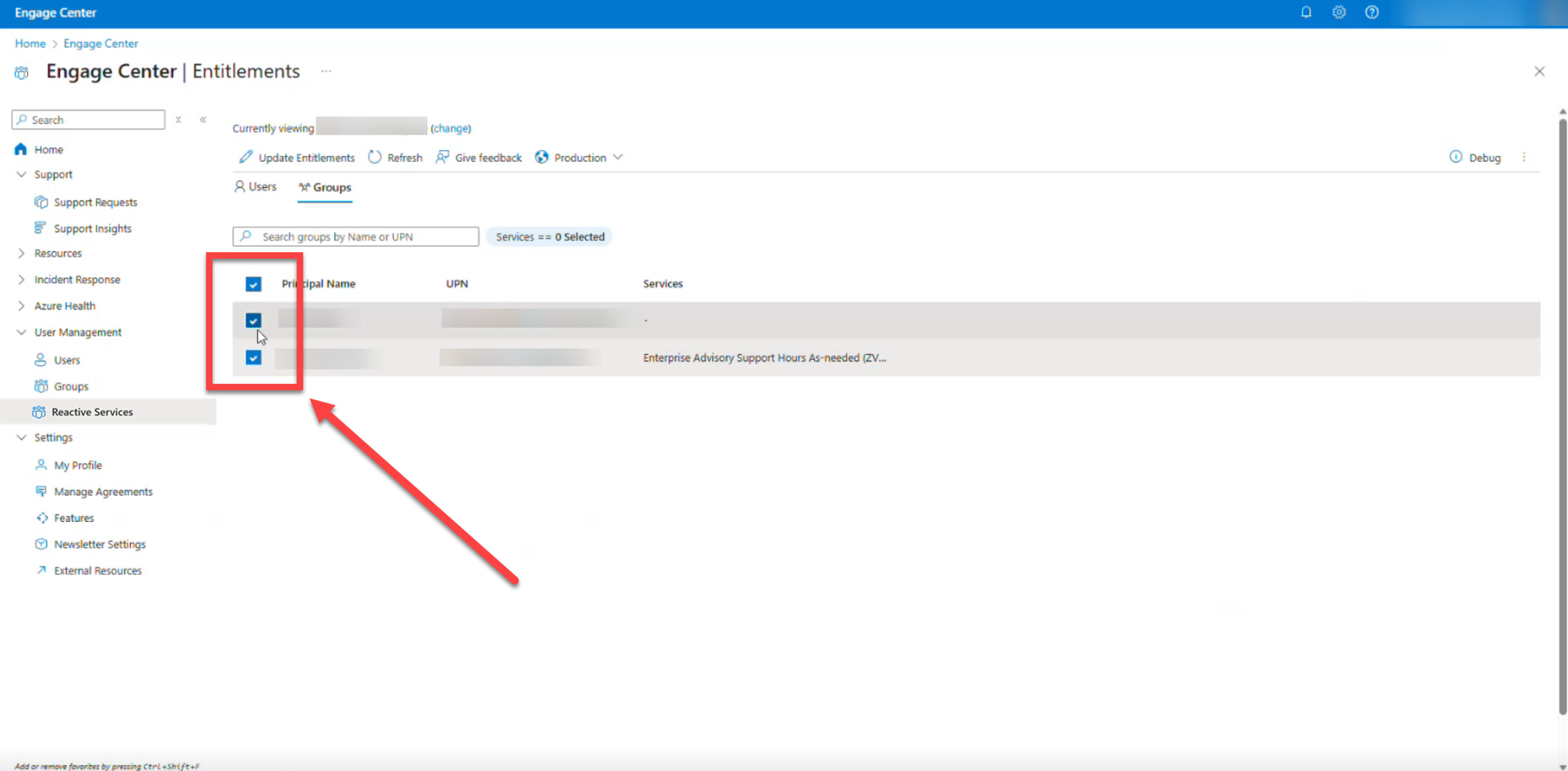
Select one or more groups whose services you want to update.
Select Update Services.
In the Manage Reactive Services pane, select or clear the services you want the group(s) to have.
Select Save.
Important
Saving your changes overwrites the group’s previous service selection.
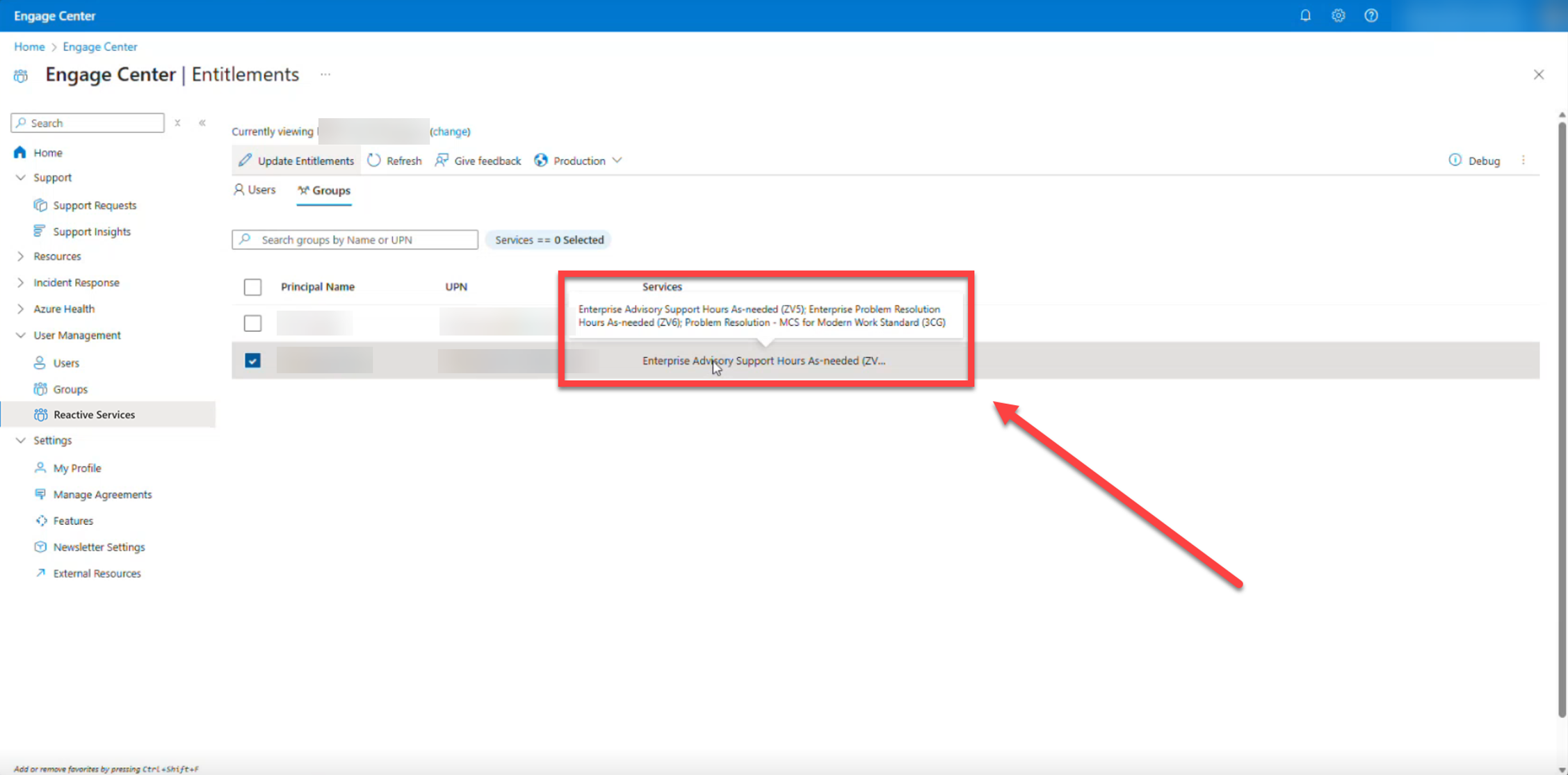
After saving, you can hover over the Services column to view the group’s assigned reactive services.
How Reactive Services affect access
Reactive Services act as a filter on top of workspace support services:
- Users can only open cases or create Access IDs for services they're explicitly assigned.
- Removing a reactive service restricts access immediately.
- Reactive Services can't grant access to services that are not part of your workspace’s associated agreements.