Note
Access to this page requires authorization. You can try signing in or changing directories.
Access to this page requires authorization. You can try changing directories.
As an IT administrator, you might encounter situations where some of your users have unmanaged and unlicensed OneDrive accounts within your organization. Unlicensed OneDrive accounts can pose security and compliance risks, as well as create confusion and duplication of files.
In this article, you learn how to identify, monitor, and manage unlicensed OneDrive accounts in your organization.
Enforcement of policy changes for unlicensed OneDrive accounts
Unlicensed OneDrive accounts are automatically put into read-only mode after 60 unlicensed days and archived after 93 unlicensed days. While read-only and archived accounts remain visible to admins through administrative tools, neither admins nor end users have access to their content unless an admin takes a supported action such as assigning a license, enabling applicable billing, reactivating archived content, or moving content that must be retained.
As of July 1, 2026, unlicensed OneDrive accounts that remain unpaid are subject to a cumulative 365-day nonpayment clock. Accounts that were already unlicensed before July 1, 2026 are in scope, and accounts that become unlicensed on or after July 1, 2026 are also in scope. For accounts already unlicensed and unpaid on July 1, 2026, deletion risk begins no earlier than July 1, 2027. For accounts that become unlicensed after July 1, 2026, deletion risk begins when the account reaches 365 cumulative unpaid days.
An unpaid account is an unlicensed OneDrive account that isn't covered by an applicable paid license or billing/storage option.
Note
These changes don't apply to EDU, GCC, or DoD customers.
Unlicensed OneDrive accounts linked to a user account deleted in Entra ID. These accounts are removed following the standard OneDrive deletion process. This process honors retention mechanisms in the following order when billing is enabled for unlicensed OneDrive accounts:
OneDrive retention period
Retention policies
Legal holds
After all applicable retention mechanisms are honored, the account is recycled and then permanently deleted.
Unlicensed OneDrive accounts linked to a user account that has not been deleted in Entra ID. These accounts are archived on their 93rd unlicensed day. If the account remains unlicensed and unlicensed account billing isn't enabled, it's subject to the cumulative 365-day nonpayment clock for deletion.
Timeline for unlicensed accounts
| Milestone | Expected state |
|---|---|
| Day 1 | For accounts already unlicensed and unpaid on July 1, 2026, the cumulative nonpayment clock begins on July 1, 2026. For accounts that become unlicensed after July 1, 2026, the clock begins on the date the license is removed or the user is deleted in Entra ID. |
| Day 60 | The account is placed in read-only mode. |
| Day 93 | The account is archived or moved to the recycle bin depending on account and retention state. |
| Day 275 | The account is no longer available in eDiscovery. |
| Day 365 | The account is subject to deletion after 365 cumulative unpaid days. |
The following examples show the earliest deletion-risk date for accounts that remain unpaid:
| Account unlicensed date | Earliest deletion-risk date |
|---|---|
| January 1, 2026 | July 1, 2027 |
| July 1, 2026 | July 1, 2027 |
| August 1, 2026 | August 1, 2027 |
Admins are encouraged to monitor account statuses based on these timelines to ensure compliance and take any necessary actions.
Unlicensed OneDrive account management options
After you identify the unlicensed OneDrive account, you can choose to license or delete the account.
Assign license to unlicensed OneDrive account
Prior to the unlicensed OneDrive account archival - To assign a license to an unlicensed OneDrive account, you need to assign a Microsoft 365 or Office 365 subscription to the user that includes OneDrive. Assigning a license allows the user to access their OneDrive files with their work or school account, and lets you manage their settings and policies.
You can also bulk assign licenses using either of the following methods:
- Assign licenses to user accounts in the Microsoft 365 admin center
- Assign licenses to user accounts with PowerShell
After the unlicensed OneDrive account archival - If the archived account has an associated user as the owner (also known as the primary site collection administrator), the IT admin can give the user a valid license and the account is automatically reactivated within 24 to 48 hours. Adding a license, such as through the Microsoft 365 admin center, will not incur a reactivation fee and does not require billing to be enabled in order for the account to be automatically reactivated for the user that has been licensed. If the archived account doesn't have an associated user (for example, if the identity was deleted), then we recommend admins move any actively needed content to a SharePoint site or an active and licensed OneDrive account. If the account is already archived and doesn't have an associated user, then the account needs to be reactivated before that data can be moved. For more information on licensing and active users in Microsoft 365, see Assign or unassign licenses for users in the Microsoft 365 admin center.
Delete unlicensed OneDrive account
Prior to the unlicensed OneDrive account archival - To delete an unlicensed OneDrive account, you need to remove the user from your organization and delete their data. You can use the Microsoft 365 admin center, PowerShell, or the Microsoft Graph API to permanently delete the user.
Once you delete the unlicensed account, both the OneDrive account and its files are moved to the recycle bin. After 93 days in the recycle bin, it will be permanently deleted, and the user is no longer able to sign in to their work or school account.
After the unlicensed OneDrive account archival - An account can be deleted from the archived state without reactivation. However, if the account is subject to a retention policy, the unlicensed account can't be deleted, and the administrator receives an error message.
Archive unlicensed OneDrive account
If no action is taken, the account remains archived through Microsoft 365 Archive. Archiving the account lets you keep the OneDrive account and its data for long periods of time in case you need to retrieve it later.
For newly unlicensed OneDrive accounts, it will be after 93 days of the license removal or user deletion. For example, a OneDrive account that became unlicensed on August 1, 2025, will be inaccessible to users as of November 2, 2025.
Access unlicensed OneDrive account
Accessing an Archived OneDrive Account:
To access data from an archived OneDrive account, reactivation is required. Follow these prerequisites to set up Microsoft 365 Archive:
Set up and link an Azure subscription in pay-as-you-go.
Ensure you have Global admin or SharePoint admin permissions.
Enable Microsoft 365 Archive Unlicensed Account billing (available starting December 2024).
After completing the setup and triggering reactivation, it may take up to 24 hours for the account to become accessible. Once reactivated, the account remains active for 30 days before being automatically archived again.
Accessing a Read-Only OneDrive Account:
If the OneDrive account has been set to read-only, administrators have multiple options to access the content:
Note
These changes don't apply to EDU, GCC, or DoD customers.
Reporting
Unlicensed OneDrive accounts aren't associated with a Microsoft 365 or Office 365 subscription in your organization. A OneDrive account can become unlicensed when the licensing isn't activated or is expired.
You can also encounter unlicensed OneDrive accounts when accounts are created, but aren't assigned a license. Monitoring unlicensed accounts can help you determine the risk of these accounts, and plan for migration or deletion of user accounts.
Get unlicensed OneDrive users report
You can identify unlicensed OneDrive accounts using the SharePoint admin center. The following steps show how to use the SharePoint admin center to generate a report of unlicensed OneDrive accounts:
Sign in to the SharePoint admin center with your work or school account.
Go to Reports and select OneDrive Accounts.
You can download the report as a CSV file.
Starting January 2025, an interactive UI is available. You can select a username to view the details.
The report shows the username, email address, account type, and last activity date of each unlicensed OneDrive account.
The following table provides more information on data shown in the unlicensed OneDrive accounts report:
Column Description Unlicensed accounts Total number of OneDrive accounts that aren't licensed as of the date the report is generated. Storage used Total storage consumed by these unlicensed OneDrive accounts as of the report's date. Retention period Unlicensed accounts with a set-retention.md during the process of license removal or user account deletion. The retention period is no longer valid if storage is in a unpaid state. Retention policy Unlicensed accounts subject to a /purview/retention set up in Microsoft Purview. The retention policy is no longer valid if storage is in a unpaid state. Active user with no license Accounts where the user's license was removed, but the account wasn't deleted as part of the /microsoft-365/admin/add-users/delete-a-user. Starting in January 2025, users who aren't assigned a license, but are still considered active in the system, are archived on the 93rd unlicensed day. Duplicate account Unlicensed accounts created when an employee transfers to a different country/region, or firm within the organization. If these duplicate accounts are unnecessary, we recommend using the downloadable CSV from the SharePoint admin center to identify and delete them. If no action is taken, the accounts are automatically archived starting in January 2025 and incurs archive charges. Unlicensed reason 'No owner' – There's no owner assigned to the OneDrive account, meaning that no license can be associated with this account. 'Owner deleted from Entra ID' – The assigned owner was deleted, thus there's no license associated with this account. 'License removed by admin' – The owner is present in Entra ID, but the owner's license has been removed from the account. 'Duplicate account' – The owner has multiple OneDrive accounts associated with their identity. The duplicate account isn't the primary OneDrive account associated with the owner's identity. All nonprimary accounts associated with the owner are considered unlicensed. Deletion blocked by 'Retention period' – The OneDrive account has been marked for deletion but is within the global OneDrive account retention period, as defined by the set-retention.md. Shortening the retention period helps reduce unlicensed OneDrive accounts being retained for this reason. 'Retention policy' – A retention policy, a legal hold, or a compliance hold defined in Purview is stopping this account's contents from being deleted. The retention policy might be applied to only a subset of the account's contents, which would prevent the entire OneDrive account from being deleted. Modify your Purview retention or hold requirements to reduce OneDrive accounts held for this reason. 'Owner active in Entra ID' – The OneDrive account's owner is still active in Entra ID, causing the account to not be deleted. 'Restored from recycle bin' – This account was restored from the site recycle bin by an IT administrator. Since the account was intentionally restored, it will no longer be deleted automatically. 'Active lock on account' – This account has an active read-only or no-access lock applied by an IT administrator, which blocks the account from being automatically deleted. IT administrators can use PowerShell to remove the lock state from the account or can delete this account directly. 'Previous lock or other state change' – This account had a previous lock or other admin activity caused a state change which prevents the account from being automatically deleted. IT administrators can directly delete this account via PowerShell or from the SharePoint admin center's detailed OneDrive accounts report page.
View more details on unlicensed OneDrive accounts
You can view details on all unlicensed OneDrive accounts, even ones that aren't past their 93rd unlicensed day yet, in the SharePoint admin center.
In the SharePoint admin center, select Reports.
Select OneDrive accounts and then select View more details.
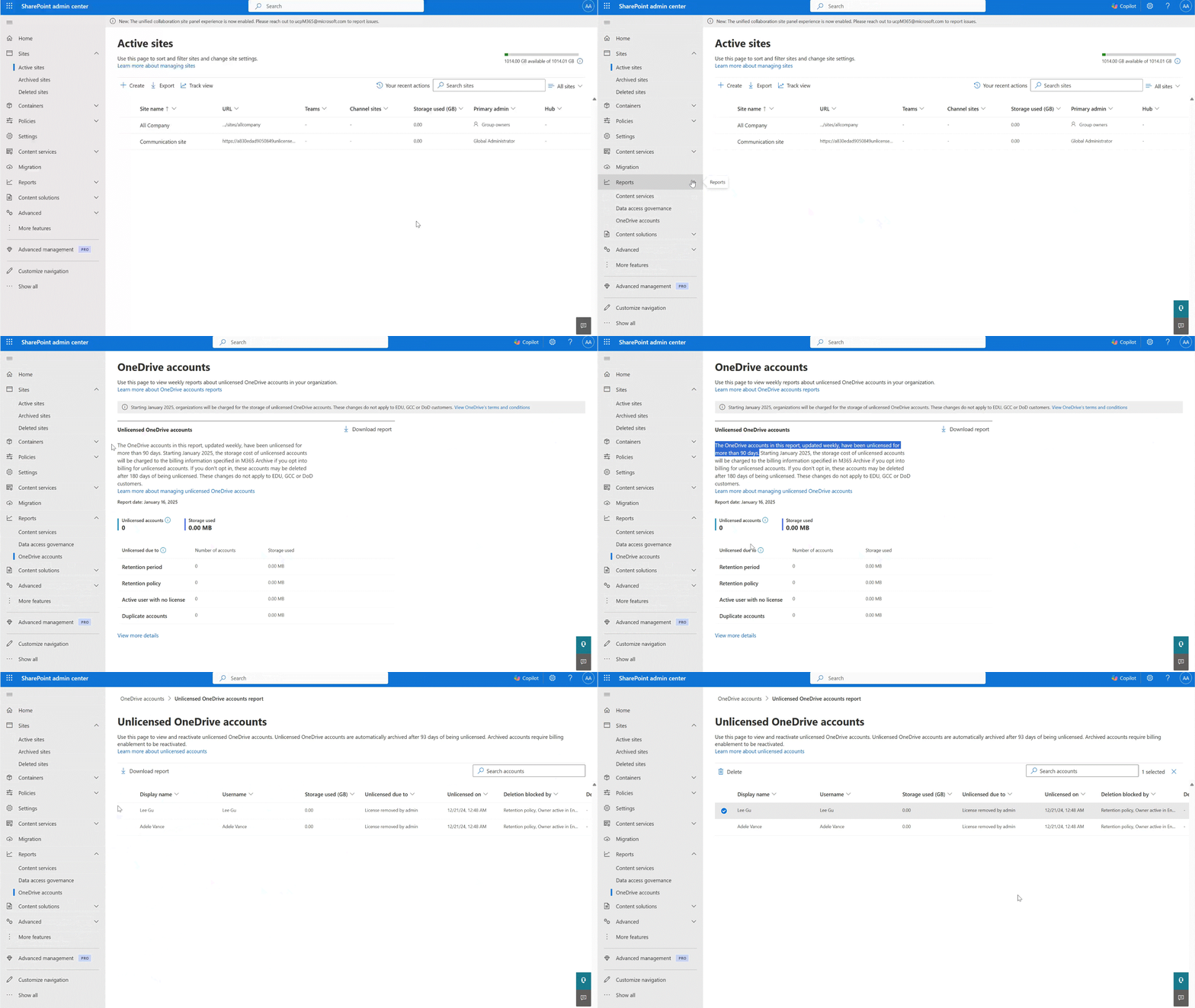
From this page, you can do the following actions:
Enumerate individual unlicensed accounts.
See account details such as URL, Title, Storage used, Unlicensed date, unlicensed reason, and Archive status. Note: accounts which are recently archived may have "archiving" as the status.
Delete accounts (some caveats exist such as delete failing because the account is on hold).
Reactivate accounts.
Note
Admins can reactivate accounts from the detailed report. Accounts selected in the detailed report displays a 'Reactivate' button if the account is archived and billing for Unlicensed OneDrive accounts has been enabled. Alternatively, admins can use PowerShell to reactivate accounts with the Set-SPOSiteArchiveState cmdlet.
Charges from archived accounts
Once billing for unlicensed OneDrive accounts has been enabled, archived unlicensed OneDrive accounts which aren't deleted will begin to incur charges for both monthly storage and ad-hoc account reactivation.
Note
Billing enablement refers to turning on the Unlicensed OneDrive accounts billing toggle, which can only be enabled once a general pay-as-you-go billing method has been set up. Billing starts when the billing enablement for unlicensed OneDrive accounts is activated, not when an account is reactivated. Reactivation requires billing enablement, and once it's activated, storage charges begin.
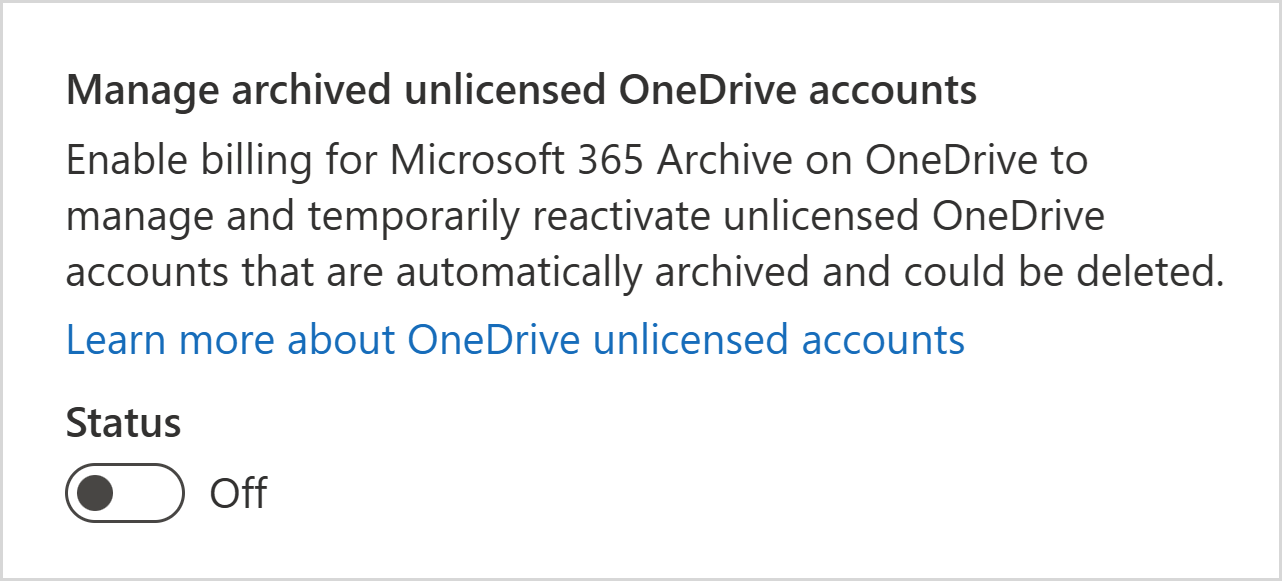
If the billing is enabled to reactivate one particular unlicensed account, the reactivation fee is applied for $0.60/GB for that account, and from that month onward, the storage fee of $0.05/GB/Month is applicable for all unlicensed accounts within the organization for longer than 93 days.
For example, if an organization has 100 unlicensed OneDrive accounts, each consuming 1 TB for a total of 100 TB, and enforcement occurs between January and October 2025, the 100 unlicensed accounts are automatically archived. If the organization needs to reactivate a specific account in December 2025 and set up billing, they incur the following costs:
- A one-time reactivation fee of $0.60/GB for 1TB, totaling $614.40.
- A monthly storage fee of $0.05/GB for 100TB, amounting to $5,120/month starting from December 2025.
Note
Unlicensed OneDrive accounts can't utilize unused SharePoint storage quota, even if Microsoft 365 Archive is configured within the tenant. Archived unlicensed OneDrive accounts are billed for the full amount of consumed storage.
Use Microsoft Purview in Archived State
Microsoft Purview eDiscovery and Content Search are still discoverable in archived content. Exporting the content that's supporting the search results doesn't require manual reactivation of the archived account, and it takes up to 24 hours to complete. However, if billing is not enabled and the account remains unpaid, customers should not rely on retention or legal hold settings alone to preserve content indefinitely in an unpaid, unlicensed OneDrive account.
Changes made to retention policies apply to archived accounts. For example, if the company reduces the retention policy from five years to three years, this update syncs with all archived accounts, for any accounts that fulfill the updated retention period, those accounts are moved to recycle bin, and the recycle bin process begins.
If deletion occurs, eDiscovery hold records remain, but held OneDrive content becomes unrecoverable. Data lifecycle management retention policy or label assignments can still appear healthy, but the target site no longer exists. Existing case exports are unaffected. New searches return no content from the deleted location.
Unlicensed OneDrive accounts and education tenants
An education tenant is any tenant with more than 50% education licenses. Any tenant with fewer than 50% education licenses is considered commercial. However, for any education tenant, unlicensed OneDrive accounts consume pooled storage and can pose security and compliance risks. IT admins can view the unlicensed accounts on the OneDrive accounts page to identify unlicensed accounts and take action.
Frequently Asked Questions
1. What is an unlicensed OneDrive account?
Answer: When an employee leaves an organization or a license is removed, their OneDrive account becomes unlicensed after the admin takes one of two steps:
License Removal:
- Go to the Microsoft 365 admin center.
- Expand Billing and select Your Products.
- Select the subscription and select Remove licenses.
User Deletion:
- In the Microsoft 365 admin center, expand Users and select Active users.
- Delete the user.
For more information on deleting users, see Delete a user from your organization.
2. Are all OneDrive account types affected (shared mailboxes, service accounts, room/resource, bots), or only named users?
Answer: The policy applies to all unlicensed OneDrives that remain unpaid in full.
3. What does 12 cumulative months of non-payment mean?
Answer: The policy establishes deletion risk for unlicensed OneDrive accounts at 365 cumulative days of nonpayment. Existing milestones remain: read-only at Day 60 and archive at Day 93.
4. Does the clock reset if a license is temporarily reassigned or billing is temporarily enabled?
Answer: While billing settings can be turned on or off, they should not be used to bypass retention enforcement, and doing so is not supported under the service terms. Billing and licensing should remain aligned with the customer's actual service usage and retention needs.
The 365 days of nonpayment is cumulative.
| Scenario | Cumulative nonpayment count |
|---|---|
| Account is unlicensed and unpaid for 90 days | 90 days |
| Billing is enabled for 60 days | Count pauses while the account is paid |
| Billing is disabled again and the account remains unpaid for another 275 days | Count resumes and reaches 365 cumulative unpaid days |
| Total unpaid time reaches 365 days | Account is at risk of deletion |
5. Can unlicensed ODB leverage unused SPO storage quota?
Answer: No. They're independent. Unlicensed OneDrive accounts can't use unused SharePoint storage quota, even though Microsoft 365 Archive is set up in the SharePoint tenant.
6. What is the outcome if an unlicensed OneDrive account is restored from the recycle bin 93 days after its license removal? Does the account get automatically archived?
Answer: Yes. If 93 days have passed since the license removal, bringing back an unlicensed OneDrive account from the recycle bin leads to automatic archival.
7. How does it impact retention policy, retention setting, or litigation hold?
Answer: Archived OneDrive accounts honor retention policies, settings, and litigation holds when billing is enabled for unlicensed OneDrive accounts. If billing is not enabled for unlicensed OneDrive accounts, and accounts are still retained 365 days after becoming unlicensed, then the unlicensed accounts will be subject to deletion 365 days after being unlicensed even if retention policies, settings, or holds exist on the OneDrive account.
Note
If a OneDrive account is retained due to a retention policy, retention setting, or litigation hold and has been archived due to being unlicensed for 93 days or longer, then you still pay for the monthly archive storage costs when billing is enabled.
8. When will I get charged?
Answer: Once a payment method is provided, billing follows the routine cycle for archived content. If there's no retention policy and billing stops, your content is deleted within a 93-day period. The retention period is no longer valid if storage is in a unpaid state. If the account has no retention and billing, the 93-day content deletion lifecycle begins.
As an example, if the billing is put down to reactivate one particular unlicensed account, the reactivation fee is applied for $0.60/GB for that account, and from that month onward, the storing fee of $0.05/GB/Month is applied for all unlicensed accounts within the organization that's longer than 90 days.
9. What's the guidance on 'duplicate accounts'?
Answer: A duplicate account is created when an employee switches to a different country/region or a different firm within the organization. If the duplicate accounts aren't desired, we recommend using the downloadable CSV in the SharePoint Admin Center to identify the accounts and delete them. For already-archived unlicensed OneDrive accounts, it can be deleted from the archived state without the need of reactivation.
10. Once I initiate the reactivation of an account from Microsoft 365 Archive, how long do I have to wait until the data is available?
Answer: It takes up to 24 hours for the account to be accessible. Once the account is reactivated, it remains active for a total of 30 days before it gets automatically archived again. 11. What's the process to relicense an account once it's archived?
Answer: If the archived account has an associated user, the IT admin can give the user a valid license and the account automatically reactivates within 48 hours. If the archived account doesn't have an associated user (for example, if the identity was deleted), then it cannot be relicensed directly. Instead, we recommend:
Enabling the Unlicensed OneDrive Active storage meter
Moving any actively needed content to a SharePoint site or an active and licensed OneDrive account. The reactivation of the archived account happens automatically and without any reactivation fee once the account is relicensed, even if unlicensed OneDrive account billing isn't enabled.
Re-licensing by following the instructions on this page: Fix site user ID mismatch in SharePoint or OneDrive - SharePoint.
12. What happens to external sharing links and Teams file references once an unlicensed OneDrive is deleted?
Answer: Once a OneDrive is deleted, content associated with that OneDrive can no longer be accessed.
13. What happens to version history and Recycle Bin contents?
Answer: Content becomes inaccessible until the data is rehydrated into an active tier or the unlicensed OneDrive is licensed.
14. If a change is made to retention policies, will that change sync down to the archived sites?
Answer: Yes. As an example, if the company retention policy is shortened from five years to three years, this change is synced with all archived accounts, and the recycle bin process begins for accounts that completed the retention policy.
15. Why are there two different report pages with different numbers about unlicensed accounts?
Answer: The top-level report page shows you insights and lets you download the list of accounts which are at least 93 days unlicensed. This page directly indicates the amount of storage that will be billed if you have enabled billing. The detailed report page is linked from the top-level report page, and indicates all accounts that are currently unlicensed, even if they have been unlicensed for fewer than 93 days.
16. Why is the "deletion scheduled on" column empty in my CSV export of unlicensed accounts?
Answer: "Deletion scheduled on" refers to when the system tries to delete the account next. It takes into account the retention period of the unlicensed OneDrive account. This property may be empty if there's a hold or retention policy applied to the account. Additionally, the column is empty for users who are still active in Entra ID until the deletion part of the enforcement rollout is complete. If you delete the active user from Entra ID, and there's no retention policy or hold applied, then the "Deletion scheduled on" column will be populated within 7 days.
17. Will the unlicensed account enforcement override existing read-only or NoAccess settings which are already applied to my OneDrive accounts?
Answer: No. When enforcing unlicensed OneDrive accounts, the system won't override existing read-only or NoAccess modes. When the system tries to put an account into read-only mode, it skips the account if the account is already in read-only or NoAccess mode. When the account gets Archived, it will retain any read-only and NoAccess settings which the admin applied, which will take effect if the account is reactivated.
18. Will an account get enforced if the site 'owner' property (also known as the primary site collection admin) has been modified from the original user?
Answer: No. Modifying the 'owner' property of a OneDrive account to any user or group other than the user who the account was provisioned for results in an unsupported state of the OneDrive account. This can cause many issues for the account. However, the unlicensed enforcement effort doesn't utilize the 'owner' property to validate licensing. Therefore, modifying the 'owner' property, while generally not a supported change, won't directly cause an account to be considered unlicensed.
19. I have chosen not to enable Microsoft 365 Archive, what will happen to my unlicensed OneDrive accounts?
Answer: Enabling Microsoft 365 Archive has no impact on the enforcement of unlicensed OneDrive accounts. Unlicensed OneDrive accounts will get enforced no matter what, including being put into read-only mode and eventually Archive. You can decide whether you want to enable billing for unlicensed OneDrive accounts, but you cannot prevent their archival. Microsoft 365 Archive and unlicensed OneDrive billing are two independent enablement toggles in the Microsoft 365 admin center and have no effect on each other. The enforcement flow for unlicensed accounts when Microsoft 365 Archive is enabled or disabled is identical and outlined fully in this article.