View audience insights
Numerous audience insights are available for Dynamics 365 Customer Insights - Journeys.
Segment insights
Once a segment is published, you'll be able to get a count of your segment size along with a list of all your segment members. You can also filter segments insights by date range.
To view contact insights, go to Real-time journeys > Audience > Segments, select a record, and then open its Membership and Insights tab.

Contact insights
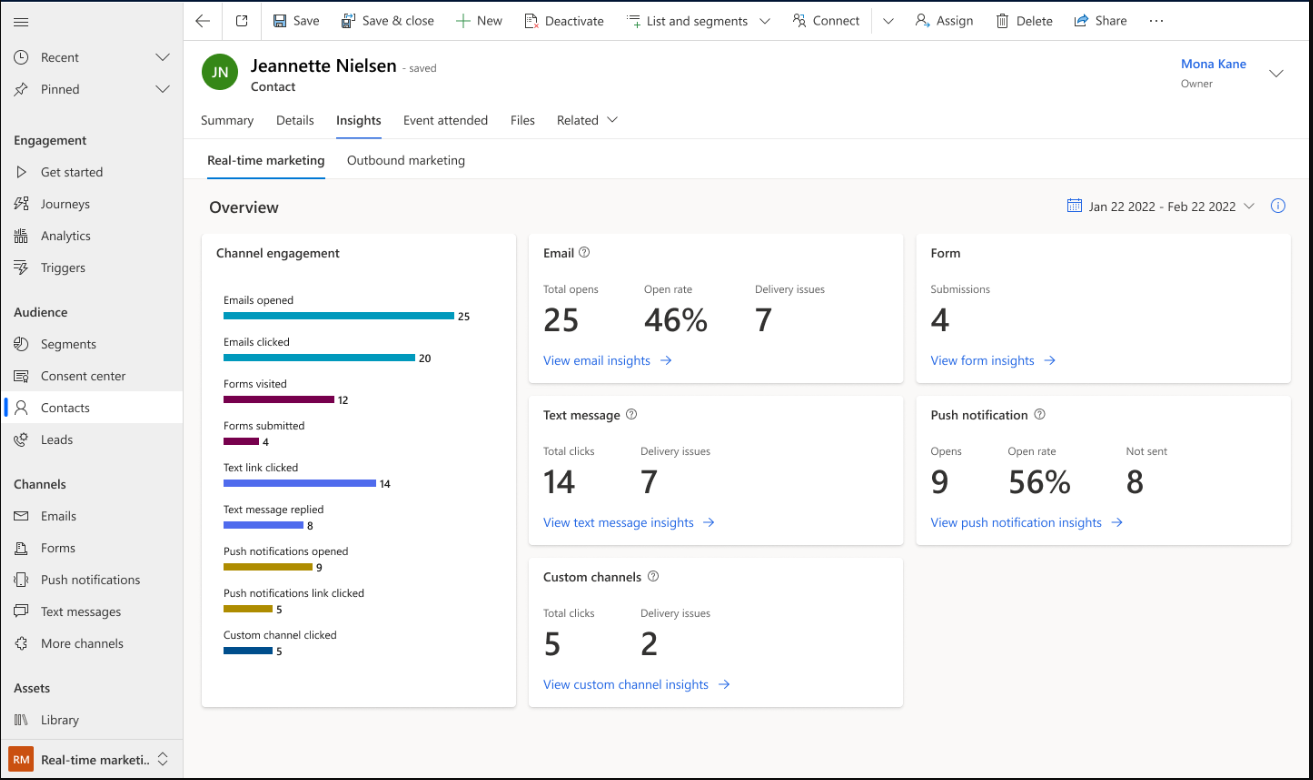
Get a comprehensive view of how a contact has engaged with your journeys in Customer Insights - Journeys, including all past email sends, opens, clicks, form submissions, and more. To view contact insights, go to Real-time journeys > Audience > Contacts, select a contact record, and then open its Insights tab.
Insights
The following insights categories are provided:
Overview: View a chart of the engagement interactions and a summary of the most important KPIs for each channel for the selected contact.
Email insights: View complete details of email interactions for the selected contact, including a list of all messages sent to them, plus lists of all opens, clicks, bounces, and more.
Form insights: See which marketing forms the Contact has visited and submitted. View the content of each submission.
Text message insights: View complete details of text message interactions for the selected contact, including a list of all messages sent to them, plus lists of all clicks, replies, and more.
Push notification insights: See complete details of push notification interactions for the selected Contact, including a list of all messages sent to them and more.
Custom channels insights: View complete details of custom channel interactions for the selected Contact, including messages sent, clicked and more.
Timeline highlights
Timeline highlights can be found on the Summary tab of a contact record at the top of the timeline. The timeline highlights feature uses Copilot to provide a succinct overview of the most recent and critical updates in the timeline.
Reference copies of sent emails in the interaction timeline
You can view an exact copy of sent emails on your contact interaction timelines to deepen your customer understanding and have visibility into what’s been previously shared with your customers.
To enable viewing emails on the interaction timeline, go to Settings and select Feature switches. Enable the show exact copy of sent emails feature toggle in the Contact timeline section and select Save in the upper right-hand corner.
To view emails on the interaction timeline, navigate to the selected contact record’s timeline. For email interactions on the timeline, select View more on the timeline interaction. An image of the exact copy of the sent email appears. Select the expand icon to more closely view the email in a pop-out window.
Note
Email copies are available for one year on the interaction timeline.
Lead insights
Just like with Contact insights, you can access a complete overview of your selected Lead’s interactions with your marketing initiatives. The insights categories displayed for a Lead are the same as previously described in Contact insights.
To view Lead insights, go to Real-time journeys > Audience > Leads, select a record, and then open its Insights tab.