View journey analytics
You can evaluate journey performance in near real-time by using built-in operational analytics. The Sankey view in the designer can help you understand the user flow through the journey, highlighting which branches are working well. Open any journey and select a component to view near real-time operational analytics.
Goal analytics
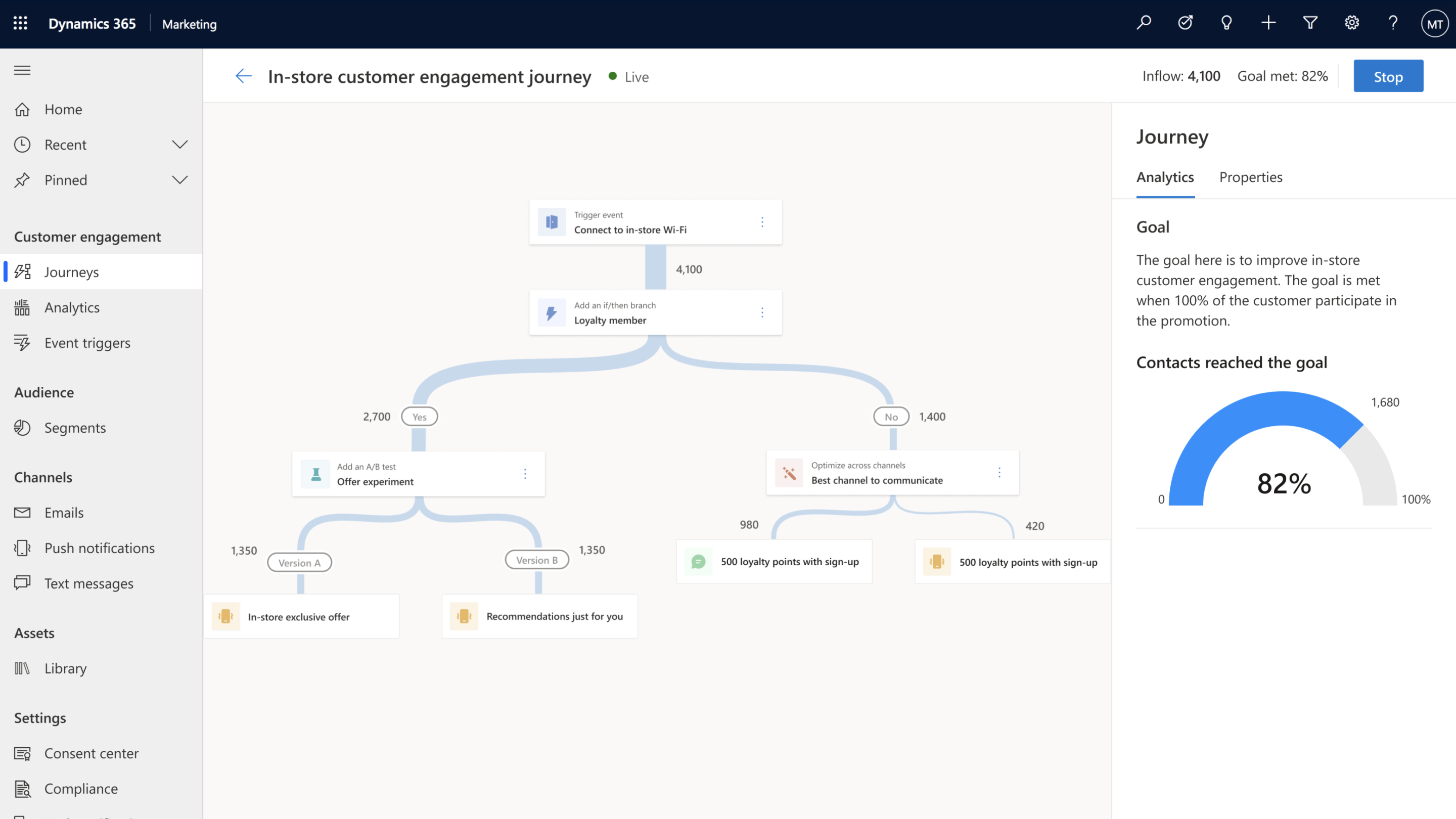
If a goal has been defined and a target has been set, you can view how the journey is progressing toward its goal and if it has met the goal.
To view goal analytics, go to Real-time journeys > Engagement > Journeys. Open a journey and then select the bullseye icon in the journey toolbox.
Channel analytics
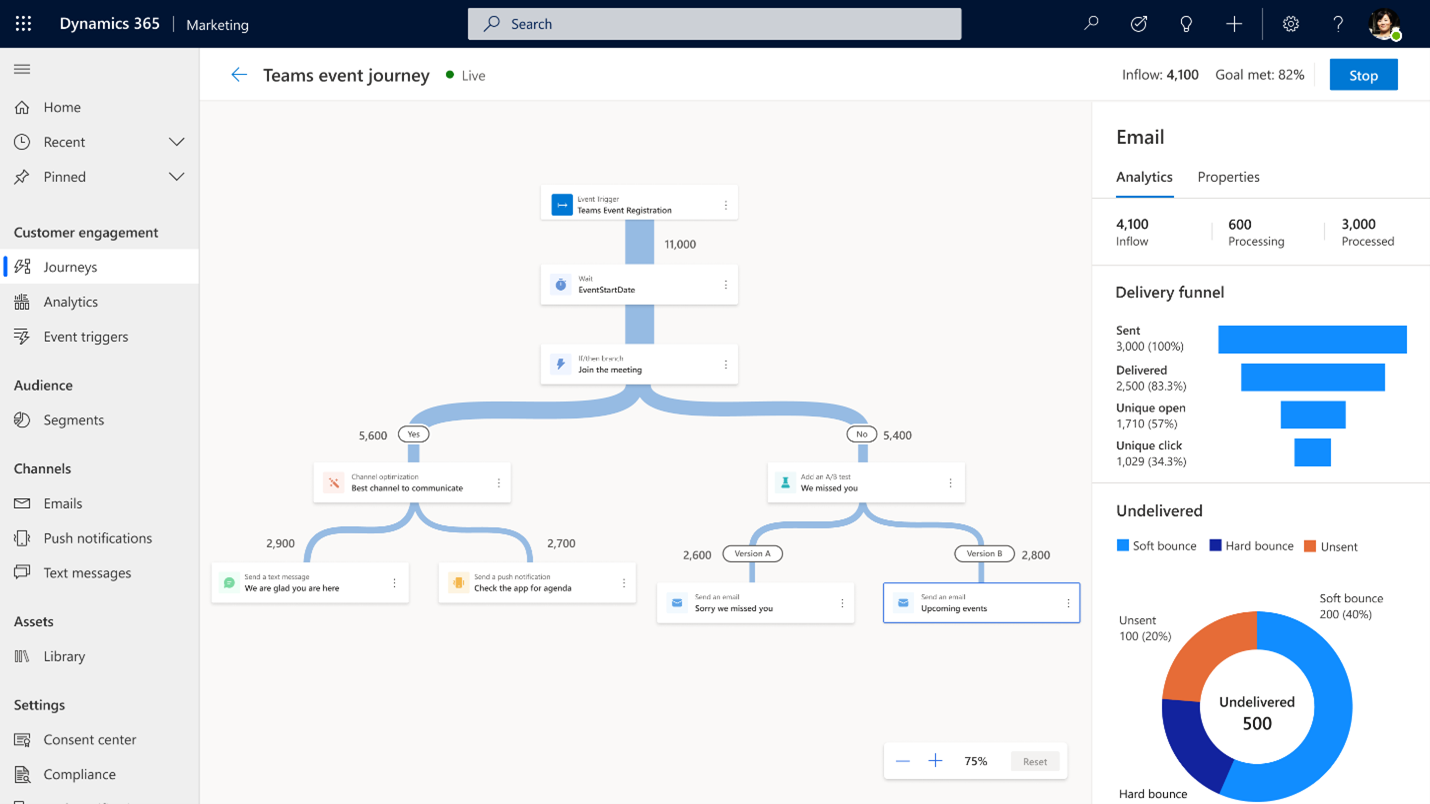
For any message in the journey (email, text, or push notification), view the delivery funnel and additional metrics to diagnose the content performance.
To view channel analytics within a journey, go to Real-time journeys > Engagement > Journeys. Open a journey and then select an email, text, or push notification tile.
AI optimization analytics
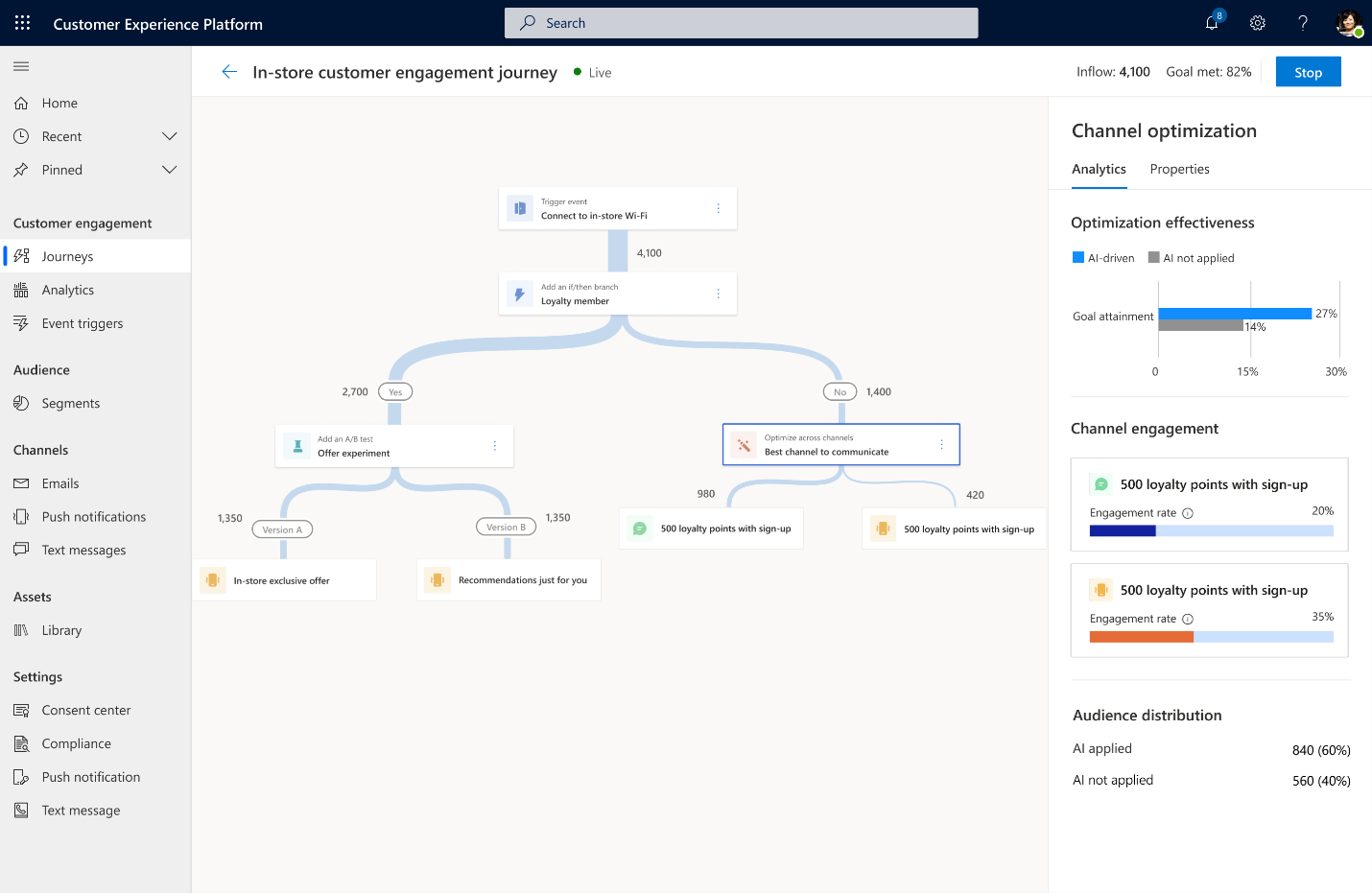
Channel optimization analytics help you evaluate how applying AI optimization helps improve your engagement rate.
To view AI optimization analytics, go to Real-time journeys > Engagement > Journeys. Open a journey and then select a channel optimization tile.
For more information, see Journey operational analytics.
Series analytics
After the journey has been live and customers have flowed through the series tile, select the Analytics tab in the Series tile properties to see how many customers are flowing through each exit branch and analytics on the delivery and interaction details of each message inside the Series tile.
Flow Details
Flow details can only be found on channel tiles. The flow details section shows details such as rate limits (if applied), unique people who entered the journey (different than inflow that counts each entry rather than unique people), and exit reasons.