Manage sensitivity labels in Office apps
- 10 minutes
Office apps are where most people encounter sensitivity labels for the first time. A user creates a document in Word, sends an email from Outlook, or builds a spreadsheet in Excel, and the sensitivity bar asks them to classify the content. For labels to work well in this environment, you need to understand which file formats support them and how encryption replaces older protection methods. You also need to know what happens when labeled content crosses organizational boundaries.
Understand file format support
Not every file format supports sensitivity labels equally, and this variation matters when you're planning a rollout. If your organization still uses older file formats or converts documents to PDF frequently, you need to know where protection holds and where it doesn't.
Note
The Azure Information Protection (AIP) unified labeling client add-in for Office is retired and no longer supported. Built-in sensitivity labels in Office apps replace it. If your organization previously used the AIP add-in, verify that the Office policy setting Use the Azure Information Protection add-in for sensitivity labeling is set to Not configured or Disabled. If it's still set to Enabled, built-in labeling won't work.
Open XML formats (.docx, .xlsx, .pptx) have full sensitivity label support:
- Classification
- Encryption
- Content markings
- Labeling automation
This is the baseline format for reliable label protection. For the minimum Office version needed for specific label features, see Minimum versions for sensitivity labels in Office apps.
Legacy formats like .doc, .xls, and Open Document Formats (.odt, .ods) have limited or no built-in labeling support. If your organization still uses these formats, consider a migration strategy or accept that labeling gaps exist for those files.
PDFs retain sensitivity labels, content markings, and encryption when you convert from an Office app using Save As or Export. However, there are gaps worth knowing about:
- PDF attachments in Outlook don't inherit label-based encryption from the email.
- Printing to PDF can bypass the label entirely.
- Administrators can control PDF labeling behavior through Group Policy settings.
The sensitivity bar in Office apps
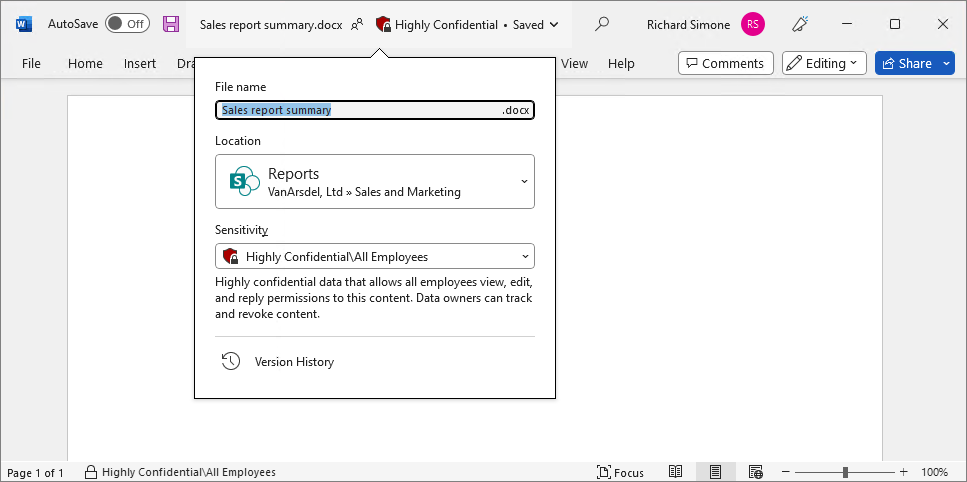
In supported versions of Word, Excel, and PowerPoint, users see a sensitivity bar next to the file name. The sensitivity bar makes the current label visible and provides a consistent entry point for changing it.
In classic Outlook, the sensitivity bar appears on the Subject line of the email.
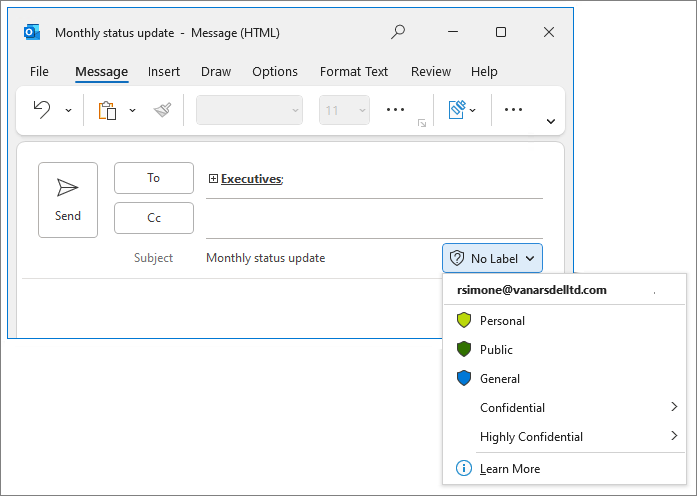
The sensitivity bar makes labeling visible without interrupting the user's workflow. This visibility matters because it reinforces labeling behavior. Users are more likely to apply correct labels when the current classification is always in view.
Transition from Information Rights Management to sensitivity labels
If your organization used Information Rights Management (IRM) before sensitivity labels, the transition is worth understanding. Sensitivity labels replace IRM as the primary way to apply encryption to documents and emails. They offer a significant advantage: labels combine classification, encryption, and content markings in a single, policy-driven action, rather than requiring users to make separate encryption decisions.
In current versions of Word, Excel, and PowerPoint for Windows and Mac, the legacy IRM options are no longer available. Instead, Office displays a dialog box that directs users to apply a sensitivity label.
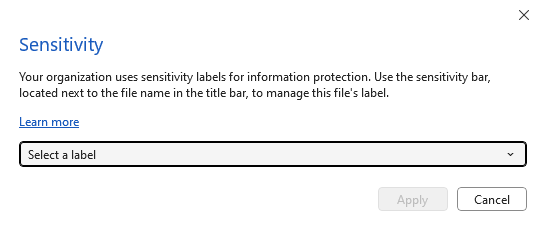
This redirect helps ensure labels apply encryption consistently rather than relying on individual user decisions. Documents that were previously protected with IRM continue to inherit their encryption, and administrators can enforce tenant-specific policies to manage the transition.
Sharing labeled content across organizations
When labeled documents and emails leave your organization, understanding what travels with them helps you set realistic expectations.
What follows the content: Sensitivity labels attach metadata to the document, including the tenant ID and the label identifier (GUID). Within the same tenant, this metadata keeps label visibility consistent. Label-based encryption also travels with the content and remains enforced regardless of where the file is opened.
What might not be visible: External recipients and guest users might not see your organization's label names. Other email clients besides Outlook might strip label metadata during transit. However, the critical point is that encryption protects the content independently of whether the label is displayed. An external user who doesn't see the "Highly Confidential" label name still can't open the document unless they have the right permissions.
Enabling external access: External users can access labeled and encrypted documents through Microsoft Entra ID accounts or as guest users. This access requires cross-tenant access and Conditional Access configurations. When you plan cross-organizational collaboration with labeled content, the encryption settings on your labels matter more than the label visibility.
Check your knowledge
Feedback
Was this page helpful?
No
Need help with this topic?
Want to try using Ask Learn to clarify or guide you through this topic?