Foundations of sensitivity label integration in Microsoft 365
- 7 minutes
Most people think of sensitivity labels as something you apply to a document or an email. Labels also work at the container level, on:
- Teams
- SharePoint sites
- Microsoft 365 Groups
- Viva Engage communities
- Loop workspaces
Container labels protect the workspace itself: who can access it, whether external sharing is allowed, and what Conditional Access policies apply.
Understanding this distinction early matters, because container labels and document labels solve different problems. A container label on a SharePoint site might restrict external sharing for the entire site, but it doesn't encrypt the documents inside it. If a team stores financial models and competitive analysis on that site, the site label controls who can share from the site. Each document still needs its own label to encrypt the content. The two layers complement each other, and most organizations need both.
What container labels control and what they don't
When you apply a sensitivity label to a container like a team, a SharePoint site, or a Microsoft 365 Group, the label enforces settings at the workspace level:
- Privacy: whether the group or site is public or private
- External user access: whether the group owner can add guests
- External sharing: how broadly content from SharePoint sites can be shared outside the organization
- Conditional Access: requirements for unmanaged devices
What container labels don't do is equally important:
- No automatic content protection: Applying a label to a SharePoint site doesn't encrypt or mark the documents inside it. Content markings like headers and footers, and encryption settings, only apply when a label is applied directly to a file or email. To enable users to label their documents in SharePoint sites and team sites, make sure you've enabled sensitivity labels for Office files in SharePoint and OneDrive.
- No multilanguage support for container labels: Container labels display only in the original language used when the label was created. Label names and descriptions aren't translated for users in other locales.
- Site owner flexibility: Site owners can change some settings that administrators normally manage. Be deliberate about which settings you expose. If you don't want site owners changing the privacy level, configure your label accordingly.
Enable labels for containers
Before labels appear on containers, two steps are required. Without these steps, the settings are visible in the Microsoft Purview portal but can't be configured.
- Enable sensitivity labels for Microsoft 365 Groups by following the Microsoft Entra documentation. This step turns on the feature at the directory level.
- Synchronize labels to Microsoft Entra ID by connecting to Security & Compliance PowerShell as an administrator and running the
Execute-AzureAdLabelSynccommand. This ensures labels published in the Microsoft Purview portal are available for Groups, Teams, and sites.
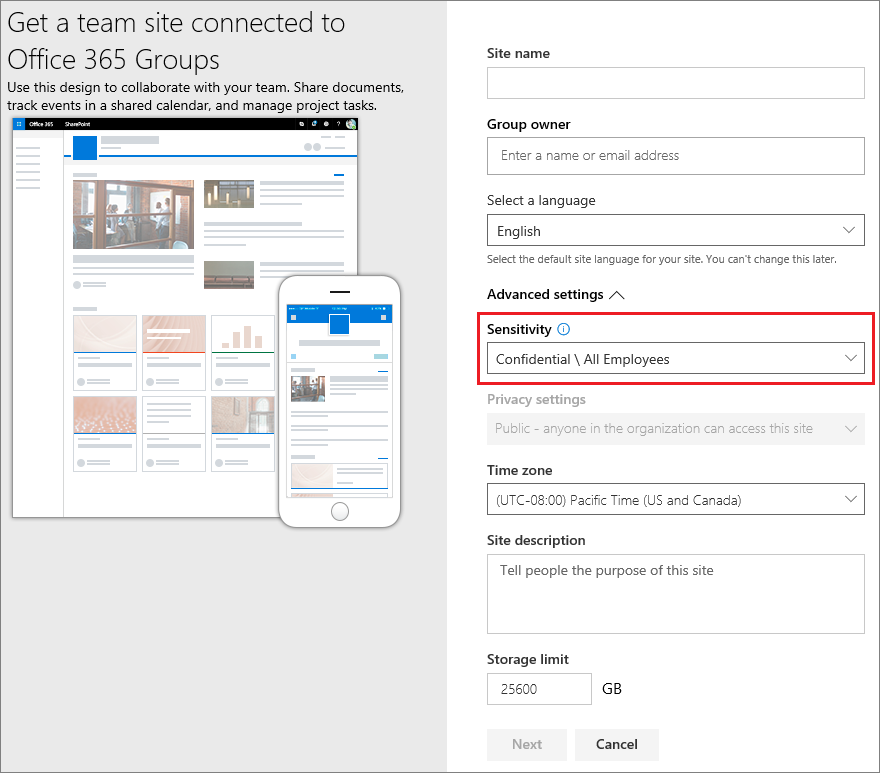
After these steps, users can apply sensitivity labels when creating or editing containers. For example, when creating a team site from SharePoint:
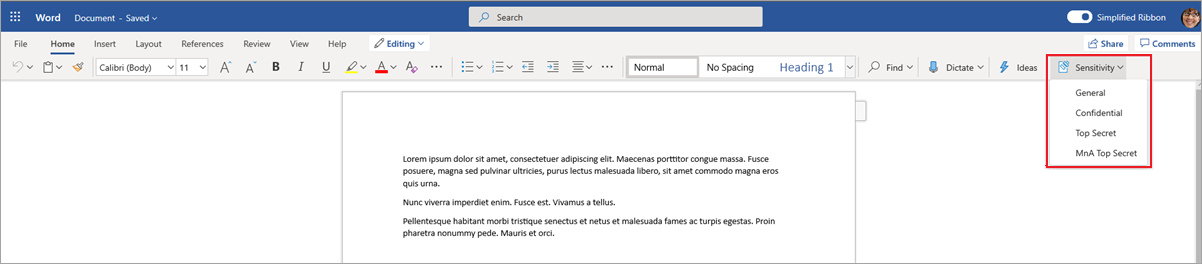
In Office apps, users can already label documents and emails without these prerequisites:
Who can change container labels
After a sensitivity label is applied to a site or team, only specific roles can change it:
- For a group-connected site: Microsoft 365 Group Owners
- For a site that isn't group-connected: SharePoint site admins
Teams shared channels automatically inherit the sensitivity label settings from their parent team. That inherited label can't be removed or replaced with a different label, which keeps the protection consistent across all channels in the team.
Configure protection settings for groups and sites
When you create or edit a sensitivity label in the Microsoft Purview portal with the Groups & sites scope, you configure what the label enforces across Teams, Groups, and SharePoint sites.
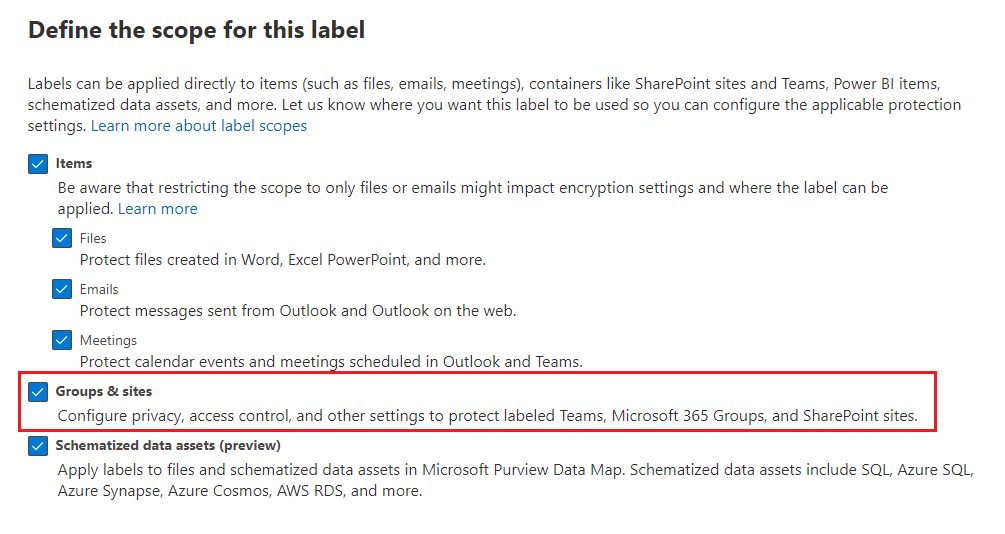
The configuration page presents several setting groups. Each one represents a different aspect of container protection, and you should choose them based on what the label is meant to enforce:
Privacy and external user access: Controls whether the group or site is public, private, or user-defined, and whether group owners can add guests. Choose carefully here: a Public setting means anyone in the organization can join. For most sensitive projects, Private is the safer default.
External sharing and Conditional Access: Determines how broadly content from labeled SharePoint sites can be shared externally and whether access requires compliant or managed devices. This is where your label intersects with your organization's Conditional Access policies. If you have an authentication context defined for high-sensitivity scenarios, you can reference it here to enforce stricter access conditions.
Private teams discoverability and shared channel controls: Governs whether private teams with this label are discoverable by nonmembers and how shared channels can invite other teams. Options like Internal only, Same label only, and Private team only give you fine-grained control over cross-team collaboration.
Default label for channel meetings and chats: If applicable, you can select a sensitivity label that automatically applies to all channel meetings and chats for teams with this label.
Additional settings for default sharing link type and site sharing permissions are available through PowerShell. These settings are worth configuring when you want to control the default sharing behavior for labeled sites beyond what the portal UI exposes.
Check your knowledge
Feedback
Was this page helpful?
No
Need help with this topic?
Want to try using Ask Learn to clarify or guide you through this topic?