Create and build projects
Creating a project in Visual Studio is essential for organizing, managing, and deploying your code effectively. It groups related elements, manages dependencies, and controls builds, making it easier to navigate your solution. Projects also integrate with source control for version tracking, allow debugging and testing within Visual Studio, and prepare code for deployment to production or test environments. This structured approach streamlines development and reduces errors, ensuring your customizations work seamlessly with Dynamics 365. Projects in Visual Studio contain elements, which are stored as metadata when they are built. The metadata is then used by the application to run your extensions.
In Visual Studio, a solution is a container that organizes one or more related projects, allowing you to manage them as a single unit. Solutions help developers coordinate multiple projects, which may represent different parts of an application, such as business logic, UI components, and services. By grouping projects within a solution, you can build, debug, and deploy them together, ensuring consistency across the entire application. Solutions also facilitate dependency management and make it easier to navigate complex projects with shared code, providing a centralized workspace for development.
To create a new project,
- Go to File > New > Project, or hold Ctrl + Shift while pressing the N key.
- Under the project templates, select Finance Operations, then select Next.
- In the project wizard, name your project and make sure to select the model where it belongs. The model is difficult to change when you start adding files to the project, so getting it right early on is important.
The New project wizard also lets you select dependencies if you know which models you might be using or extending elements from. If not, you can edit the model dependencies list later as you add elements. It's important to ensure that that model is correct from the start, as it will be difficult to change after files are added to the project.
Build, rebuild, and clean
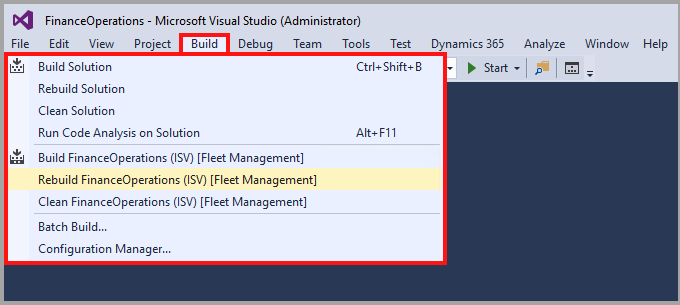
To compile your code, you have multiple options: you can build, rebuild, or clean your project from the Solution Explorer by right-clicking and selecting the desired option. A build compiles any changes, a rebuild compiles all components from scratch, and clean removes previous build outputs, preparing for a fresh build. You can also access these options from the Build menu in Visual Studio.
Watch this video to learn how to create a new project in Visual Studio.