Exercise - Remotely reboot Azure Sphere with Azure IoT direct methods
Step 1: Build and deploy your application
- Start Visual Studio Code to open your project.
- Click Open folder.
- Open the Azure-Sphere folder.
- Open the Lab_4_Direct_Methods folder.
- Click Select Folder or the OK button to open the project.
Step 2: Set your developer board configuration
These labs support developer boards from Avnet and Seeed Studio. The default developer board configuration is for the Avnet Azure Sphere Starter Kit Revision 1. If you're using the Avnet Revision 1 board, no CMakeLists.txt change is required.
If you're using any other supported board, update CMakeLists.txt so that only one board is selected:
Open the CMakeLists.txt file.
Add a
#at the beginning of theset(AVNET TRUE ...)line to disable the Avnet Revision 1 default.Uncomment exactly one
setcommand that matches your Azure Sphere developer board. Leave all other boardsetcommands commented out.set(AVNET TRUE "AVNET Azure Sphere Starter Kit Revision 1 ") # set(AVNET_REV_2 TRUE "AVNET Azure Sphere Starter Kit Revision 2 ") # set(SEEED_STUDIO_RDB TRUE "Seeed Studio Azure Sphere MT3620 Development Kit (aka Reference Design Board or rdb)") # set(SEEED_STUDIO_MINI TRUE "Seeed Studio Azure Sphere MT3620 Mini Dev Board")Save the file. This will auto-generate the CMake cache.
Step 3: Configure the Azure IoT connection information
Open the app_manifest.json file.
You'll need to redo only the Azure IoT connection settings for this lab's app_manifest.json file. Do not replace the whole file with copied connection output or with the app_manifest.json file from a previous exercise.
Copy or update only the top-level CmdArgs array, plus the AllowedConnections and DeviceAuthentication entries inside Capabilities, using the values from Notepad if you still have it open or from the app_manifest.json file you created in the previous exercise.
Confirm that the Capabilities section still includes the
PowerControlscapability forForceReboot. This lab usesPowerManagement_ForceSystemRebootto restart the device."PowerControls": [ "ForceReboot" ]Warning
ForceRebootandForcePowerDownallow an application to immediately terminate all applications on the device. Used incorrectly — for example, on a device that reboots before it can connect to the Azure Sphere Security Service — this can result in the device being unable to fetch updates and requiring recovery. UseForceRebootonly when required, and ensure your application leaves enough idle, connected time for the device to receive operating system and application updates between reboots. See Force Power Down and updates for the official guidance.Save the updated app_manifest.json file.
Step 4: Start the app build deploy process
- Open main.c.
- Select CMake: [Debug]: Ready from the Visual Studio Code status bar.
- From Visual Studio Code, press F5 to build, deploy, start, and attach the remote debugger to the application now running the Azure Sphere device.
Expected device behavior
Azure Sphere MT3620 Starter Kit Revision 1 and 2
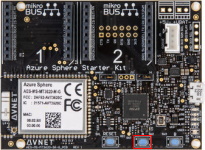
The WLAN LED will blink every 5 seconds when connected to Azure.
When you initiate the device restart direct method you will observe the device restarting.
Seeed Studio Azure Sphere MT3620 Development Kit
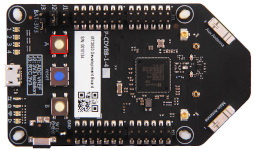
The WLAN LED will blink every 5 seconds when connected to Azure.
When you initiate the device restart direct method you will observe the device restarting.
Seeed Studio MT3620 Mini Dev Board
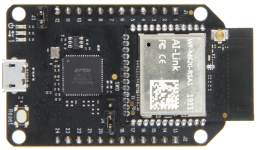
The User LED will blink every 5 seconds when connected to Azure.
When you initiate the device restart direct method you will observe the device restarting.
Testing Azure IoT Central commands
Switch to Azure IoT Central in your web browser.
From the sidebar menu, select Devices, then the Learning Path Lab Monitor template, then your device.
Select the Azure IoT Central Commands tab.
Set the Restart Device command request value to an integer from 3 through 9 seconds, such as
5, and then click Run. TheRestartDeviceHandlerin this lab accepts only values in that range; values outside the range are expected to fail.Observe the device rebooting. The LEDs will turn off for a few seconds.
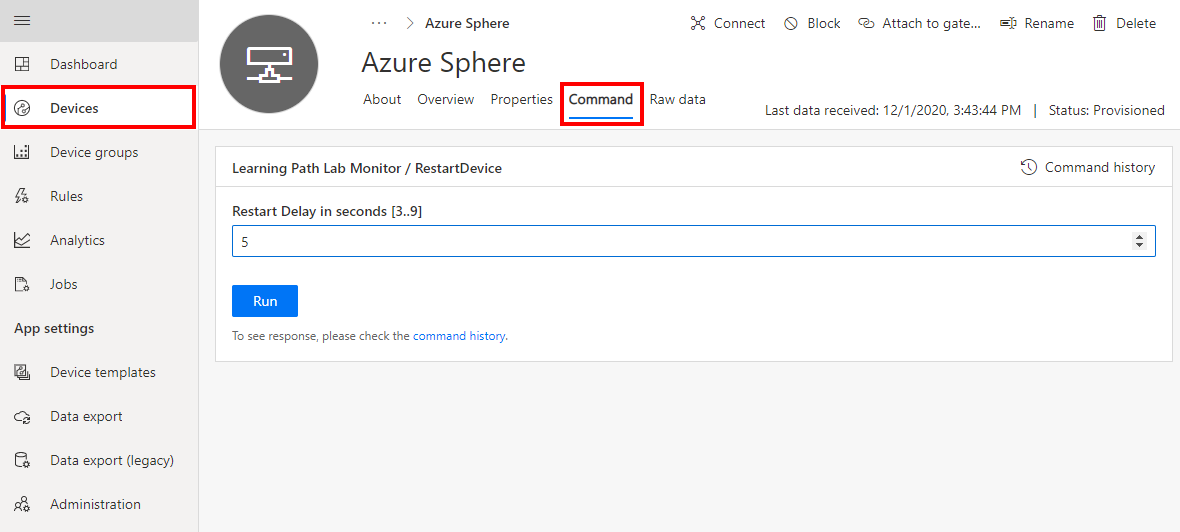
Switch back to Azure IoT Central and select command history to view the result of the command.
Close Visual Studio Code
Now close Visual Studio Code.