Exercise - Deploy an Azure RTOS real-time sensor application to monitor the room environment
In this exercise, we deploy a real-time application to your Azure Sphere.
Step 1: Delete the existing applications on the Azure Sphere
There will be peripheral reassignments between the existing high-level application that's running on the Azure Sphere and the new real-time application that will be deployed to the Azure Sphere in this exercise. So you need to delete any existing applications on the Azure Sphere to avoid clashes.
From the Windows PowerShell command line or Linux Terminal, delete the existing applications by running
az sphere device sideload deleteYou must restart the Azure Sphere device to clear the existing silicon firewall settings. From the Windows PowerShell command line or Linux Terminal, run
az sphere device restart
Step 2: Open the project
Start Visual Studio Code to open your project.
Select Open folder.
Open the Azure-Sphere folder.
Open the Lab_6_AzureRTOS_Environment folder.
Select Select Folder or the OK button to open the project.
Note
The folder name and several source files (for example,
demo_azure_rtos.c) use the original Azure RTOS naming. The RTOS used in this lab is Eclipse ThreadX, formerly Azure RTOS ThreadX. The functionality is unchanged — Microsoft contributed Azure RTOS to the Eclipse Foundation, where it was renamed Eclipse ThreadX.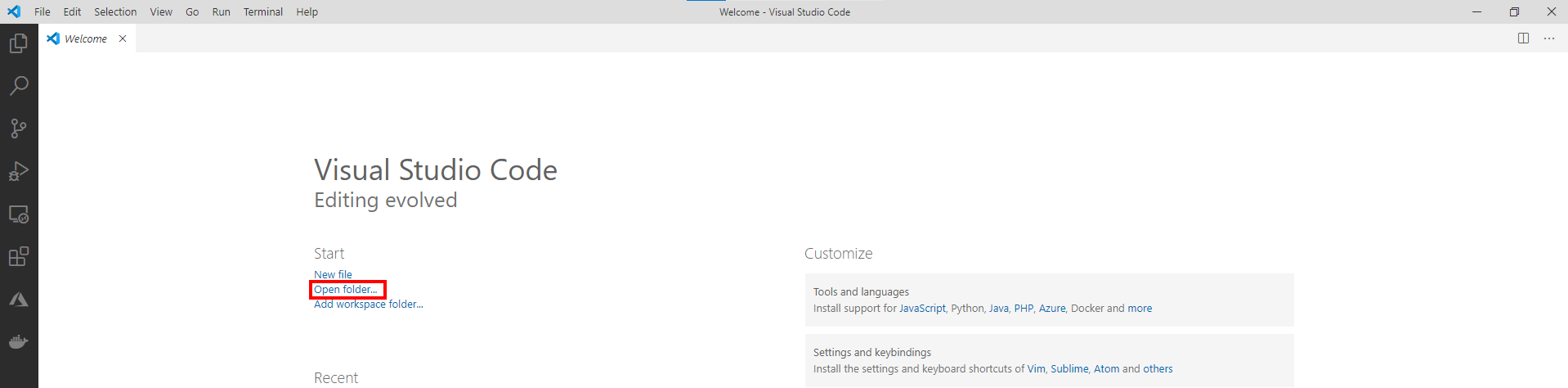
If you installed the Visual Studio Code Peacock extension then Visual Studio Code will turn red. We'll be connecting two instances of Visual Studio Code to the Azure Sphere. The red colored instance is connected to the real-time core.
Step 3: Set your developer board configuration
These labs support developer boards from Avnet and Seeed Studio. The default developer board configuration is for the Avnet Azure Sphere Starter Kit Revision 1. If you're using the Avnet Revision 1 board, no CMakeLists.txt change is required.
If you're using any other supported board, update CMakeLists.txt so that only one board is selected:
Open the CMakeLists.txt file.
Add a
#at the beginning of theset(AVNET TRUE ...)line to disable the Avnet Revision 1 default.Uncomment exactly one
setcommand that matches your Azure Sphere developer board. Leave all other boardsetcommands commented out.set(AVNET TRUE "AVNET Azure Sphere Starter Kit Revision 1 ") # set(AVNET_REV_2 TRUE "AVNET Azure Sphere Starter Kit Revision 2 ") # set(SEEED_STUDIO_RDB TRUE "Seeed Studio Azure Sphere MT3620 Development Kit (aka Reference Design Board or rdb)") # set(SEEED_STUDIO_MINI TRUE "Seeed Studio Azure Sphere MT3620 Mini Dev Board")Save the file. This will auto-generate the CMake cache.
Step 4: Deploy the Eclipse ThreadX application to Azure Sphere
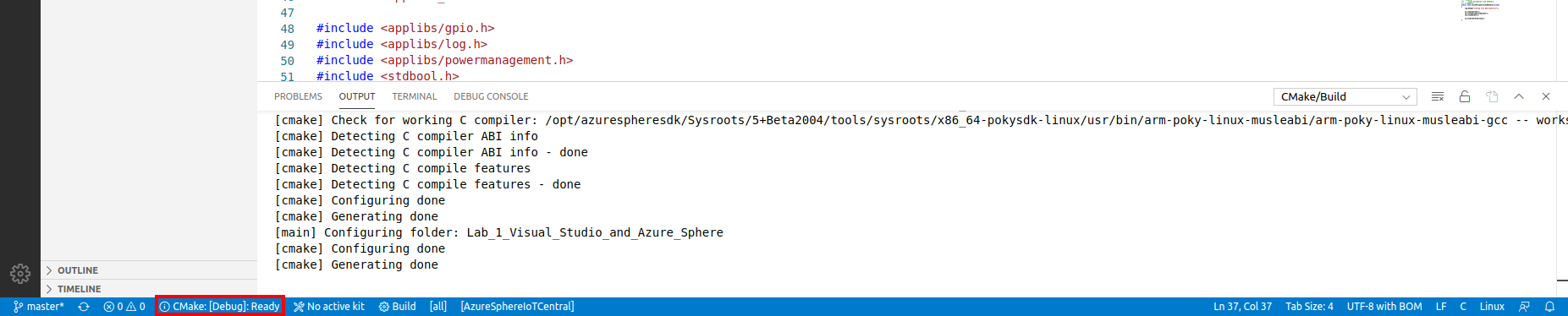
Select CMake: [Debug]: Ready from the Visual Studio Code Status Bar.
Before pressing F5, complete these prerequisites:
Open the RTApp .vscode\launch.json file and verify that the active debug configuration includes the high-level application's component ID in
partnerComponents. This marks the high-level app as a partner so Visual Studio Code sideload doesn't remove it while you debug the RTApp.{ "partnerComponents": [ "<high-level-application-component-id>" ] }If you haven't already enabled RT-core debugging for this device, run the following command from a terminal. On Windows, use an elevated PowerShell or Command Prompt because the
--enable-rt-core-debuggingoption installs USB debugger drivers; close the elevated shell after the command completes. On Linux, run the command from your terminal. Replace the placeholders with your resource group, catalog, and device ID values:az sphere device enable-development --resource-group <resource-group> --catalog <catalog> --device <device-id> --enable-rt-core-debuggingFor more information, see Enable development and debugging.
From Visual Studio Code, press F5 to build, deploy, start, and attach the remote debugger to the application now running on the Azure Sphere device.
Step 5: Debugging real-time core applications
You can debug the Eclipse ThreadX application running on the Azure Sphere Cortex-M4F real-time core.
From Visual Studio Code, navigate to the demo_threadx directory, and open the demo_azure_rtos.c file.
Scroll down to the function named intercore_thread.
Note
Use Go to Symbol in Editor in Visual Studio Code. Use the keyboard shortcut Ctrl+Shift+O and start typing intercore_thread. You'll often see a function name listed twice in the drop-down. The first is the function prototype or forward signature declaration, and the second is the implementation of the function.
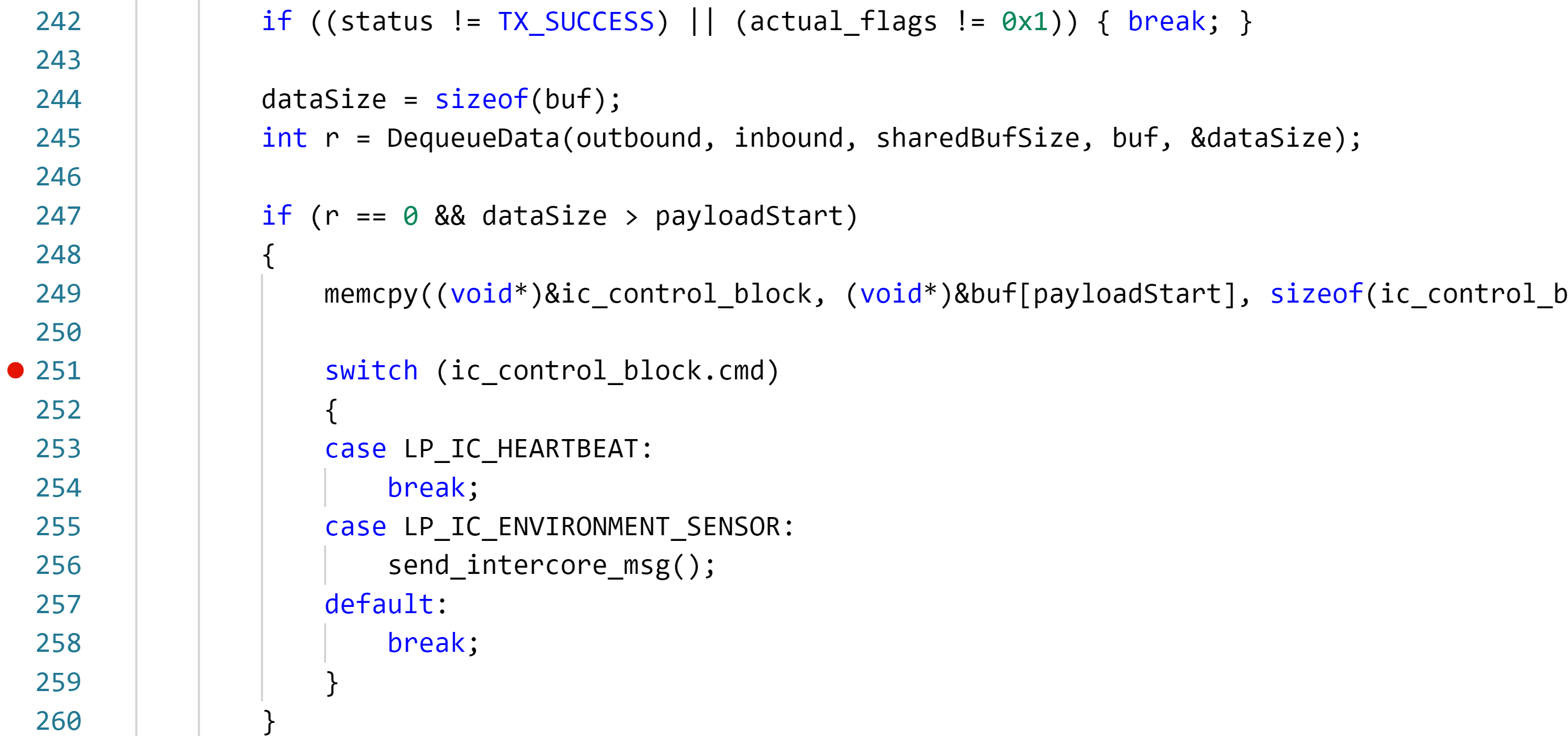
Set a breakpoint in the intercore_thread function on the line that reads switch (ic_control_block.cmd)
Note
You can learn how to set breakpoints from this Visual Studio Code Debugging article.
Leave Visual Studio Code and the RTApp running with the breakpoint set. Next, deploy the high-level application to the Cortex-A7 core. It will request environment telemetry from the RTApp running on a Cortex-M4F real-time core.