How to send Azure RTOS real-time room environment sensor data to IoT Central
The upgraded microbiology laboratory temperature, pressure, and humidity sensor is running well on the Azure Sphere real-time core. The customer is happy, and they can run their experiments. The customer would also like to remotely monitor the lab conditions.
In this unit, you will learn how to read data from the upgraded lab sensor and send the data to IoT Central so that it can be monitored.
Solution architecture
The following describes how an Azure Sphere high-level application can read data from the upgraded lab sensor running on one of the Azure Sphere real-time cores. The high-level application will then send this data securely to IoT Central.
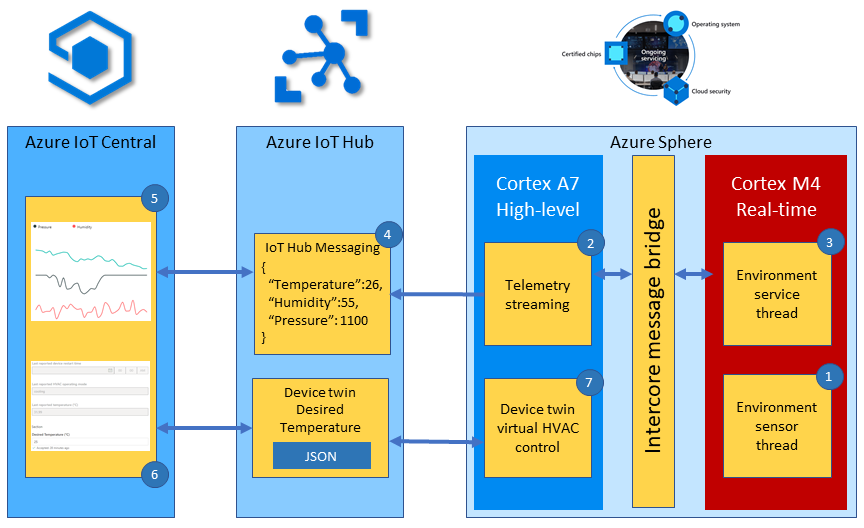
To recap the solution architecture introduced in the Eclipse ThreadX, formerly Azure RTOS ThreadX, lab.
- The Eclipse ThreadX real-time environment sensor thread samples every 2 seconds by default. The thread stores in memory the latest environment temperature, humidity, and pressure data; later in the module, the high-level application can forward a desired sample-rate property to change this interval.
- The high-level telemetry streaming app requests from the real-time core the latest environment data.
- The ThreadX real-time environment service thread responds with the latest environment data.
- The high-level application serializes the environment data as JSON. After the device provisions through IoT Central by using DPS, it connects to the application's underlying IoT Hub and sends the telemetry message.
- Azure IoT Central ingests the telemetry from its underlying IoT Hub and displays the data to the user.
- The IoT Central user can also set the desired temperature for the room by setting a property. IoT Central delivers the property to the device by using the application's underlying IoT Hub device twin.
- The Azure Sphere then sets the HVAC operating mode to meet the desired temperature.
Inter-core message contract
There needs to be a contract that describes the shape of the data being passed between the high-level application (HLApp) and the real-time capable application (RTApp). Azure Sphere inter-core message content can be at most 1 KB, and the APIs transfer the payload as bytes; they don't define how a C struct is laid out. If you use structs and enums, the layout, field widths, padding/alignment, and endianness are part of your application ABI. Keep the contract in a shared header, prefer fixed-width fields or explicit serialization for portable messages, and validate that sizeof(message) <= 1024 before sending. The following structure declares the inter-core contract used in this unit. You can find this contract in the IntercoreContract directory.
typedef enum
{
    LP_IC_UNKNOWN,
    LP_IC_HEARTBEAT,
    LP_IC_ENVIRONMENT_SENSOR,
    LP_IC_SAMPLE_RATE
} LP_INTER_CORE_CMD;

typedef struct
{
    LP_INTER_CORE_CMD cmd;
    float temperature;
    float pressure;
    float humidity;
    int sample_rate;
} LP_INTER_CORE_BLOCK;
Inter-core security
Azure Sphere supports inter-core communication between an HLApp and an RTApp. Both applications must be configured with corresponding Component IDs in the AllowedApplicationConnections capability under Capabilities: the HLApp lists the RTApp Component ID, and the RTApp lists the HLApp Component ID.
The Component ID for the real-time application can be found in its app_manifest.json file.
{
  "SchemaVersion": 1,
  "Name": "EnvironmentSensorRTApp",
  "ComponentId": "6583cf17-d321-4d72-8283-0b7c5b56442b",
  "ApplicationType": "RealTimeCapable"
}
High-level inter-core capabilities
The AllowedApplicationConnections capability in the high-level app_manifest.json file is set to the Component ID of the Eclipse ThreadX real-time application.
{
    "Capabilities": {
        "AllowedApplicationConnections": [
            "6583cf17-d321-4d72-8283-0b7c5b56442b"
        ]
    }
}
Initializing inter-core communications
At the Azure Sphere API level, a high-level application calls Application_Connect to open a socket to the RTApp, and then uses send() and recv() to exchange messages. Application_Connect doesn't register a callback by itself. In the InitPeripheralAndHandlers function, this learning path uses the lp_interCoreCommunicationsEnable helper to open the socket, register event-loop handling, and associate the inter-core callback function with messages from the RTApp.
The helper calls the inter-core callback function after it receives and reads a message from the RTApp.
lp_interCoreCommunicationsEnable(REAL_TIME_COMPONENT_ID, InterCoreHandler); // Initialize Inter Core Communications
Sending a request to the real-time core application
To request the environment data from the real-time core then:
- Set the inter-core control block command to LP_IC_ENVIRONMENT_SENSOR.
- Send the request message by calling lp_interCoreSendMessage and passing the inter-core control block. The helper sends the message over the socket opened for the RTApp.
/// <summary>
/// Read sensor and send to Azure IoT
/// </summary>
static void MeasureSensorHandler(EventLoopTimer* eventLoopTimer)
{
    if (ConsumeEventLoopTimerEvent(eventLoopTimer) != 0)
    {
        lp_terminate(ExitCode_ConsumeEventLoopTimeEvent);
    }
    else {
        // send request to Real-Time core app to read temperature, pressure, and humidity
        ic_control_block.cmd = LP_IC_ENVIRONMENT_SENSOR;
        lp_interCoreSendMessage(&ic_control_block, sizeof(ic_control_block));
    }
}
Receiving inter-core messages
When the helper receives and reads a message from the RTApp, it calls the inter-core callback function, passing a reference to the inter-core control block containing the environment data. The application serializes the data as JSON, sends the telemetry message on the DPS-provisioned connection to the IoT Central application's underlying IoT Hub, and the HVAC status LED is updated. Azure IoT Central ingests the telemetry and displays the data to the user.
/// <summary>
/// Callback handler for Inter-Core Messaging - Does Device Twin Update, and Event Message
/// </summary>
static void InterCoreHandler(LP_INTER_CORE_BLOCK* ic_message_block)
{
    static int msgId = 0;

    switch (ic_message_block->cmd)
    {
    case LP_IC_ENVIRONMENT_SENSOR:
        if (snprintf(msgBuffer, JSON_MESSAGE_BYTES, msgTemplate, ic_message_block->temperature,
            ic_message_block->humidity, ic_message_block->pressure, msgId++) > 0) {

            Log_Debug("%s\n", msgBuffer);
            lp_azureMsgSendWithProperties(msgBuffer, telemetryMessageProperties, NELEMS(telemetryMessageProperties));

            SetHvacStatusColour((int)ic_message_block->temperature);

            // If the previous temperature not equal to the new temperature then update ReportedTemperature device twin
            if (previous_temperature != (int)ic_message_block->temperature) {
                lp_deviceTwinReportState(&dt_reportedTemperature, &ic_message_block->temperature);
                previous_temperature = (int)ic_message_block->temperature;
            }
        }
        break;
    default:
        break;
    }
}