Exercise - Send Azure RTOS real-time room environment sensor data to IoT Central
In this exercise, we'll partner a high-level application to send Eclipse ThreadX, formerly Azure RTOS ThreadX, real-time room environment sensor data to IoT Central.
Step 1: Open the project
- Start Visual Studio Code to open your project.
- Select Open folder.
- Open the Azure-Sphere folder.
- Open the Lab_7_Partnering_with_RTOS_environment folder.
- Select Select Folder or the OK button to open the project.
- If you installed the Visual Studio Code Peacock extension, then Visual Studio Code turns blue. The blue colored instance is connected to the high-level application running on the Cortex-A7 core.
Step 2: Set your developer board configuration
These labs support developer boards from Avnet and Seeed Studio. The default developer board configuration is for the Avnet Azure Sphere Starter Kit Revision 1. If you're using the Avnet Revision 1 board, no CMakeLists.txt change is required.
If you're using any other supported board, update CMakeLists.txt so that only one board is selected:
Open the CMakeLists.txt file.
Add a
#at the beginning of theset(AVNET TRUE ...)line to disable the Avnet Revision 1 default.Uncomment exactly one
setcommand that matches your Azure Sphere developer board. Leave all other boardsetcommands commented out.set(AVNET TRUE "AVNET Azure Sphere Starter Kit Revision 1 ") # set(AVNET_REV_2 TRUE "AVNET Azure Sphere Starter Kit Revision 2 ") # set(SEEED_STUDIO_RDB TRUE "Seeed Studio Azure Sphere MT3620 Development Kit (aka Reference Design Board or rdb)") # set(SEEED_STUDIO_MINI TRUE "Seeed Studio Azure Sphere MT3620 Mini Dev Board")Save the file. This autogenerates the CMake cache.
Step 3: Configure the Azure IoT connection information
Open the app_manifest.json file.
DO NOT copy the app_manifest.json that you saved to notepad as there are new properties in this application manifest.
Update the connection properties for the Azure IoT Central application.
Update CmdArgs with your Azure IoT Central ID scope, and verify that the
--RTComponentIdvalue matches the Component ID in the real-time application's app_manifest.json.Update DeviceAuthentication with the Azure Sphere (Legacy) tenant UUID for your catalog. With Azure Sphere Integrated, every catalog exposes this UUID through the Azure Sphere Catalog
properties.tenantIdfield. Get it from the following command. Replace<catalog-name>with the Azure Sphere catalog name and<resource-group>with its Azure resource group:az sphere catalog show --resource-group <resource-group> --catalog <catalog-name> --query "properties.tenantId" --output tsvDeviceAuthenticationexpects this legacy tenant UUID, not your Azure subscription, or Microsoft Entra directory identifier. Catalogs that were migrated from Azure Sphere (Legacy) also expose the same value viatags.MigratedCatalogIdfor backward compatibility, butproperties.tenantIdworks for every Azure Sphere catalog (see the Azure Sphere Catalog REST API reference).
Update the AllowedConnections with the Azure IoT Central application endpoints you copied to Notepad.
Confirm that AllowedApplicationConnections remains inside the Capabilities object and lists the same real-time application Component ID that you used for
--RTComponentId. If you changed or regenerated the RTApp Component ID, update both values.Warning
PowerControlswithForceRebootallows an application to force a system reboot, which immediately terminates all running applications. Used incorrectly — for example, on a device that reboots before it can connect to the Azure Sphere Security Service — this can result in the device being unable to fetch updates and requiring recovery. Ensure your device leaves enough idle, connected time between reboots to receive operating system and application updates. See Force Power Down and updates for the official guidance.Review your updated app_manifest.json file. It should look similar to the following.
{
    "SchemaVersion": 1,
    "Name": "AzureSphereIoTCentral",
    "ComponentId": "25025d2c-66da-4448-bae1-ac26fcdd3627",
    "EntryPoint": "/bin/app",
    "CmdArgs": [
        "--ConnectionType", "DPS", "--ScopeID", "0ne0099999D",
        "--RTComponentId", "6583cf17-d321-4d72-8283-0b7c5b56442b"
    ],
    "Capabilities": {
        "Gpio": [
        "$NETWORK_CONNECTED_LED",
        "$LED_RED",
        "$LED_GREEN",
        "$LED_BLUE"
        ],
        "PowerControls": [
        "ForceReboot"
        ],
        "AllowedConnections": [
            "global.azure-devices-provisioning.net",
            "iotc-9999bc-3305-99ba-885e-6573fc4cf701.azure-devices.net",
            "iotc-789999fa-8306-4994-b70a-399c46501044.azure-devices.net",
            "iotc-7a099966-a8c1-4f33-b803-bf29998713787.azure-devices.net",
            "iotc-97299997-05ab-4988-8142-e299995acdb7.azure-devices.net",
            "iotc-d099995-7fec-460c-b717-e99999bf4551.azure-devices.net",
            "iotc-789999dd-3bf5-49d7-9e12-f6999991df8c.azure-devices.net",
            "iotc-29999917-7344-49e4-9344-5e0cc9999d9b.azure-devices.net",
            "iotc-99999e59-df2a-41d8-bacd-ebb9999143ab.azure-devices.net",
            "iotc-c0a9999b-d256-4aaf-aa06-e90e999902b3.azure-devices.net",
            "iotc-f9199991-ceb1-4f38-9f1c-13199992570e.azure-devices.net"
        ],
        "DeviceAuthentication": "9d7e79eb-9999-43ce-9999-fa8888888894",
        "AllowedApplicationConnections": [ "6583cf17-d321-4d72-8283-0b7c5b56442b" ]
    },
    "ApplicationType": "Default"
}
Step 4: Set a breakpoint in the InterCoreHandler callback function
Open main.c.
Scroll down to the function named InterCoreHandler.
Note
Use Go to Symbol in Editor in Visual Studio Code. Use the keyboard shortcut Ctrl+Shift+O and start typing InterCoreHandler. You'll often see a function name listed twice in the drop-down. The first is the function prototype or forward signature declaration, and the second is the implementation of the function.
Set a breakpoint in the InterCoreHandler function on the line that reads switch (ic_message_block->cmd)
Note
You can learn how to set breakpoints from this Visual Studio Code Debugging article.
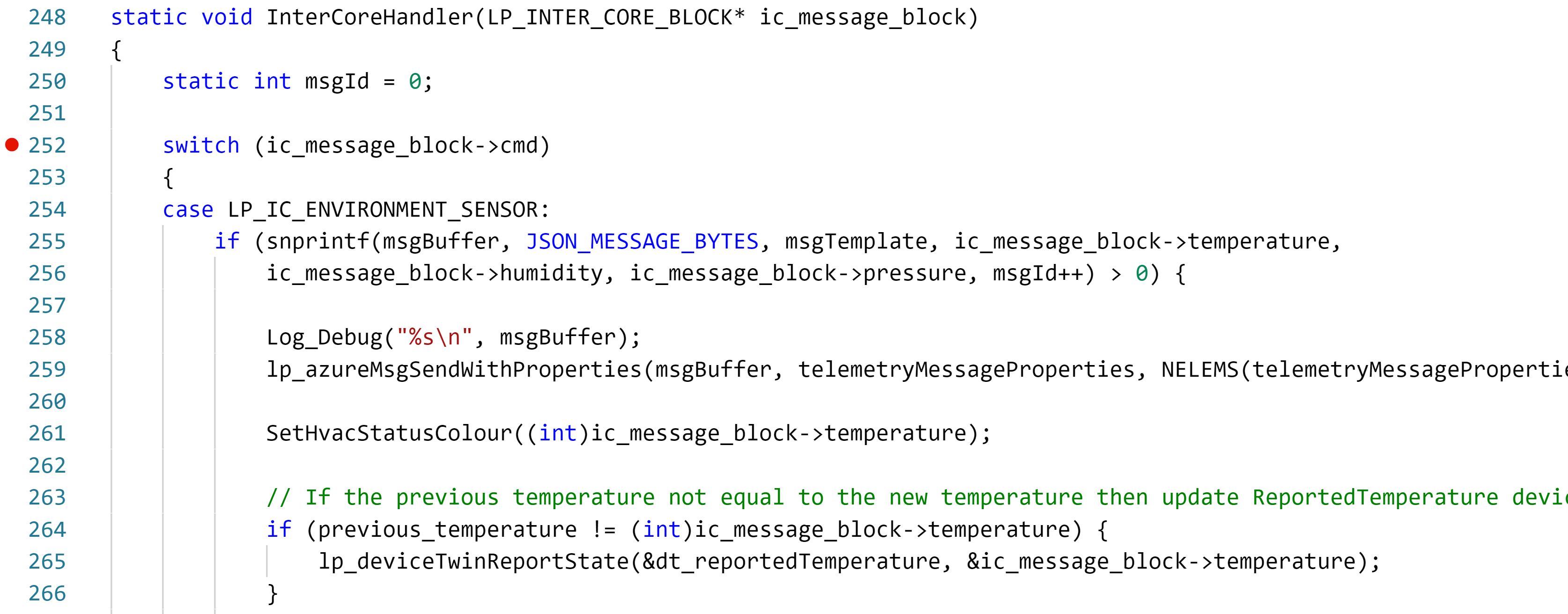
Step 5: Start the app build deploy process
Select CMake: [Debug]: Ready from the Visual Studio Code Status Bar.
Before pressing F5, open the HLApp .vscode\launch.json file and verify that the active debug configuration includes the real-time application's component ID in
partnerComponents. This marks the RTApp as a partner so Visual Studio Code sideload doesn't remove it while you debug the high-level app.{ "partnerComponents": [ "<real-time-application-component-id>" ] }From Visual Studio Code, press F5 to build, deploy, start, and attach the remote debugger to the application that's now running on the Azure Sphere device.
Step 6: Debugging high-level and real-time core applications
- When the high-level application has started it requests environment data from the real-time core application.
- Without closing or stopping the high-level application, switch to the instance of Visual Studio Code that you left connected to the real-time core.
- In a moment or two the code execution will stop at the breakpoint set in the real-time code.
- Step through the code on the real-time code and then press F5 to continue execution.
- Switch back to the instance of Visual Studio Code connected to the high-level application. The code execution should have stopped at the breakpoint you set in the InterCoreHandler function.
- Repeat this process a few times and then remove the breakpoints so code continues to execute
Step 7: Expected device behavior
Azure Sphere MT3620 Starter Kit Revision 1 and 2
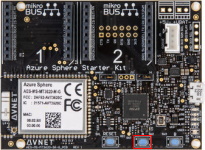
The WLAN LED blinks every 5 seconds when connected to Azure.
The RGB LED turns red if the measured temperature is less than the desired temperature, blue if the measured temperature is greater than the desired temperature and green if the measured temperature is the same as the desired temperature.
Seeed Studio Azure Sphere MT3620 Development Kit
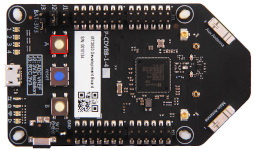
The WLAN LED blinks every 5 seconds when connected to Azure.
The RGB LED turns red if the measured temperature is less than the desired temperature, blue if the measured temperature is greater than the desired temperature and green if the measured temperature is the same as the desired temperature.
Seeed Studio MT3620 Mini Dev Board
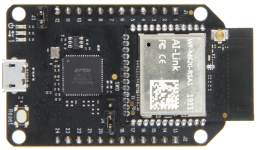
- The User LED will blink every 5 seconds when connected to Azure.
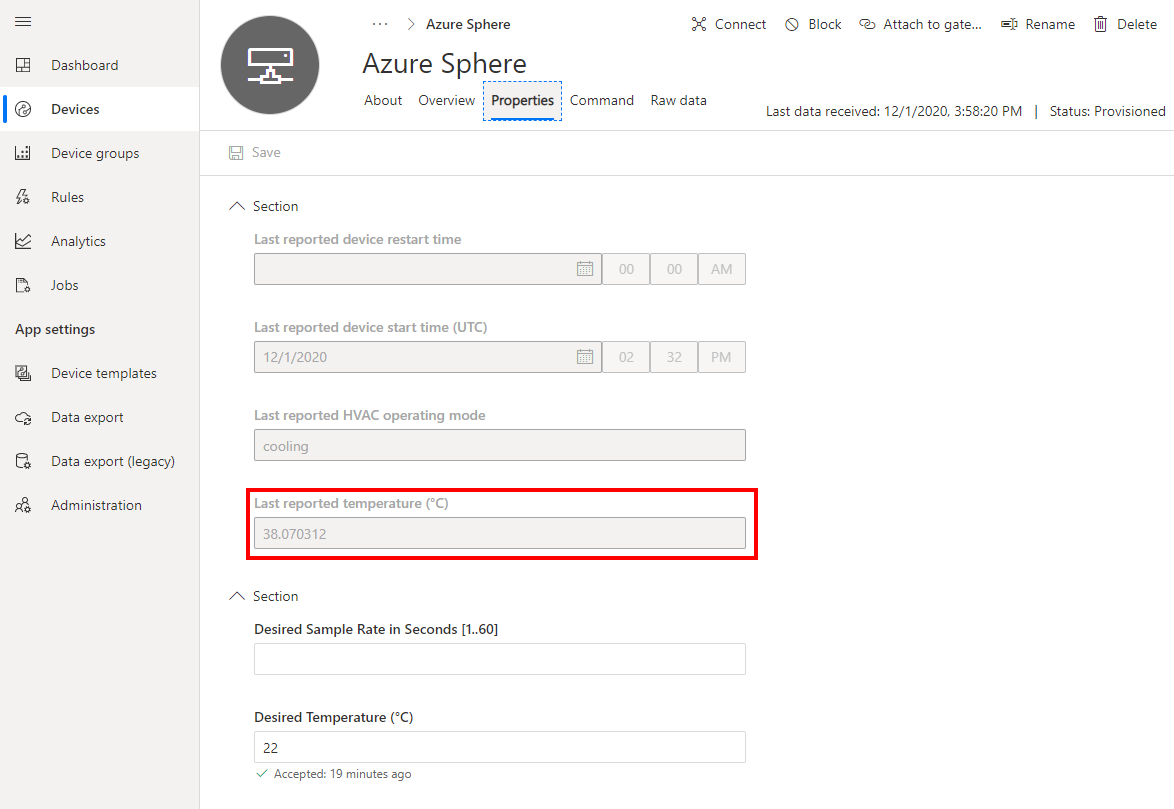
Step 8: Display the last reported temperature property
Switch to IoT Central in your browser.
From the sidebar menu, select Devices, then the Learning Path Lab Monitor template, then your device.
Select the Properties tab.
Step 9: Set the desired temperature
Setting the desired temperature is like setting a thermostat in a room. IoT Central sends a writable-property update through the application's underlying IoT Hub device twin. The high-level Azure Sphere application receives the desired temperature and acts on it.
When the temperature sensor is read on the Azure Sphere, it is compared to the desired temperature.
If the temperature is greater than the desired temperature, the RGB LED will turn blue to indicate the cooler needs be turned on.
If the temperature is less than the desired temperature, the RGB LED will turn red to indicate the heater needs to be turned on.
If the temperature is the same as the desired temperature, the RGB LED will turn green to indicate no action required.
Note
The Avnet Azure Sphere Starter Kit has a built-in temperature sensor. For other boards, a random temperature of 25 +/- 5 degrees Celsius is generated.
To set the desired temperature:
Update the Desired Temperature value.
Save the property. This will send the desired temperature property to Azure Sphere. The RGB LED color will change depending on the desired temperature chosen.
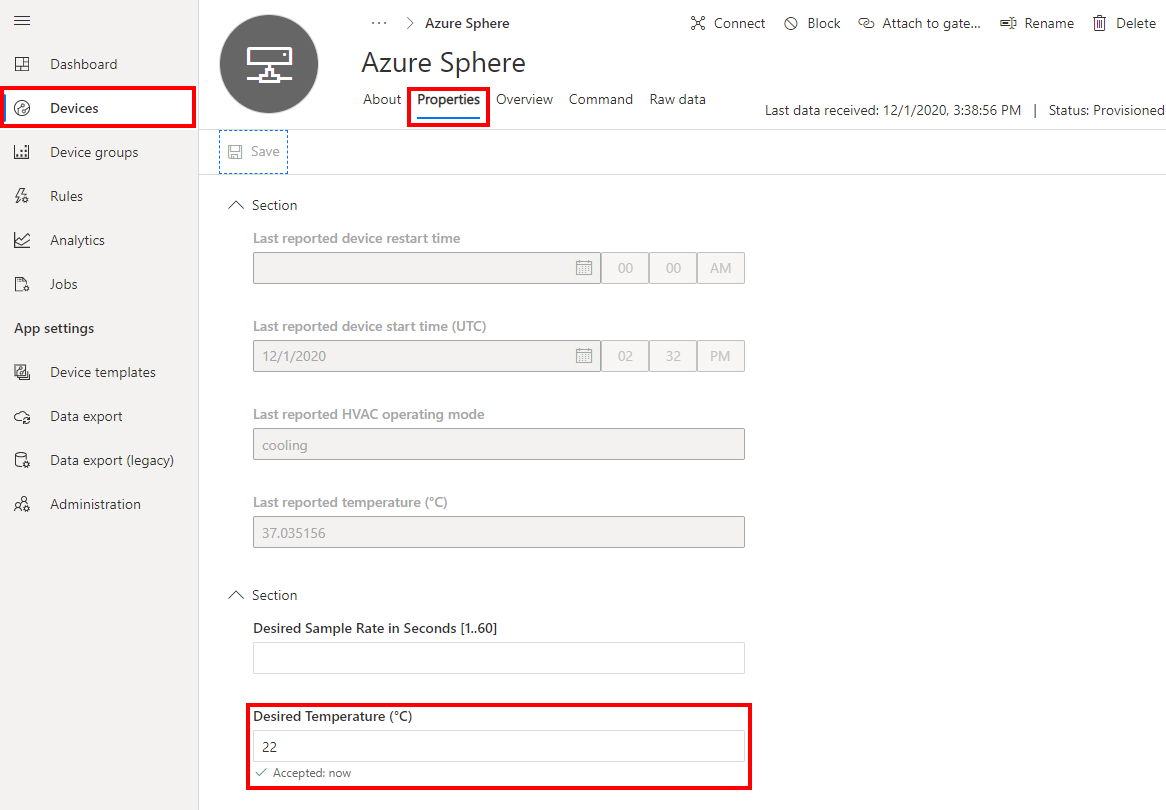
Update the Desired Sample Rate in Seconds [1..60] value.
Save the property. This will send the desired sample rate property to the Azure Sphere high-level application. This property will then be forwarded to the real-time core application and the sensor sample rate property will be updated.
Close Visual Studio Code
Now close Visual Studio Code.