Exercise - Deploy a high-level application to your Azure Sphere
In this exercise, we'll deploy a high-level application to your Azure Sphere.
Step 1: Open the sample project
- Start Visual Studio Code.
- Click Open folder.
- Open the Azure-Sphere folder.
- Open the Lab_2_Send_Telemetry_to_Azure_IoT folder.
- Click Select Folder or the OK button to open the project.
Step 2: Configure the Azure Sphere application
From Visual Studio Code, open the app_manifest.json file. The resources this application requires must be declared in the Capabilities section.
Update the connection properties for the Azure IoT Central application.
Keep the existing SchemaVersion, Name, ComponentId, EntryPoint, and ApplicationType fields.
Update CmdArgs with your Azure IoT Central ID scope. Keep the
--ConnectionType,DPS, and--ScopeIDentries, and replace only the scope ID value.Preserve the existing Gpio, I2cMaster, and PowerControls capabilities from the sample manifest. The PowerControls entry is set to
[ "ForceReboot" ]for the controlled-reboot lab later in this learning path. BecauseForceRebootandForcePowerDownallow an application to immediately terminate all running applications, applications that use these values must ensure the device can still receive Azure Sphere OS and application updates (see Force Power Down and updates). Remove PowerControls from production applications that don't call the power management APIs, and don't addForcePowerDownor any other capability unless the application requires it.Update DeviceAuthentication with the Azure Sphere (Legacy) tenant UUID for your catalog. With Azure Sphere Integrated, every catalog exposes this UUID through the Azure Sphere Catalog
properties.tenantIdfield. Run the following Azure CLI command, using the resource group and catalog name for your Azure Sphere catalog:az sphere catalog show --resource-group <resource-group-name> --catalog <catalog-name> --query "properties.tenantId" --output tsvUse the returned GUID. This value is the legacy tenant UUID expected by
DeviceAuthentication; don't use the Azure Resource Manager catalog resource ID. Catalogs that were migrated from Azure Sphere (Legacy) also expose the same value viatags.MigratedCatalogIdfor backward compatibility, butproperties.tenantIdworks for every Azure Sphere catalog.
Update the AllowedConnections with the Azure IoT Central application endpoints you copied to Notepad.
You can format the app_manifest.json document by right-clicking the document and selecting Format Document from the context menu.
Review your updated app_manifest.json file. It should look similar to the following.
{
    "SchemaVersion": 1,
    "Name": "AzureSphereIoTCentral",
    "ComponentId": "25025d2c-66da-4448-bae1-ac26fcdd3627",
    "EntryPoint": "/bin/app",
    "CmdArgs": [ "--ConnectionType", "DPS", "--ScopeID", "0ne0099999D" ],
    "Capabilities": {
        "Gpio": [
            "$NETWORK_CONNECTED_LED",
            "$LED_RED",
            "$LED_GREEN",
            "$LED_BLUE"
        ],
        "I2cMaster": [
            "$I2cMaster2"
        ],
        "PowerControls": [
            "ForceReboot"
        ],
        "AllowedConnections": [
            "global.azure-devices-provisioning.net",
            "iotc-9999bc-3305-99ba-885e-6573fc4cf701.azure-devices.net",
            "iotc-789999fa-8306-4994-b70a-399c46501044.azure-devices.net",
            "iotc-7a099966-a8c1-4f33-b803-bf29998713787.azure-devices.net",
            "iotc-97299997-05ab-4988-8142-e299995acdb7.azure-devices.net",
            "iotc-d099995-7fec-460c-b717-e99999bf4551.azure-devices.net",
            "iotc-789999dd-3bf5-49d7-9e12-f6999991df8c.azure-devices.net",
            "iotc-29999917-7344-49e4-9344-5e0cc9999d9b.azure-devices.net",
            "iotc-99999e59-df2a-41d8-bacd-ebb9999143ab.azure-devices.net",
            "iotc-c0a9999b-d256-4aaf-aa06-e90e999902b3.azure-devices.net",
            "iotc-f9199991-ceb1-4f38-9f1c-13199992570e.azure-devices.net"
        ],
        "DeviceAuthentication": "9d7e79eb-9999-43ce-9999-fa8888888894"
    },
    "ApplicationType": "Default",
    "MallocVersion": 2
}
Note
"MallocVersion": 2opts in to the mallocng allocator, which the app_manifest reference recommends for all new Azure Sphere applications. The official Azure Sphere AzureIoT sample sets the same value.Save the updated app_manifest.json file.
IMPORTANT. Copy the contents of your app_manifest.json file to Notepad or your text editor of choice, as you'll need this configuration information for the next labs.
Step 3: Select your developer board configuration
These labs support developer boards from Avnet and Seeed Studio. The default developer board configuration is the Avnet Azure Sphere Starter Kit Revision 1. Select exactly one board configuration in CMakeLists.txt.
Open CMakeLists.txt.
If you're using the Avnet Azure Sphere Starter Kit Revision 1, leave the set AVNET line uncommented and leave all other board lines commented. No CMakeLists.txt change is required.
If you're using any other supported board, add # at the beginning of the set AVNET line to disable it, and then uncomment exactly one set command that matches your Azure Sphere developer board. Only one board line should be uncommented.
set(AVNET TRUE "AVNET Azure Sphere Starter Kit Revision 1 ")
# set(AVNET_REV_2 TRUE "AVNET Azure Sphere Starter Kit Revision 2 ")
# set(SEEED_STUDIO_RDB TRUE "Seeed Studio Azure Sphere MT3620 Development Kit (aka Reference Design Board or rdb)")
# set(SEEED_STUDIO_MINI TRUE "Seeed Studio Azure Sphere MT3620 Mini Dev Board")
Save the file. Visual Studio Code and CMake Tools will update the CMake configuration for the selected board.
Step 4: Build and sideload the application to Azure Sphere
This step uses Visual Studio Code to build the high-level application, create an image package, sideload it to the attached Azure Sphere device, and start a debug session. Sideloading is a local development deployment over USB; it is different from a cloud deployment through the Azure Sphere Security Service to a product and device group. The attached device must be enabled for development and debugging before you can sideload.
Start the app build and sideload process
Open main.c.
Select CMake: [Debug]: Ready from the Visual Studio Code status bar.
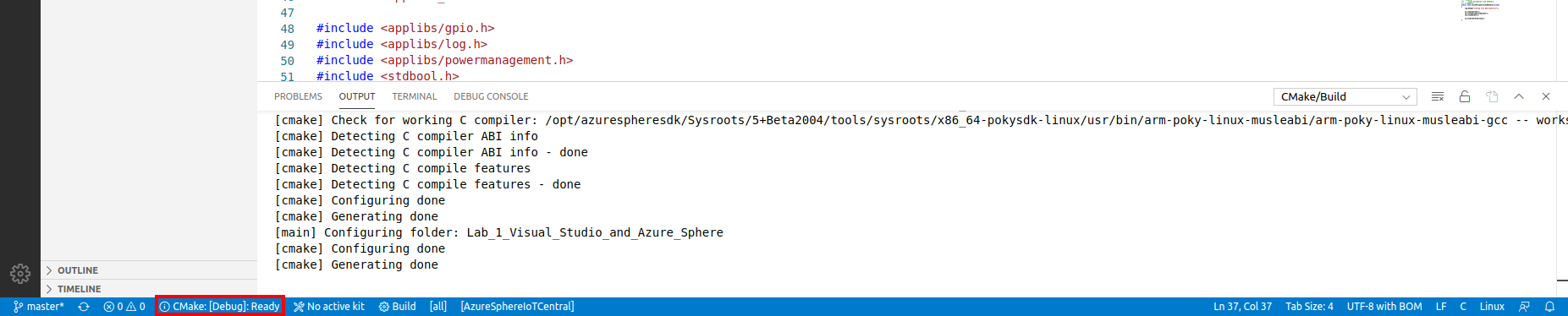
From Visual Studio Code, press F5 to build, create the image package, sideload it to the attached device, start the application, and attach the remote debugger to the application now running on the Azure Sphere device.
Try setting a breakpoint in the MeasureSensorHandler function. This sensor timer runs every 6 seconds.
The connection-status LED timer runs every 5 seconds.
Note
You can learn how to set breakpoints from this Visual Studio Code Debugging article.
View debugger output
Select the Visual Studio Code Output tab to monitor CMake, build, image package, and sideload progress.
Tip
You can open the output tab by using the Visual Studio Code Ctrl+Shift+U shortcut or clicking the Output tab.
Select the Debug Console to view debugger output and messages from Log_Debug statements in the code. After sideloading completes, Visual Studio Code typically focuses the Debug Console.
In the Debug Console, you'll see the device establish networking, DPS provisioning, and the secured IoT Hub connection, and then it will start sending telemetry to Azure IoT Central.
Note
During startup, you may briefly see transient IoT status messages while networking, DPS provisioning, and IoT Hub connection setup complete, such as
IOTHUB_CLIENT_CONNECTION_NO_NETWORKordevice auth not ready. If errors such asERROR: Failed to create client IoT Hub Client Handlepersist and telemetry doesn't appear, recheck the ID scope, AllowedConnections, DeviceAuthentication, Wi-Fi/network connectivity, and IoT Central device approval state. For more detail, see the Azure IoT troubleshooting guide.
Step 5: Expected device behavior
Azure Sphere MT3620 Starter Kit Revision 1 and 2
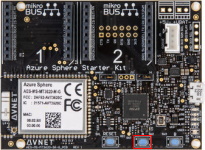
- The WLAN LED will blink every 5 seconds when connected to Azure.
Seeed Studio Azure Sphere MT3620 Development Kit
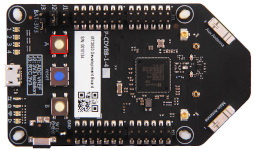
- The WLAN LED will blink every 5 seconds when connected to Azure.
Seeed Studio MT3620 Mini Dev Board
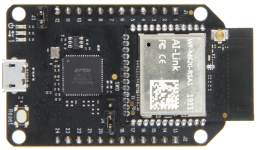
- The User LED will blink every 5 seconds when connected to Azure.
Step 6: Display the device telemetry in IoT Central
Switch back to the IoT Central web portal.
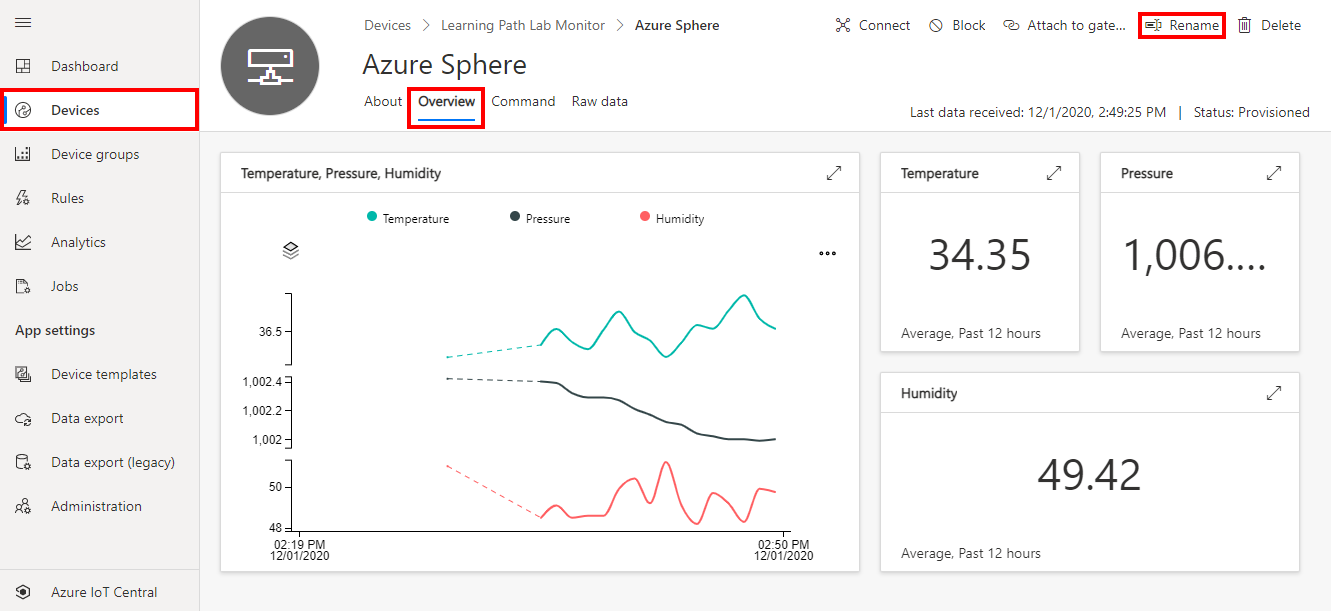
From the sidebar menu, select Devices, then the Learning Path Lab Monitor template, then your device.
The device name is your Azure Sphere Device ID. You can display your Device ID for the attached device by running the following command from the Windows PowerShell command line or Linux Terminal.
az sphere device show-attachedIf more than one device is attached, list the attached devices with
az sphere device list-attached, then add--device <DeviceIdValue>to target the correct device. To show the device record in your Azure Sphere catalog, use your resource group, catalog name, and device ID:az sphere device show --resource-group <resource-group-name> --catalog <catalog-name> --device <DeviceIdValue>Select the Overview tab to view the device telemetry.
Optional. You can also rename your device. Click the Rename button and give your device a friendly name.
Note
Azure IoT Central does not update immediately. It may take a minute or two for the temperature, humidity, and pressure telemetry to be displayed. You can check that data is flowing into IoT Central by checking the Raw data tab.
Close Visual Studio Code
Now close Visual Studio Code.