How to send Azure RTOS real-time room environment sensor data to IoT Hub
The upgraded microbiology laboratory temperature, pressure, and humidity sensor is running well on the Azure Sphere real-time core. The customer is happy, and they can run their experiments. The customer would also like to remotely monitor the lab conditions.
Note
The real-time application in this unit runs on top of Eclipse ThreadX (formerly known as Azure RTOS). Microsoft announced the contribution of Azure RTOS to the Eclipse Foundation on 21 November 2023. Eclipse ThreadX 6.4.1 was published under the MIT license on 29 February 2024, and Microsoft announced on 4 April 2024 that the transition to the Eclipse Foundation was complete. The kernel and APIs used here are unchanged. Some lab folder names and code identifiers retain the original "Azure RTOS" naming.
In this unit, you will learn how to read data from the upgraded lab sensor and send the data to IoT Hub so that it can be monitored.
Solution architecture
The following describes how an Azure Sphere high-level application can read data from the upgraded lab sensor running on one of the Azure Sphere real-time cores. The high-level application will then send this data securely to IoT Hub.
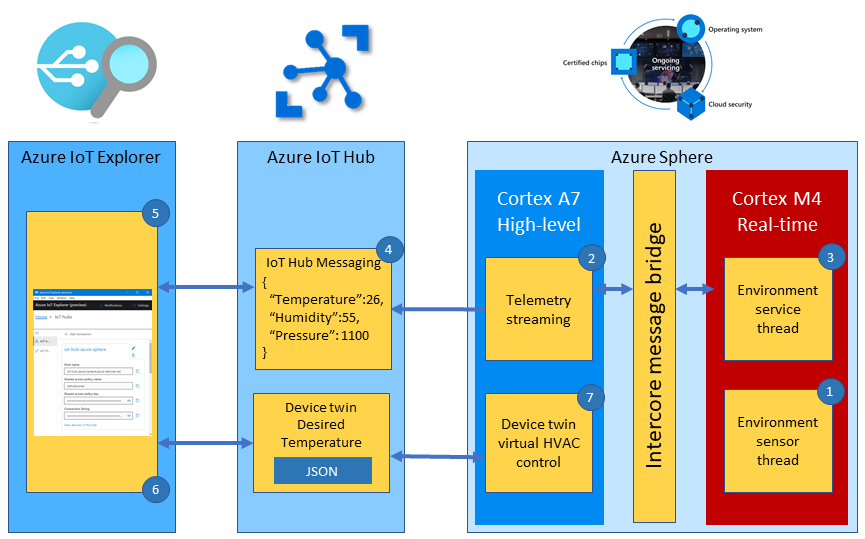
To recap the solution architecture introduced in the previous (Eclipse ThreadX / Azure RTOS) lab:
- The Eclipse ThreadX (Azure RTOS) real-time environment sensor thread runs every 2 seconds. The thread stores in memory the latest environment temperature, humidity, and pressure data.
- The high-level telemetry streaming app requests from the real-time core the latest environment data.
- The Eclipse ThreadX (Azure RTOS) real-time environment service thread responds with the latest environment data.
- The high-level application serializes the environment data as JSON and sends the telemetry message to IoT Hub.
- Azure IoT Explorer subscribes to telemetry messages sent to IoT Hub by the device and displays the telemetry.
- You can also set the desired temperature for the room by setting a property. The property is set on the device via an IoT Hub device twin message.
- The Azure Sphere then sets the HVAC operating mode to meet the desired temperature.
Inter-core message contract
There needs to be a contract that describes the shape of the data being passed between the cores. The following structure declares the inter-core contract used in this unit. You can find this contract in the IntercoreContract directory.
typedef enum
{
    LP_IC_UNKNOWN,
    LP_IC_HEARTBEAT,
    LP_IC_ENVIRONMENT_SENSOR,
    LP_IC_SAMPLE_RATE
} LP_INTER_CORE_CMD;

typedef struct
{
    LP_INTER_CORE_CMD cmd;
    float temperature;
    float pressure;
    float humidity;
    int sample_rate;
} LP_INTER_CORE_BLOCK;
Inter-core security
To communicate, applications running across cores must be configured with corresponding Component IDs in both application manifests. The AllowedApplicationConnections capability authorizes runtime inter-core communication; it doesn't control what the development tools delete during deployment. During development, the Visual Studio Code or Visual Studio launch configuration must also list the partner component IDs in partnerComponents so that sideloading one app doesn't remove the other.
Real-time inter-core capabilities
The Component ID for the real-time application can be found in the real-time app's app_manifest.json file.
{
  "SchemaVersion": 1,
  "Name": "demo_threadx",
  "ComponentId": "6583cf17-d321-4d72-8283-0b7c5b56442b",
  "EntryPoint": "/bin/app",
  "CmdArgs": [],
  "ApplicationType": "RealTimeCapable",
  "Capabilities": {
    "Gpio": [],
    "I2cMaster": [ "ISU2" ],
    "AllowedApplicationConnections": [ "25025d2c-66da-4448-bae1-ac26fcdd3627" ]
  }
}
This is the RTApp's app_manifest.json. Note ApplicationType is RealTimeCapable; the app declares the I2C master peripheral it uses to read the on-board sensor, includes an empty Gpio list because this RTApp doesn't reserve GPIOs, and sets AllowedApplicationConnections to the high-level partner app's component ID so the two apps can exchange inter-core messages. RTApp manifests use raw hardware AppManifestValue strings such as ISU2; high-level app manifests can use hardware-definition constants such as $I2cMaster2.
High-level inter-core capabilities
The high-level application's app_manifest.json uses the same pattern in reverse: its AllowedApplicationConnections property is set to the Component ID of the Eclipse ThreadX (Azure RTOS) real-time application. The following excerpt focuses on inter-core communication; keep the other capabilities required by the IoT Hub app, such as AllowedConnections, DeviceAuthentication, GPIO, and power-control capabilities, in the actual manifest.
{
  "SchemaVersion": 1,
  "Name": "AzureSphereIoTCentral",
  "ComponentId": "25025d2c-66da-4448-bae1-ac26fcdd3627",
  "EntryPoint": "/bin/app",
  "CmdArgs": [ "--ConnectionType", "DPS", "--ScopeID", "<Your DPS ID scope>" ],
  "Capabilities": {
    "AllowedApplicationConnections": [ "6583cf17-d321-4d72-8283-0b7c5b56442b" ]
  },
  "ApplicationType": "Default"
}
Initializing inter-core communications
In InitPeripheralAndHandlers, the high-level app calls lp_interCoreCommunicationsEnable, passing in the component ID of the real-time application and the inter-core callback function.
The inter-core callback function will be called when a message is received from the real-time core.
lp_interCoreCommunicationsEnable(REAL_TIME_COMPONENT_ID, InterCoreHandler); // Initialize Inter Core Communications
Sending a request to the real-time core application
To request the environment data from the real-time core then:
- Set the inter-core control block command to LP_IC_ENVIRONMENT_SENSOR.
- Send the request message by calling lp_interCoreSendMessage and passing the inter-core control block.
/// <summary>
/// Read sensor and send to Azure IoT
/// </summary>
static void MeasureSensorHandler(EventLoopTimer* eventLoopTimer)
{
    if (ConsumeEventLoopTimerEvent(eventLoopTimer) != 0)
    {
        lp_terminate(ExitCode_ConsumeEventLoopTimeEvent);
    }
    else {
        // send request to Real-Time core app to read temperature, pressure, and humidity
        ic_control_block.cmd = LP_IC_ENVIRONMENT_SENSOR;
        lp_interCoreSendMessage(&ic_control_block, sizeof(ic_control_block));
    }
}
Receiving inter-core messages
When the high-level application receives a message the inter-core callback function is called passing a reference to the inter-core control block containing the environment data. The application serializes the data as JSON, sends the telemetry message to IoT Hub, and the HVAC status LED is updated.
/// <summary>
/// Callback handler for Inter-Core Messaging - Does Device Twin Update, and Event Message
/// </summary>
static void InterCoreHandler(LP_INTER_CORE_BLOCK* ic_message_block)
{
    static int msgId = 0;

    switch (ic_message_block->cmd)
    {
    case LP_IC_ENVIRONMENT_SENSOR:
        if (snprintf(msgBuffer, JSON_MESSAGE_BYTES, msgTemplate, ic_message_block->temperature,
            ic_message_block->humidity, ic_message_block->pressure, msgId++) > 0) {

            Log_Debug("%s\n", msgBuffer);
            lp_azureMsgSendWithProperties(msgBuffer, telemetryMessageProperties, NELEMS(telemetryMessageProperties));

            SetHvacStatusColour((int)ic_message_block->temperature);

            // If the previous temperature not equal to the new temperature then update ReportedTemperature device twin
            if (previous_temperature != (int)ic_message_block->temperature) {
                lp_deviceTwinReportState(&dt_reportedTemperature, &ic_message_block->temperature);
                previous_temperature = (int)ic_message_block->temperature;
            }
        }
        break;
    default:
        break;
    }
}