Exercise - Send Azure RTOS real-time room environment sensor data to IoT Hub
In this exercise, you'll partner a high-level application with the Eclipse ThreadX (Azure RTOS) real-time application from the previous lab so that the high-level app sends real-time room environment sensor data to IoT Hub.
Step 1: Open the project
Start Visual Studio Code to open your project.
From the menu, click File, then Open Folder.
Open the Azure-Sphere lab folder.
Open the Lab_7_Partnering_with_RTOS_environment folder.
Click Select Folder or the OK button to open the project.
If you installed the Visual Studio Code Peacock extension then Visual Studio Code will turn blue. The blue colored instance is connected to the high-level application running on the Cortex-A7 core.
Step 2: Set your developer board configuration
These labs support developer boards from Avnet and Seeed Studio. You need to set the configuration that matches your developer board.
The default developer board configuration is for the Avnet Azure Sphere Starter Kit Revision 1. If you have this board, there's no additional configuration required.
Open the CMakeLists.txt file.
Add a
#at the beginning of the set Avnet line to disable it.Uncomment the
setcommand that corresponds to your Azure Sphere device developer board.set(AVNET TRUE "AVNET Azure Sphere Starter Kit Revision 1 ") # set(AVNET_REV_2 TRUE "AVNET Azure Sphere Starter Kit Revision 2 ") # set(SEEED_STUDIO_RDB TRUE "Seeed Studio Azure Sphere MT3620 Development Kit (aka Reference Design Board or rdb)") # set(SEEED_STUDIO_MINI TRUE "Seeed Studio Azure Sphere MT3620 Mini Dev Board")Save the file. This will auto-generate the CMake cache.
Step 3: Configure the Azure IoT connection information
Open the app_manifest.json file.
Do not copy an
app_manifest.jsonfrom an earlier lab over this file. This lab's manifest has additional capabilities for inter-core communication and IoT Hub; update only the values called out below and preserve the existingComponentId, GPIO, power-control, andAllowedApplicationConnectionssettings.Update the connection properties for the Azure IoT Hub.
- Update CmdArgs with your Azure IoT DPS ID scope.
- Update the
DeviceAuthenticationcapability with your Azure Sphere (Legacy) tenant UUID/GUID. On the Legacy CLI, copy the value of theIdfield returned byazsphere tenant show-selected. On the Azure Sphere Integrated (az sphere) CLI, query the migrated catalog ID from the catalog tags:az sphere catalog show --resource-group <ResourceGroupName> --catalog <CatalogName> --query "tags.MigratedCatalogId" -o tsv. Don't use the Microsoft Entra tenant ID, Azure subscription ID, or Azure Sphere catalog resource ID for this manifest value.
Update the AllowedConnections capability so it lists only DNS host names or IPv4 addresses that the application connects to; don't include protocols, ports, paths, or wildcards. For the public DPS flow used in this lab, include the DPS global endpoint and the hostname of each IoT hub that DPS can assign the device to. For example:
"AllowedConnections": [ "global.azure-devices-provisioning.net", "<your-iot-hub>.azure-devices.net" ]. Don't include the per-instance DPS Service endpoint (<dpsName>.azure-devices-provisioning.net) for this lab; Azure Sphere devices reach public DPS through the global endpoint.You can format the app_manifest.json document by right mouse clicking on the document and selecting Format Document from the context menu.
Review your updated app_manifest.json file. It should look similar to the following. The
DeviceAuthenticationvalue shown is a placeholder GUID; replace it with your Azure Sphere (Legacy) tenant UUID, or with the Integrated CLItags.MigratedCatalogIdvalue described above.{ "SchemaVersion": 1, "Name": "AzureSphereIoTCentral", "ComponentId": "25025d2c-66da-4448-bae1-ac26fcdd3627", "EntryPoint": "/bin/app", "CmdArgs": [ "--ConnectionType", "DPS", "--ScopeID", "0ne0099999D" ], "Capabilities": { "Gpio": [ "$NETWORK_CONNECTED_LED", "$LED_RED", "$LED_GREEN", "$LED_BLUE" ], "PowerControls": [ "ForceReboot" ], "AllowedConnections": [ "global.azure-devices-provisioning.net", "<your-iot-hub>.azure-devices.net" ], "DeviceAuthentication": "9d7e79eb-9999-43ce-9999-fa8888888894", "AllowedApplicationConnections": [ "6583cf17-d321-4d72-8283-0b7c5b56442b" ] }, "ApplicationType": "Default" }
Step 4: Set a breakpoint in the InterCoreHandler callback function
Open main.c.
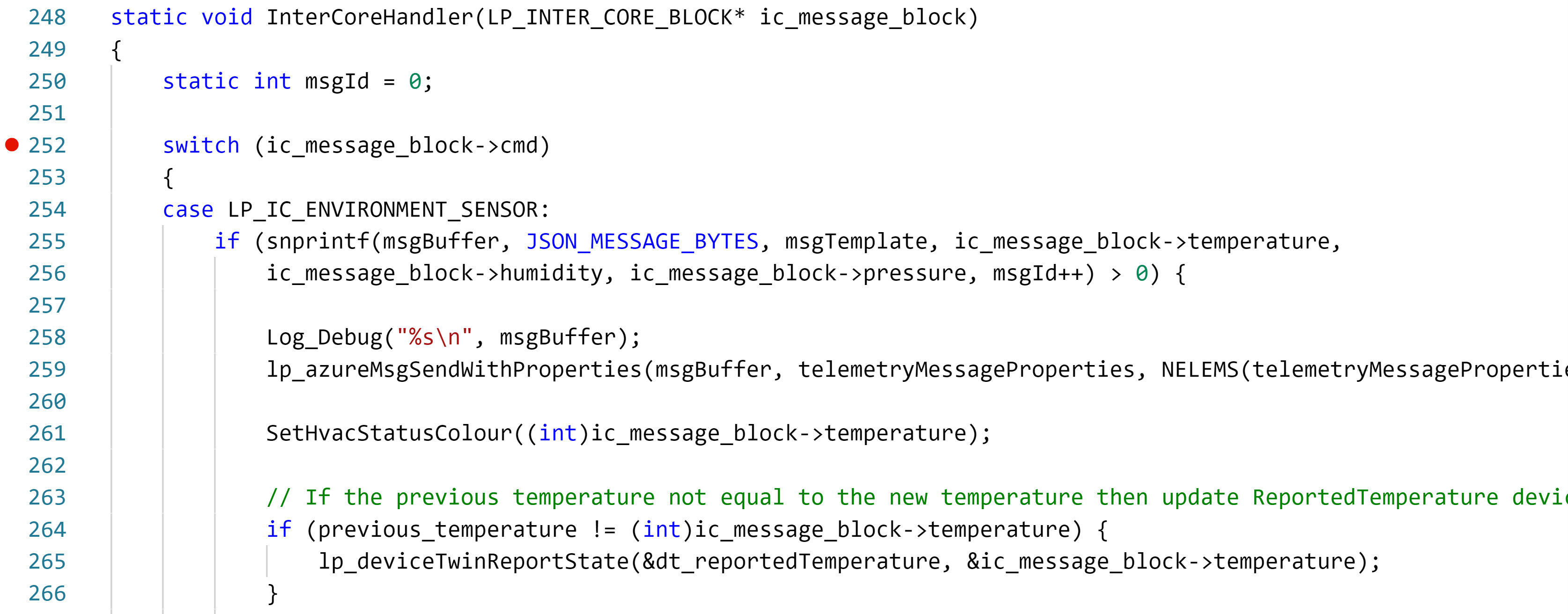
Scroll down to the function named InterCoreHandler.
Note
Use Go to Symbol in Editor in Visual Studio Code. Use the keyboard shortcut Ctrl+Shift+O and start typing InterCoreHandler. You'll often see a function name listed twice in the drop-down. The first is the function prototype or forward signature declaration, and the second is the implementation of the function.
Set a breakpoint in the InterCoreHandler function on the line that reads switch (ic_message_block->cmd)
Note
You can learn how to set breakpoints from this Visual Studio Code Debugging article.
Step 5: Start the app build deploy process
Before deploying, verify that the high-level app is marked as a partner with the RTApp. Open this high-level app's
.vscode\launch.jsonand ensure the debug configuration used by F5 contains the RTApp component ID:"partnerComponents": [ "6583cf17-d321-4d72-8283-0b7c5b56442b" ]This launch setting is separate from
AllowedApplicationConnectionsinapp_manifest.json.AllowedApplicationConnectionsauthorizes runtime messages;partnerComponentstells Visual Studio Code which already-sideloaded partner app must not be deleted during this deployment. IfpartnerComponentsis omitted here, Visual Studio Code can delete the already-running RTApp when it sideloads the high-level app, and inter-core debugging will fail. If you later redeploy the RTApp while the high-level app is already running, make the corresponding check in the RTApp project's.vscode\launch.jsonso the high-level app is preserved too.Ensure Visual Studio Code is using the Debug CMake build variant. The status bar might show CMake: [Debug]: Ready; if it doesn't, run CMake: Set Build Variant from the Command Palette and select Debug.
From Visual Studio Code, press F5 to build, deploy, start, and attach the remote debugger to the application that's now running on the Azure Sphere device.
Step 6: Debugging high-level and real-time core applications
When the high-level application has started it will request environment data from the real-time core application.
Without closing or stopping the high-level application, switch to the instance of Visual Studio Code that you left connected to the real-time core.
In a moment or two the code execution will stop at the breakpoint set in the real-time code.
Step through the code on the real-time code and then press F5 to continue execution.
Switch back to the instance of Visual Studio Code connected to the high-level application. The code execution should have stopped at the breakpoint you set in the InterCoreHandler function.
Repeat this process a few times and then remove the breakpoints so code continues to execute.
Step 7: Expected device behavior
The Avnet Azure Sphere Starter Kit, revisions 1 and 2, have a built-in temperature sensor. For other boards, a random temperature of 25 +/- 5 degrees Celsius is generated.
For all supported boards:
- The WLAN/User connection LED toggles approximately every 5 seconds while the device is connected to Azure IoT Hub. The toggle is driven by the connection-status timer.
- Environment telemetry is sent to Azure IoT Hub approximately every 6 seconds, driven by a separate sensor-measurement timer.
Azure Sphere MT3620 Starter Kit Revision 1 and 2
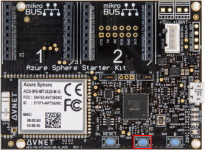
- The RGB LED will turn red if the measured temperature is less than the desired temperature, blue if the measured temperature is greater than the desired temperature and green if the measured temperature is the same as the desired temperature.
Seeed Studio Azure Sphere MT3620 Development Kit
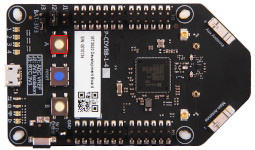
- The RGB LED will turn red if the measured temperature is less than the desired temperature, blue if the measured temperature is greater than the desired temperature and green if the measured temperature is the same as the desired temperature.
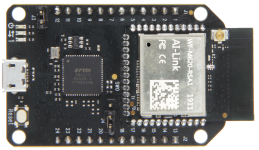
Seeed Studio MT3620 Mini Dev Board
Step 8: Set the desired temperature
Setting the desired temperature is like setting a thermostat in a room. A device twin property message for desired temperature is sent to Azure Sphere, where it will be acted upon.
When the temperature sensor is read on the Azure Sphere, it is compared to the desired temperature.
In Azure IoT Explorer, open the connection to your IoT hub.
Click View devices in this hub.
Click on your device.
Click IoT Plug and Play components from the side menu.
Click Default component.
Select Properties (writable) from the menu.
Set the Desired Temperature property to a numeric Celsius value.
Click the Update desired value button.
Close Visual Studio Code
Now close Visual Studio Code.