Exercise - Deploy a high-level application to your Azure Sphere
In this exercise, we'll deploy a high-level application to your Azure Sphere.
Step 1: Open the lab project
Start Visual Studio Code.
From the menu, click File, then Open Folder.
Open the Azure-Sphere lab folder.
Open the Lab_2_Send_Telemetry_to_Azure_IoT folder.
Click Select Folder or the OK button to open the project.
Step 2: Configure the Azure Sphere application
From Visual Studio Code, open the app_manifest.json file. The resources this application requires must be declared in the Capabilities section.
Update the connection properties for the Azure IoT Hub.
- Update CmdArgs with your Azure IoT DPS ID scope. You can find the ID scope on the Overview page for your Device Provisioning Service instance.
- Update DeviceAuthentication with your Azure Sphere (Legacy) tenant UUID/GUID. This is the Azure Sphere tenant UUID/GUID returned in the
Idfield ofazsphere tenant show-selected(legacy CLI). On the Azure Sphere Integrated (az sphere) CLI, obtain it from the catalog'stags.MigratedCatalogIdvalue:az sphere catalog show --resource-group <rg> --catalog <name> --query "tags.MigratedCatalogId" -o tsv. Don't use the catalog name, Azure resource ID, Microsoft Entra tenant ID, Azure subscription ID, IoT Hub name, DPS name, or DPS ID Scope.
Update the AllowedConnections capability so it lists the DPS global endpoint and the hostname of each IoT hub that DPS can assign the device to. For example:
"AllowedConnections": [ "global.azure-devices-provisioning.net", "<your-iot-hub>.azure-devices.net" ]. Don't include the per-instance DPS Service endpoint (<dpsName>.azure-devices-provisioning.net) — Azure Sphere devices reach DPS only through the global endpoint.You can format the app_manifest.json document by right mouse clicking on the document and selecting Format Document from the context menu.
Review your updated app_manifest.json file. It should look similar to the following.
{
    "SchemaVersion": 1,
    "Name": "AzureSphereIoTHub",
    "ComponentId": "25025d2c-66da-4448-bae1-ac26fcdd3627",
    "EntryPoint": "/bin/app",
    "CmdArgs": [ "--ConnectionType", "DPS", "--ScopeID", "0ne0099999D" ],
    "Capabilities": {
        "Gpio": [
            "$NETWORK_CONNECTED_LED",
            "$LED_RED",
            "$LED_GREEN",
            "$LED_BLUE"
        ],
        "I2cMaster": [
            "$I2cMaster2"
        ],
        "AllowedConnections": [
            "global.azure-devices-provisioning.net",
            "<your-iot-hub>.azure-devices.net"
        ],
        "DeviceAuthentication": "9d7e79eb-9999-43ce-9999-fa8888888894"
    },
    "ApplicationType": "Default"
}
Note
This lab follows the principle of least privilege and does not require the
PowerControlscapability. You will add it later in the remote-reboot direct-method lab, where the device actually performs a reboot.If your cloned app_manifest.json already contains a
PowerControlscapability (for example,"PowerControls": [ "ForceReboot" ]), remove that entry now.Save the updated app_manifest.json file.
IMPORTANT. Record the connection values you just configured: the DPS ID scope in CmdArgs, the AllowedConnections list, and the DeviceAuthentication GUID. You'll reuse those values in the next labs. Do not overwrite a later lab's ComponentId or lab-specific capabilities when you reuse these values.
Step 3: Select your developer board configuration
These labs support developer boards from Avnet and Seeed Studio. You need to set the configuration that matches your developer board. The default developer board configuration is for the Avnet Azure Sphere Starter Kit Revision 1. If you have this board, there is no additional configuration required.
Open CMakeLists.txt.
In CMakeLists.txt, exactly one
set(<BOARD> TRUE ...)line must be active.- If your hardware is the Avnet Azure Sphere MT3620 Starter Kit Rev 1, leave
set(AVNET TRUE ...)uncommented and ensure all otherset(<BOARD> TRUE ...)lines are commented out. - If your hardware is a different supported board (for example,
AVNET_REV_2,SEEED_STUDIO_RDB, orSEEED_STUDIO_MINI), comment out theset(AVNET TRUE ...)line by adding#at the beginning, and uncomment the matchingset(<your board> TRUE ...)line.
set(AVNET TRUE "AVNET Azure Sphere Starter Kit Revision 1 ") # set(AVNET_REV_2 TRUE "AVNET Azure Sphere Starter Kit Revision 2 ") # set(SEEED_STUDIO_RDB TRUE "Seeed Studio Azure Sphere MT3620 Development Kit (aka Reference Design Board or rdb)") # set(SEEED_STUDIO_MINI TRUE "Seeed Studio Azure Sphere MT3620 Mini Dev Board")- If your hardware is the Avnet Azure Sphere MT3620 Starter Kit Rev 1, leave
Save CMakeLists.txt after making the change. This will autogenerate the CMake cache.
Step 4: Deploy the application to Azure Sphere
Start the app build and deployment process
Open main.c.
Ensure that your Azure Sphere device is connected by USB and is enabled for development and sideloading. If Visual Studio Code reports that the device isn't enabled for development, run the current Azure Sphere CLI command
az sphere device enable-development --resource-group <resource-group> --catalog <catalog-name> --device <device-id>from a command line, then try again. This command enables sideloading and debugging and assigns the device to a development device group that disables cloud application updates, so don't use it as a manufacturing or production provisioning step.Confirm that CMake is configured for the project. If the Visual Studio Code status bar shows CMake: [Debug]: Ready, select it only if you need to change the build preset.
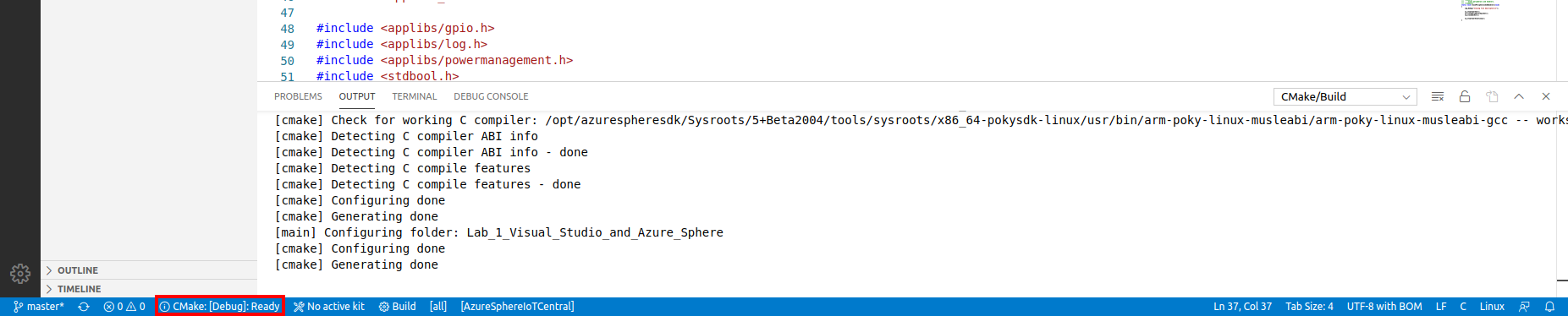
From Visual Studio Code, press F5 to build, deploy, start, and attach the remote debugger to the application now running the Azure Sphere device.
Try setting a breakpoint in the MeasureSensorHandler function. The function will be called every 6 seconds (matching the
measureSensorTimerperiod defined in the application).Note
You can learn how to set breakpoints from this Visual Studio Code Debugging article.
View debugger output
Select the Visual Studio Code Output tab to view the output from Log_Debug statements in the code.
Tip
You can open the output tab by using the Visual Studio Code Ctrl+Shift+U shortcut or clicking the Output tab.
You'll see the device negotiating security, and then it will start sending telemetry to Azure IoT Hub.
Note
You may see a couple of ERROR: failure to create IoTHub Handle messages displayed. These messages occur while the connection to Azure IoT Hub is being negotiated.
Step 5: Expected device behavior
Azure Sphere MT3620 Starter Kit Revision 1 and 2
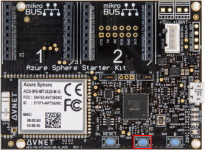
- The network-connected LED toggles approximately every 5 seconds while the device is connected to Azure IoT Hub.
- A telemetry message is sent to Azure IoT Hub approximately every 6 seconds.
Seeed Studio Azure Sphere MT3620 Development Kit
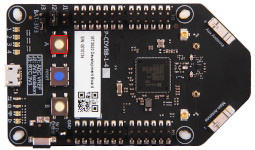
- The network-connected LED toggles approximately every 5 seconds while the device is connected to Azure IoT Hub.
- A telemetry message is sent to Azure IoT Hub approximately every 6 seconds.
Seeed Studio MT3620 Mini Dev Board
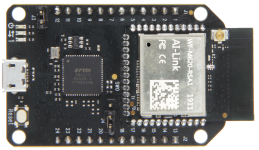
- The network-connected LED toggles approximately every 5 seconds while the device is connected to Azure IoT Hub.
- A telemetry message is sent to Azure IoT Hub approximately every 6 seconds.
Step 6: Display the device telemetry using Azure IoT Explorer
Start Azure IoT Explorer and connect to your IoT hub.
If Azure IoT Explorer opens on the home page, click View devices in this hub. Otherwise, open the Devices list for the connected hub.
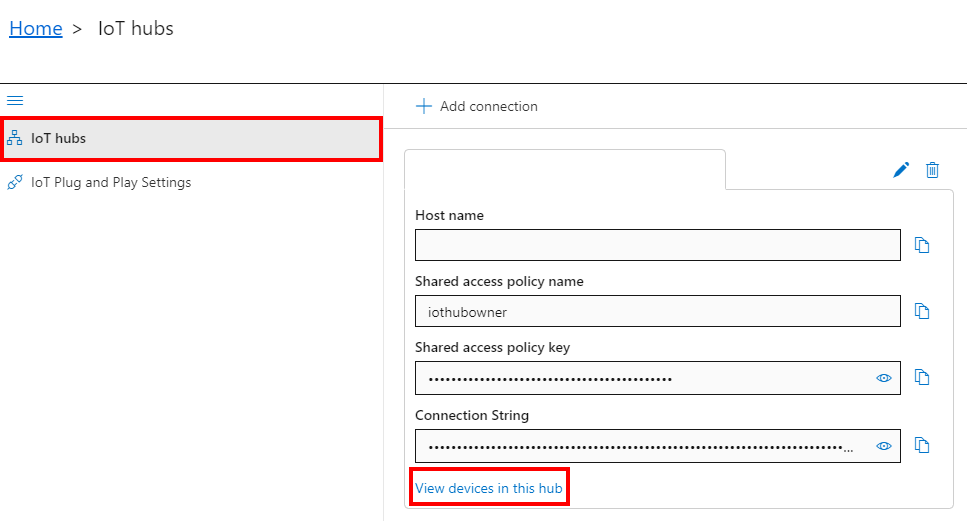
Click your device in the Device ID column.
The device name is your Azure Sphere Device ID. You can display your Device ID by running one of the following commands from the Windows PowerShell command line or Linux Terminal.
Azure Sphere Integrated CLI (current):
az sphere device show-attachedLegacy CLI (still supported):
azsphere device show-attached
The output lists the attached device's ID and hardware information.
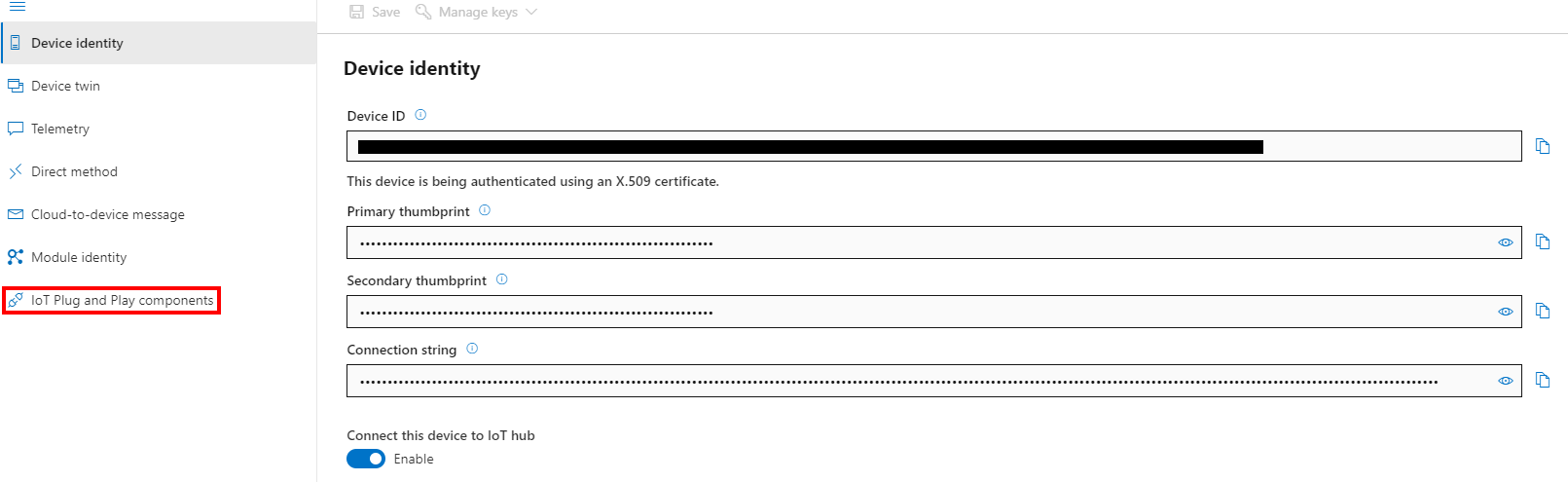
Click IoT Plug and Play components from the side menu.
If the IoT Plug and Play components view doesn't appear, verify that the application is connected to IoT Hub, that the model ID was sent by the device, and that Azure IoT Explorer has a model source configured for the public repository.
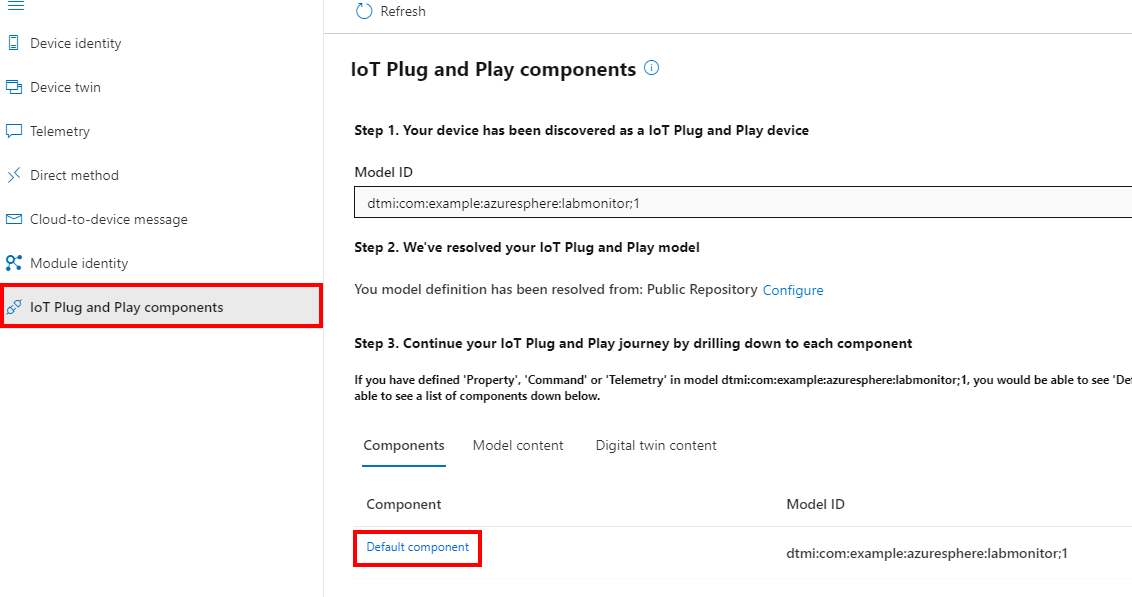
Click Default component.
Select Telemetry from the menu.
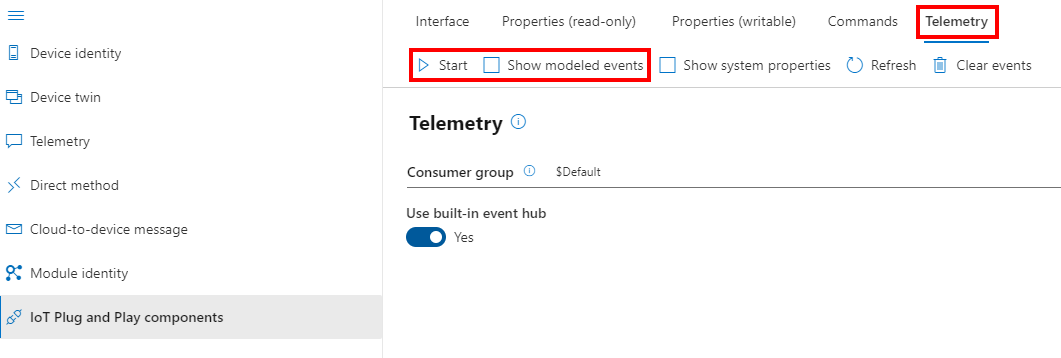
Click the Start button.
If the Show modeled events option is available, enable it to use the IoT Plug and Play model to display the telemetry.
Close Visual Studio Code
Now close Visual Studio Code.