Using a generative AI model
Tip
See the Text and images tab for more details!
The easiest way to interact with a deployed model is to use the model playground in the Foundry portal. You can use the Foundry Playgrounds to try prompts, compare models, and capture working settings before you write any code.
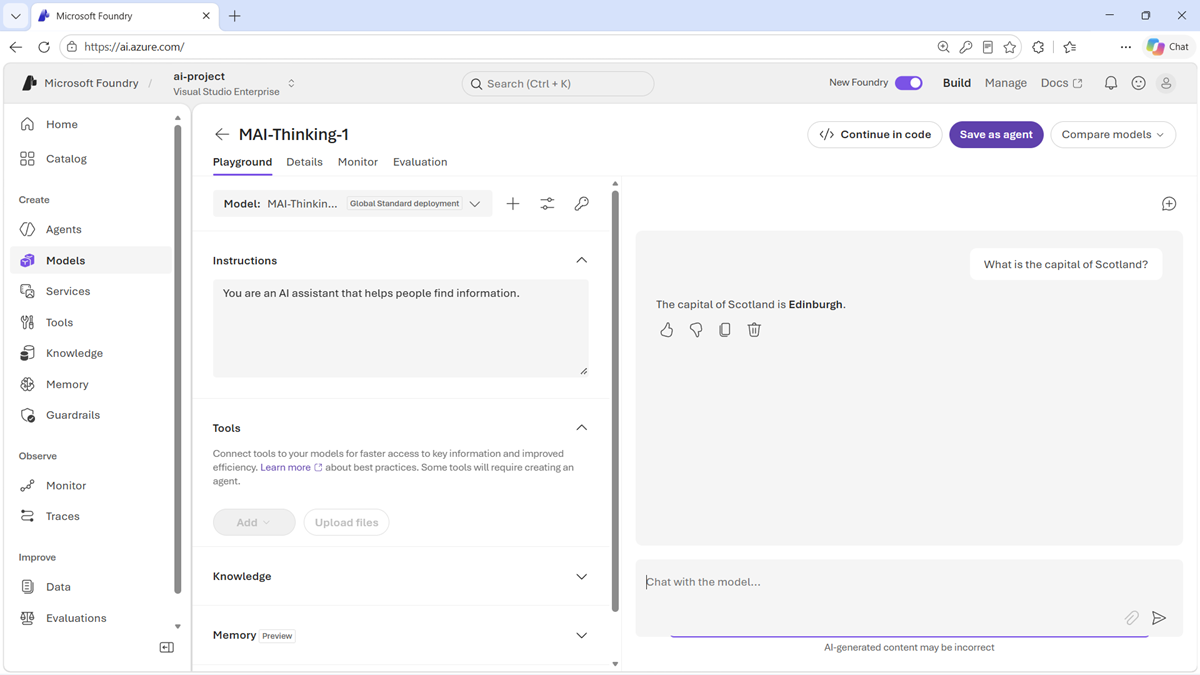
Key configuration parameters
Several model arguments or parameters influence runtime behavior, performance, and cost. In the playground settings, you can configure model parameters such as:
- Temperature: controls creativity vs. determinism.
- Max output tokens – caps response length; affects token consumption and throttling behavior.
Unlike the user prompt, which is the end-user request or question (example: Where should I travel?), Instructions (often referred to as a system prompt) set behavior, tone, tools, and constraints for the model. An example of a system prompt is: "You are a helpful, step‑by‑step tutor. Cite sources. Decline medical advice."
Create a chat client by using the Foundry SDK
A chat client application submits user prompts to a deployed model and displays the responses; enabling users to engage with the model in a conversation.
You can use the Foundry SDK to build a client application for a deployed model. In this example, the client application uses key-based authentication to connect to the endpoint for the model, submit a prompt, and display the response.
import os
from openai import OpenAI

client = OpenAI(
    base_url=f"{os.environ['AZURE_OPENAI_ENDPOINT']}/openai",
    api_key=os.environ["AZURE_OPENAI_API_KEY"]
)

response = client.responses.create(
    model=os.environ["MODEL_DEPLOYMENT_NAME"],
    input=[{"role": "system", "content": "You're a helpful assistant."},
           {"role": "user", "content": "What is the capital of France?"}],
    max_output_tokens=300,
    temperature=0.7
)

print(response.output_text)