Respond to Fabric events with Activator
The monitoring hub shows you what happened. The Schedule failures page emails you when it happens. But neither takes action for you. Activator in Microsoft Fabric closes that gap — when a Fabric job event occurs, Activator can automatically notify the right people in the right channel, or kick off a follow-up job without waiting for a human response.
Fabric job events
Every time a Fabric item runs a job — a pipeline, dataflow, notebook, or semantic model refresh — the Fabric platform emits job events. The events you can act on include:
- Job created — a job was triggered (scheduled or manual)
- Job failed — the job didn't complete successfully
- Job succeeded — the job completed
- Job status changed — the job moved to a new state
Activator connects to these events through Real-Time hub. When the condition you define is met — for example, a specific pipeline's job fails — Activator executes the action you configured.
Set up an alert from Real-Time hub
The quickest way to connect Activator to a job event is through Real-Time hub, using the Set alert wizard:
- In Microsoft Fabric, select Real-Time in the left navigation to open Real-Time hub.
- Select Fabric events, then select Job events.
- Select Set alert.
- In the Monitor section, select Select source events and complete the wizard — choose the event type (for example, Microsoft.Fabric.JobEvents.ItemJobFailed), then select the workspace and the specific item to monitor.
- In the Condition section, choose when to act — on each matching event, or only when a specific field value is met.
- In the Action section, choose what Activator should do.
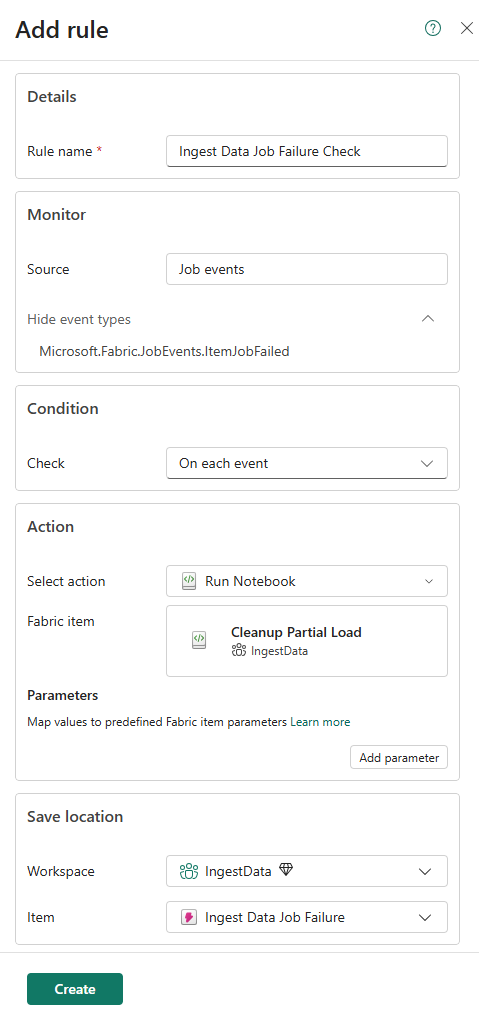
Actions available
When the condition is met, Activator can take these actions:
- Email — Sends a message with context about the event, including a link to the monitoring hub.
- Teams — Posts a message to an individual, group chat, or channel. This is often more useful than email for on-call teams who need immediate visibility.
- Run a Fabric activity — Triggers a pipeline, notebook, dataflow, spark job, or function.
The ability to run a Fabric activity is the key differentiator from Schedule failures notifications. Rather than waiting for someone to read an email and respond, you can automatically trigger a follow-up action — for example, running a cleanup notebook to remove partial data after a failed load, or triggering a semantic model refresh when an upstream pipeline completes successfully.
However, triggering a pipeline after a failure isn't always the right response. If a job failed because of a code error or a source schema change, running a pipeline again just fails again. Activator works best for automated coordination: chaining jobs together, running cleanup actions, or getting the right notification to the right channel — not as a substitute for investigating and fixing the root cause.
When to use Activator vs. Schedule failures
| Scenario | Use |
|---|---|
| Email alert when a scheduled run fails | Schedule failures page |
| Teams notification to a channel when a job fails | Activator |
| Notify analysts when a semantic model refresh succeeds | Activator |
| Trigger a follow-up pipeline when an upstream job completes | Activator |
| Run a cleanup job after a partial load fails | Activator |
| Manage notification recipients centrally across all scheduled items | Schedule failures page |
Use Schedule failures for simple, centrally managed email alerts on scheduled failures. Use Activator when you need a richer notification channel, want to react to job success as well as failure, or need a follow-up action rather than just a notification.
Tip
For a deeper exploration of configuring Activator rules and actions, see Use Activator in Microsoft Fabric.