Add parameters to data factory components
Parameterize linked services in Azure Data Factory
Within Azure Data Factory, it's possible to parameterize a linked service in which you can pass through dynamic values during run time. A use-case for this scenario is connecting to several different databases that are on the same SQL server, in which you might think about parameterizing the database name in the linked service definition. The benefit of doing this is that you don't have to create a single linked service for each database that is on the same SQL Server.
It's also possible to parameterize other properties of the linked service like a username.
If you decide to parameterize linked services in Azure Data Factory, you can do this in the Azure Data Factory user interface, the Azure portal, or a programming interface of your preference.
If you choose to author the linked service through the user interface, Data Factory provides built-in parameterization for about 50 connector types, including commonly used connectors such as:
- Azure SQL Database
- Azure SQL Managed Instance
- Azure Blob Storage
- Azure Data Lake Storage Gen2
- Azure Cosmos DB for NoSQL
- Azure Databricks
- SQL Server
- Salesforce
- Snowflake
- Generic HTTP and Generic REST
For the full list of natively supported connectors, see Parameterize linked services in Azure Data Factory.
If you go to the creation/edit blade of the linked service, you find the options for parameterizing.
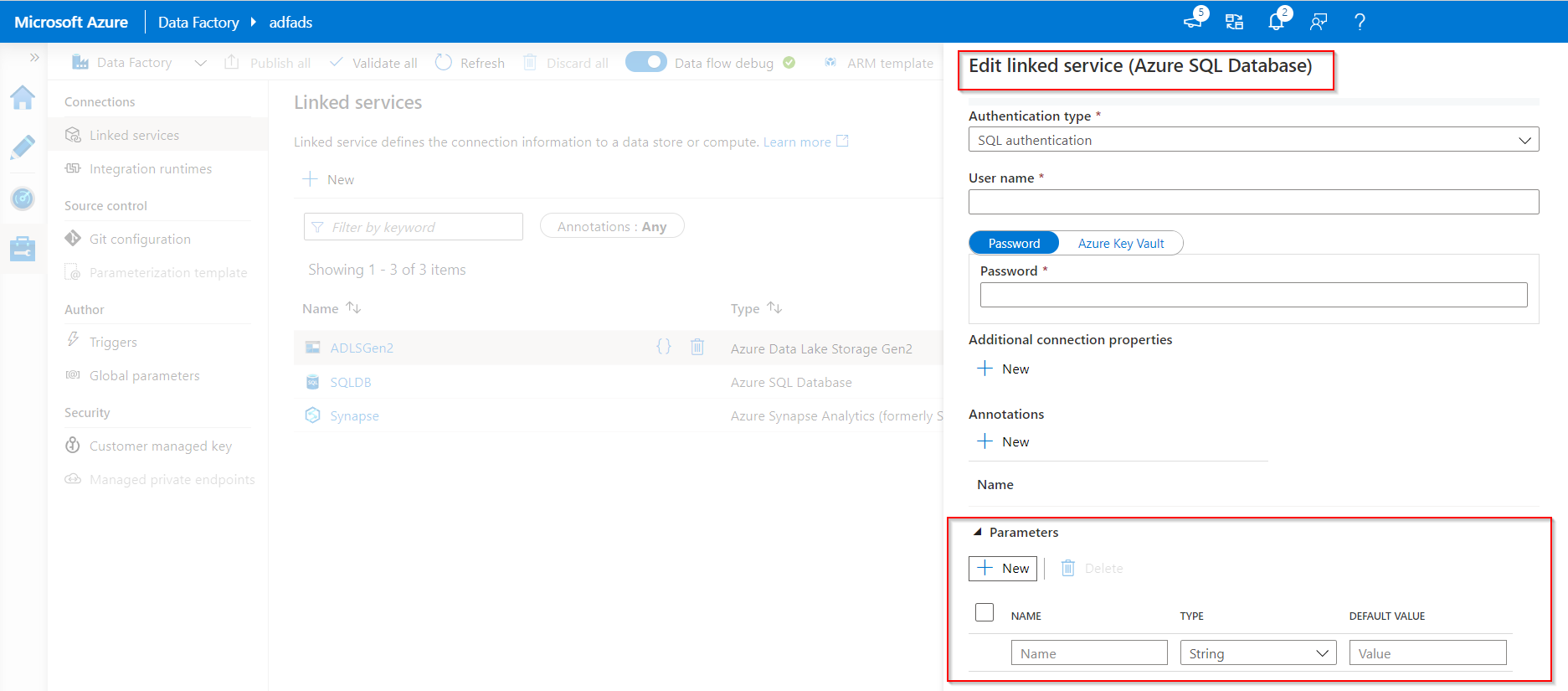
If the connector you're using isn't in the natively supported list, you can still parameterize it by editing the JSON through the user interface.
In linked service creation/edit pane, expand Advanced at the bottom of the pane, select the Specify dynamic contents in JSON format checkbox, and specify the linked service JSON payload.
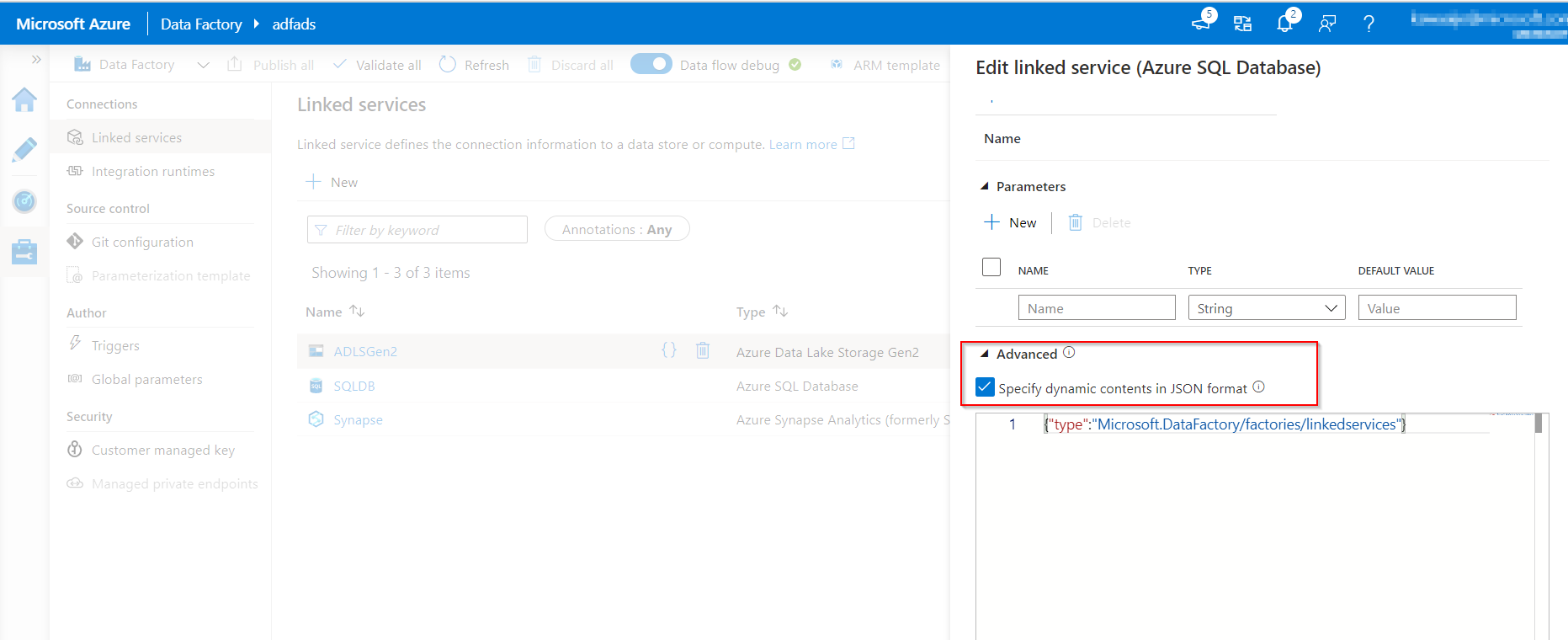
Or, after you create a linked service without parameterization, in the Management hub, select Linked services, and find the specific linked service. Then, select {} (Code button) to edit the JSON.
Global parameters in Azure Data Factory
Setting global parameters in an Azure Data Factory pipeline allows you to use these constants for consumption in pipeline expressions. A use-case for setting global parameters is when you have multiple pipelines where the parameters names and values are identical.
If you use the continuous integration and continuous deployment (CI/CD) process with Azure Data Factory, you can override the global parameters for each environment.
Create global parameters in Azure Data Factory
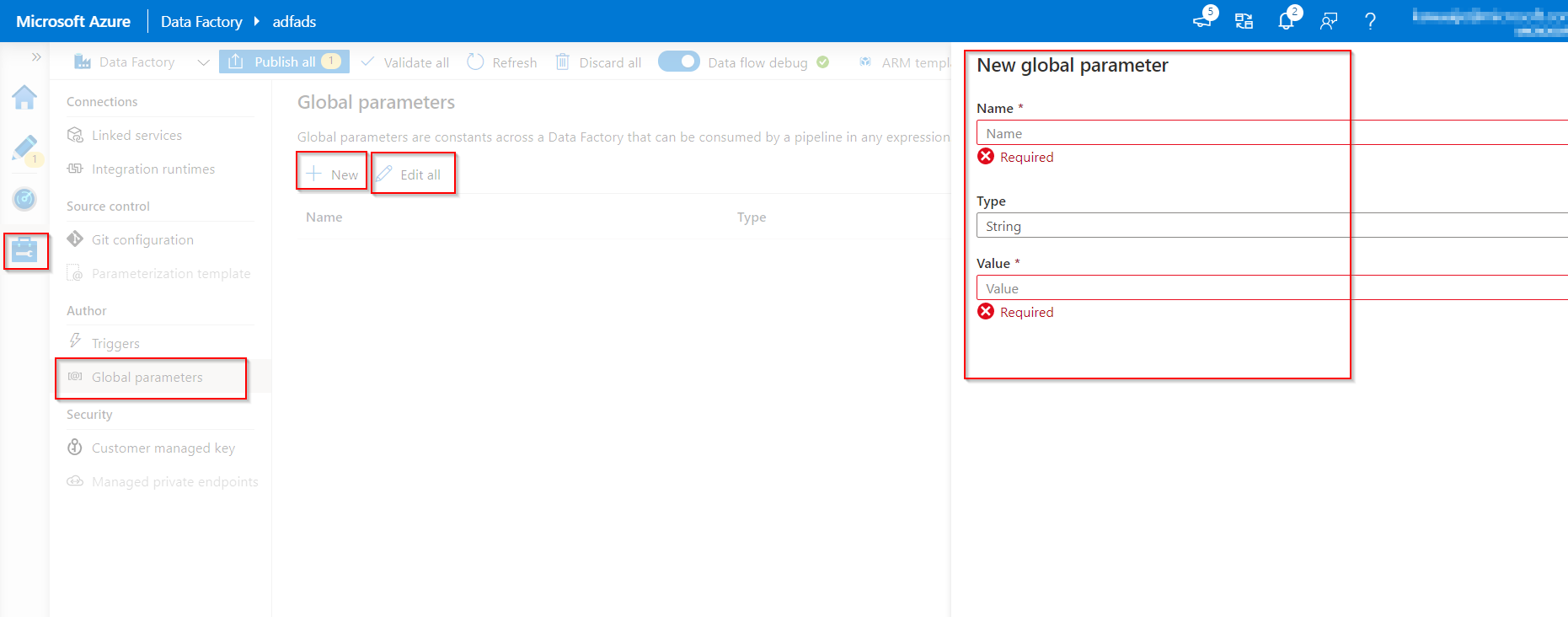
To create a global parameter, go to the Global parameters tab in the Manage section. Select New to open the creation side menu pane.
In the side menu pane, enter a name, select a data type, and specify the value of your parameter.
After a global parameter is created, you can edit it by selecting the parameter's name. To alter multiple parameters together, select Edit all.
Use global parameters in a pipeline
When using global parameters in a pipeline in Azure Data Factory, it's mostly referenced in pipeline expressions. For example, if a pipeline references to a resource like a dataset or data flow, you can pass down the global parameter value through the resource parameter. The command or reference of global parameters in Azure Data Factory flows as follows: pipeline().globalParameters.<parameterName>.
Global parameters in CI/CD
Include global parameters in the Azure Resource Manager (ARM) template when you use CI/CD with Azure Data Factory. This approach integrates natively with CI/CD, where each global parameter is added as an ARM template parameter that you can override for each environment, such as test or production.
To include global parameters in the ARM template, go to the Manage hub, select ARM template, and then select Include global parameters in an ARM template. This option is available only in Git mode. The current mechanism doesn't conflict with or override factory-level settings, so it doesn't require a separate PowerShell script to deploy global parameters.
The older approach, which uses Include in ARM template on the Global parameters tab together with a PowerShell script to deploy global parameters, continues to work for existing solutions.
Parameterize mapping dataflows
Within Azure Data Factory, you can use mapping data flows, which enable you to use parameters. If you set parameters inside a data flow definition, you can use the parameters in expressions. The parameter values are set by the calling pipeline through the Execute Data Flow activity.
There are three options for setting the values in the data flow activity expressions:
- Use the pipeline control flow expression language to set a dynamic value.
- Use the data flow expression language to set a dynamic value.
- Use either expression language to set a static literal value.
The reason for parameterizing mapping data flows is to make sure that your data flows are generalized, flexible, and reusable.
Create parameters in dataflow
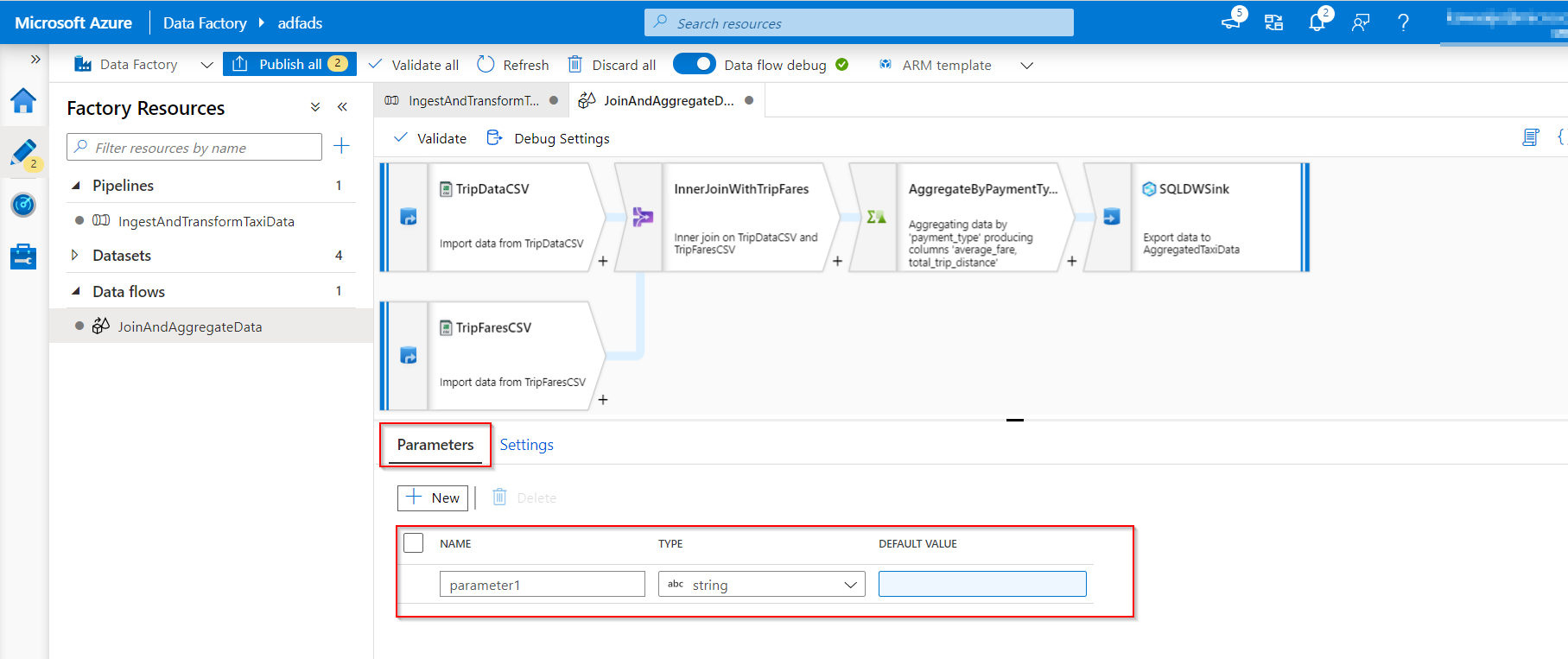
To add parameters to your data flow, select the blank portion of the data flow canvas to see the general properties.
In the Settings pane, you see a Parameter tab.
Select New to generate a new parameter. For each parameter, you must assign a name, select a type, and optionally set a default value.
Assign parameters from a pipeline in mapping dataflow
If you have created a data flow in which you have set parameters, it's possible to execute it from a pipeline using the Execute Data Flow Activity.
After you have added the activity to the pipeline canvas, you find the data flow parameters in the activity's Parameters tab.
Assigning parameter values, ensures that you're able to use the parameters in a pipeline expression language or data flow expression language based on spark types. You can also combine the two, that is, the pipeline and data flow expression parameters.