What is Settings Sync?
Settings Sync lets you share your VS Code configurations (such as settings, key bindings, and installed extensions) across your machines so you're always working with your favorite setup.
How does Settings Sync work?
Settings Sync requires a sign-in with either your Microsoft or GitHub account. After you sign in, you can choose which settings you want to sync across your machines. You can choose to sync all of them or only a few of them.
After you turn on Settings Sync, your settings are uploaded to the cloud and kept in sync whenever you make any changes to them. There's no need to manually sync or save any setting when you're using Settings Sync.
Here are the settings that the Settings Sync feature automatically syncs for you:
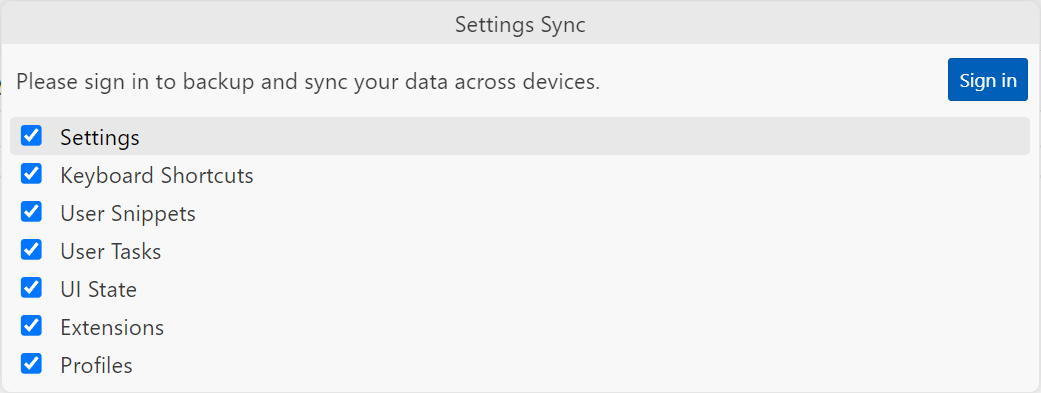
Settings: Any settings in VS Code that you configured, such as increasing the font size or having the editor format your code when you save a file. You can find these settings by selecting Preferences: Open User Settings in the Command Palette.
Keyboard Shortcuts: Any custom keyboard shortcuts that you configured in VS Code. You can find these keyboard mappings by selecting Preferences: Open Keyboard Shortcuts in the Command Palette.
User Snippets: Any custom snippets that you created for specific languages. You can find these snippets by selecting Snippets: Configure User Snippets in the Command Palette.
User Tasks: Tasks that you configured in VS Code to run scripts and start processes for existing build and linting tools. You can find these user tasks by selecting Tasks: Configure Tasks in the Command Palette.
UI State: Any customizations that you made to the VS Code UI, such as the position of the Activity Bar or the visibility of the Status Bar.
Extensions: Any extensions that you installed in VS Code. You can find these extensions by selecting Extensions: Show Installed Extensions in the Command Palette.
Profiles: Any profiles that you created in VS Code. You can find these profiles by selecting Profiles: Switch Profile in the Command Palette.
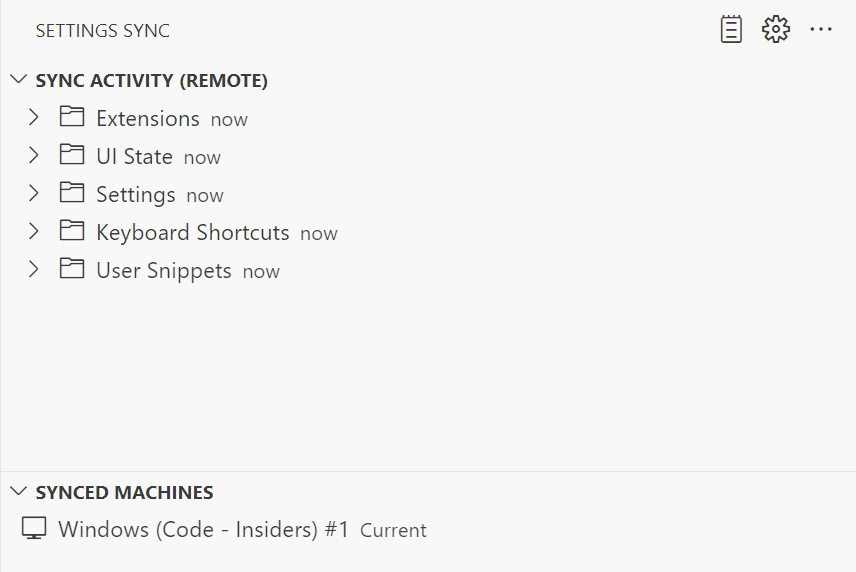
It can be helpful to see info like exactly what settings have synced and the last time your settings were synced.
After you turn on Settings Sync, the Settings Sync explorer view is available in VS Code. You can access it by opening the Command Palette and selecting Settings Sync: Show Synced Data.
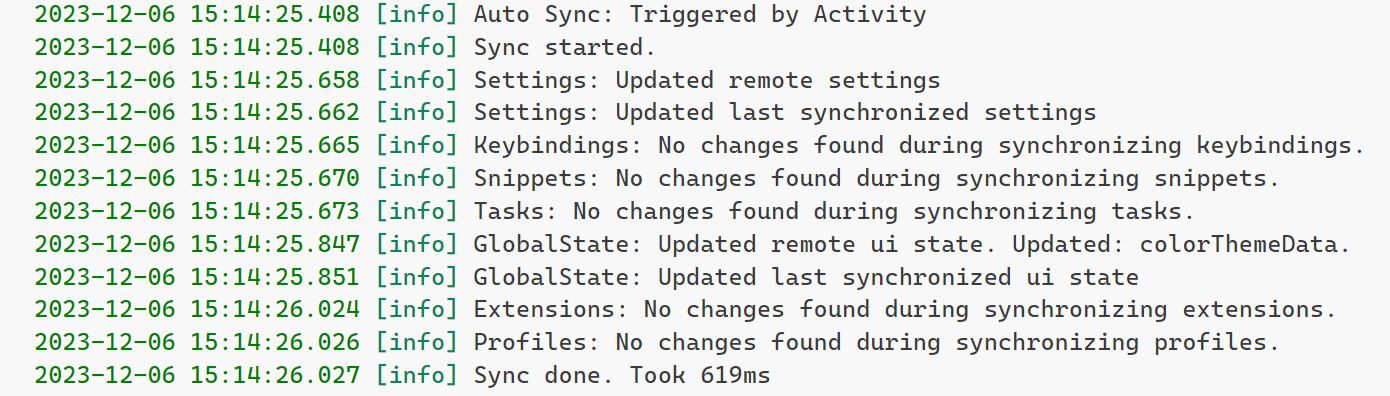
Additionally, you can select Settings Sync: Show Log in the Command Palette. Selecting this option opens the bottom panel, where the latest sync status appears for each item that you chose to sync by using Settings Sync.
How do I restore my settings on a new machine?
When you want to restore your settings from the cloud on a new machine or new instance of VS Code, you can do so by signing in to Settings Sync with the same account that you used to sync your settings. You get the same UI that you opened when signing in to Settings Sync for the first time, so you can decide at that point which settings you want to sync from the cloud.
If you made configuration changes to VS Code that are different from the settings in the cloud, you're prompted to choose which settings you want to keep. You can choose to keep the settings from the cloud or the settings from your local machine. In either case, only the settings that were in conflict are replaced.
How do I change what I'm syncing?
You can change what you're syncing by opening the Command Palette and selecting Settings Sync: Configure. This command opens the same UI that you used when you signed in to Settings Sync, so you can choose which settings you want to sync.
How do I stop syncing?
You can stop syncing by opening the Command Palette and selecting Settings Sync: Turn Off. This command stops syncing your settings to the cloud. You can turn it back on at any time by selecting Settings Sync: Turn On in the Command Palette.
Turning off Settings Sync doesn't delete your synced data from the cloud.
How do I delete my synced data from the cloud?
You can delete your synced data from the cloud by opening the Command Palette and selecting Settings Sync: Show Synced Data. This command opens the Settings Sync explorer view. From there, select the three dots and then select Clear Data In Cloud.
In the next exercise, you turn on Settings Sync and explore how to manage your synced data and restore your settings on a new machine.