Export audit log data
- 5 minutes
Both the Standard and Premium versions of Microsoft Purview Audit let you export audit logs to CSV. This capability supports detailed analysis and compliance reporting by allowing you to work with audit data outside the portal.
Export audit log search results
After running an audit log search in the Microsoft Purview portal, you can export the results for offline analysis.
Run your audit search with the desired filters.
On the search results page, select Export to download the audit records to a CSV file.
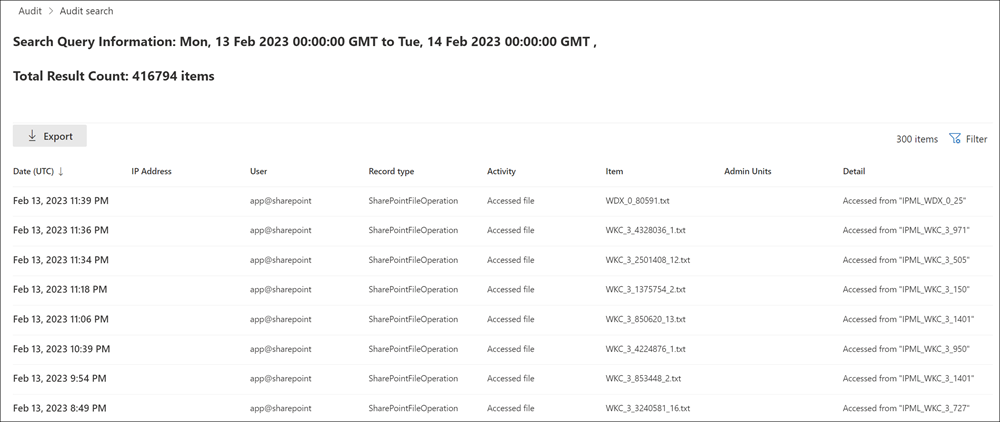
Once the export finishes, save the file locally.
- You can export up to 50,000 entries from a single search. If your results exceed this, narrow the date range or apply more filters.
Transform audit log data using Power Query Editor
You can make the exported CSV data easier to work with by transforming it in Excel's Power Query Editor.
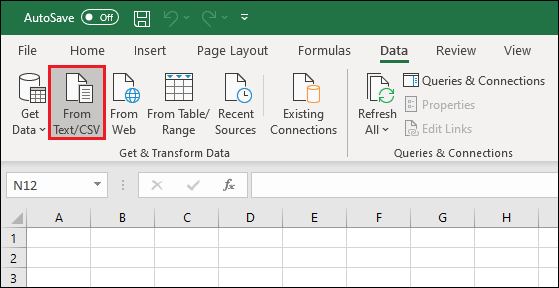
Open a blank Excel workbook, go to the Data tab, and select From Text/CSV to open your exported file.
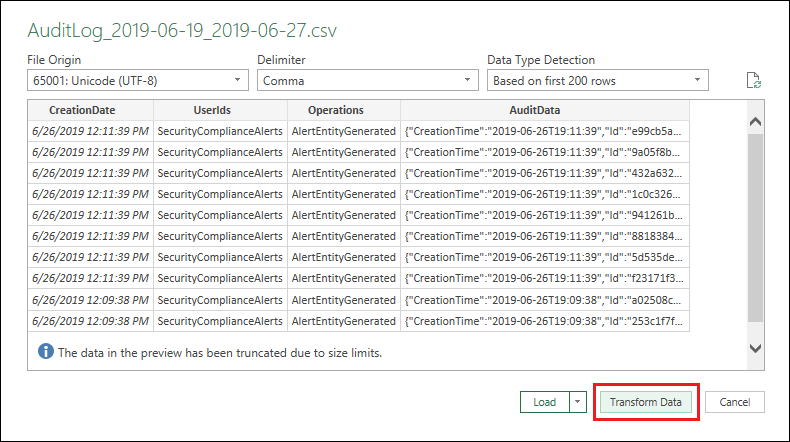
When the CSV opens, select Transform Data to start editing in Power Query.
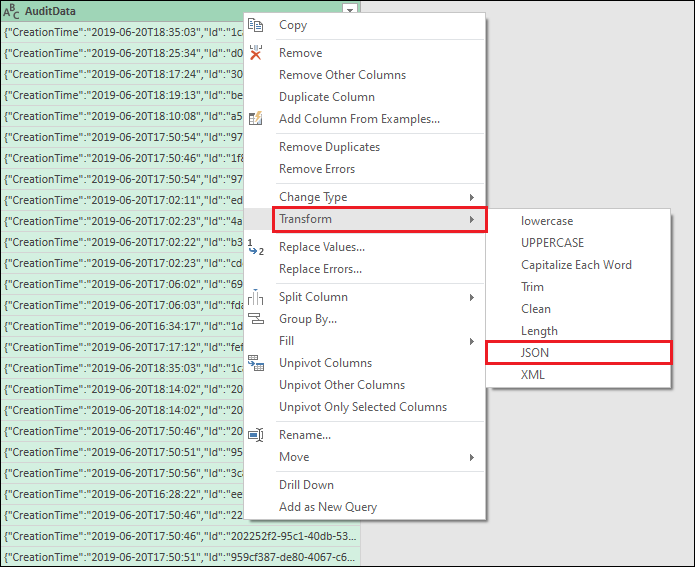
Right-click AuditData, select Transform, then choose JSON. This parses the data into a readable format.
Select the expand icon in the AuditData column to view JSON properties.
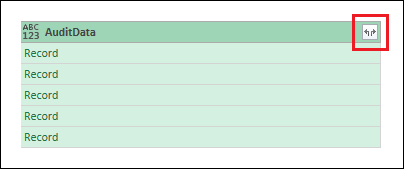
If only some properties are visible, select Load more.
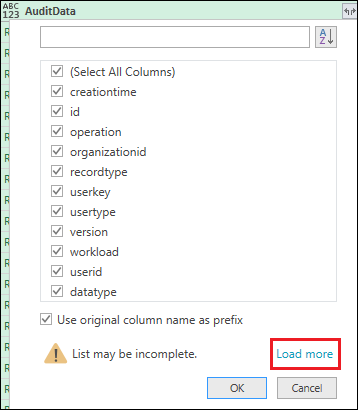
Deselect unneeded properties to simplify your view.
Choose whether to include the original column name as a prefix.
Select OK to apply the transformation.
On the Home tab, select Close & Load to return the transformed data to Excel.
Use PowerShell to search and export audit log records
For more control over your audit searches and exports, use the Search-UnifiedAuditLog cmdlet in Exchange Online PowerShell.
Example: Export SharePoint sharing operations
$auditlog = Search-UnifiedAuditLog -StartDate 06/01/2019 -EndDate 06/30/2019 -RecordType SharePointSharingOperation
$auditlog | Select-Object CreationDate, UserIds, RecordType, AuditData | Export-Csv -Path C:AuditLogsSharePointAudit.csv -NoTypeInformation
To append more data:
$auditlog = Search-UnifiedAuditLog -StartDate 06/01/2019 -EndDate 06/30/2019 -RecordType SharePointFileOperation
$auditlog | Select-Object CreationDate, UserIds, RecordType, AuditData | Export-Csv -Append -Path C:AuditLogsSharePointAudit.csv -NoTypeInformation
Tips for exporting and reviewing audit data
- Filter by RecordType to focus on specific workloads.
- Filter by Operations to narrow results to key actions, such as file sharing or deletion.
- Use Power Query transformations to make JSON data in the AuditData column easier to read.
Check your knowledge
Feedback
Was this page helpful?
No
Need help with this topic?
Want to try using Ask Learn to clarify or guide you through this topic?