Manage customers
Customers are critical components to any Customer Relationship Management (CRM) solution. A customer represents an individual or company that receives, consumes, or buys a product or service.
Three ways in which organizations might categorize customers are:
Business-to-business (B2B) - Customers are other businesses, such as a business that sells and implements telecommunication equipment to hotels.
Business-to-consumer (B2C) - Customers are individuals. These customers are businesses that you meet daily through activities, such as purchasing groceries, getting a haircut, or stopping at a favorite coffee shop.
Hybrid - Customers might be businesses or individuals. For example, an automotive repair shop has customers who are individuals. Customers go to the repair shop to get their car's oil changed, tires rotated, engines overhauled, and so on. However, in a situation where that automotive business outsources their mechanics to organizations with fleets of trucks, buses, or automobiles, they service organizations and people. Other examples might include software vendors, event centers, and insurance companies.
Dynamics 365 has two primary ways to represent customers:
Account - Represents a company or an organization that you do business with, such as a customer, vendor, partner, or reseller.
Contact - Represents a person. A contact can be a standalone person or an individual at an organization. A single account in Dynamics 365 might contain multiple contacts.
Work with accounts
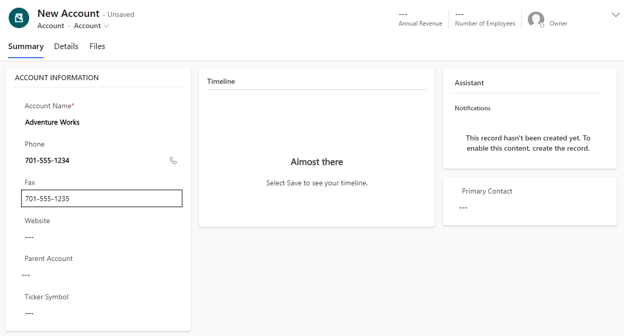
You can create accounts in the Sales Hub or Sales Professional applications. To do so, go to Accounts and then select the New button.
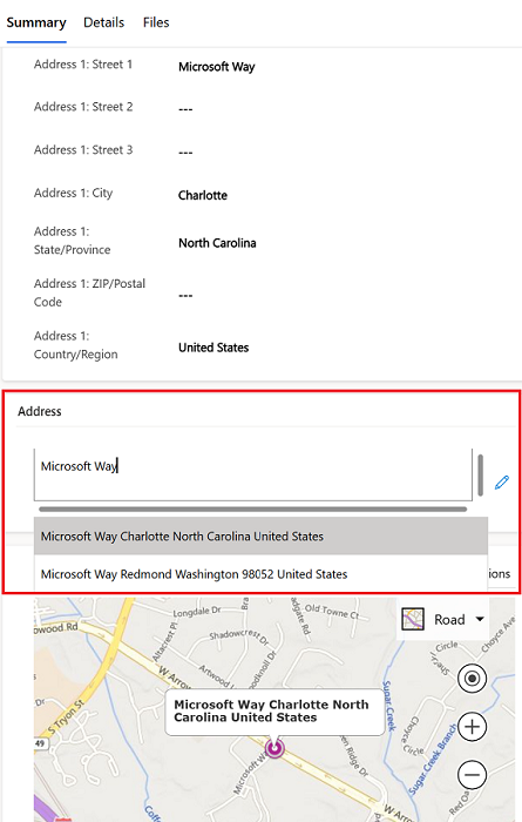
If your administrator has turned on address suggestions, Bing Maps can fill in the account's address details automatically. Address suggestions are available with contacts, accounts, and leads.
Work with contacts
Contacts represent individuals that your organization does business with. Depending on your organization and the scenario, a contact might represent a standalone record, such as a lawyer who represents some of your customers. Alternatively, a contact might be associated with an account, such as individuals who work for a specific account.
You can create contacts in the Sales Hub or Sales Professional applications, either manually or directly from an account. To create an individual contact, go to Contacts and then select the New button.
When you create a contact, only the last name is required; however, you should consider filling in data such as the first name, job title, email address, phone number, and address details.
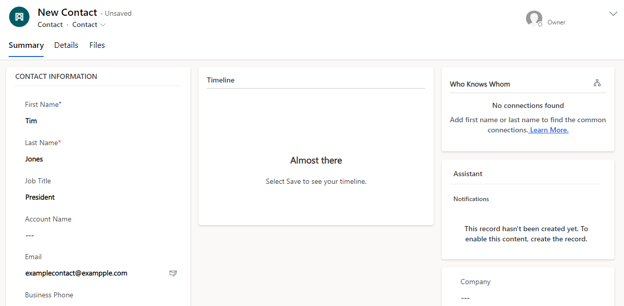
A contact is often associated with an account. You can make this connection from the account or from the contact.
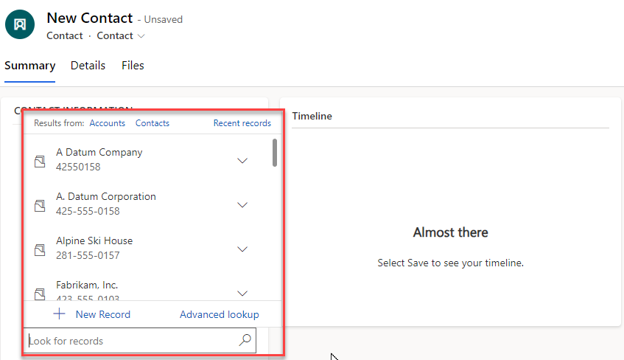
To make the connection from a contact, select the lookup field next to Account Name and then set it to the account that you want. You can only associate a contact with one account at a time.
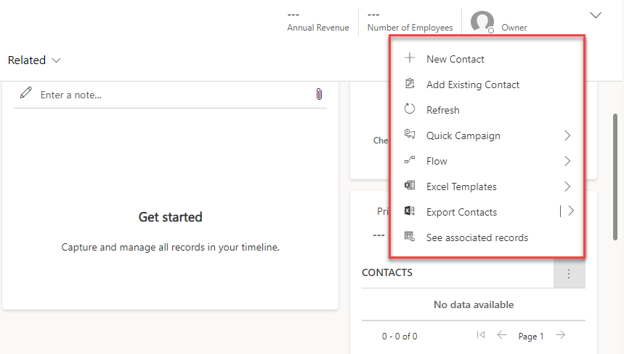
To add contacts directly to an account, open the account you want to work with. On the Contacts subgrid, select New Contact to create and associate a new contact, or select More commands (⋮) > Add Existing Contact to link an existing one.
While an account might have multiple contacts, such as a purchasing representative, CEO, or president, each account typically has one main contact that serves as the main point of contact for the account. In Dynamics 365, this main point of contact is the account's primary contact. You can set any contact that's associated with an account as the primary contact. After you define a Primary Contact for an account, their phone number and email address are displayed on the account.
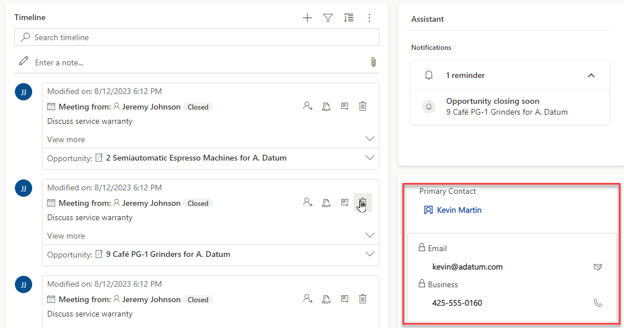
One advantage of working with accounts and contacts is having a consolidated view of activities and related data associated with them. For example, you can view all opportunities that are currently open for an account without leaving the account.
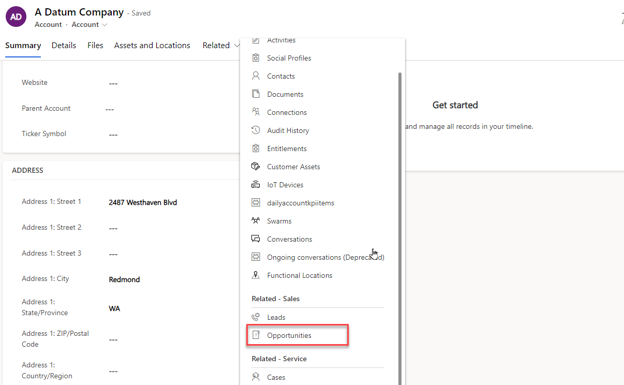
Accounts and contacts have a Related tab where you can view associated data types. For example, after you select the Related tab and then select Opportunities, all opportunities associated with that account display.
For more information, see Manage your Accounts and Contacts.
Research and engage customers with Copilot and agents
Copilot and agents in Dynamics 365 Sales help you stay informed about your accounts and contacts, and take action when it matters most. To learn how to use Copilot to summarize records, surface account news, and prepare for meetings, see the next unit. To learn how agents automate lead qualification and opportunity management, see the agents unit later in this module.