Navigate in Dynamics 365 Sales
Before you learn about the basics of working in the Dynamics 365 Sales app, such as navigation, features and working with data, you should examine some of the most used elements of the application.
| Term | Definition |
|---|---|
| Account | A business or organization you sell to. Accounts can have multiple related contacts and opportunities. |
| Activities | Tasks that track customer interactions, such as emails, phone calls, appointments, and meetings. |
| AI agent | An autonomous AI teammate that handles multi-step tasks independently, such as researching leads or monitoring opportunities for risks. |
| Business process flow | A guided workflow that helps sellers follow best practices by presenting a step-by-step process for completing sales tasks. |
| Contact | An individual person associated with an account or sales opportunity. |
| Copilot | An AI-powered assistant embedded throughout the app that provides real-time suggestions, summaries, and insights based on your data. |
| Lead | A potential customer who has expressed interest in your products or services but hasn't been fully qualified yet. |
| Opportunity | A qualified sales prospect with a higher likelihood of conversion, tracked through stages until won or lost. |
| Sales Close Agent | An AI agent that handles personalized outreach and follow-up for high-volume sales motions like renewals or transactional deals using customizable playbooks. |
| Sales Opportunity Agent | An AI agent that monitors active opportunities for risk signals, surfaces deal health insights, and helps sellers prioritize which deals need attention. |
| Sales Qualification Agent | An AI agent that autonomously researches incoming leads, evaluates fit, and initiates outreach to high-potential prospects. |
Depending on which Dynamics 365 Sales product that you're using, certain dedicated apps are available for you to use to work in the application. Based on your licensing, you would use one of two apps:
For Sales Enterprise and Premium, use the Sales Hub app.
For Sales Professional, use the Sales Professional app.
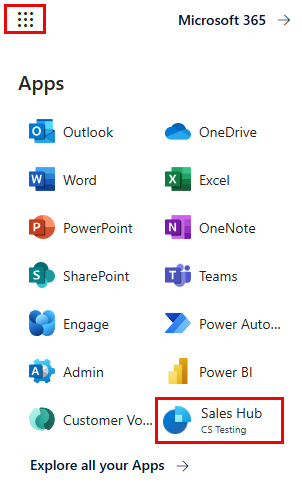
To access the application, select the Microsoft 365 app launcher and then select the icon for the Dynamics 365 Sales Hub app. Which app is displayed to you is based on your subscription.
Explore the interface
The Sales app has a consistent layout that helps you navigate records and take action quickly. The following sections describe the key areas of the interface you'll use every day.
Navigate the app
The best way to navigate in the Sales app is to use the site map on the left side of the screen. From the site map, you can go to the different areas of the application and access different components, such as Accounts, Contacts, Leads, and Opportunities.
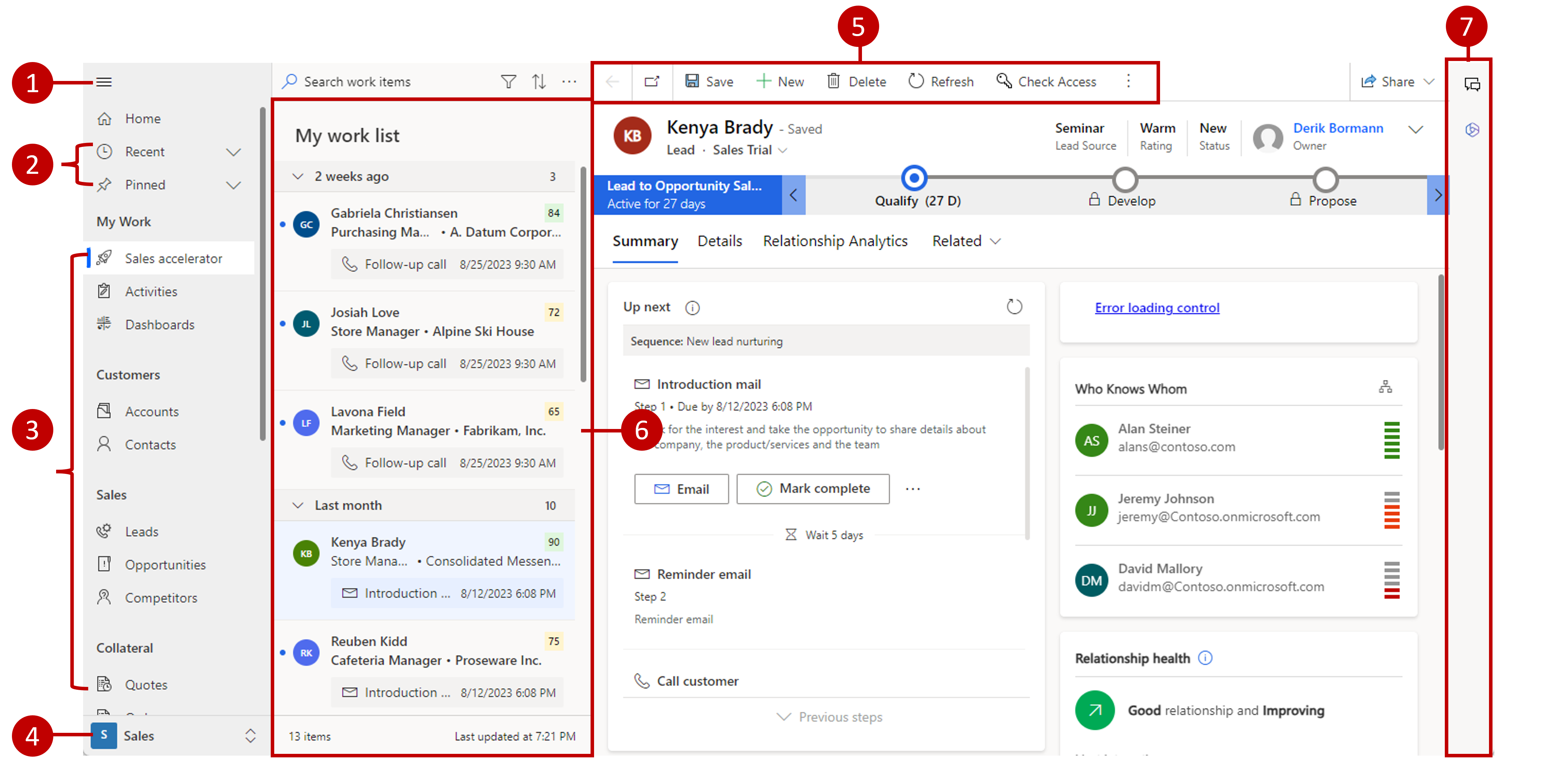
The preceding image highlights some key navigational elements of the Sales application (numbers in the list correspond with numbers in the image).
Select the menu button to open or collapse the site map.
This area provides access to items that you recently worked on and records that you want to have pinned to the site map for easier access.
This section provides access to everything that you need to communicate with customers, manage your pipeline, and other sales-related records.
Use this feature to change area to switch between the different areas that are available in the application. The Sales Hub app has four main areas:
Sales - The main area of the application that provides access to sales records. This area is the primary area that people use.
App Settings - Use this area to set up application functionality, including document management settings, integrations, and the product catalog.
Sales Insights Settings - Use this area to enable and set up the different Sales Insights features that are available, such as Assistant Cards, Sales Accelerator, and more.
Personal Settings - Allows individual users to set up different personal options.
Access the command bar for quick actions.
The worklist provides quick access to records that have upcoming sequence activities that need your attention.
When enabled and set up, this section provides access to enabled functionality, such as Teams Integration and Copilot.
Use the app bar
The application bar in the upper part of the Sales application provides quick access to various tools that help you search data, create new items, and access AI features while you work to close deals.

The primary elements of the application bar include:
Search - Use to search for data across multiple tables at once.
Assistant - Launches the assistant to display assistant cards that are available.
Quick Create - Launches a quick create form for accounts, contacts, and other items.
Advanced Find - Launches the Advanced Find tool that you can use to create custom searches for data.
Settings - Provides access to application settings.
Help - Provides access to help and support tools to assist you with working in the application.
Teams Chat - Opens the Teams chat window to allow Microsoft Teams chat directly in Dynamics 365.
Copilot - Opens the Copilot pane where you can interact with AI to summarize accounts, opportunities, and leads, draft emails, get news about accounts, prepare for meetings, and more.
Connect and Share - Provides access to Dynamics 365 communities and feedback.
Business processes
Most organizations have different processes and procedures that they use when working on items. For example, a company might have a sales process that they use for moving customers through a sales life cycle. In Dynamics 365, business processes help everyone follow best practices, even when they're handling situations that don't occur often. You can complete a step by entering data or by marking the step as completed in the process bar in the upper part of the screen. When all steps are done, you can move on to the next stage.
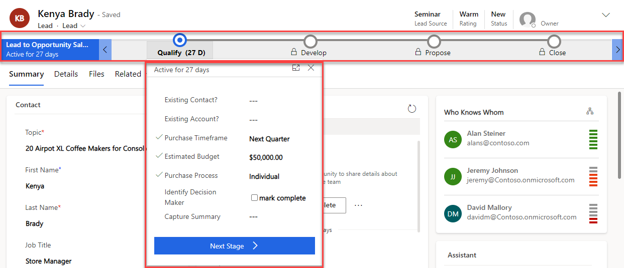
Dynamics 365 includes the following ready-to-use business processes to help you move your leads through a sales process:
Lead to invoice - This business process flow is available for all leads and for opportunities that are created from leads.
Opportunity sales process - This business process flow is available for all directly created opportunities (not originating from lead) forms.
For more information, see the Create a business process flow tutorial.
Access Copilot and agents
As you navigate the Sales app, Copilot and agents are available in specific areas of the interface — not just one dedicated location. Knowing where to find them helps you get the most from these capabilities during your daily work.
Copilot pane - To open Copilot, select the Copilot icon in the application bar. The pane slides open alongside your current view, so you can interact with AI without leaving the page. You can ask questions, request summaries, get account news, and more — using natural language or the built-in prompt library.
Agents in Leads - The Sales Qualification Agent surfaces its results in the Leads area. You can review the agent's qualification assessments, view research summaries for individual leads, and take over conversations from the agent when a lead is ready for personal outreach.
Agents in Opportunities - Both the Sales Opportunity Agent and the Sales Close Agent surface results in the Opportunities area. The Sales Opportunity Agent provides action cards that alert you to risks and help prioritize deals — select My top opportunities from AI agent in the view selector to see flagged opportunities. The Sales Close Agent escalates records that need human intervention — select Opportunities from Sales Close Agent in the view selector to review those records and take action.
Tip
If you don't see the Copilot pane or agent features, your administrator may need to enable them in the Sales Insights Settings area of the application.