Note
Access to this page requires authorization. You can try signing in or changing directories.
Access to this page requires authorization. You can try changing directories.
When you deploy instances to a Cloud Service (extended support) or add new web or worker role instances, Microsoft Azure allocates compute resources. You might occasionally receive error messages when you perform these operations. Allocation errors can occur even before you reach the Azure subscription limits. This article explains the causes of some of the common allocation failures and suggests possible solutions. This information might also be useful when you plan the deployment of your services.
How allocation works
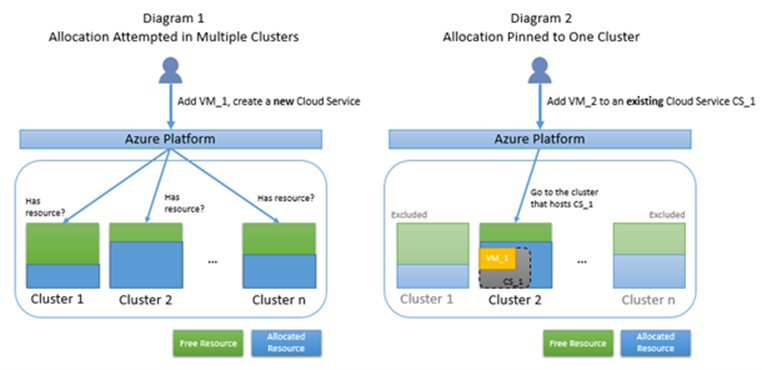
The servers in Azure datacenters are partitioned into clusters. A new cloud service allocation request is tried in multiple clusters. When the first instance is deployed to a cloud service, that cloud service gets pinned to a cluster. Any further deployments for the cloud service occur in the same cluster. In this article, this mechanism is called "pinned to a cluster."
Diagram 1 illustrates the case of a normal allocation that's tried in multiple clusters. Diagram 2 illustrates the case of an allocation that's pinned to Cluster 2 because that's where the existing Cloud Service CS_1 is hosted.
Why allocation failure occurs
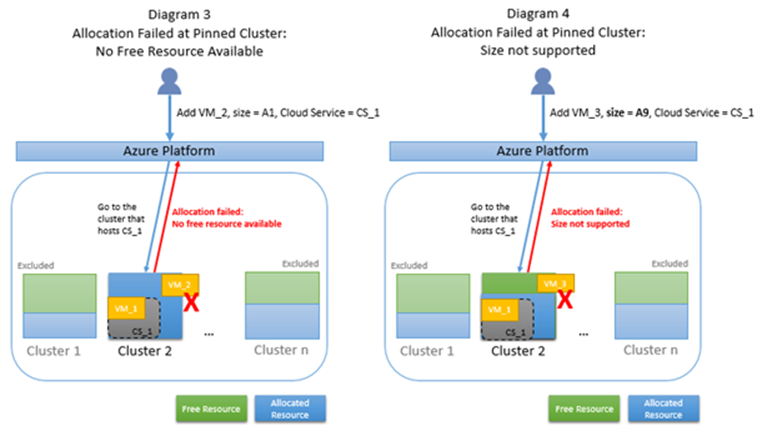
If an allocation request is pinned to a cluster, the possibility that the request can't find free resources increases because the available resource pool is limited to a cluster. Also, if your allocation request is pinned to a cluster, but the type of resource that you requested isn't supported by that cluster, your request fails even if the cluster has free resources.
Diagram 3 illustrates the case in which a pinned allocation fails because the only candidate cluster doesn't have free resources. Diagram 4 illustrates the case in which a pinned allocation fails because the only candidate cluster doesn't support the requested virtual machine (VM) size, even though the cluster has free resources.
Troubleshooting allocation failure for cloud services
The following table lists the error messages for allocation failure and their solutions.
| Error code | Error message |
|---|---|
| AllocationFailed | Allocation failed. We don't have sufficient capacity for the requested VM size in this region. Read more about improving likelihood of allocation success at https://aka.ms/allocation-guidance |
| OverconstrainedAllocationRequest | Allocation failed. VMs with the following constraints can't be allocated, because the condition is too restrictive. Remove some constraints and try again |
| ServiceAllocationFailure | Operation failed with error code 'InternalError' and error message 'An internal execution error occurred. Retry later' |
Common issues
The following common allocation scenarios cause an allocation request to be pinned to a single cluster:
- VIP Swap: If two cloud services are tagged as swappable with each other, both are allocated to the same cluster. If the cluster is nearing capacity, a request for deployment of the second cloud service might fail.
- Scaling: Adding new instances to an existing cloud service must allocate in the same cluster. Small scaling requests can usually be allocated, but not always. If the cluster is nearing capacity, the request might fail.
Solutions
- Redeploy to a new cloud service: This solution is likely to be the most successful because it enables the platform to choose from all clusters in that region. Follow these steps:
- Deploy the workload to a new cloud service.
- Update the CNAME or A record to point traffic to the new cloud service.
- After traffic stops going to the old site, you can delete the old cloud service. This solution should incur zero downtime.
- Delete swappable cloud services: This solution preserves your existing DNS name, but creates downtime for your application. Follow these steps:
- Delete both cloud services that are swappable with each other.
- Create a new deployment for both cloud services. This action triggers a new attempt to allocate on all clusters in the region.
Next steps
Learn how to troubleshoot cloud service role issues by using Azure PaaS computer diagnostics data.