Note
Access to this page requires authorization. You can try signing in or changing directories.
Access to this page requires authorization. You can try changing directories.
Applies to: ✔️ NetApp CVO Linux VMs
Summary
This article discusses how to remove extensions that are installed on Microsoft Azure virtual machines (VMs) that are created from NetApp Cloud Volumes ONTAP (CVO) images. This article also discusses how to prevent extensions from being installed.
Prerequisites
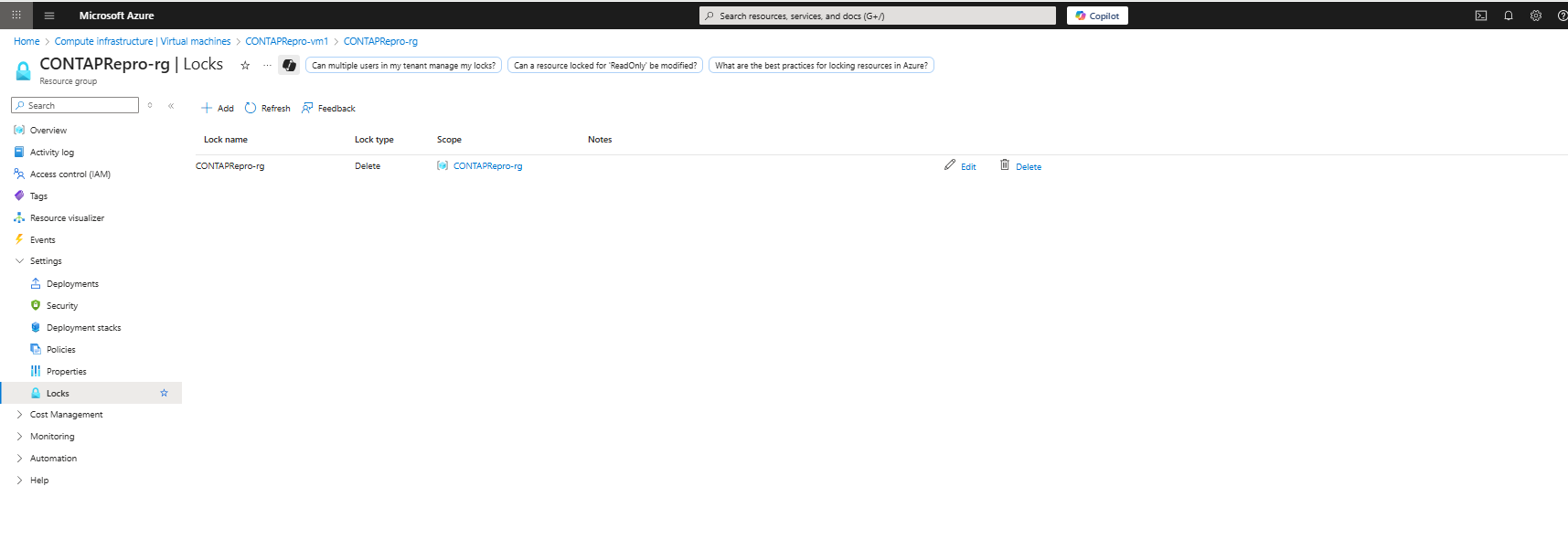
The NetApp CVO resource group has a "delete" lock feature that might prevent the script from uninstalling VM extensions. You might have to remove the lock and restore it after you run the scripts in the "Resolution" section. The lock properties are as follows:
- Name: (matches the CVO resource group name)
- Type: Delete
- Scope: CVO resource group
Download and install the latest version of the Windows Installer (MSI) agent from the GitHub page for Azure Windows VM Agent releases. You must have administrator rights to complete the installation.
Symptoms
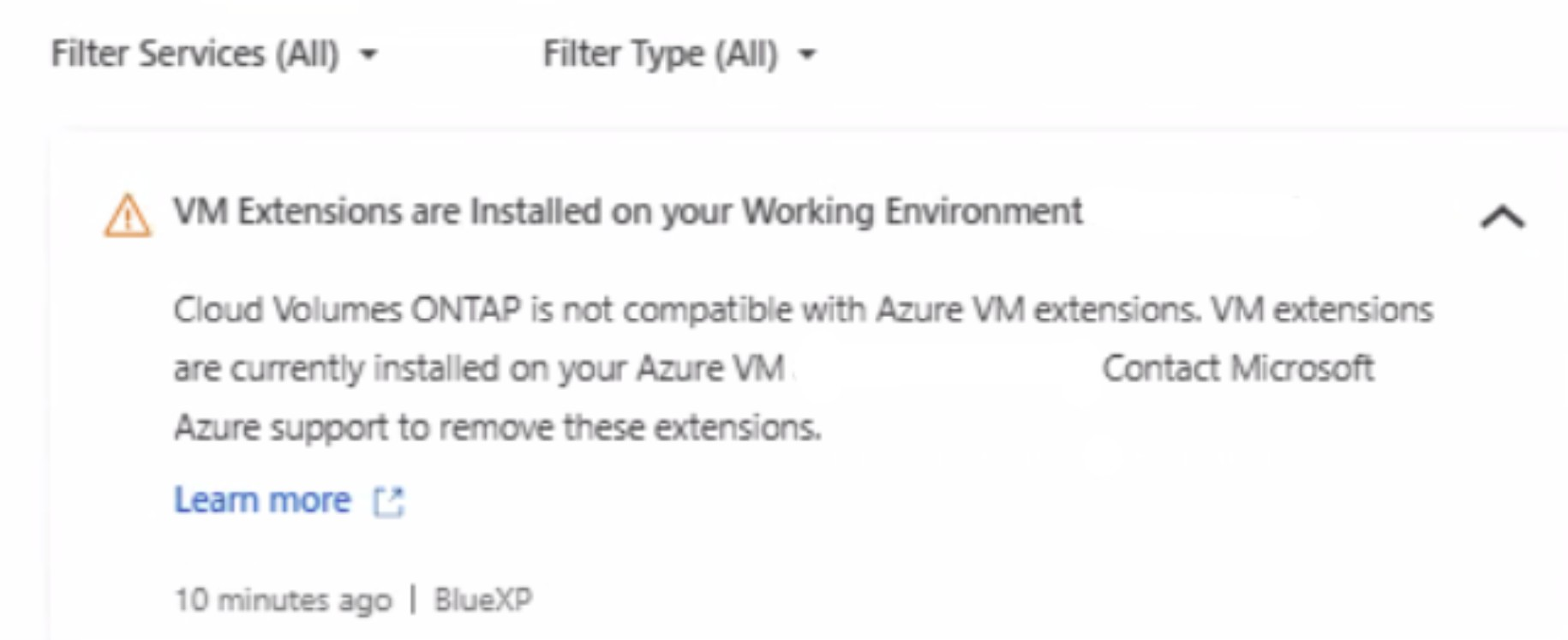
You receive the following error message:
Cloud Volumes ONTAP is not compatible with Azure VM extensions. VM extensions are currently installed on your Azure VM. Contact Microsoft Azure support to remove those extensions.
Cause
Cloud Volumes ONTAP doesn't support Azure VM extensions because extensions affect BlueXP management operations. Although CVO VM appears as Linux (ONTAP version) in the Azure portal, it's actually a highly customized derivative of the FreeBSD operating system that ONTAP uses.
Note
Starting in BlueXP 3.9.54, NetApp enforces this pre-existing limitation as a notification in BlueXP.
Resolution
To resolve this issue, run the following script against any affected NetApp CVO VMs.
$subscriptionId = (Get-AzContext).Subscription.Id
$resourceGroup = "RGname"
$vmName = "VMName"
$apiVersion = "2025-04-01"
$uri = "https://management.azure.com/subscriptions/${subscriptionId}/resourceGroups/${resourceGroup}/providers/Microsoft.Compute/virtualMachines/${vmName}?api-version=${apiVersion}"
$response = Invoke-AzRestMethod -Method GET -Uri $uri
$vmModel = $response.Content | ConvertFrom-Json
$vmModel.resources = @()
$body = $vmModel | ConvertTo-Json -Depth 10 -Compress
Invoke-AzRestMethod -Method PUT -Uri $uri -Payload $body