Note
Access to this page requires authorization. You can try signing in or changing directories.
Access to this page requires authorization. You can try changing directories.
Original KB number: 3204980
Summary
Third-party virtualization applications, such as VMware and VirtualBox, can't run alongside Hyper-V, Memory Integrity, or Credential Guard. This article explains why this issue occurs, and how to disable Hyper-V and its dependent security features so that your third-party virtualization software can work correctly.
Symptoms
When Hyper-V is running, the third-party virtualization applications might not start virtual machines (VMs), or they might fall back to a slower, emulated mode.
Cause
This behavior is by design.
Many virtualization applications depend on hardware virtualization extensions. Most modern processors, such as Intel VT-x and AMD-V, provide these extensions. However, only one software component at a time can use this hardware. Virtualization applications can't share the hardware.
Workaround
To use third-party virtualization applications, disable Hyper-V.
Important
Some Windows security technologies depend on Hyper-V, including the following Windows features:
- Memory Integrity (originally released as part of Device Guard)
- Credential Guard
When you disable Hyper-V, also disable these dependent features.
How to determine whether the Hyper-V hypervisor is running
To determine whether the Hyper-V hypervisor is running, follow these steps:
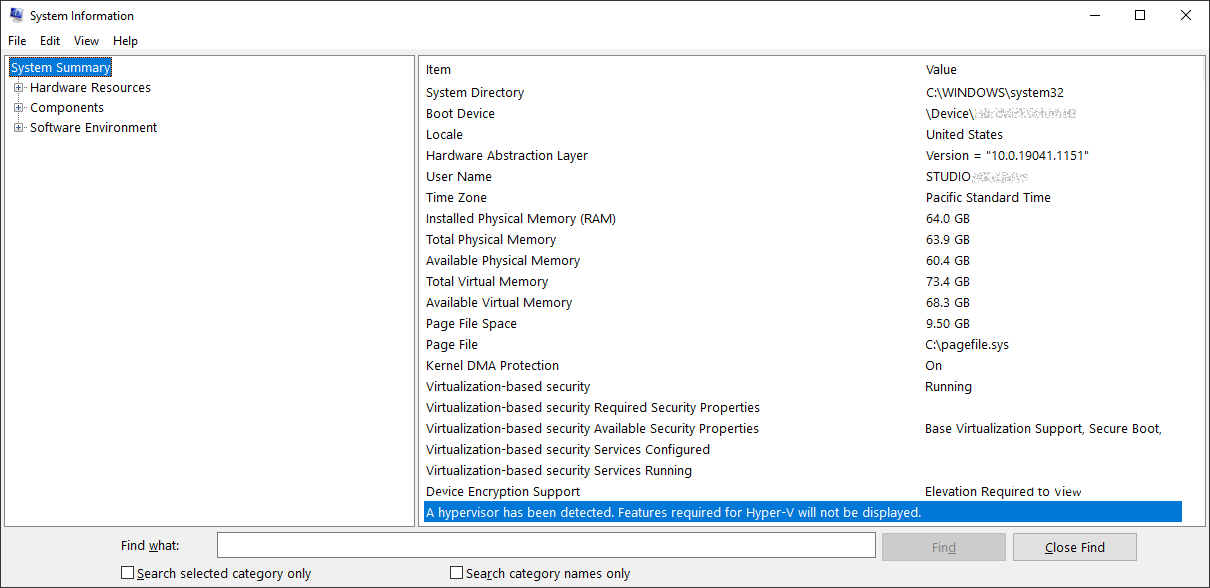
In the search box, enter msinfo32.exe.
Select System Information.
On the Details pane, locate the following entry:
A hypervisor has been detected. Features required for Hyper-V will not be displayed.
How to disable Hyper-V
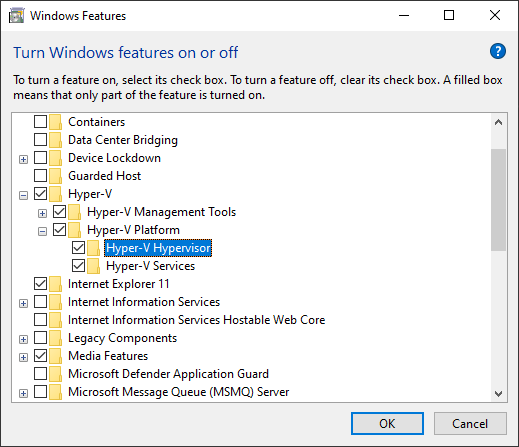
To disable Hyper-V in Control Panel, follow these steps:
In Control Panel, select the Programs and Features item.
Select Turn Windows features on or off.
Expand Hyper-V, expand Hyper-V Platform, and then clear the Hyper-V Hypervisor checkbox.
How to disable Memory Integrity and Credential Guard
You can disable Memory Integrity and Credential Guard by using Microsoft Intune, Group Policy, or registry entries. For more information, see the following articles:
More information
Third-party information disclaimer
The third-party products that this article discusses are manufactured by companies that are independent of Microsoft. Microsoft makes no warranty, implied or otherwise, about the performance or reliability of these products.