Note
Access to this page requires authorization. You can try signing in or changing directories.
Access to this page requires authorization. You can try changing directories.
Onboarding your tenant to the Microsoft Sentinel data lake occurs once and starts from the Microsoft Defender portal. The onboarding process creates a new Microsoft Sentinel data lake for your tenant in the subscription specified during the onboarding process. Graph enablement is included as part of onboarding. If you had onboarded to the data lake during public preview, you're automatically upgraded to the generally available data lake and graph.
Important
Do not delete the subscription or resource group that contains your Microsoft Sentinel data lake. If you do, the data lake-related experiences will be suspended and ingestion will stop after 3 days. To restore the data lake-related experiences and ingestion, you must set up the data lake again using the steps below. All data previously ingested to the data lake will be restored and available after you set up the data lake again.
Note
You'll always have one data lake that you can use with multiple Microsoft Security products. During onboarding, we check for and automatically use your existing data lake. When you ingest and store security data in your data lake, this data can be used with multiple Microsoft Security products.
Before you begin the data lake setup, ensure your Microsoft Sentinel workspace is connected to the Defender portal and set as the Primary SIEM workspace. In the Defender portal, navigate to SIEM workspaces, select your workspace, choose Connect workspace, and set it as Primary. If you don't see your workspace or the subscription filter shows as undefined, verify you have the required roles.
Use the following steps to onboard to the Microsoft Sentinel data lake from the Defender portal:
Sign in to your Defender portal at the Microsoft Defender portal.
Navigate to System > Settings > Microsoft Sentinel > Data lake, and select Start setup.
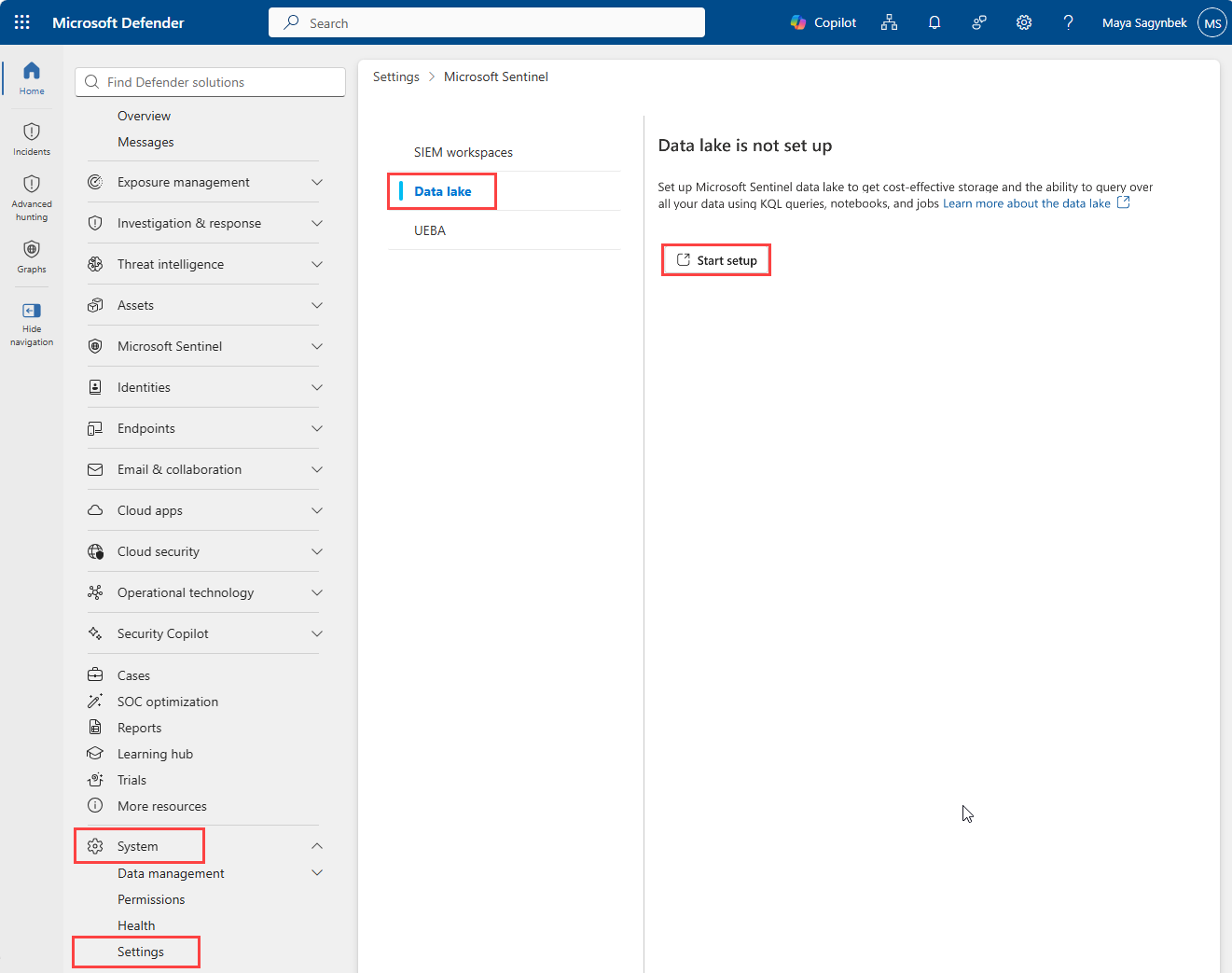
If you don't have the correct roles to set up the data lake, a side panel appears indicating that you don't have the required permissions. Request that your administrator completes the onboarding process.
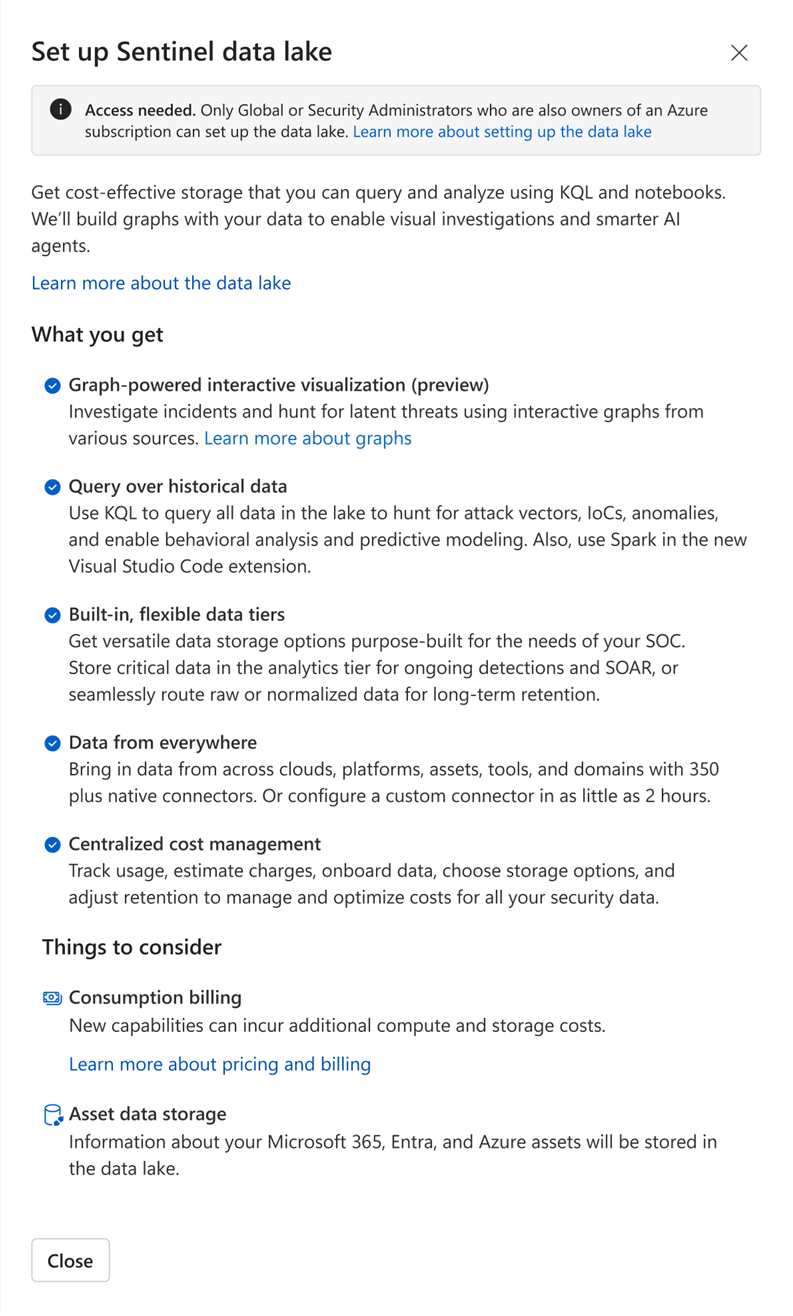
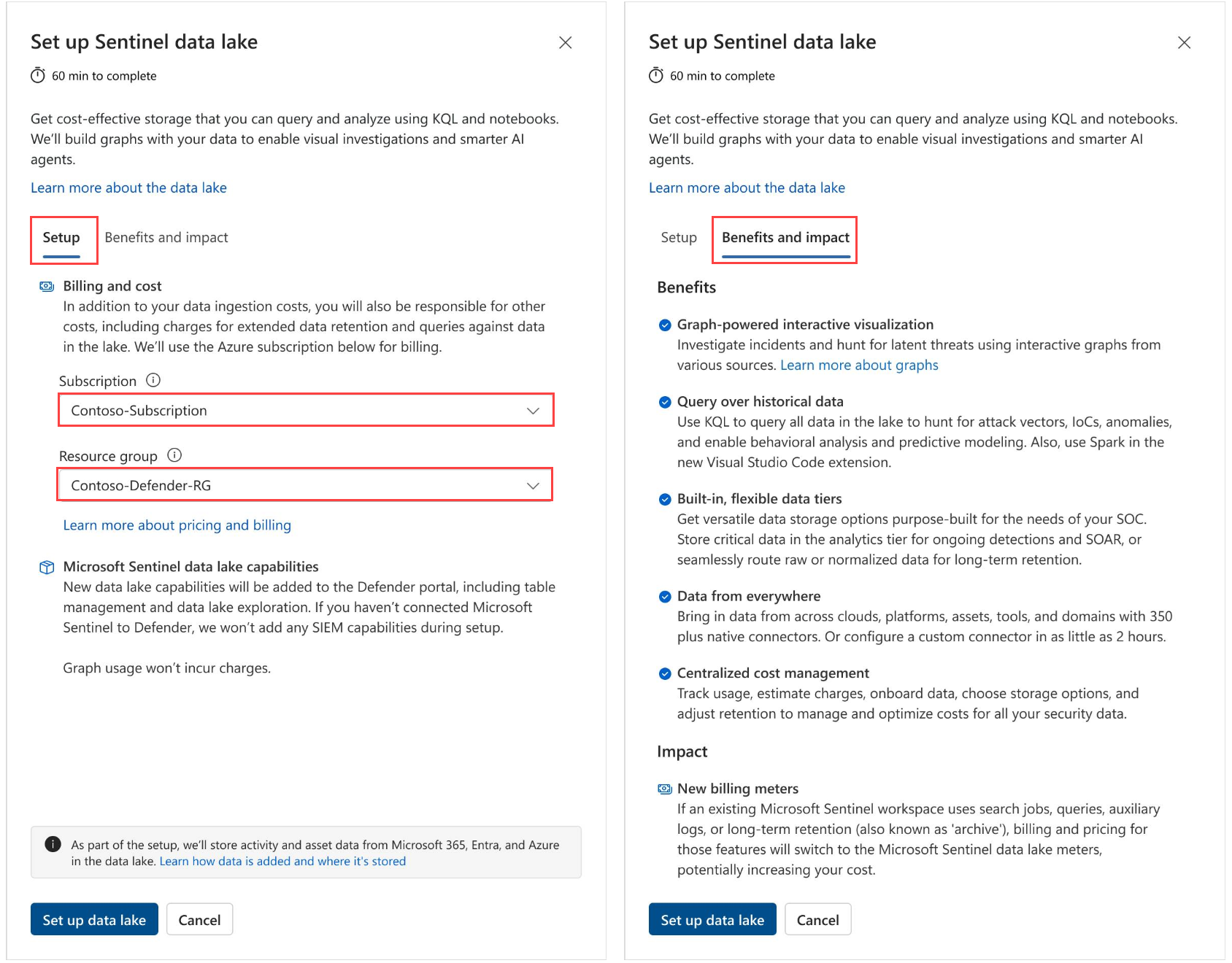
If you have the required permissions, a setup side panel appears. Select the Subscription and Resource group to enable billing for the Microsoft Sentinel data lake. Select Set up data lake.
Note
After the data lake is provisioned for a specific Azure subscription and resource group, it can't be migrated to a different subscription or resource group.
The setup process begins and the following side panel is displayed. The onboarding process can take up to 60 minutes to complete. You can close the setup panel while the process is running.
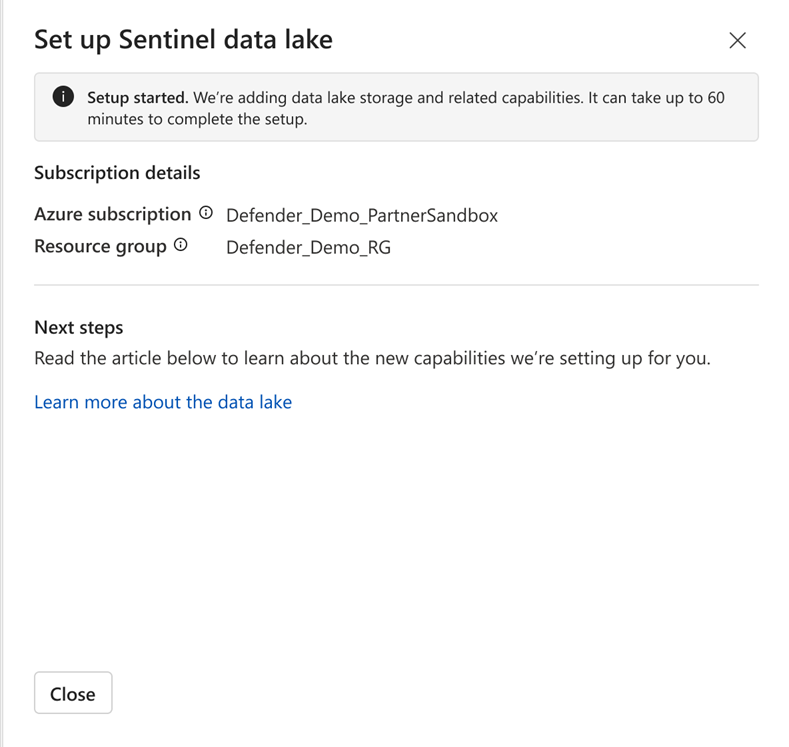
Return to the settings page to check the status of the onboarding process.
Once the onboarding process is complete, the data lake settings page confirms that setup is complete.
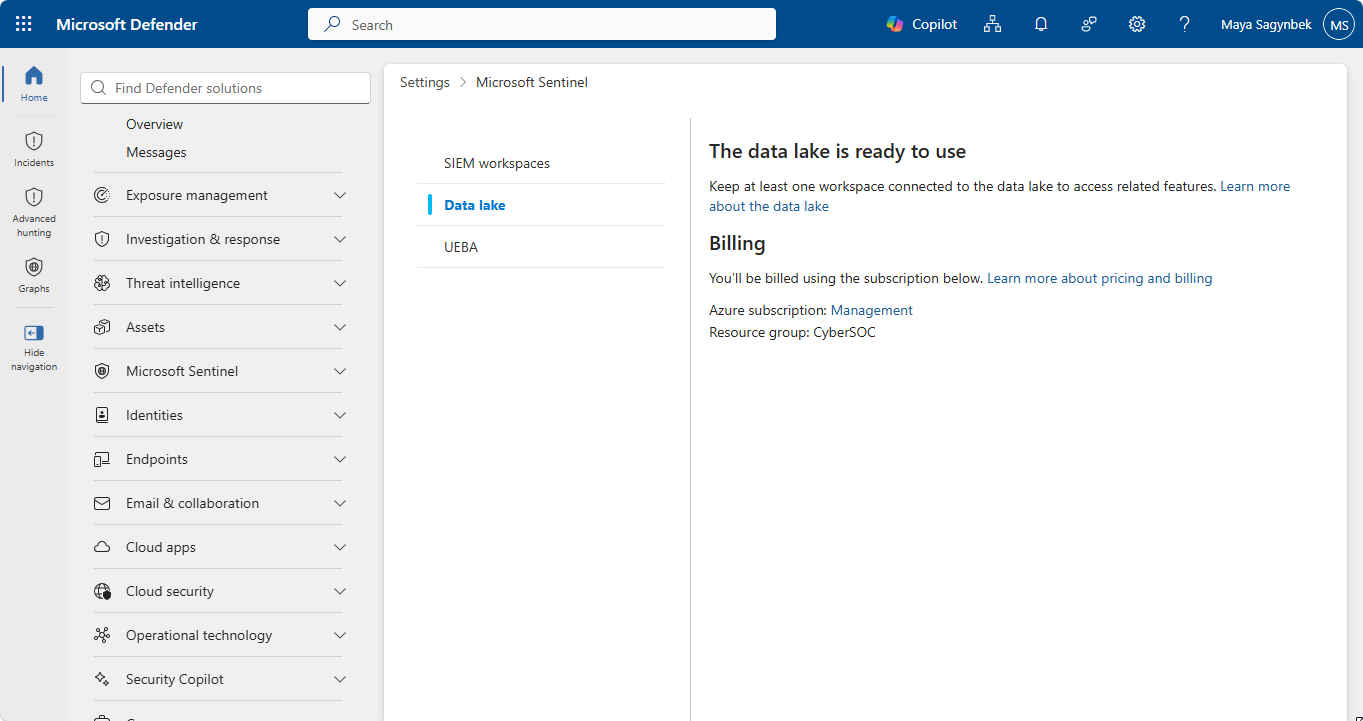
Start using the data lake experiences. Navigate to Sentinel in the Defender portal. For example, select Graphs to open a threat hunting experience that employs interactive graphs to proactively find threats and sources of risk. Select Query data lake to open the data lake exploration KQL queries editor, which allows you to explore and analyze data in the Microsoft Sentinel data lake using KQL. For more information, see Data lake exploration, KQL queries.
Note
Azure monitor workspaces created after onboarding to the Microsoft Sentinel data lake are not automatically added to the data lake. To add new workspaces, open a support ticket.
Validate onboarding
After the onboarding process completes, use the following checks to confirm that setup is successful:
- Primary workspace is connected. In the Defender portal, find your Sentinel workspace under SIEM workspaces and verify it's marked as Connected and Primary.
- Data lake settings load without errors. Navigate to System > Settings > Microsoft Sentinel > Data lake and verify the page shows your configured subscription and resource group.
Troubleshooting
If you encounter any issues during the setup process, see the following troubleshooting tips:
- Ensure that you have the required role to onboard to the Microsoft Sentinel data lake.
- Verify that your selected subscription and resource group are valid and accessible.
- Verify your Azure policies allow for creating new resources to enable your Microsoft Sentinel data lake.
- Data for newly enabled tables, or tables that have moved between tiers, are available 90 to 120 minutes after the onboarding process is complete.
The following are errors that you might encounter during the onboarding process.
DL102: Can't complete setup due to insufficient regional resources
- Error: Can’t complete setup.
- Description: There’s a lack of Azure resources in the region at the time of provisioning.
- Resolution: Select the retry button to start the setup again.
DL103: Can't complete setup due to blocking Azure policies
- Error: Can’t complete setup.
- Description: There are policies enabled that prevent the creation of the Azure managed resources needed to enable the data lake.
- Resolution: Check your Azure policy exemptions for Microsoft Sentinel data lake onboarding to allow for creation of Azure managed resources.
Can't onboard a new workspace after the tenant is already onboarded
- Scenario: You delete and recreate workspaces and then try to onboard a newly created workspace to the data lake.
- Resolution: Once the tenant is onboarded to the data lake, additional workspaces aren't onboarded automatically. Ensure the workspace is connected to the Defender portal and is in the same region as the workspace initially onboarded to the data lake. If you need assistance, submit a support request.
Capacity limitations in specific regions
- Symptom: Onboarding doesn't complete in specific regions due to capacity constraints.
- Resolution: Use an alternate supported region. Delete the current Log Analytics workspace, create a new workspace in a different region (for example, Central US), add Microsoft Sentinel, connect it as the Primary workspace in the Defender portal, and set up the data lake.
"Something went wrong" during setup
- Symptom: After selecting Set up data lake, the setup flow doesn't complete and you see an error "Something went wrong, Please try again."
- Resolution: Check whether the resource group associated with the onboarded Sentinel workspace was previously deleted, or whether the subscription used for data lake billing was deleted or canceled. If the issue persists, submit a support request.
Sentinel workspace not visible in Defender
- Scenario: You created a Log Analytics workspace and added Sentinel, but the Defender portal doesn't show the workspace, or UI filters don't populate correctly.
- Resolution: Verify the required roles end-to-end. The minimum combination is Security Administrator or higher in Entra ID, plus Azure Subscription Owner or (User Access Administrator + Microsoft Sentinel Contributor).