Note
Access to this page requires authorization. You can try signing in or changing directories.
Access to this page requires authorization. You can try changing directories.
Microsoft Entra Cloud Sync can provision cloud groups to on-premises Active Directory (AD). AD group enforcement lets you designate specific synced groups so that modifications can only be performed through the Microsoft Entra provisioning service. This alignment between Microsoft Entra ID and AD groups reduces the need for a separate reconciliation process and helps ensure that all access is granted through Microsoft Entra.
Important
AD group enforcement is currently in PREVIEW. The preview spans two parts that you configure together: the Active Directory enforcement engine on your domain controllers (the code ships in a cumulative Windows Server update but is disabled by default and turned on by a Group Policy package during the preview) and the Microsoft Entra Cloud Sync configuration that marks groups for enforcement. See the Supplemental Terms of Use for Microsoft Azure Previews for legal terms that apply to Azure features that are in beta, preview, or otherwise not yet released into general availability.
How AD group enforcement works
Enforcement is evaluated by Active Directory at the point of an LDAP write, on whichever domain controller processes that write. When a change targets a group that's marked for enforcement, the domain controller checks whether the calling identity is authorized by the policy. If it isn't, the change is blocked (Enforced mode) or logged (Audit mode) before any drift (a divergence between the group's state in Microsoft Entra and its state in AD) can occur.
Two pieces work together:
- A domain-wide policy that lists the security identifiers (SIDs) authorized to change enforced objects, and the current mode (Enforced or Audit). The policy is stored in a
SOA-Policiescontainer created underCN=System,DC=<your domain>. - A per-object marker, the
msDS-ObjectSoaattribute, that you set through Cloud Sync. The policy applies only to objects that have this attribute set.
| Mode | Behavior |
|---|---|
| Enforced | Only SIDs allowed by the policy can change enforced groups. The policy blocks LDAP modify and modify DN operations and restores from the Recycle Bin. The policy still permits LDAP Add operations, even when the add contains the msDS-ObjectSoa attribute. Delete operations are permitted during public preview. |
| Audit | Changes are allowed per your existing AD role-based access control (RBAC). The policy writes an event to the Directory Service log when an unauthorized identity changes an enforced object. Use Audit mode to discover out-of-band changes before you switch to Enforced. To see the events, enable Security Diagnostics logging (see View enforcement events in the event log). |
AD group enforcement is additive to your existing AD RBAC model. It places an additional restriction on top of your current access control without granting any additional access.
Warning
Enforcement applies only to groups you mark, and protection for a marked group is complete only when every writable domain controller is enabled. Enforcement isn't a single domain-wide switch: it takes effect only for groups that have the msDS-ObjectSoa attribute set. For each marked group, the policy is honored only on domain controllers that run a supported operating system, have the update installed, and have the feature enabled. If even one writable domain controller isn't enabled, an unauthorized change directed at that domain controller succeeds and the control is bypassed for that group. Plan to update and enable all writable domain controllers before you rely on enforcement.
Before you begin
Make sure the following prerequisites are already in place before you start the configuration steps.
| Prerequisite | Details |
|---|---|
| Microsoft Entra license | A Microsoft Entra tenant with Microsoft Entra ID P1 licenses for configuring group provisioning to AD. |
| AD role | Domain Admin, to run the PowerShell script that installs the policy and to manage the policy object. |
| Supported domain controller OS on every writable DC | Windows Server 2022 or Windows Server 2025. Because enforcement must be enabled on every writable domain controller, confirm that all of them can run a supported OS. If any writable domain controller can't be brought to a supported OS, it can't participate, and enforcement can't be configured for the domain. |
| Provisioning agent host | A Windows Server 2019 or Windows Server 2022 machine joined to your AD domain. The agent doesn't have to run on a domain controller. |
| No domain functional level requirement | Enforcement doesn't require raising the domain or forest functional level. It's an operational requirement to enable every writable domain controller, not a functional-level setting. |
| Schema | Uses the existing msDS-ObjectSoa attribute, present since the Windows Server 2016 schema. No schema extension is required. |
| Domain controller inventory | An inventory of all writable domain controllers in the domain. To enumerate them, run Get-ADDomainController -Filter * | Where-Object { -not $_.IsReadOnly } or see View the list of domain controllers. |
For the full list of provisioning agent prerequisites, see Prerequisites for Microsoft Entra Cloud Sync.
Plan your rollout
The high-level configuration is:
- Install the update and enable the feature on every writable domain controller.
- Install the policy in Enforced or Audit mode.
- Mark the groups you want to protect.
Step 1: Update and enable every writable domain controller
Bring the enforcement engine online across the domain. Repeat the update and enablement on every writable domain controller.
On each writable domain controller, install the latest cumulative Windows Server update, then deploy the matching Group Policy (KIR) package to turn the feature on. The minimum version of C:\Windows\System32\ntdsai.dll is 10.0.20348.5257 for Windows Server 2022 and 10.0.26100.32995 for Windows Server 2025. To verify the installed version, run (Get-Item C:\Windows\System32\ntdsai.dll).VersionInfo.FileVersion on the domain controller.
On every writable domain controller, install the latest cumulative Windows Server update.
Restart the domain controller if the update prompts you to.
Enable the feature on all writable domain controllers by deploying the matching Group Policy package, which uses a Known Issue Rollback (KIR) enablement model. For step-by-step guidance on enabling the feature across all writable domain controlers, see use group policy to deploy a Known Issue Rollback. Download the matching package:
- Windows Server 2022: Group Policy package for Windows Server 2022
- Windows Server 2025: Group Policy package for Windows Server 2025
Restart each domain controller after enablement.
After the primary domain controller emulator (PDCe) is updated and enabled, it automatically creates the SOA-Policies container under CN=System,DC=<your domain>, which then replicates to all domain controllers. Confirm that the container exists (substitute your actual domain name). It can take a few minutes to appear and replicate.
Step 2: Install the policy in Enforced or Audit mode
The Set-CloudSyncSOAPolicy.ps1 script creates the Cloud policy object inside the SOA-Policies container and adds the provisioning agent's group managed service account (GMSA) SID to the policy's allow list. (If the SOA-Policies container doesn't exist yet, the script creates it.) The script reads the agent's GMSA from the locally installed provisioning agent service, so you must run it on the machine where the Cloud Sync provisioning agent is installed.
Install the Microsoft Entra Cloud Sync provisioning agent. For installation instructions, see Install the Microsoft Entra Cloud Sync provisioning agent.
Sign in to the machine where the provisioning agent is installed.
Download the
Set-CloudSyncSOAPolicy.ps1PowerShell script from the AzureAD/EntraIDGovernance repo on GitHub.Open PowerShell as an administrator.
Change directory to the folder that contains the script.
Run the script. Specify
Enforcedas the mode (useAuditfor a "what-if" rollout):.\Set-CloudSyncSOAPolicy.ps1 -EnforcementMode Enforced -Credential (Get-Credential -Message "Enter Domain Admin credentials (format: DOMAIN\Username)")Confirm that the
Cloudpolicy is configured with the keyword Enforced (or Audit). Allow time for the new object to replicate across the domain.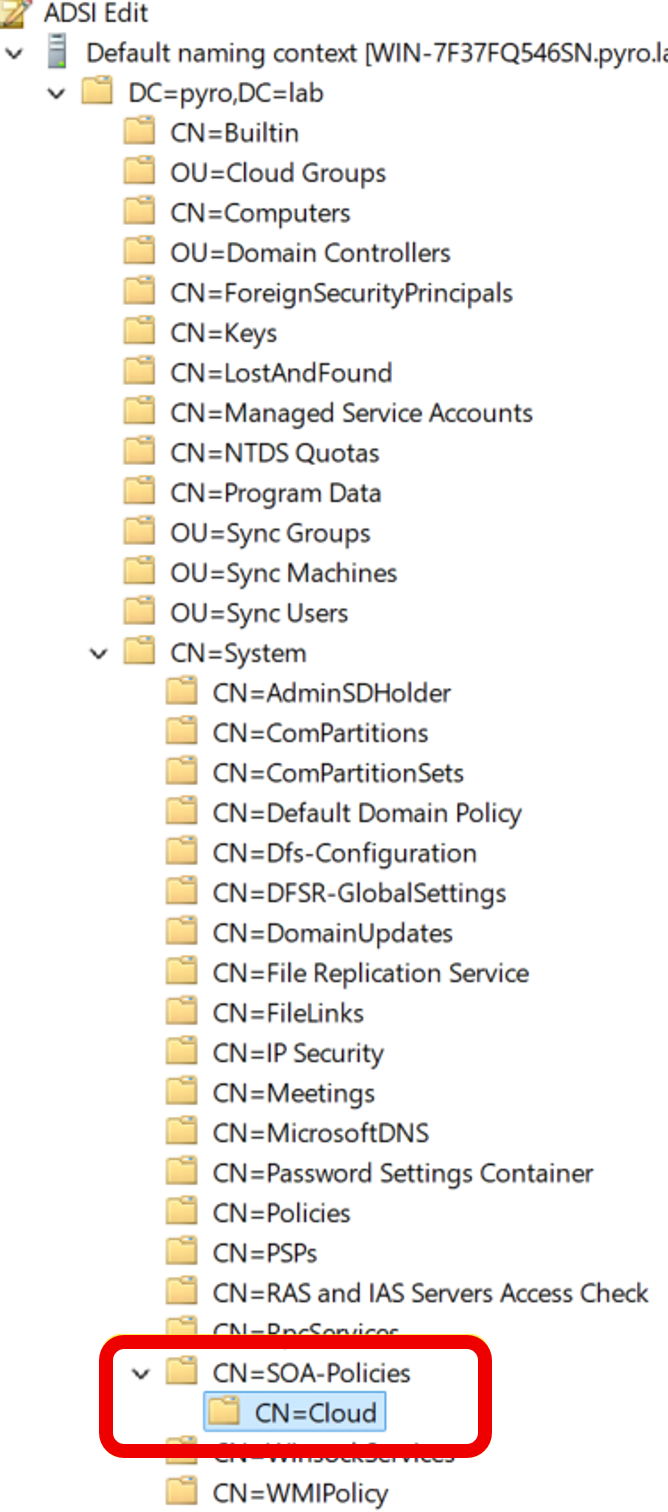
Step 3: Mark a group for enforcement
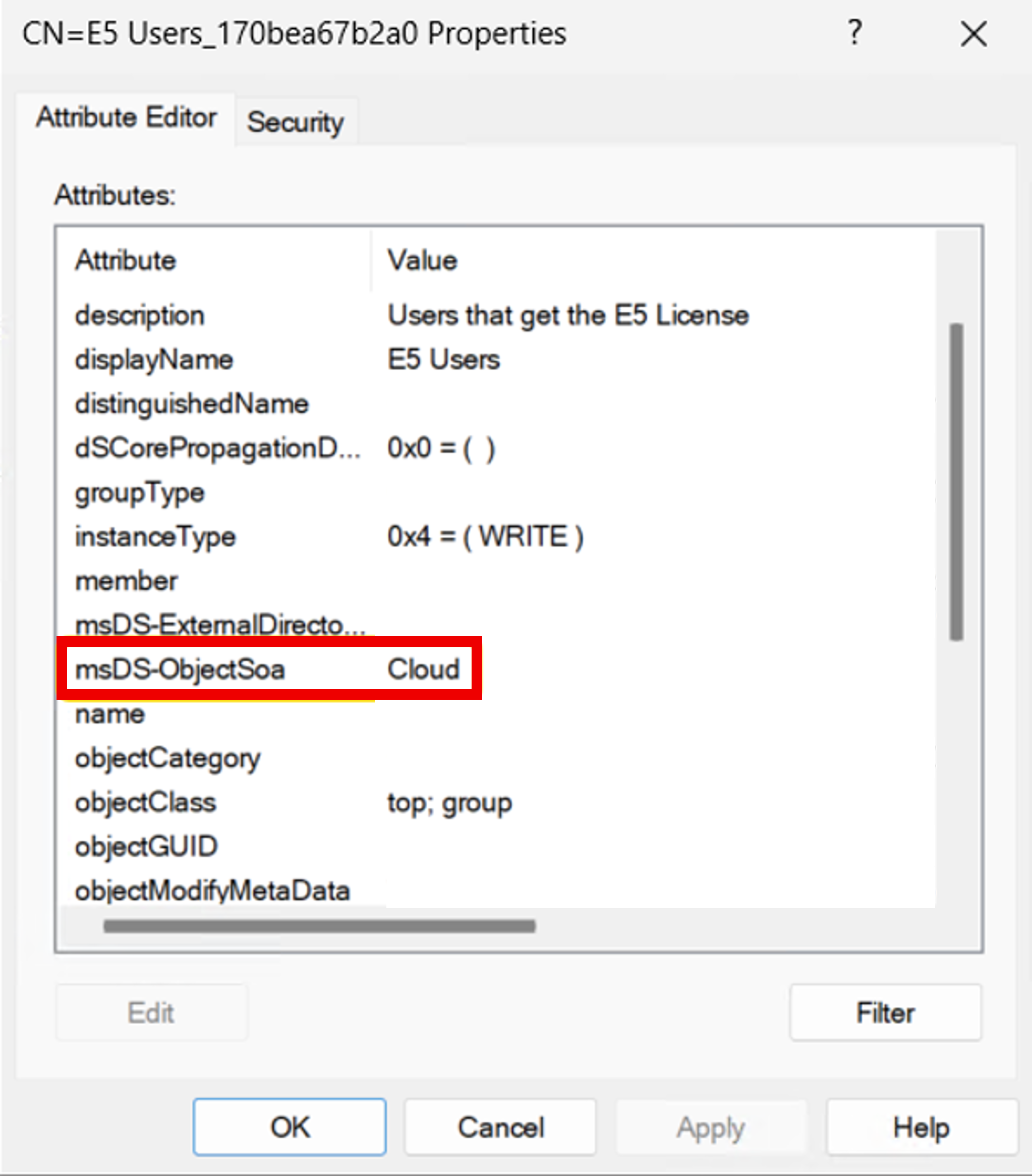
Mark a group for enforcement by setting the msDS-ObjectSoa attribute to Cloud through the Cloud Sync attribute mapping.
- In your group provisioning to AD configuration, edit the attribute mappings.
- Add
msDS-ObjectSoaas a target attribute with the valueCloud. Choose one of the following:- Constant mapping (recommended for most customers): sets the property for all groups in scope of the provisioning job.
- Expression mapping: limits the groups for which the property is set, based on conditional logic.
- Assign the groups you want to protect to the provisioning scope.
- Provision the group on demand or by starting the sync cycle.
For details on configuring group provisioning to AD, see Configure provisioning Microsoft Entra ID to Active Directory.
Verify the attribute is set on the group
Use ADSI Edit on a domain controller to confirm that the policy is applied to the on-premises group:
- Open ADSI Edit.
- Select View > Advanced Features.
- Navigate to the group, then open Properties.
- Confirm that the
msDS-ObjectSoaproperty is set on the group.
What administrators see when a change is blocked
In Enforced mode, an unauthorized attempt to modify an enforced group is blocked at the LDAP write layer and returns a specific error indicating that the object is managed by a cloud SOA policy. The change is never committed, so there's no drift to reconcile. The error is distinct from a generic "Access Denied," so administrators can tell that the change was intentionally blocked and that the group must be managed through Microsoft Entra. The exact wording varies by tool (Active Directory Users and Computers, PowerShell, or an LDAP client), but the meaning is the same.
In Audit mode, the same change is allowed and an event is written to the Directory Service log indicating that the change would have been blocked.
Switch between Enforced and Audit modes
To change the mode, run Set-CloudSyncSOAPolicy.ps1 again with the new value for -EnforcementMode:
.\Set-CloudSyncSOAPolicy.ps1 -EnforcementMode Audit -Credential (Get-Credential -Message "Enter Domain Admin credentials (format: DOMAIN\Username)")
Break-glass accounts
You can authorize additional identities to change enforced groups on-premises, for example an emergency administrator account to use when cloud provisioning is unavailable. You do this by adding the account's SID to the policy.
Open ADSI Edit.
Navigate to CN=SOA-Policies > CN=Cloud.
Open the Attribute Editor.
Edit the
msDS-Settingsattribute and add the SID of the break-glass account.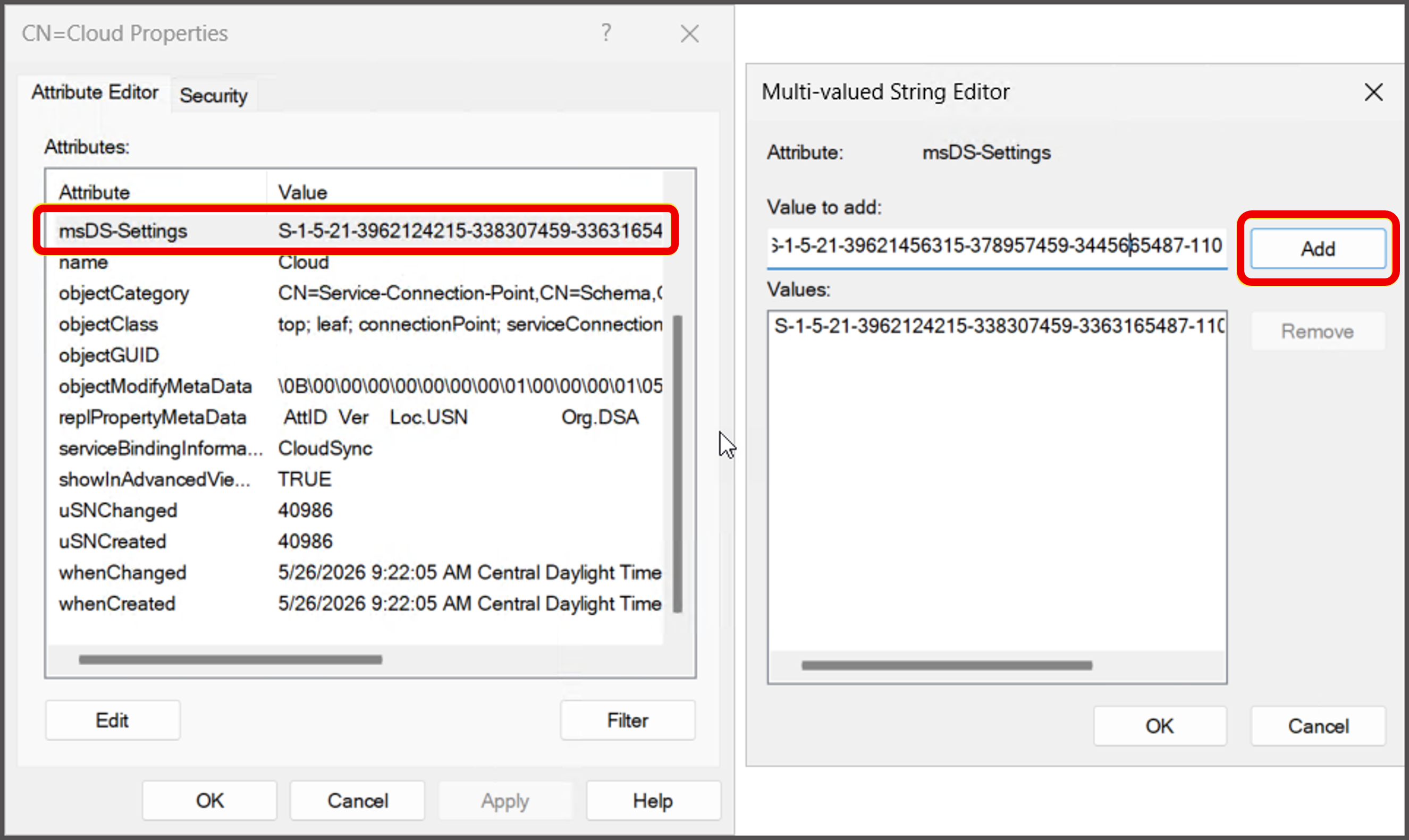
Keep the following limits and behaviors in mind:
- Keep the allow list as small as possible. For the strongest governance posture, allow only the provisioning agent SID and avoid adding break-glass accounts unless you have a specific operational need. The policy supports a maximum of 64 SIDs.
- SIDs are validated when the policy loads. A single invalid or stale SID causes the entire policy to fail to load, which leaves no identities authorized. Watch the Directory Service log for a policy-load error and correct the SID.
- Account changes are an operational risk. If an authorized account is removed or recreated and its SID changes, update
msDS-Settingsaccordingly. Document this in your operational runbooks.
View enforcement events in the event log
To see audit events for unauthorized changes:
- Set the Security Diagnostics value to
1in the registry. For more information, see AD and LDS diagnostic event logging. - Open Event Viewer and view the Directory Service event log.
With Security Diagnostics at the default value of 0, only policy-load events are logged; individual block and audit events aren't recorded.
Troubleshoot the enforcement policy
If AD group enforcement doesn't behave as expected (for example, on-premises changes that should be blocked are still processed), use the Check-CloudSyncSOAPolicy.ps1 script to confirm that enforcement is enabled on a domain controller.
- Download the
Check-CloudSyncSOAPolicy.ps1script from the AzureAD/EntraIDGovernance repo on GitHub. - Sign in to the domain controller you want to validate.
- Open PowerShell as an administrator.
- Change directory to the folder that contains the script.
- Run the script. It reports whether the AD group enforcement policy is enabled on that domain controller.
If a change that should be blocked still succeeds, check the following:
- The change was written to a domain controller that isn't updated and enabled. Confirm that every writable domain controller has the update and the Group Policy package, and was restarted afterward. To find which domain controller a client uses, run
nltest /dsgetdc:<your domain>. - The policy is in Audit mode rather than Enforced.
- The
SOA-Policiescontainer exists underCN=System,DC=<your domain>. - The
msDS-ObjectSoaattribute is set on the target group (see Verify the attribute is set on the group). If it isn't, the change is on the cloud side; confirm the attribute mapping and run a provisioning cycle.
If an authorized change is unexpectedly blocked, confirm that the acting account's SID is present in the policy's msDS-Settings attribute and that the change replicated to the domain controller processing the write.
Test the policy
Use these example test cases to validate the configuration:
- Update the membership of an enforced group on-premises with an unauthorized account. The change should be blocked.
- Switch the policy to Audit and repeat the test. The change is allowed, and an event appears in the Directory Service event log.
- Add a SID to the policy as a break-glass account and make an update with that account. The change should succeed.
- Attempt the same unauthorized change against each writable domain controller to confirm enforcement is consistent across the domain.
Known behavior and limitations in this preview
- Only group objects are supported in this preview. User provisioning to AD through the provisioning agent isn't yet supported.
- Converting the source of authority of a group in Microsoft Entra doesn't automatically lock down the group in AD. Complete the steps in this article to mark a group as enforced through group provisioning to AD.
- Enforcement doesn't prevent deletions.
- Enforcement protects the marked object's own membership and attributes. Nesting an enforced group into an unenforced group isn't restricted.
- Existing limitations of group provisioning to AD continue to apply during this preview.
- Enforcement is only in effect on domain controllers where it's enabled. As described in How AD group enforcement works, enable the feature on every writable domain controller; otherwise a change written to a domain controller that isn't enabled is processed.