Note
Access to this page requires authorization. You can try signing in or changing directories.
Access to this page requires authorization. You can try changing directories.
This 5-minute no-code tutorial introduces generative AI on Azure Databricks. You will use the AI Playground to do the following:
- Query large language models (LLMs) and compare results side-by-side
- Prototype a tool-calling AI agent
- Export your agent to Databricks Apps or to a notebook
- Optional: Prototype a question-answer chatbot using retrieval-augmented generation (RAG)
Before you begin
Ensure your workspace can access the following:
- Unity Catalog.
- Custom Agents. See Features with limited regional availability.
Step 1: Query LLMs using AI Playground
Use the AI Playground to query LLMs in a chat interface.
- In your workspace, select Playground from the left navigation pane under AI/ML.
- Type a question such as, "What is RAG?"
Add a new LLM to compare responses side-by-side:
- In the upper-right, select + to add a model for comparison.
- In the new pane, select a different model using the dropdown selector.
- Select the Sync checkboxes to synchronize the queries.
- Try a new prompt, such as, "What is a compound AI system?" to see the two responses side-by-side.
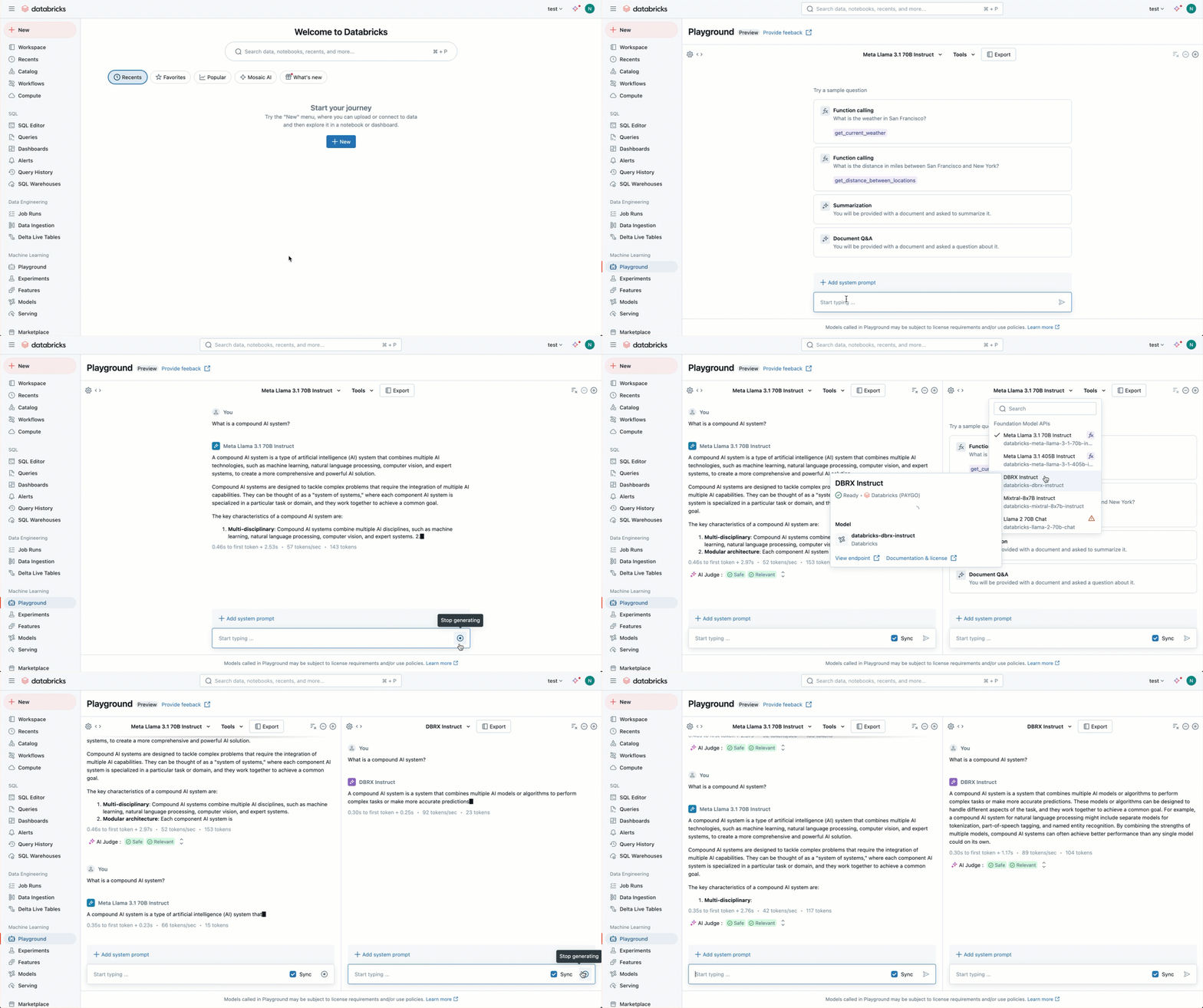
Keep testing and comparing different LLMs to help you decide on the best one to use to build an AI agent.
Step 2: Prototype a tool-calling AI agent
Tools allow LLMs to do more than generate language. Tools can query external data, run code, and take other actions. AI Playground gives you a no-code option to prototype tool-calling agents:
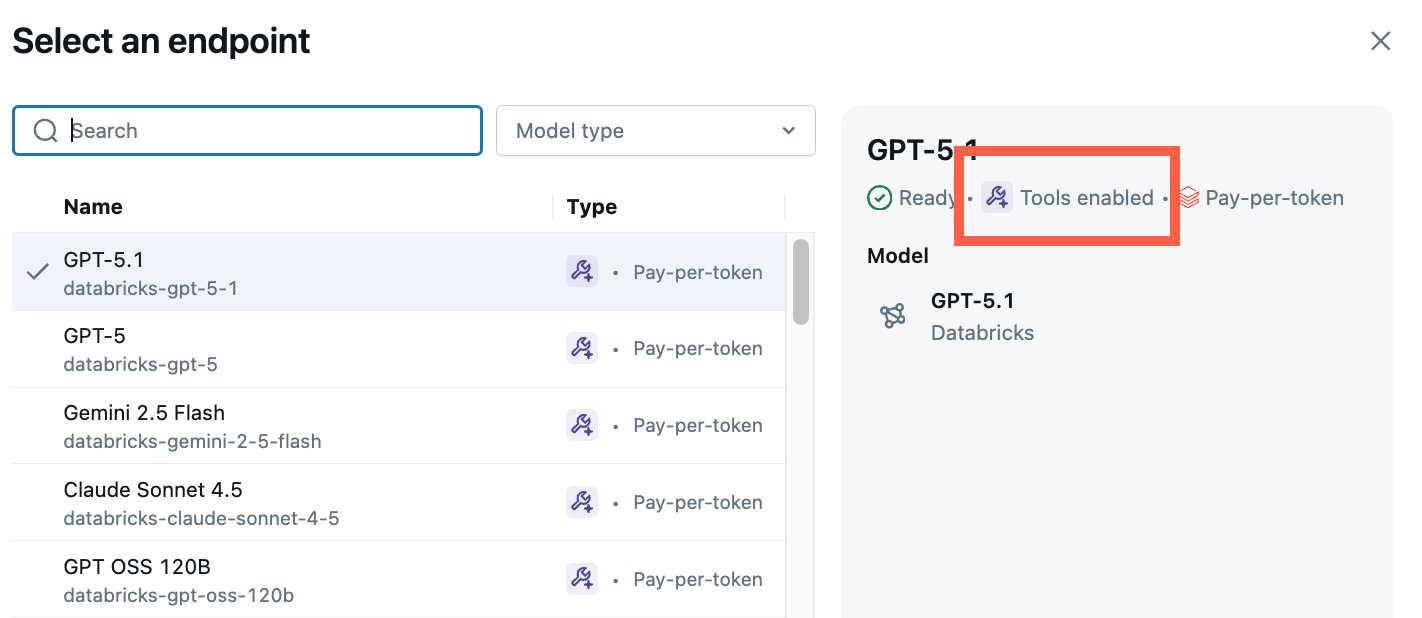
From Playground, choose a model labelled Tools enabled.
Select Tools > + Add tool and select the built-in Unity Catalog function,
system.ai.python_exec.This function lets your agent run arbitrary Python code.
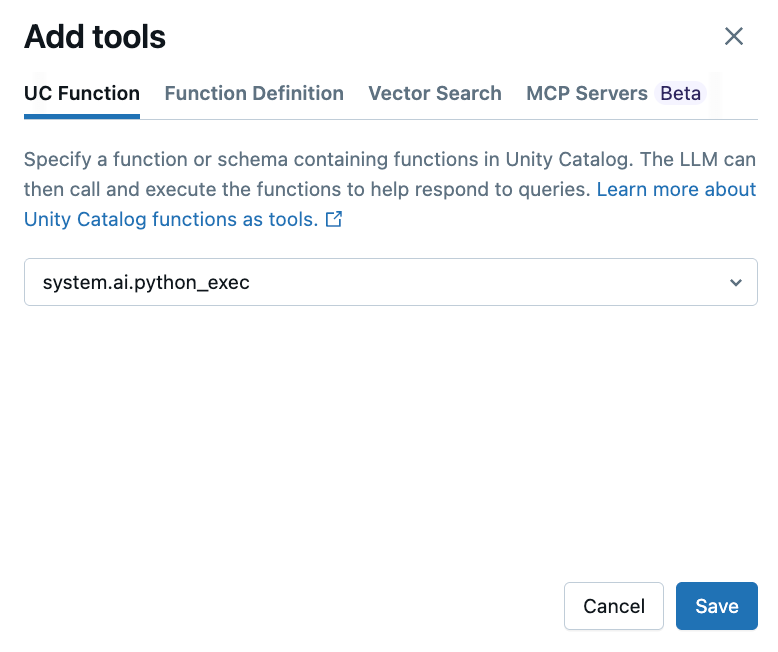
Other tool options include:
- UC Function: Select a Unity Catalog function for your agent to use.
- Function definition: Define a custom function for your agent to call.
- Vector Search: Specify a vector search index. If your agent uses a vector search index, its response will cite the sources used.
- MCP: Specify MCP servers to use managed Databricks MCP servers or external MCP servers.
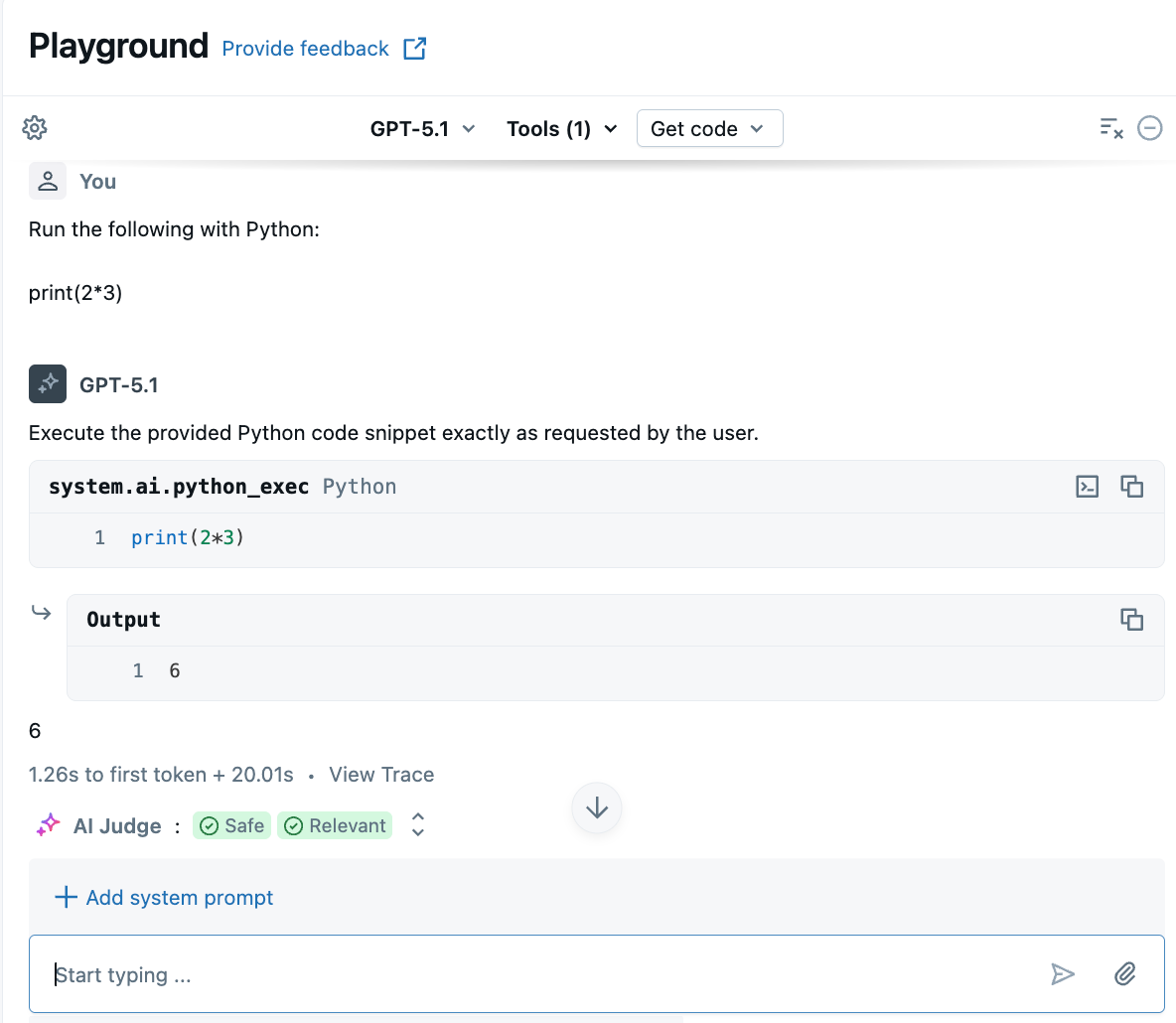
Ask a question that involves generating or running Python code. You can try different variations on your prompt phrasing. If you add multiple tools, the LLM selects the appropriate tool to generate a response.
Optional: Prototype a RAG question-answering bot
If you have a vector search index set up in your workspace, you can prototype a question-answer bot. This type of agent uses documents in a vector search index to answer questions based on those documents.
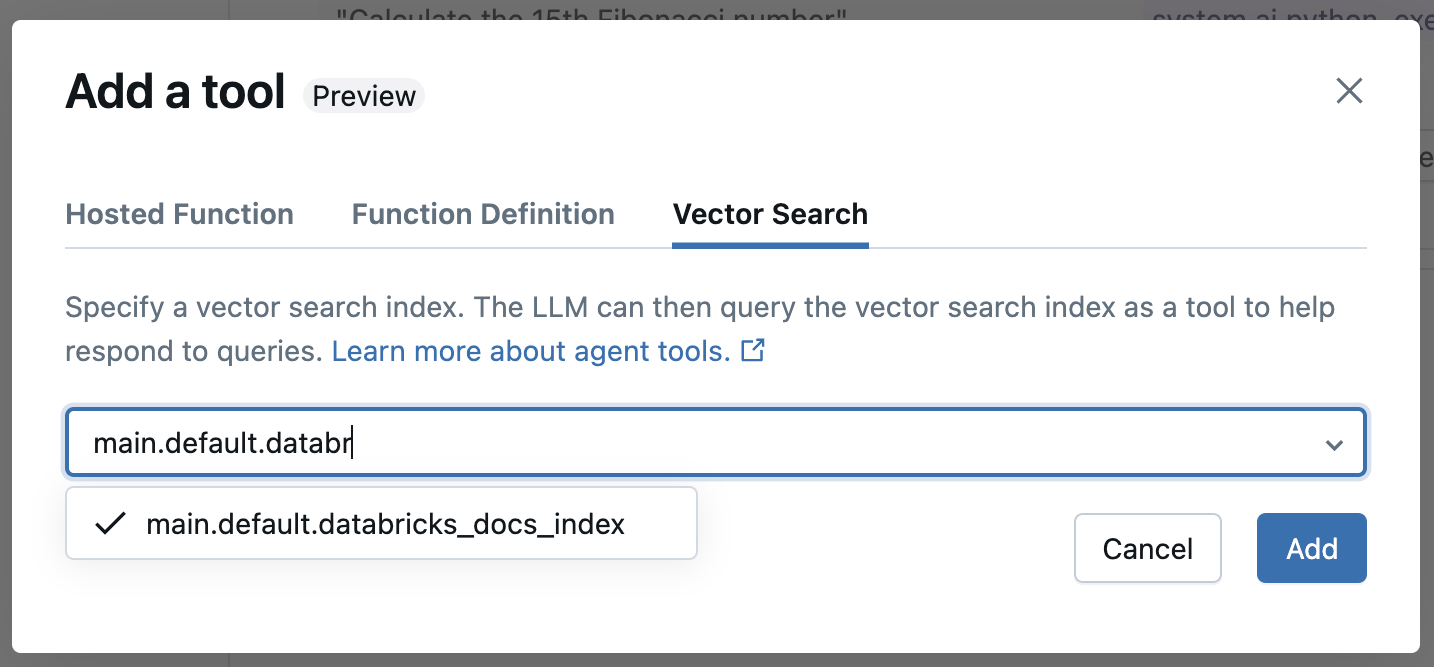
Click Tools > + Add tool. Then, select your Vector Search index.
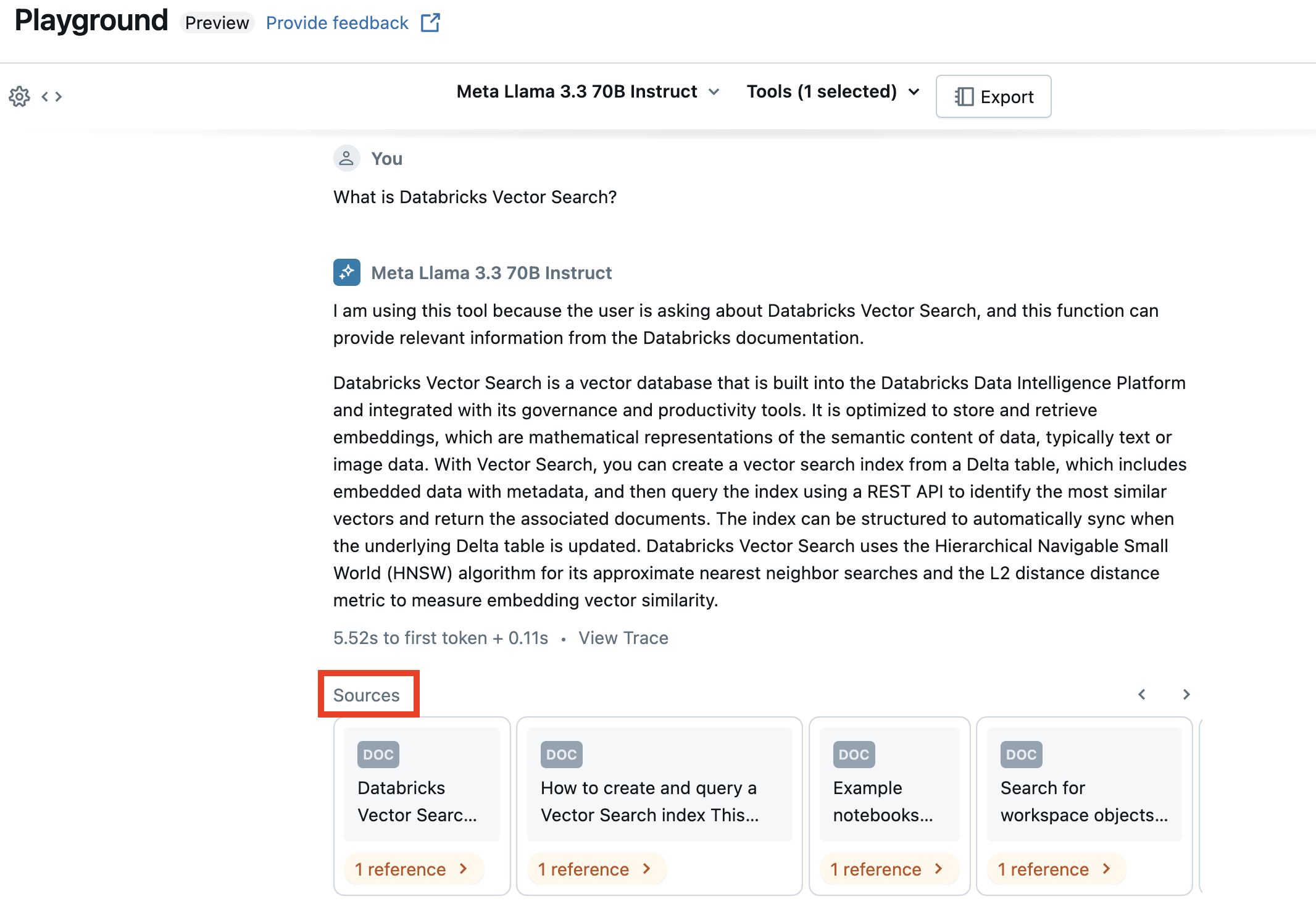
Ask a question related to your documents. The agent can use the vector index to look up relevant info and will cite any documents used in its answer.
To set up a vector search index, see Create a vector search index.
Step 3: Export your agent
After testing your agent in AI Playground, export it so that you can deploy, evaluate, and iterate on it outside the Playground. AI Playground offers two export paths:
- Export to Databricks Apps (recommended): Installs a deployable agent app from the
agent-openai-agents-sdktemplate, including a built-in chat UI, MCP tool wiring, and authentication. Choose this path for new agents. - Create agent notebook (legacy): Generates a Python notebook that defines the agent and deploys it to a Model Serving endpoint. Choose this path if Databricks Apps is not available in your workspace or region.
Export to Apps (recommended)
The Export to Databricks Apps option generates a deployed agent app that's ready to chat with. The app uses the same model, system prompt, and tools (including MCP servers and vector search) you configured in the Playground.
Before you export, make sure your workspace meets the following requirements:
- Databricks Apps must be enabled in your workspace. See Set up your Databricks Apps workspace and development environment.
- The endpoint selected in Step 2 must support tools.
- The Managed MCP Servers preview must be enabled in your workspace. See Manage Azure Databricks previews.
To export the agent:
In the Playground, click Get code > Export to Databricks Apps.
In the Export to Databricks Apps dialog, set the following:
- App Name: A unique name that starts with
agent-and contains only lowercase letters, numbers, and hyphens (for example,agent-research-assistant). - App Description: A short description of what the agent does.
- MLflow Experiment: Select an existing MLflow experiment to use for tracing and evaluation, or create a new one.
- App Name: A unique name that starts with
Click Export. Azure Databricks does the following:
- Validates that the app name is available.
- Installs the
agent-openai-agents-sdktemplate into your workspace and grants the app permissions for the resources it needs. These resources include the MLflow experiment, serving endpoint, and any MCP servers, Unity Catalog functions, Genie Spaces, or vector search indexes you added as tools. - Generates
agent_server/agent.pyfrom your Playground configuration so the deployed agent matches what you tested.
When the success dialog appears, click View Agent to open the deployed app and chat with it using the built-in UI.
To customize the agent code, configure authentication, add evaluation, or redeploy with Databricks Asset Bundles (DABs), see Author an AI agent and deploy it on Databricks Apps.
Create agent notebook (legacy)
After testing your agent in AI Playground, click Get code > Create agent notebook to export your agent to a Python notebook.
After you export the agent code, Azure Databricks saves a folder with a driver notebook to your workspace. This driver defines a tool-calling ResponsesAgent, tests the agent locally, uses code-based logging, registers, and deploys the AI agent using Custom Agents.
Note
The exported notebook currently uses a legacy agent authoring workflow that deploys the agent to Model Serving. Databricks recommends authoring agents using Databricks Apps instead. See Author an AI agent and deploy it on Databricks Apps.
Tip
If you want Azure Databricks to run the agent loop for you, you can use the Supervisor API (Beta) instead of writing your own. The Supervisor API supports Azure Databricks-hosted tools (Unity Catalog functions, Genie Spaces, MCP servers) and client-side function tools that execute in your application code. Choose this option when you don't need custom Python logic between tool calls.
To try it from your Playground configuration, make sure you've added at least one tool in Step 2, then click Get code > Curl API. When the Playground deployment has tools and uses a Supervisor-compatible model, the curl is a Supervisor API POST request to /mlflow/v1/responses with your model, prompt, and hosted tools. The option also requires the Supervisor API preview to be enabled. See Manage Azure Databricks previews.
To deploy a Supervisor API agent on Databricks Apps, see Build a custom agent using the Supervisor API (Beta).
Next steps
To author agents using a code-first approach, see Author an AI agent and deploy it on Databricks Apps.