Note
Access to this page requires authorization. You can try signing in or changing directories.
Access to this page requires authorization. You can try changing directories.
Azure DevOps Services | Azure DevOps Server | Azure DevOps Server 2022
The Agile process provides work item types (WITs) that help teams plan, track, and manage delivery. These WITs support common planning and execution scenarios, such as managing features, user stories, tasks, bugs, feedback, and code review. When you create a project with the Agile process, Azure DevOps creates these artifacts for you.
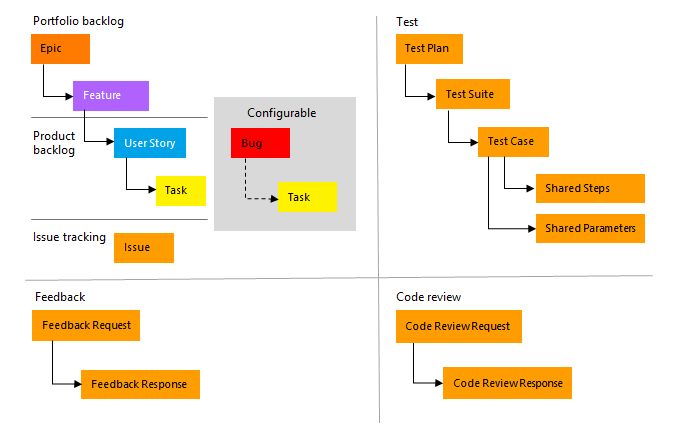
Teams also use work item queries to track status, analyze progress, and support planning decisions.
Note
- You can customize the work tracking system for your project by creating and customizing an inherited process and applying that process to your project. For more information, see Process customization and inherited processes.
- You can also customize a process template. For more information, see Default processes and process templates.
Note
- You can customize the work tracking system for your project by customizing an Inherited process or an On-premises XML process. For more information, see Process customization and inherited processes or On-premises XML process customization. The latest version of each process uploads automatically when you install or upgrade to the latest version of Azure DevOps Server. Other artifacts, such as SQL Server reports, are only available when you connect to a project. Other resource requirements apply.
- You can also customize a process template. For more information, see Default processes and process templates.
Prerequisites
| Requirement | Details |
|---|---|
| Organization and project access | You have access to an Azure DevOps organization and project with Azure Boards enabled. |
Plan and track work with Agile
Build your project plan by creating a backlog of user stories that represent the work you want to develop and ship. Track bugs, tasks, and blocking issues by using the Bug, Task, and Issue WITs. For portfolio management, create Features and Epics to view rollups of user stories within and across teams. For details, see Agile process work item types and workflow.
Use this path to get started with Agile planning. For more information, see Get started with Agile tools to plan and track work.
Note
A work item is a database record that contains the definition, assignment, priority, and state of work. Work item types define the template of fields, workflow, and form for each type. Work items can be linked to each other to support tracking dependencies, roll up of work, and reports.
List work items by using queries
Regularly review the status of user stories and tasks to manage your workload effectively. Use shared work item queries to list items for a current sprint or the product backlog.
Note
When you create a new project, there's no longer a default set of Shared Queries. The definitions for Shared Queries were removed from the process template. For on-premises deployments, you can add them to a custom process template as described in Add work item queries to a process template.
View and run queries from the web portal. You can also view queries from the Team Explorer plug-in for Visual Studio. Modify a query in the web query editor to apply different filter criteria, and add queries to team dashboards.
Tips for shared queries
Enhance your workflow using the following tips:
- Add @Me as the value for the Assigned To field in a query clause to find work items assigned to you.
- Open the query editor to modify any query by adding criteria for a product area, iteration, or another field.
- Open a query in Excel to update fields of one or more work items and publish changes to the database.
- Create a pie-chart, column chart, or trend chart to visualize status or progress for flat-list queries.
- Create queries and folders under the My Queries area with standard access. To create queries and folders under Shared Queries, ensure you have the Contribute permission and at least Basic access. For more information, see Set permissions on queries.
Monitor progress
All processes, including Agile, Scrum, and CMMI, support building charts and dashboards to show status and trends. Azure DevOps also generates several charts automatically based on the Agile tools you use. These charts appear in the web portal.
Create lightweight charts
You can create a chart from a flat-list query based on your tracking goals. Chart types include:
- Status charts: pie, bar, column, stacked bar, and pivot
- Trend charts: stacked area, line, and area
Use the following workflow:
Analytics widgets and Power BI reports
The Analytics Service can answer quantitative questions about the past or present state of your projects. You can add Analytics widgets to a dashboard or use Power BI to create charts and reports.
For more information, see What is the Analytics Service?
Agile process versions
When the Agile process template receives updates, its version number changes. The template exposes a version element that specifies major and minor versions. For Azure Boards (cloud), the latest version is applied automatically. On-premises process templates follow the versioning shown here.
| Version | Agile process name | Major version |
|---|---|---|
| Azure DevOps Services Azure DevOps Server 2022 |
Agile | 18 |
For process-template update details by server version, see Azure DevOps Server release notes.