Note
Access to this page requires authorization. You can try signing in or changing directories.
Access to this page requires authorization. You can try changing directories.
This article explains how to register your subscription for the preview of Azure Virtual Network routing appliances and how to create a routing appliance in the Azure portal. Use the preview for testing, evaluation, and feedback. It doesn't support production workloads.
Important
Azure Virtual Network routing appliances are currently in preview. For legal terms that apply to Azure features that are in beta, in preview, or otherwise not yet released into general availability, see the Supplemental Terms of Use for Microsoft Azure Previews.
Prerequisites
- Use a nonproduction Azure subscription for this preview.
Supported regions
The preview of routing appliances is limited to the following regions:
- West US
- East US
- East Asia
- North Europe
- West Europe
- East US 2
- West Central US
- UK South
Register and confirm your subscription
Azure Feature Exposure Control (AFEC) controls preview access to routing appliances. The AFEC feature name for enabling the preview is Microsoft.network/AllowVirtualNetworkAppliance. Register for the preview by activating the AFEC flag in the Azure portal.
After you submit your AFEC registration for Microsoft.network/AllowVirtualNetworkAppliance, complete the preview sign-up form. The product team reviews and approves requests manually based on availability and capacity. During the preview, creation requests might be denied if a region has insufficient inventory or capacity.
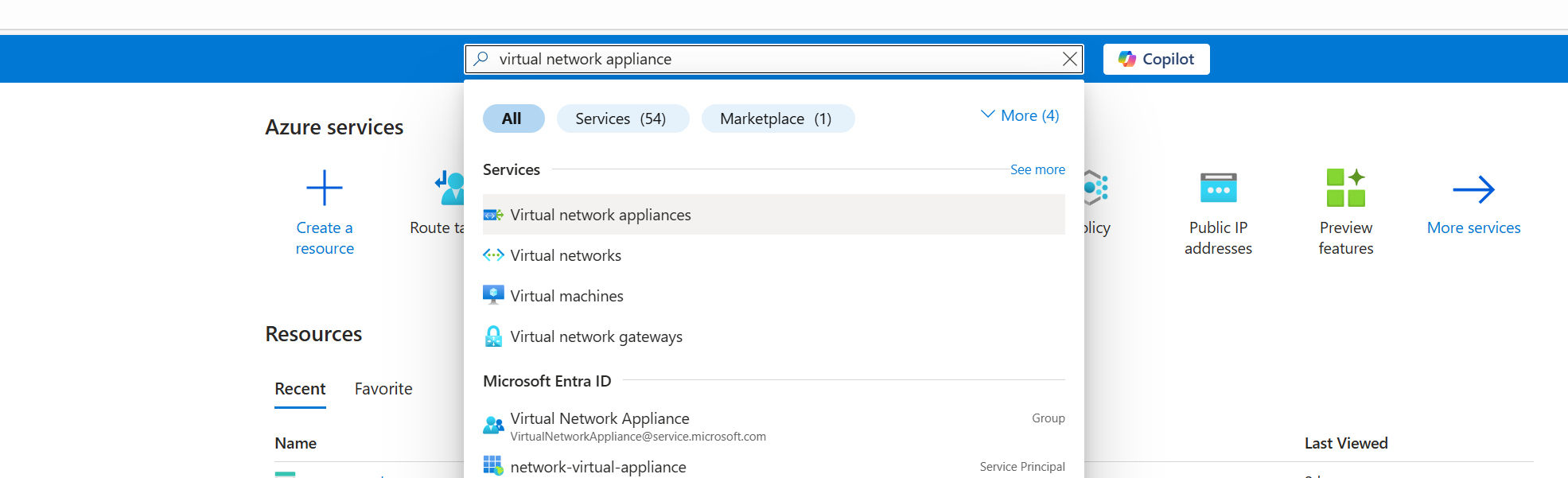
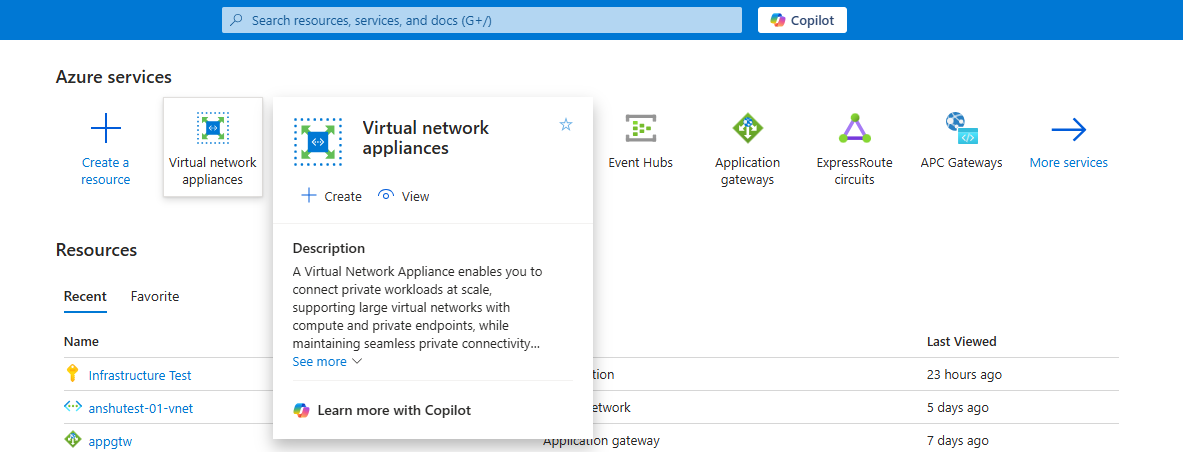
After Microsoft authorizes your subscription, search for routing appliance in the Azure portal's search box. If the feature is enabled, Azure Virtual Network routing appliances appears as a selectable service entry.
Create a resource group
Sign in to the Azure preview portal.
In the search box, enter resource group. In the search results, select Resource groups.
Select + Create.
In Create a resource group, enter or select the following information:
Setting Value Subscription Select your subscription. Resource group name Enter test-rg. Region Select (US) East US. Select Review + create.
Select Create.
Create a virtual network
In the portal's search box, enter virtual network. In the search results, select Virtual networks.
Select + Create.
In Create virtual network, enter or select the following information:
Setting Value Project details Subscription Select your subscription. Resource group Select test-rg. Instance details Virtual network name Enter vnet-1. Region Select (US) East US. Select Next.
Select Next.
In IP addresses, select the default subnet.
In Edit subnet, for Name, enter VirtualNetworkApplianceSubnet.
Select Save.
Select Review + Create.
Select Create.
Create a routing appliance
In the portal's search box, enter routing appliance. In the search results, select Azure Virtual Network routing appliances.
Select + Create.
In Create an Azure Virtual Network routing appliance, enter or select the following information on the Basics tab:
Setting Value Project details Subscription Select your subscription. Resource group Select test-rg. Instance details Name Enter vnet-appliance. Region Select East US. Capacity Select 50 Gbps. Virtual Network Select vnet-1. Select Review + create.
Select Create.
The portal creates the routing appliance in a dedicated subnet named VirtualNetworkApplianceSubnet. If you create multiple appliance instances, you create them in the same dedicated subnet.
Optional: During creation, you can choose a network security group (NSG) and route table for the routing appliance's dedicated subnet.
Troubleshoot
Creation fails because the subscription isn't enabled
If an error indicates that your subscription isn't enabled or placed in an allow list, it typically means your AFEC registration isn't yet approved for Microsoft.network/AllowVirtualNetworkAppliance. Register via AFEC and wait for approval.
Appliance isn't getting traffic as expected
- Verify that NSGs and route tables attached to the appliance instance (or to the hosting subnet) match your intended routing and security configuration.
- Use NSG flow logs (if they're enabled in your environment) to help validate connectivity and rule matches.