Note
Access to this page requires authorization. You can try signing in or changing directories.
Access to this page requires authorization. You can try changing directories.
Advanced hunting queries can be shared with users in your organization. You can also save queries that only you can access. Community queries shared on GitHub are available too. These saved queries help you quickly start hunting for threats without writing queries from scratch.
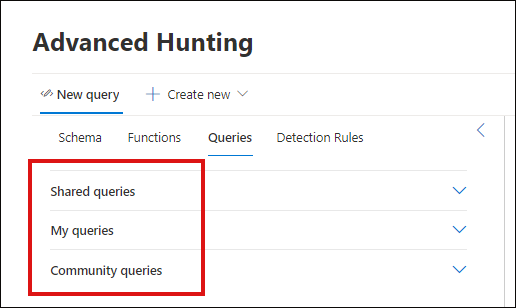
The Queries tab in advanced hunting has drop-down menus for Shared queries, My queries, and Community queries. Select an arrow to expand a menu.
Save, modify, and share a query
You can save a new or existing query so that it is only accessible to you or shared with other users in your organization.
Create or modify a query.
Click the Save query drop-down button and select Save as.
Enter a name for the query.
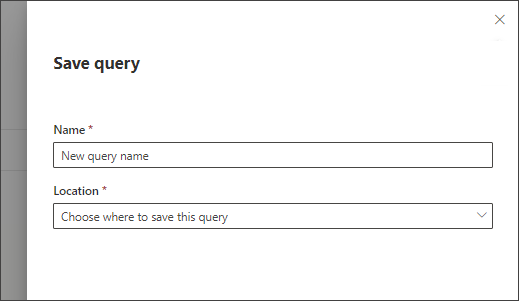
Select the folder where you'd like to save the query.
- Shared queries — shared to all users your organization
- My queries — accessible only to you
Select Save.
Delete or rename a query
To rename a saved query or delete one you no longer need, follow these steps:
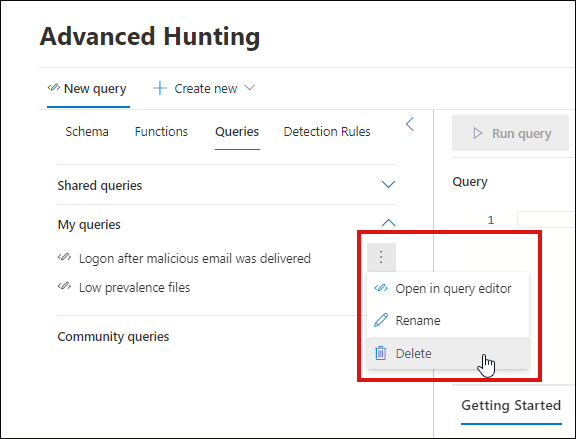
Find the query you want to change. Select the three dots to its right.
Caution
Deleting a query removes it permanently. If you want to keep the query, rename it instead.
- To remove the query, select Delete and confirm. To change its name, select Rename and enter a new name.
Create a direct link to a query
To generate a link that opens your query directly in the advanced hunting query editor, finalize your query and select Share link.
Access community queries in the GitHub repo
Microsoft security researchers share advanced hunting queries in a public GitHub repository. All contributions are reviewed before they're published. To contribute, join GitHub for free.
You can easily find these queries in the Community queries drop-down menu as well.
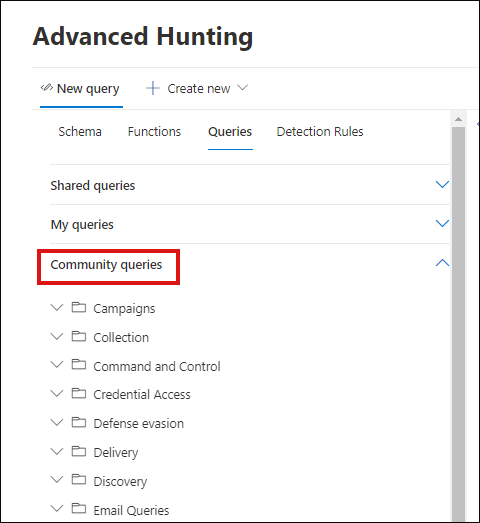
Community queries are grouped into folders such as Campaigns, Collection, and Defense evasion. Each query includes in-line comments with more details.
Tip
Microsoft security researchers also provide advanced hunting queries that you can use to locate activities and indicators associated with emerging threats. These queries are provided as part of the threat analytics reports in the Defender portal.
Related content
- Advanced hunting overview
- Learn the query language
- Work with query results
- Hunt across devices, emails, apps, and identities
- Understand the schema
- Understand the schema
- Apply query best practices
Tip
Do you want to learn more? Engage with the Microsoft Security community in our Tech Community: Microsoft Defender XDR Tech Community.