Note
Access to this page requires authorization. You can try signing in or changing directories.
Access to this page requires authorization. You can try changing directories.
Applies to these Dynamics 365 apps:
Human Resources
Note
To mark an employee as ready to pay, first enable the (Preview) payroll integration functionality in feature management. For more information about enabling preview features, see Manage features.
This feature helps human resources professionals understand which employees are ready for payroll processing and which employees require action before a third-party payroll provider consumes their information.
Mark employee as ready to pay
Gathering and validating employee information can be time-consuming and error prone. By providing a way for human resources professionals to review and easily update employee information, Dynamics 365 Human Resources helps reduce the time spent getting ready to process payroll.
To mark an employee as ready to pay:
Open Compensation management. The workspace has two tiles:
- Employees ready to pay
- Employees not ready to pay
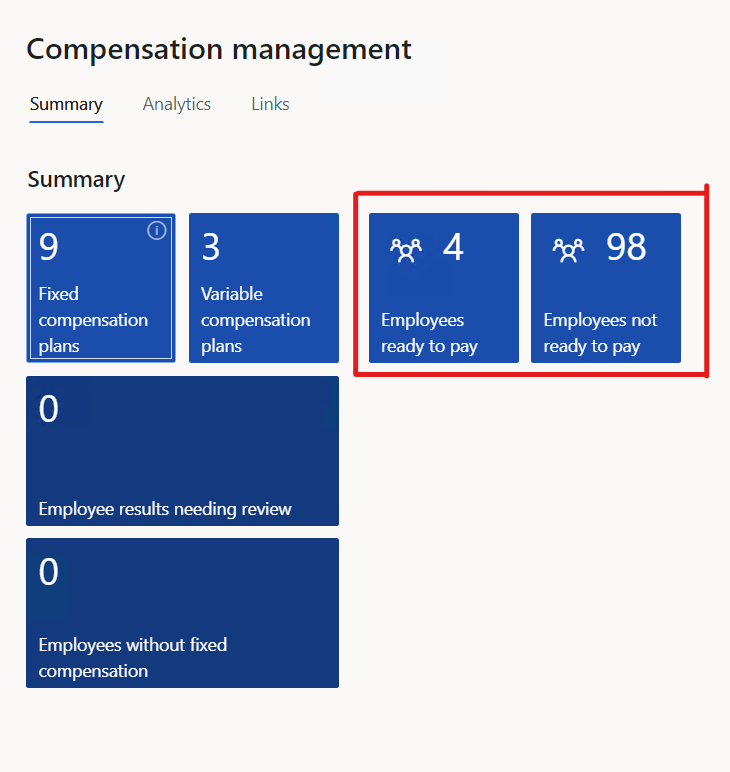
Select the Employees not ready to pay tile.
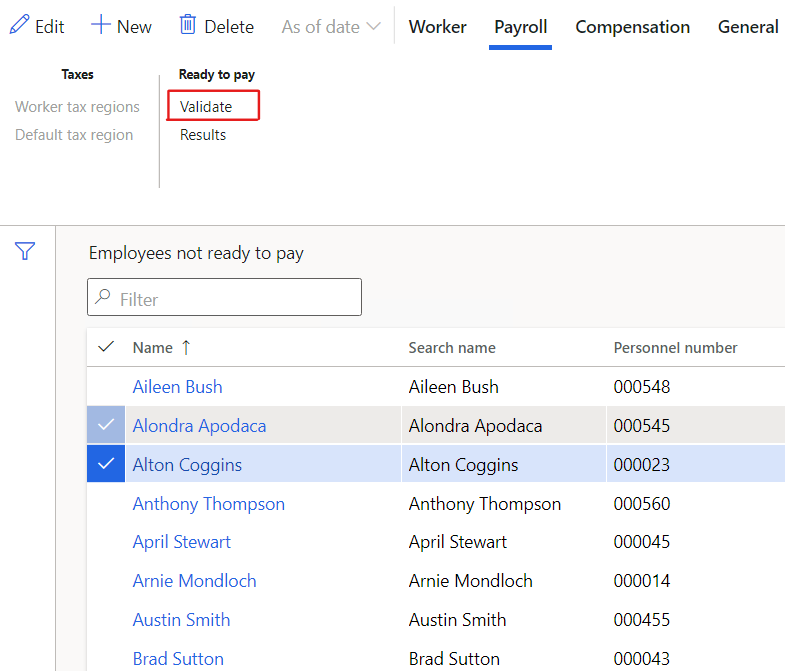
Select the employees to validate. On the Payroll tab, in the Ready to pay group, select Validate.
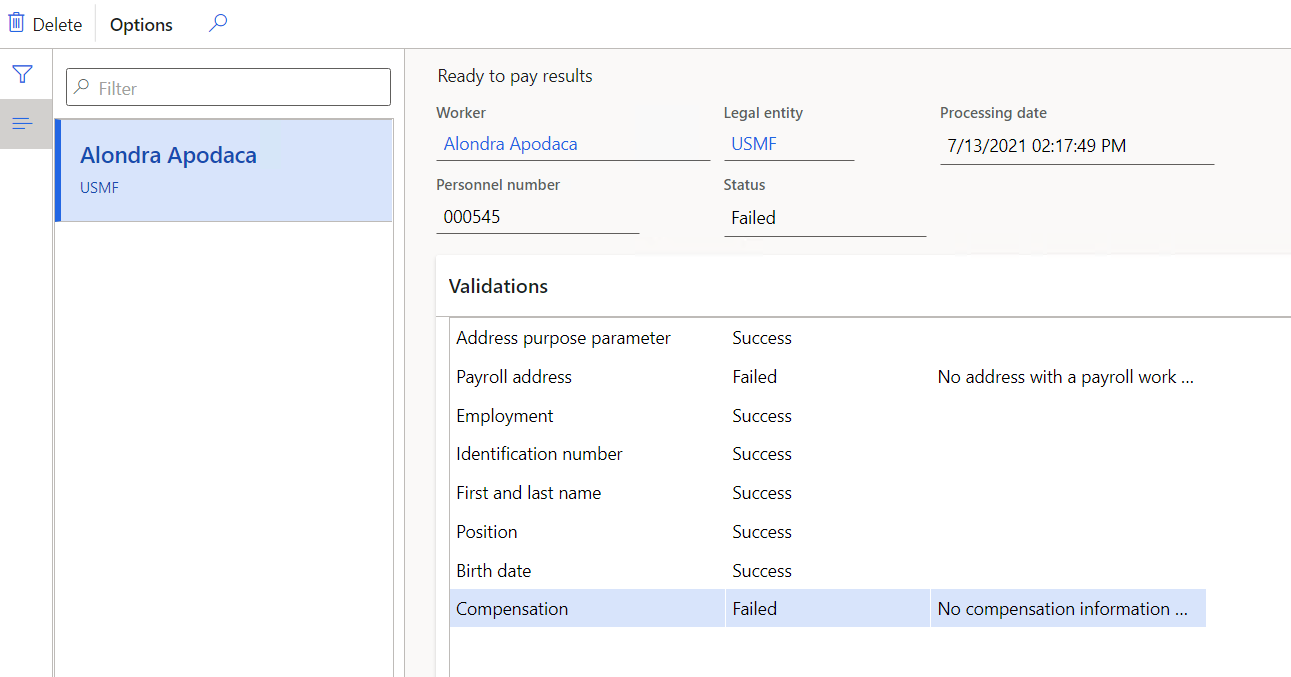
To review the results, on the Payroll tab, in the Ready to pay group, select Results.
Validation
Before you mark an employee as ready to pay, validate the employee's profile for completeness.
| Validation | Details |
|---|---|
| Address purpose parameter | Confirms the Use payroll addresses purpose parameter is selected. |
| Payroll address | Confirms the worker profile has at least one address with the purpose Payroll residency location or Payroll work location, and there's only one address per purpose. |
| Employment | Confirms the worker has at least one employment (current, previous, or future). |
| Identification number | Confirms the Use identification types in payroll processing field is Yes on the Human resources parameters page, and if the identification type indicated in the parameter is filled in the worker profile. |
| First and last name | Confirms the fields Name and Last name are filled in. |
| Position | Confirms the worker has a position assigned. |
| Birth date | Confirms the Birthday field is filled in. |
| Compensation | Confirms the worker is enrolled in a fixed compensation plan. |
If one of these validations fails, you can't mark the employee as ready to pay.
If the Ready to pay field is No, this condition indicates that you must perform an action to ensure the worker profile is complete. This condition doesn't stop the data from being exposed in any data entity.
Process Automation
You can automate the validation of all employees by using Process Automation. In the Compensation management workspace, go to Links > Parameters > Process Automations.